
Corrupted or Black Render Output: Recovering and Preventing It
Your render finishes without an error, but the output is completely black or refuses to open. A corrupted or black render output does not always mean the render itself failed. The file may be damaged, the image may be valid but rendered black, or only certain frames or regions may be affected. This guide shows you how to tell the difference, recover what you can, and prevent the problem from happening again.
Why did my render come out black or corrupted?
A corrupted or black render output usually falls into three different cases: the file is damaged and cannot be opened, the file opens but the entire image is black, or only part of the image or sequence is affected. Each points to a different group of causes, so identify which case you have before trying to fix it.
First, check it is really broken
A black image is not always a corrupted file. Multilayer or multipart EXR files can contain multiple channels or parts, and not every viewer handles them in the same way. If an EXR looks black or incomplete, open it in software with proper EXR support before assuming the file is corrupted.
Also check the file size. A 0-byte or unusually small file can indicate that the output was not written completely.
Recovering what you can
For an image sequence, identify the damaged or missing frames and re-render only those frames. There is no need to restart the entire sequence.
For a partially corrupted file, recover any readable data first, then re-render the missing part. Also check the application’s temporary or autosave folders for usable copies before starting over.
When the image opens but is completely black
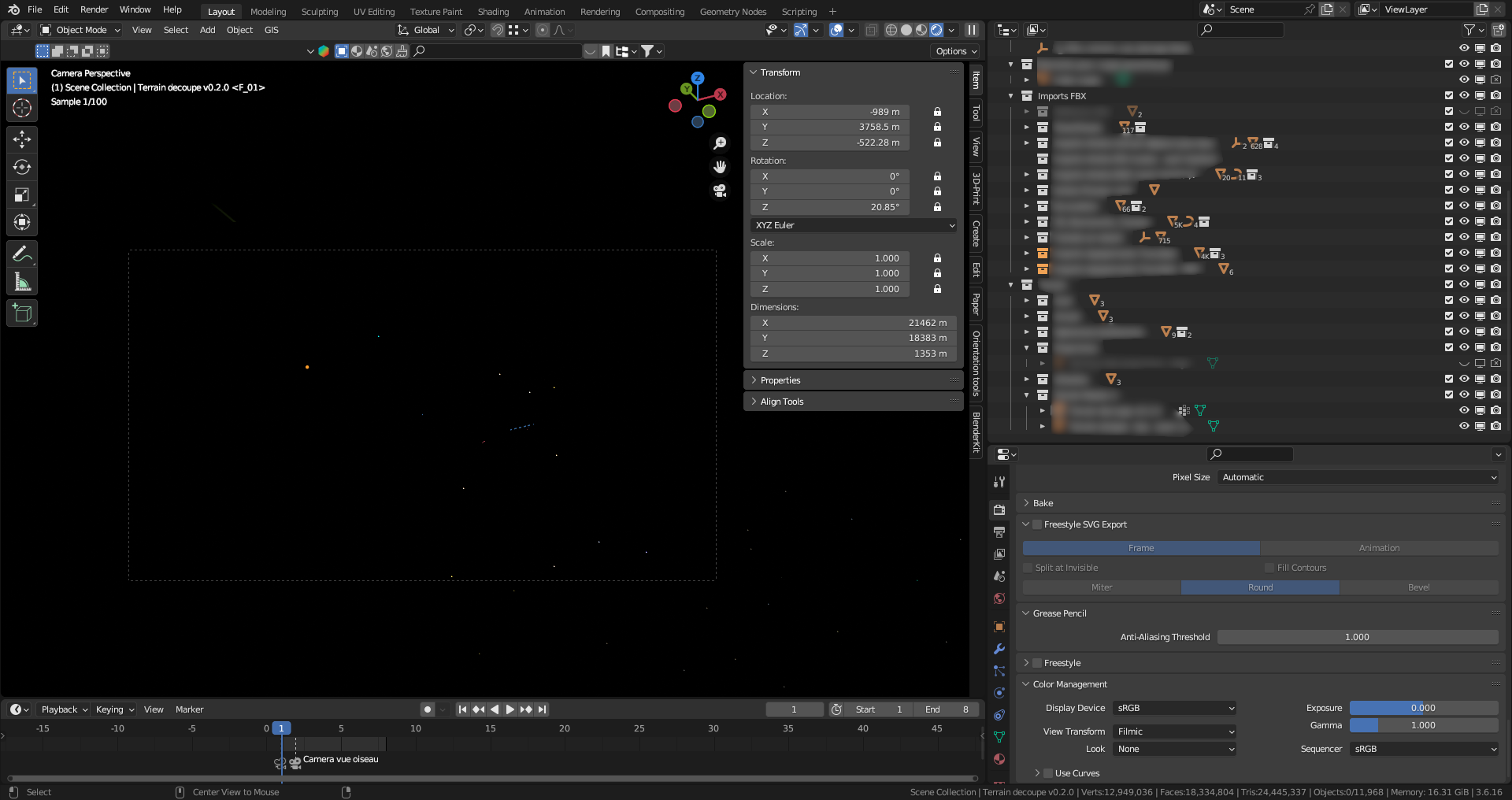
If the file opens normally but the image is black, check the scene and output settings before assuming the file is corrupted. Possible causes include:
- Camera: Confirm the correct camera is active and positioned as expected.
- Render visibility: Check whether required objects, layers, or collections are excluded from rendering.
- Lighting: Make sure the scene has the lights or environment needed for the selected renderer.
- Alpha and output: If you use a transparent background, verify that the file format and viewer handle alpha correctly.
Render a small test frame after each change to isolate the cause.
Preventing it next time
A few habits can reduce the risk of losing a long render:
- Write locally first: Save frames to a local drive, then copy them to network storage after they are complete.
- Render image sequences: For animations, use PNG, TIFF, EXR, or another suitable image sequence instead of rendering directly to a video file.
- Check free disk space: Make sure there is enough storage for the entire sequence before starting.
- Prevent interruptions: Disable sleep and avoid automatic restarts during long jobs.
- Test first: Render a few representative frames and open the outputs before committing to the full sequence.
Quick guide: symptoms, possible causes, and what to do
| What you see | Possible cause | What to do |
| File will not open or has an unusual file size | File writing was interrupted or storage ran out | Re-render the affected frame, write locally first, and check free disk space |
| File opens but the image is completely black | Wrong camera, render visibility, lighting, or output settings | Check the active camera, render visibility, lighting, and output settings |
| Only part of the image or sequence is black | A frame or render region failed | Check the render log and re-render only the affected frames or region |
| Multilayer EXR appears black | Viewer may not be displaying the correct layer or channel | Open it in software with proper multilayer EXR support before assuming corruption |
| Transparent background appears black | Viewer or output format may not handle alpha as expected | Check the alpha channel, viewer support, and output format |
If corrupted frames have cost you hours of rendering and the deadline is close, re-render speed becomes the priority. Instead of lowering quality just to finish on time, you can move the remaining frames to a more powerful local or remote machine.
Use iRender when you need to re-render fast
iRender cannot recover a frame that is already corrupted, so fix the underlying problem before re-rendering. Where it can help is recovering lost render time: a remote RTX 4090 with 24GB VRAM can handle demanding GPU re-renders, while the datacenter environment reduces interruptions from local sleep, restarts, or power issues. Because you have full control over the remote machine, you can also access project files, logs, and outputs directly to troubleshoot and recover what is still usable if a render fails.
Available configurations include:
- CPU: AMD Ryzen™ Threadripper™ PRO 3955WX (3.9-4.2GHz) and AMD Ryzen™ Threadripper™ PRO 5975WX (3.6-4.5GHz)
- GPU: 1/2/4/6/8 RTX 4090/5090
For new users, iRender currently offers a 100% bonus on the first deposit within 24 hrs of registration, giving you additional rendering credits to get started with larger projects.
Maximum Speed – Absolute Freedom
Source: openexr.com, docs.blender.org

Let’s see rendering performance on our servers:


FAQ
1. Why is my rendered image completely black?
A black render does not always mean the file is corrupted. Check the active camera, render visibility, lighting, output settings, and alpha channel first.
2. Can I recover a corrupted render file?
Usually, a file that was incompletely written cannot be fully recovered. For an image sequence, keep the valid frames and re-render only the damaged or missing ones.
3. How do I stop renders from getting corrupted?
Write renders to a local drive first, check free disk space, prevent sleep or automatic restarts, and use an image sequence for animations. Test a few frames before starting the full job.
Related Posts
The latest creative news from Cinema 4D Cloud Rendering , Blender Cloud Rendering, Redshift Cloud Rendering, Houdini Cloud Rendering , Octane Cloud Rendering, 3D VFX Plugins & Cloud Rendering.





