
Out of Memory, Crash or Hang: Reading Your Render Error Correctly
An error out of memory, a sudden crash, and a frozen render can look similar, but they point to different problems. Fixing the wrong one often means wasting time on settings that have nothing to do with the real cause. This guide shows you how to tell them apart, find the right evidence in logs and system tools, and choose the next step based on what actually failed.
Out of memory, crash, hang: which one are you actually seeing?
An error out of memory usually appears when the renderer cannot allocate enough VRAM or system RAM. A crash means the application or render process unexpectedly exits, while a hang means it stays open but stops responding or appears frozen.
These symptoms may look similar during a render, but they require different troubleshooting. The first step is identifying which one actually happened.
How to tell them apart in thirty seconds
Start with four quick checks:
- Is the application still in Task Manager? If the process has disappeared, it likely crashed.
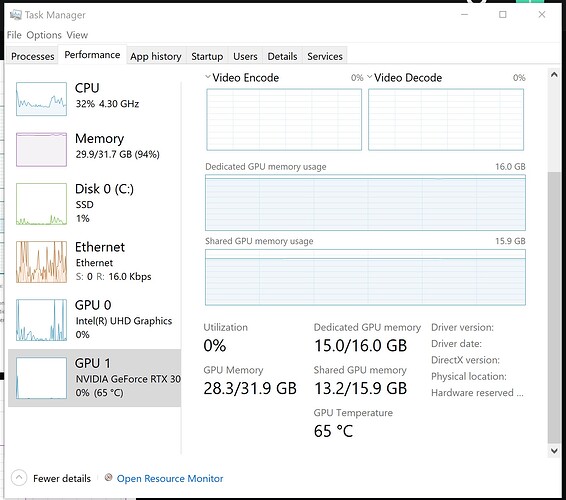
- Are CPU or GPU resources still active? High or changing usage can mean the render is still working, even if the interface looks frozen.
- Did the screen flicker or the graphics driver recover? That can point to a Windows TDR event.
- Does the renderer log show a memory or other specific error? An explicit out-of-memory message is stronger evidence than guessing from the frozen screen alone.
These checks quickly narrow down whether you are dealing with a memory limit, a crash, or an apparent hang.
Where the evidence actually lives
Before changing settings, collect evidence from the places that record what happened. The goal is to find a specific error or resource limit instead of diagnosing the problem from symptoms alone.
- Renderer logs and the application console: Look for memory allocation errors, device errors, or the last operation before the failure.
- Task Manager: Check RAM, GPU memory, CPU, and GPU activity while the problem occurs.
- Windows Event Viewer: Look for application, driver, or system events recorded around the crash time.
- Command-line output: When supported by the application, launching the render from a terminal can preserve error messages after the graphical interface closes.
Out of memory needs a different fix than a crash
An error out of memory can involve either VRAM or system RAM, depending on where the renderer stores the data it needs. A GPU renderer may hit its VRAM limit, while CPU rendering, simulations, or out-of-core workflows can put more pressure on system RAM.
Adding another GPU does not automatically solve a VRAM problem. In many multi-GPU renderers, memory is not simply pooled across cards, so the scene may still need to fit within the usable VRAM available to each GPU.
A hang is not always a hang
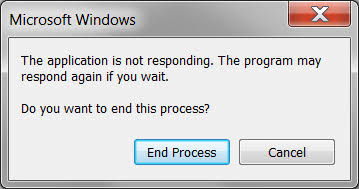
A frozen interface does not always mean the renderer has stopped. Some long GPU or CPU tasks may prevent the application from updating its interface while the render is still running.
Check Task Manager first. If CPU or GPU activity is still high or changing, give the task more time. If resource activity stays near idle and the application remains unresponsive for an extended period, the process is more likely to be genuinely stuck.
Turning the diagnosis into an action
Once you identify the failure type, use the evidence to choose the right next step:
| Symptom | Likely issue | Where to check | Next step |
| Application exits with an out-of-memory message | Memory limit | Task Manager, renderer log | Identify whether VRAM or RAM is exhausted, then reduce memory use |
| Application suddenly disappears without a memory error | Application crash | Application log, Event Viewer | Check drivers, plugins, and crash logs |
| Interface freezes but CPU/GPU activity remains high | Render may still be working | Task Manager | Wait or split the workload into smaller jobs |
| Interface freezes and resource activity stays low | Possible hang | Application log, Task Manager | Investigate the stalled process before restarting |
| Screen flickers and the graphics driver recovers | Possible Windows TDR | Event Viewer | Check the GPU workload and driver first, then follow Microsoft TDR guidance if needed |
If the diagnosis shows that the scene simply exceeds your local hardware, moving the final render to a more capable machine may be the next practical step.
Use iRender when your local hardware is the limit
Once you have confirmed that the problem is a hardware limit, iRender can give the same scene more resources without changing your local workstation. A remote RTX 4090 with 24GB VRAM and 256GB RAM provides more headroom for memory-heavy renders, while full machine access lets you install the same software, plugins, and versions used in your project.
Available configurations include:
- CPU: AMD Ryzen™ Threadripper™ PRO 3955WX (3.9-4.2GHz) and AMD Ryzen™ Threadripper™ PRO 5975WX (3.6-4.5GHz)
- GPU: 1/2/4/6/8 RTX 4090/5090
For new users, iRender currently offers a 100% bonus on the first deposit within 24 hrs of registration, giving you additional rendering credits to get started with larger projects.
Your Renders, Your Rules
Source: learn.microsoft.com, projects.blender.org, docs.blender.org

Let’s see rendering performance on our servers:


FAQ
1. What is the difference between a render crash and a hang?
A crash means the render process unexpectedly exits. A hang means the process is still running but appears unresponsive. Check Task Manager first, as high or changing CPU/GPU activity may mean the renderer is still working.
2. How do I know if my render failed from running out of memory?
Check VRAM and RAM usage in Task Manager and look for an out-of-memory or memory allocation error in the renderer log. Then identify whether VRAM or system RAM reached its limit before choosing a fix.
3. Where can I find render error logs?
Start with the renderer log and the application’s console. For Windows system or driver events, check Event Viewer. When supported, running the application from a command line can also preserve error output after the application closes.
Related Posts
The latest creative news from Redshift Cloud Rendering, Cinema 4D Cloud Rendering , 3D VFX Plugins & Cloud Rendering.





