
Twinmotion 4K Exports Take Forever: Faster Rendering Paths
A 4K Twinmotion video that takes only seconds to preview can take hours to export with Path Tracer enabled. If your Twinmotion 4K export is slow, the problem may be more than resolution alone: render mode, samples, denoising, scene complexity, and GPU performance all affect the final time. In this guide, we’ll look at why 4K exports become so demanding, how to choose between Standard, Lumen, and Path Tracer, and where you can speed things up without sacrificing the quality your project actually needs.
Why do Twinmotion 4K exports take so long?
A 4K frame has 3840 × 2160 pixels, about four times as many as 1080p, so Twinmotion has much more image data to process. Export time also depends heavily on the render mode. Standard and Lumen run in real time, while Path Tracer progressively accumulates samples and denoises the result, making it much more demanding for high-resolution output.
So, when a Twinmotion 4K export is slow, check the render mode first. Using Path Tracer when Standard or Lumen already provides the quality you need can add unnecessary export time.
Standard, Lumen, or Path Tracer: pick the right export path
Choosing the right render mode can save more time than simply lowering resolution or quality settings.
- Standard: The fastest option, suitable for previews and many presentation videos where real-time rendering is enough
- Lumen: Adds dynamic global illumination and reflections for more realistic lighting while remaining a real-time rendering solution. It offers a good balance between visual quality and export speed
- Path Tracer: Produces more physically accurate lighting by progressively accumulating samples, but requires much more computation. It is better suited to high-quality stills or selected shots where that extra visual fidelity matters
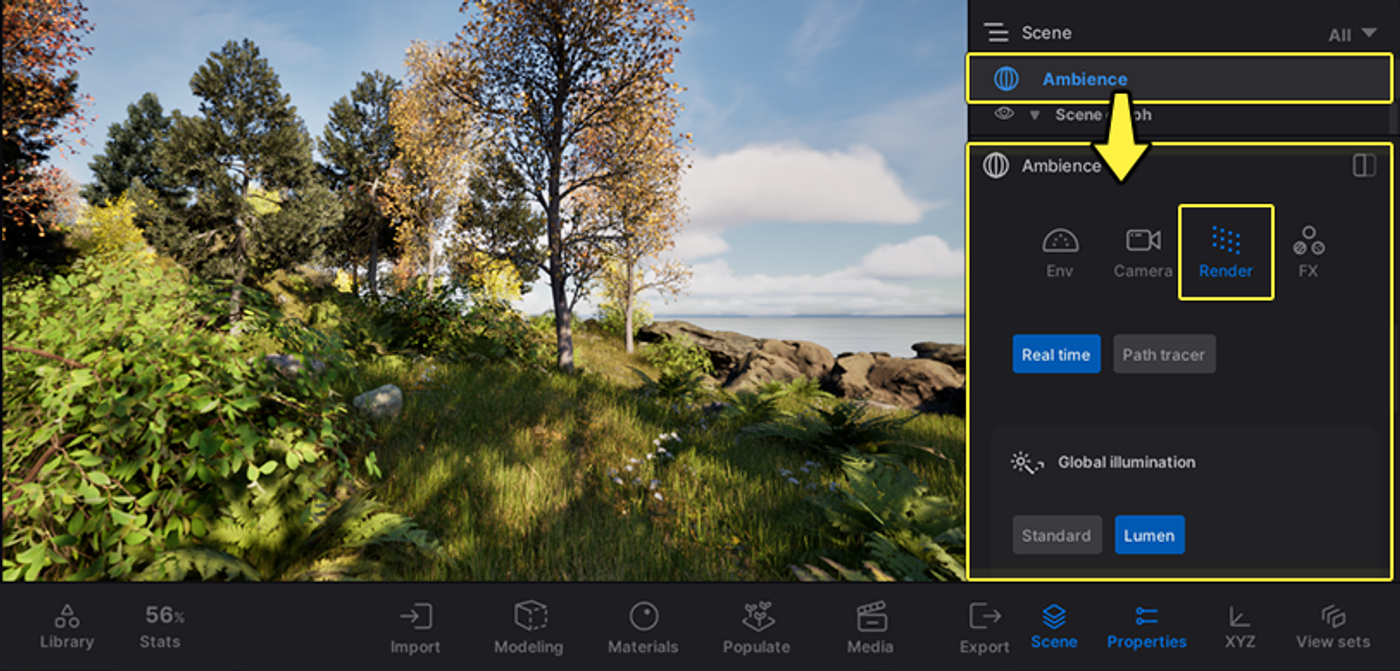
For a long animation, you don’t necessarily need Path Tracer for every frame. Using Standard or Lumen for most of the video and reserving Path Tracer for a few important shots can keep export times manageable without giving up high-quality visuals where they matter most.
Scene settings that quietly slow your export
Even with the right render mode, a heavy scene can make a Twinmotion 4K export slow. Common causes include dense vegetation, many reflective surfaces, high-resolution textures, and high sample counts in Path Tracer. Each adds more work or memory demand during export.
Before rendering, remove or hide assets outside the camera view, reduce unnecessary texture resolution, and avoid pushing sample counts higher than the image actually needs. For Path Tracer, use denoising to clean residual noise rather than relying only on more samples.
The multi-GPU detail most people get wrong
Multi-GPU acceleration in Twinmotion applies to Path Tracer, not the real-time Standard or Lumen modes. Epic states that supported NVIDIA multi-GPU setups can improve Path Tracer performance by around 50% to 200%, although the actual gain depends on the GPUs, bandwidth, and system configuration.
There is an important limitation: Twinmotion currently uses NVIDIA SLI technology for multi-GPU rendering, and some GPU generations may require an NVLink or SLI bridge. So adding more GPUs does not automatically mean Twinmotion can use them together. Always check whether your specific GPU configuration supports Twinmotion’s multi-GPU setup before relying on it for faster exports.
When your machine is simply the limit
If you have already optimized the scene and your 4K export still runs overnight, your local GPU may simply be the bottleneck. At that point, moving the project to a more powerful workstation or a remote GPU server can be more practical than cutting visual quality further.
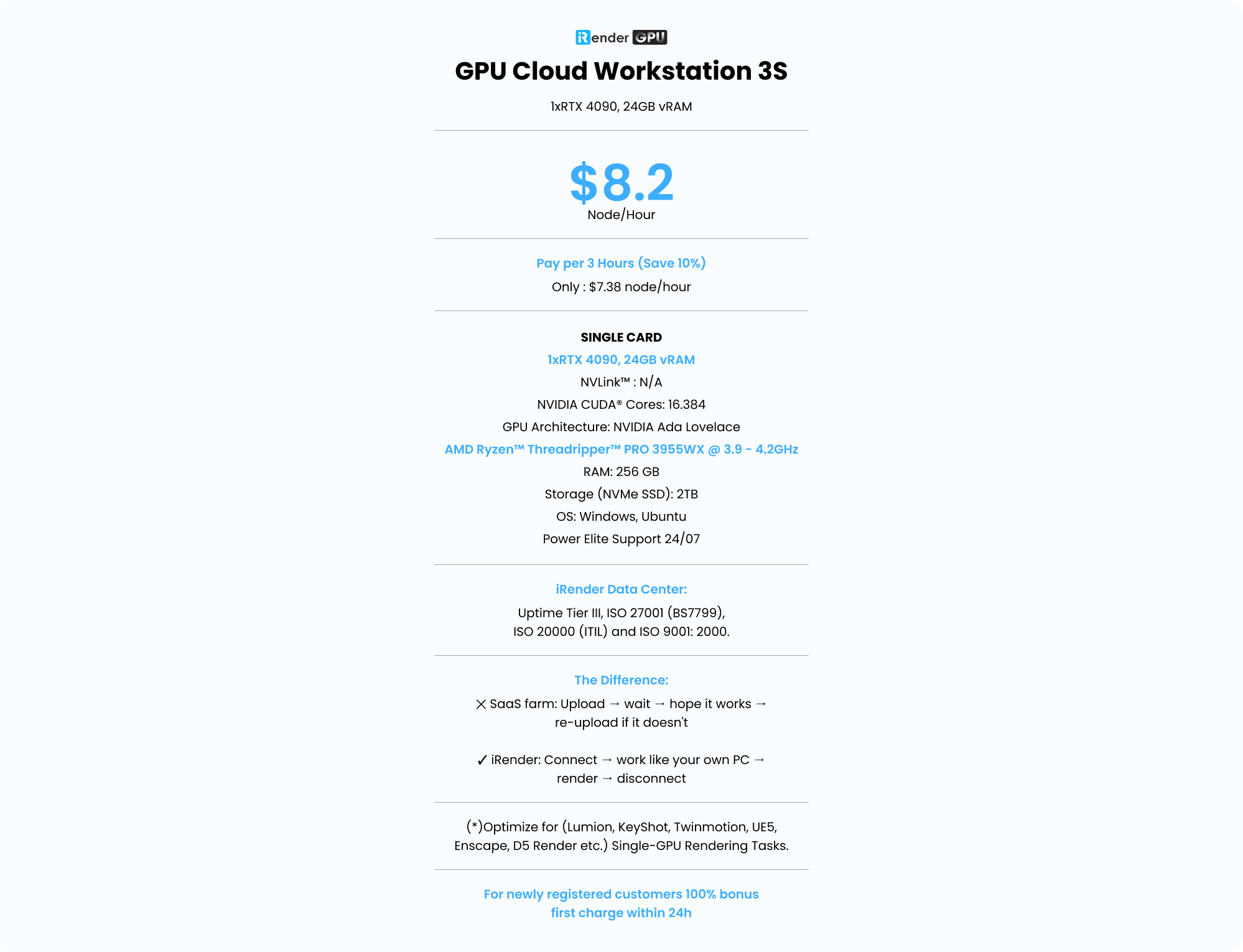
For Path Tracer workloads, iRender provides remote servers with RTX 4090 GPUs, 24GB VRAM per GPU, and 256GB RAM, giving heavy Twinmotion scenes more GPU power and memory to work with. For Standard or Lumen, however, adding more GPUs does not provide the same multi-GPU acceleration, so there is little reason to pay for extra cards solely for these real-time modes.
iRender - Powerful GPU Cloud Workstation
iRender provides dedicated remote GPU servers for demanding Twinmotion projects, giving you full control over the machine just like your own workstation. You can install Twinmotion, manage your project files, and use powerful RTX GPUs when your local hardware becomes the bottleneck.
For 4K exports and Path Tracer workloads, iRender offers high-performance GPU workstations that can help handle complex scenes without forcing you to reduce the visual quality your project requires.
Here is the most suitable package for Twinmotion projects:
For new users, iRender currently offers a 100% bonus on the first deposit within 24 hrs of registration, giving you additional rendering credits to get started with larger projects.
Your Renders, Your Rules
Source: dev.epicgames.com
FAQ
1. Why is my Twinmotion 4K export so slow?
A 4K frame has about four times as many pixels as 1080p. If you use Path Tracer, Twinmotion also needs to accumulate samples and denoise each frame, which can make exports much slower than Standard or Lumen.
2. Does Twinmotion use multiple GPUs?
Yes, but multi-GPU acceleration applies to Path Tracer, not Standard or Lumen. Epic states that a supported multi-GPU setup can improve Path Tracer performance by around 50% to 200%, depending on the hardware and system configuration.
3. How do I speed up Twinmotion exports without losing quality?
Use Standard or Lumen for shots that do not need Path Tracer, reserve Path Tracer for high-quality stills or important shots, and avoid unnecessarily high samples or texture resolutions. If your GPU is the bottleneck, moving the final export to more powerful hardware can also help.
Related Posts
The latest creative news from V-Ray Cloud Rendering , Twinmotion Cloud Rendering , 3D VFX Plugins & Cloud Rendering.





