Unreal Engine Real-Time Rendering Needs More GPU Than You Have
You enable Nanite, turn on Lumen, import a few high-resolution Megascans assets, and suddenly your viewport becomes less responsive. Shader compilation takes longer, VRAM usage climbs rapidly, and in some cases, importing or building a project may even fail because your GPU runs out of memory. This is a common experience with Unreal Engine 5, as its modern rendering features demand much more graphics power than previous versions. Understanding Unreal Engine real-time GPU requirements helps you identify the real bottlenecks instead of lowering settings blindly or buying hardware that may not solve the problem. In this article, you’ll learn why UE5 places such heavy demands on your GPU, how to optimize your workflow, and why a powerful remote RTX 4090 workstation can be a practical solution when your local PC reaches its limits.
Why Does Unreal Engine 5 Need Such a Strong GPU?
Unreal Engine will need a strong GPU because of high demand from features like Nanite, Lumen and ray tracing/path tracing.
Nanite is one of Unreal Engine 5’s biggest innovations. It uses virtualized geometry to stream and render extremely detailed models without requiring artists to create multiple levels of detail manually. Instead of displaying every triangle at once, Nanite continuously determines which parts of the mesh are needed for the current camera view. Although this greatly improves visual quality, the GPU must process and stream millions of triangles in real time. Large environments with high-quality assets therefore benefit from a powerful graphics card and fast SSD.
Lumen is Unreal Engine 5’s dynamic global illumination and reflection system. Unlike traditional baked lighting, Lumen updates indirect lighting and reflections continuously as your scene changes. Every frame requires additional GPU calculations to produce realistic lighting, shadows, and reflections. As scenes become more detailed and lighting becomes more complex, GPU usage and VRAM consumption increase accordingly. Projects using high-resolution Megascans assets or large open worlds can quickly push mid-range GPUs to their limits.
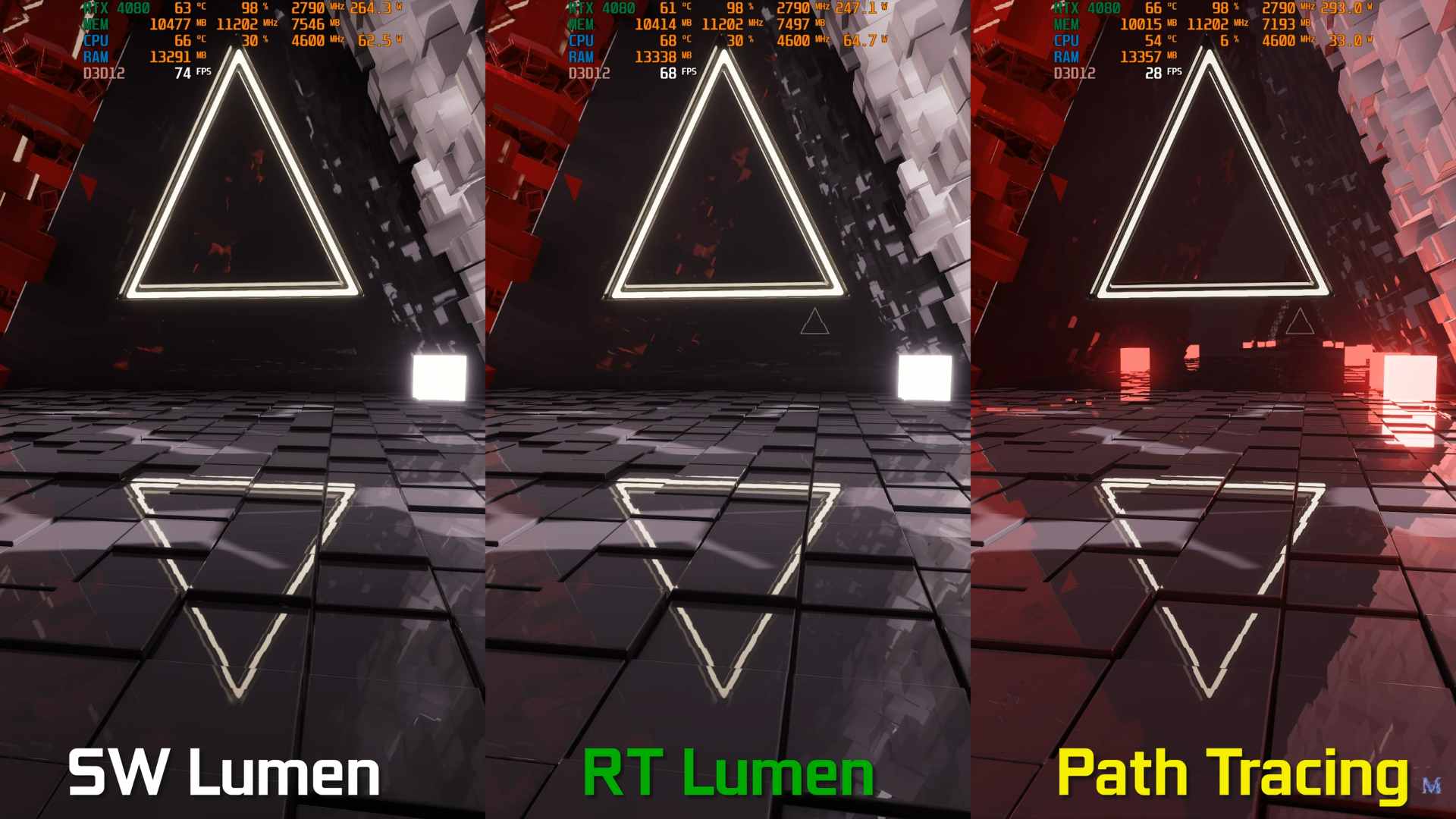
Hardware ray tracing adds another layer of realism by accurately calculating reflections, shadows, and global illumination using dedicated RT cores on RTX GPUs. While the results are visually impressive, ray tracing significantly increases GPU workload because millions of rays must be traced every frame. Unreal Engine’s Path Tracer has also seen changing multi-GPU support over different releases, and Epic has not consistently confirmed multi-GPU workflows. Since RTX 40-series cards no longer support NVLink, using one powerful RTX GPU is generally a more practical choice for real-time Unreal Engine development than combining multiple mid-range cards.
The Symptoms of a GPU That Cannot Keep Up
When your GPU struggles with Unreal Engine 5, the warning signs are usually easy to recognize. The viewport may become choppy, shader compilation takes much longer, importing large assets or building lighting can fail, and VRAM usage reaches its limit. Understanding Unreal Engine real-time GPU requirements helps you identify whether these problems are caused by insufficient graphics power or limited video memory, allowing you to optimize your project or move it to a more capable RTX workstation.
Settings Before Hardware
A hardware upgrade is not always the first solution when Unreal Engine starts slowing down. Before spending money on a new GPU, I recommend reviewing your project settings and optimizing the scene. In many cases, a few adjustments can improve performance enough to keep your workflow smooth.
Start by checking the Engine Scalability Settings. Reducing View Distance, Shadows, Effects, or Global Illumination while editing can make the viewport much more responsive. If your project does not require the highest visual quality during development, these settings provide a noticeable performance boost. You can also compare Lumen Software Ray Tracing and Hardware Ray Tracing. Depending on your scene and GPU, the software mode may offer a better balance between image quality and performance.
Another area to review is your assets. Large Megascans textures, oversized materials, and extremely detailed meshes consume VRAM quickly. Using lower-resolution textures or lighter preview assets during development helps reduce GPU memory usage. Once the project is ready for final output, you can restore the highest quality settings. Optimizing your project first often saves both time and money before considering new hardware.
One Strong GPU Beats Two Mid-Range Cards
For most Unreal Engine workflows, a single powerful GPU delivers better results than two mid-range graphics cards. Unreal Engine is designed primarily as a real-time application, so the editor and viewport rely on one GPU for rendering. While multi-GPU path tracing has existed in some configurations, support has not remained consistent across Unreal Engine releases.
In addition, combining GPUs for path tracing requires NVLink, which is available only on older graphics cards such as the RTX 3090 and RTX 2080 Ti. RTX 40-series GPUs, including the RTX 4090, no longer support NVLink. As a result, investing in one fast GPU with plenty of VRAM is generally a more reliable and practical choice for Unreal Engine development than using multiple mid-range cards.
Running Unreal on a Remote GPU
Unlike offline rendering software, Unreal Engine is a real-time application that requires direct access to a desktop GPU. Most SaaS render farms cannot run it because they are designed for batch rendering instead of interactive workflows. Services that provide dedicated remote desktop workstations, such as iRender, allow you to use Unreal Engine as if you were sitting in front of a local PC. Understanding Unreal Engine real-time GPU requirements also means choosing the right platform. Unreal Engine runs best on Windows, and Lumen Hardware Ray Tracing requires an RTX GPU with DXR support. If you’re using macOS and need hardware ray tracing, renting a Windows remote workstation is often the most practical solution.
Unreal Engine Errors and How to Fix
|
Problem |
Cause |
Solution |
| Viewport stuttering | Heavy Nanite and Lumen causing GPU slow loading | Lower Engine Scalability settings, use a more powerful single GPU |
| Crash during import or build | Insufficient VRAM | Reduce asset size, use a GPU with more VRAM |
| Slow shader compilation | Limited CPU/GPU performance | Use a multi-core CPU, a stronger GPU, and a fast SSD |
| Slow path tracing | Heavy ray tracing workload | Use one powerful GPU, as multi-GPU support is not consistently stable |
How iRender Handles Unreal Engine Projects
iRender is well suited for Unreal Engine because UE is a real-time application that needs a dedicated workstation with a physical GPU instead of a traditional batch rendering service. Since Unreal Engine primarily relies on a single powerful GPU, renting a machine with multiple GPUs will not make the editor or viewport run faster. A cloud workstation with an RTX 4090 provides the graphics performance and 24 GB of VRAM needed for demanding UE5 projects.
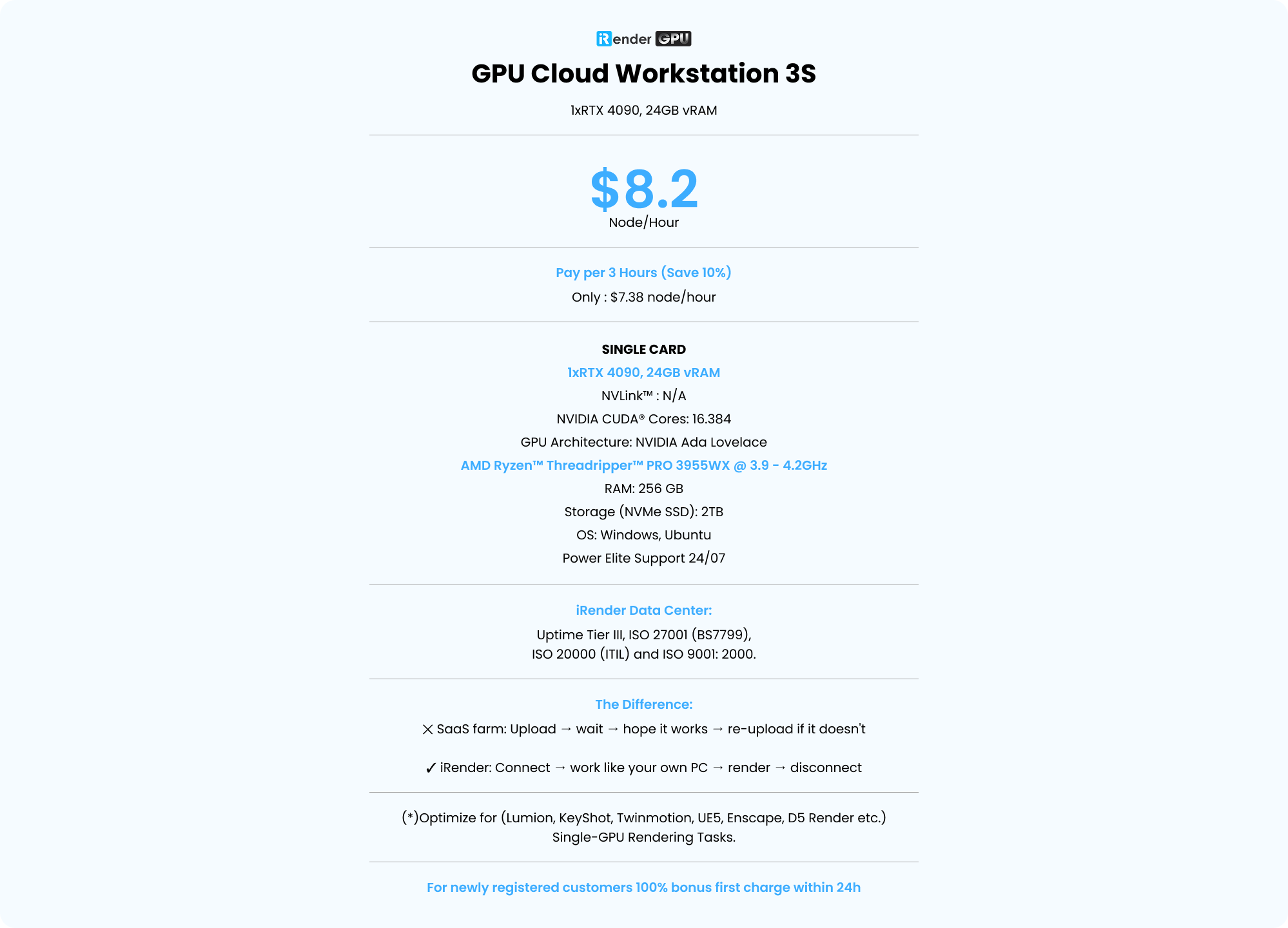
With GPU Server 3S, you can install your own Unreal Engine version, plugins, and project files, then work through Remote Desktop just like using your local PC. This gives you complete control over your workflow, making it easy to edit assets or respond to client feedback immediately. The workstation starts at $8.2/hour with no hidden fees. Since Unreal Engine mainly uses one GPU, running multiple single-GPU workstations in parallel is often more efficient than renting one multi-GPU machine.
Check out iRender workflow for Unreal Engine on RTX 4090:

FAQ
Q: What GPU do I need for Unreal Engine 5?
For most Unreal Engine 5 projects, one powerful RTX GPU with sufficient VRAM is the best choice. Features such as Nanite, Lumen, and hardware ray tracing place heavy demands on graphics memory and GPU performance. Understanding Unreal Engine real-time GPU requirements and following Epic Games’ recommended specifications will help you choose suitable hardware.
Q: Does Unreal Engine use multiple GPUs?
For real-time editing and rendering, Unreal Engine primarily uses a single GPU. Multi-GPU support has been available only for certain path tracing workflows and requires NVLink, which is not supported on RTX 40-series GPUs or later. As a result, one powerful GPU is generally the most practical solution for Unreal Engine development today.
Q: Can I run Unreal Engine on a cloud render farm?
It depends on the type of service. Traditional SaaS render farms process submitted jobs and return the results, so they cannot run Unreal Engine interactively. Unreal Engine requires a remote desktop with a dedicated physical GPU. Services such as iRender provide cloud workstations that let you install and run Unreal Engine just like on a local Windows PC.
Register an account on iRender to claim your 100% bonus for the first deposit and render without limitations.
iRender – Maximum Speed – Absolute Freedom