
How to Create Atmospheric Fog in Unreal Engine 5
Atmospheric fog plays a crucial role in creating mood, depth, and realism in real-time environments. In Unreal Engine 5 (UE5), fog is not just a visual effect; it is an essential tool for visualization and enhancing the sense of scale within a scene. Whether you are working on an open-world game, a cinematic sequence, or an architectural visualization, understanding how to create and control atmospheric fog can dramatically improve the visual quality of your project.
In this article today, iRender will explore how to create atmospheric fog in Unreal Engine 5.
Let’s dive in!
Understanding Fog in Unreal Engine 5
Unreal Engine 5 offers multiple fog systems, each designed for specific visual and performance needs. The most commonly used fog types are Exponential Height Fog and Volumetric Fog, which often work together to create realistic atmospheric effects. Fog in UE5 simulates the way light scatters through particles in the air, affecting visibility, contrast, and color over distance. By controlling fog density, height falloff, and light interaction, artists can shape how environments feel, whether clear and expansive or dense and mysterious.
Step-by-Step Tutorial: Creating Atmospheric Fog in UE5
Step 1: Set Up Base Lighting
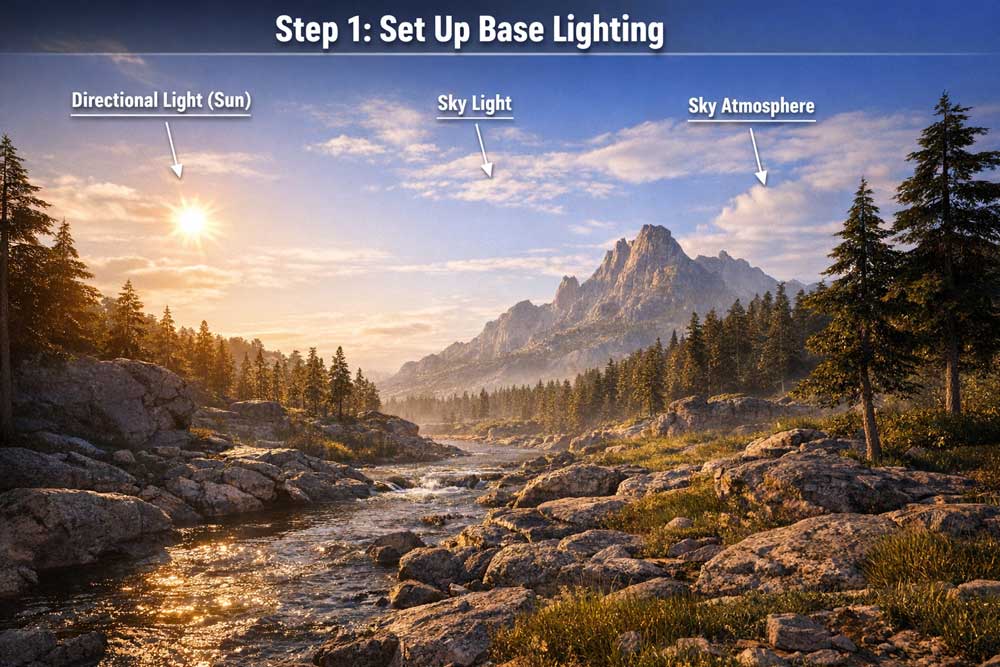
Start by placing essential lighting actors in your scene: a Directional Light (sun or moon), a Sky Light for ambient illumination, and a Sky Atmosphere actor. These elements define how fog will react to light.
Good lighting setup is important because fog is highly dependent on light direction, intensity, and color.
Step 2: Add Exponential Height Fog
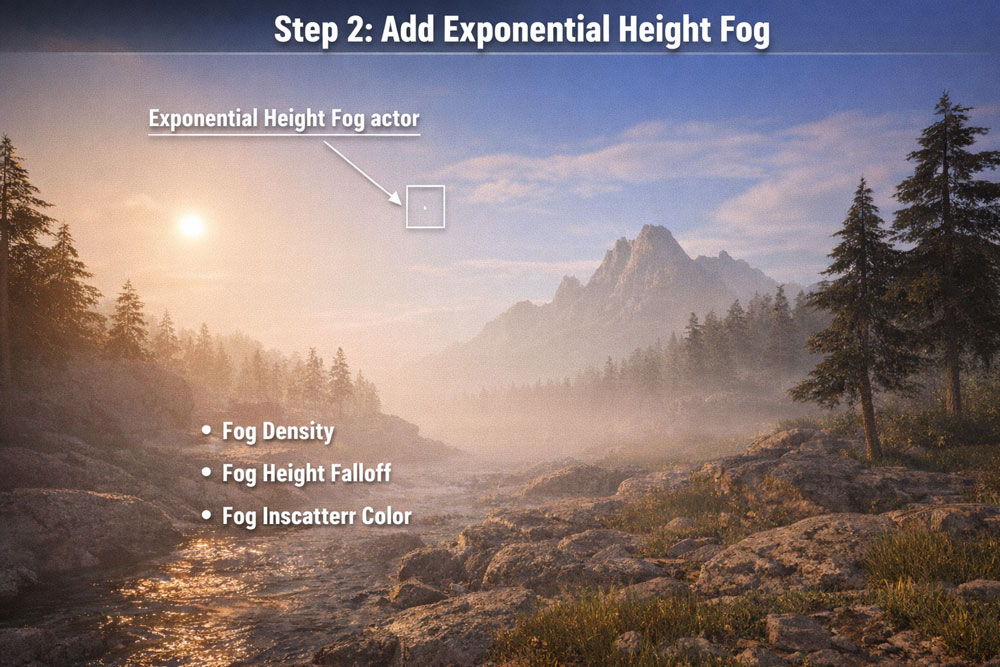
You should add an Exponential Height Fog actor to your level. This is the main component responsible for atmospheric fog.
Adjust the key settings:
- Fog Density to control overall thickness
- Fog Height Falloff to define how fog accumulates near the ground
- Fog Inscattering Color to match the scene’s lighting tone
- Focus on achieving natural depth before aiming for dramatic effects.
Step 3: Enable Volumetric Fog
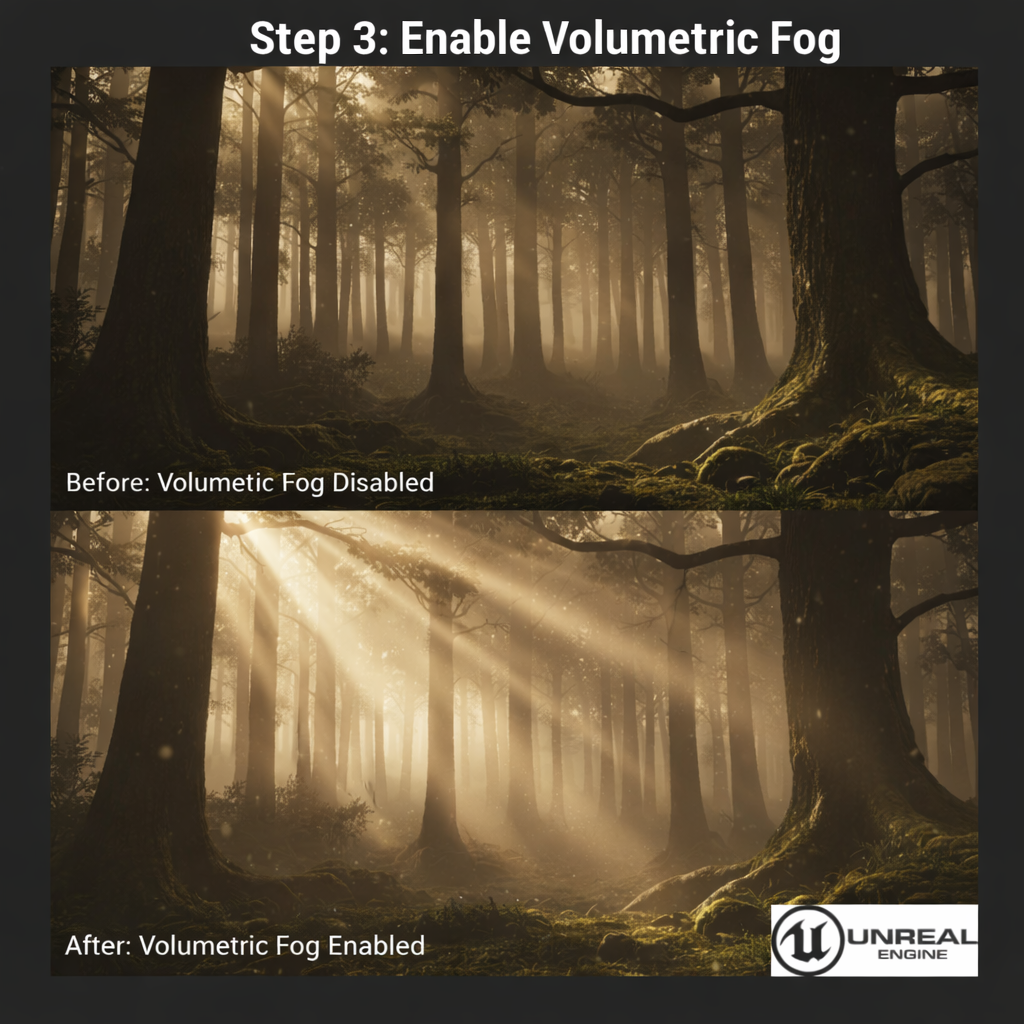
In the Exponential Height Fog settings, enable Volumetric Fog. This feature allows light to scatter realistically throughout your scene in 3D space, adding tangible depth and soft, atmospheric lighting.
Tip: Be sure to balance the volumetric density and scattering levels. This prevents the fog from becoming overly dense or introducing visual “noise,” which is particularly important in expansive environments.
Step 4: Optimize Fog–Light Interaction
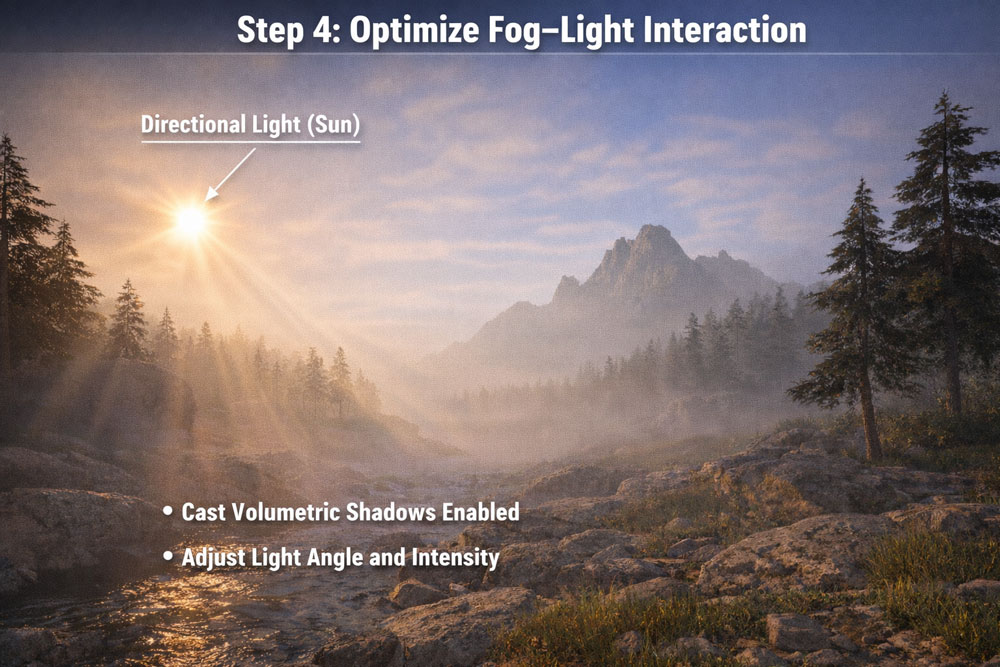
Go to your Directional Light settings and enable Cast Volumetric Shadows. This is a crucial step for rendering distinct light shafts (God rays) and enhancing the overall atmospheric depth of the scene.
For the best results, carefully calibrate the light’s angle and intensity. Lower sun angles typically yield more cinematic fog effects, making them ideal for recreating the dramatic lighting of sunrise or sunset.
Step 5: Fine-tune Lighting and Atmosphere
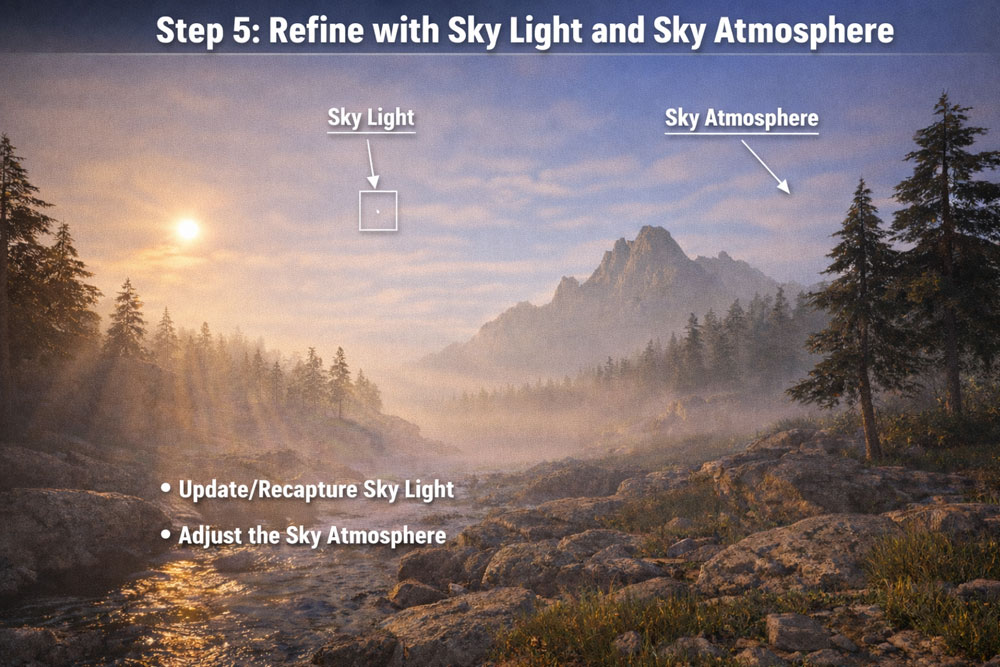
To ensure your fog interacts correctly with the environment, update or recapture the Sky Light. This ensures the fog receives accurate ambient lighting from the sky.
Additionally, use the Sky Atmosphere actor to seamlessly blend the fog with the horizon. This step is vital for achieving a natural transition between the sky and the ground, significantly boosting realism in outdoor environments.
Finally, you can use a Post Process Volume to fine-tune exposure, contrast, and color grading. Volumetric fog can be expensive, so adjust quality settings and limit the number of volumetric shadow-casting lights as needed.
Advantages of Atmospheric Fog in Unreal Engine 5
Atmospheric Fog in Unreal Engine 5 offers significant advantages for creating visually rich and immersive real-time environments by simulating how light naturally scatters through the atmosphere.
One of its strongest benefits is the ability to add convincing depth and scale, allowing distant objects to fade gradually into the environment and making large scenes feel more realistic and expansive. When combined with volumetric fog and directional lighting, atmospheric fog enhances cinematic quality by enabling effects such as soft light diffusion and volumetric light shafts. It also plays an important role in environmental design by shaping the emotional tone of a scene, whether it is calm, mysterious, or dramatic, through precise control of fog density, height falloff, and color.
Additionally, Unreal Engine 5 integrates atmospheric fog seamlessly with Sky Atmosphere and Sky Light systems, ensuring consistent lighting and color transitions between the sky and ground, which results in a cohesive and physically believable look. Beyond aesthetics, atmospheric fog helps improve visual composition by reducing background noise and guiding the viewer’s attention toward key elements in the scene. Its real-time and dynamic nature allows artists to animate fog parameters for weather changes or time-of-day transitions without rebuilding lighting.
Conclusion
Creating atmospheric fog in UE5 is a perfect combination of techniques. When you combine Exponential Height Fog with Volumetric lighting, your environment instantly becomes more cinematic and realistic. If you can add this effect to your scenes, everything will look more vibrant and have more depth.
Unleash Unreal Engine Projects with iRender Farm
iRender powers up your creativity with unlimited GPU rendering resources. Our GPU render farm houses the most powerful 3D rendering machines. Configure from 1 to 8 GPUs with top-tier RTX 4090, Threadripper Pro CPUs, 256GB RAM, and 2TB SSD storage – iRender’s machines can handle any 3D project demands. We support all 3D software including Unreal Engine 5.
Once renting our machines, you will own them as your personal workstations. Therefore, you can install UE 5 there. All our servers are equipped:
- AMD Ryzen™ Threadripper™ PRO 3955WX (3.9-4.2GHz) or
- AMD Ryzen™ Threadripper™ PRO 5975WX (3.6-4.5GHz)
- 1/2/4/6/8x – 4090
- 256GB RAM
- 2TB NVMe SSDs
With Unreal Engine 5, it only utilizes 1 GPU so our server single card 4090 is the best choice. You can refer its configuration here:
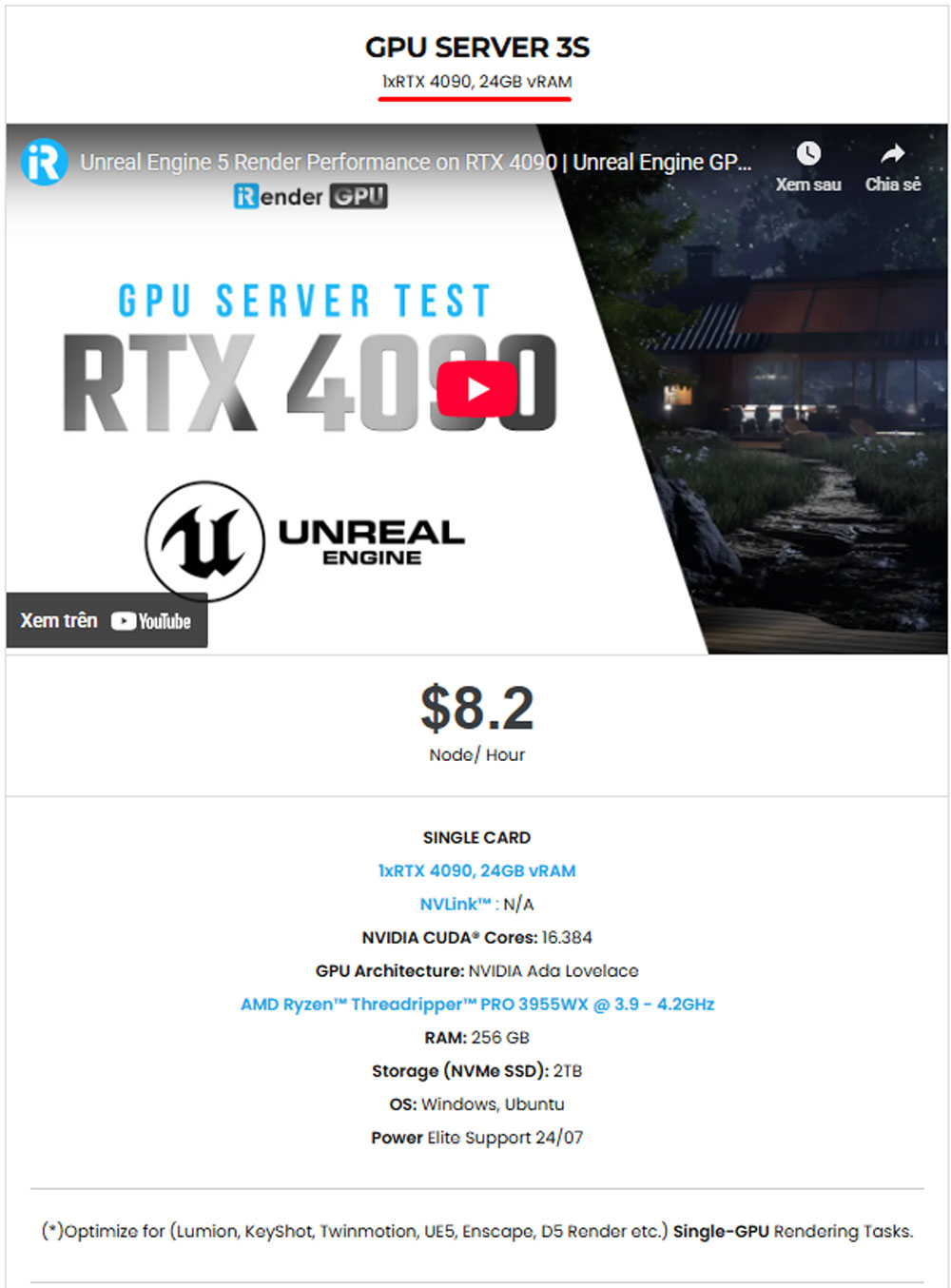
Let’s see our latest performance test on our servers!


Moreover, iRender offers an iRender GPU app. In this all-in-one application, you can free your workflow from accessing iRender website, and just have to work on the iRender GPU app. This app is only for Window users.

Enjoy our FREE TRIAL to try our RTX 4090 machines and boost your rendering now!
For more detailed information, please contact us via Live chat 24/7 or WhatsApp: +(84) 912-785-500 or Email: [email protected].
iRender – Happy Rendering!
Related Posts
The latest creative news from Unreal Engine Cloud rendering.






