
How To Fix Twinmotion Crashing on Windows 11 During Export
If you’ve been working hard on a high-quality visualization and are finally ready to share your work, there is nothing more frustrating than a sudden software crash.
Recently, many users have run into an annoying issue where Twinmotion crashes while exporting one or multiple views on Windows 11. What makes it even more confusing? The exact same project runs smoothly on Windows 10, with no errors at all.
If this sounds familiar, don’t worry. You’re definitely not the only one dealing with it and the fix is much simpler than you might think. Let’s explore “How To Fix Twinmotion Crashing on Windows 11 During Export.”
Understanding Why Twinmotion Crashes During Export
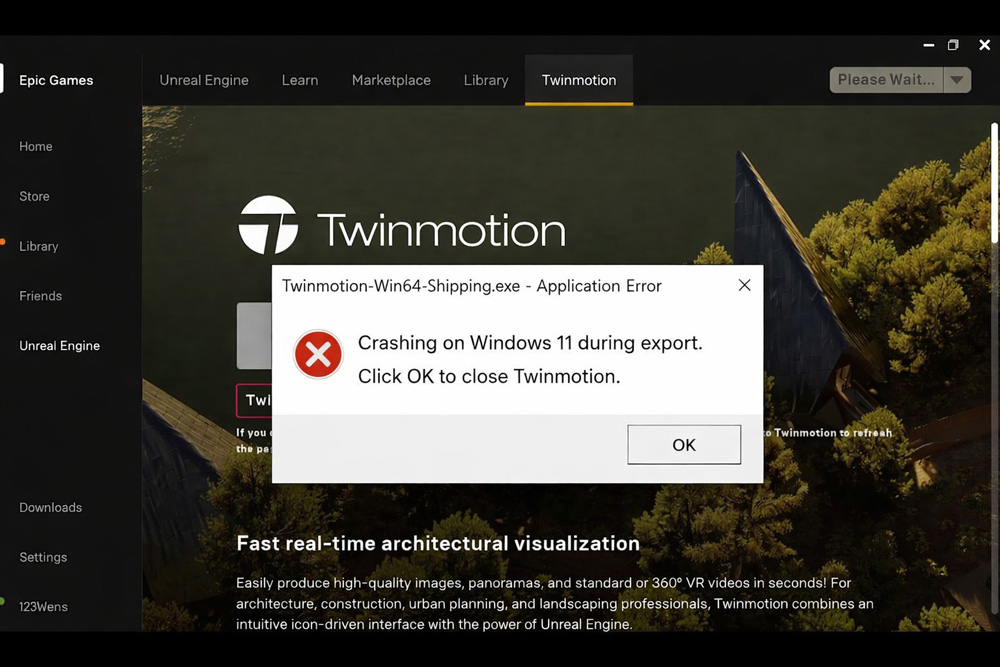
On Windows 11, Twinmotion often crashes during export because of DirectX 12. While DirectX 12 is designed to improve GPU performance and support advanced rendering features, it can sometimes become unstable under heavy workload. Exporting images pushes the GPU much harder than normal viewport work, which increases VRAM usage and processing demand. On some system setups, this pressure causes DirectX 12 to fail, leading to sudden crashes. The issue usually comes from how Windows 11 handles graphics drivers rather than from your project or hardware itself.
The Solution: Switching Graphic Hardware Support
The primary cause of these export crashes on Windows 11 has been identified as a compatibility conflict with Microsoft DirectX 12. While DirectX 12 offers advanced features, it can sometimes lead to instability during the high-load process of exporting views in Twinmotion.
To resolve this and ensure a stable export process, follow these steps to switch your hardware support to DirectX 11, which remains a highly stable alternative for rendering workflows.
Step-by-Step Guide to Fix the Crash
Step 1: Open the Edit Menu: Launch Twinmotion and look at the top-left corner of the interface. Select the Edit menu.
Step 2: Access Preferences: From the dropdown list, click on Preferences to open the global settings for the application.
Navigate to Settings: In the Preferences window, locate the Settings tab on the left-hand side.
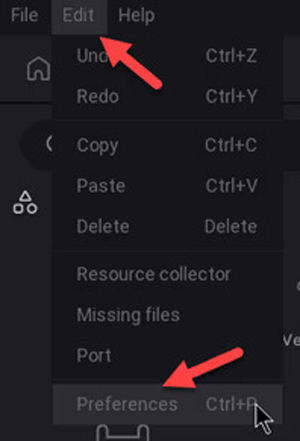
Image Source: Imaginit
Step 3: Expand Graphic Hardware Support: Within the Settings menu, look for the section labeled Graphic hardware support and click to expand it.
Change the DirectX Version: You will see a toggle for the DirectX version. Change the setting from DirectX 12 to DirectX 11.
Step 4: Confirm the Change: Click OK at the bottom of the window. An information dialog box will appear stating, “Please restart Twinmotion to change the DirectX version.” Click OK again to acknowledge this.
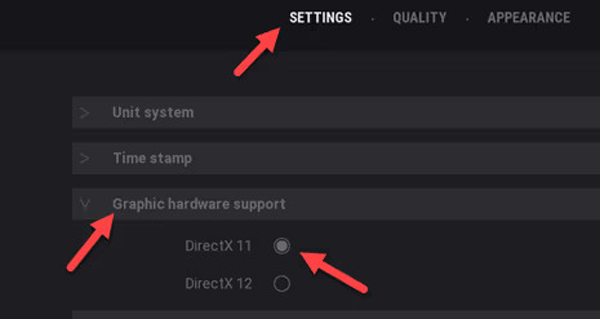
Image Source: Imaginit
Step 5: Restart the Software: Close Twinmotion entirely and then restart the application to apply the changes.
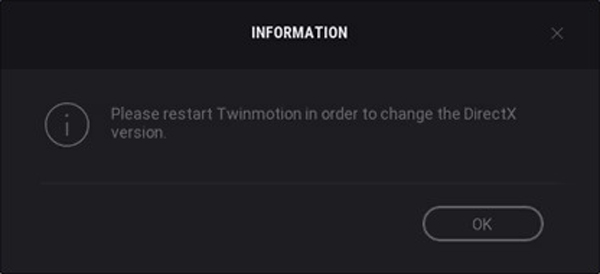
Image Source: Imaginit
Step 6: Retest the Export: Once the software is back up and running under DirectX 11, attempt to export your views again. In most cases, the rendering issue will now be resolved, allowing you to complete your project without further crashes.
Conclusion
Technical glitches during the final stages of a project can be a significant setback, especially when working on tight deadlines for AEC (Architecture, Engineering, and Construction) proposals. By simply adjusting your graphic hardware support from DirectX 12 to DirectX 11, you can bypass the Windows 11 export crash and get back to delivering high-quality visuals.
While DirectX 12 is designed for the future of gaming and rendering, DirectX 11 currently provides the necessary stability for Windows 11 users experiencing these specific export failures. If you continue to experience issues, it is always a good idea to ensure your graphics card drivers are up to date and that your version of Twinmotion is compatible with other tools in your workflow, such as the Revit Datasmith Exporter plugin. With this fix in place, you can focus on what matters most: bringing your architectural designs to life.
iRender - The Best Render Farm for rendering Twinmotion projects
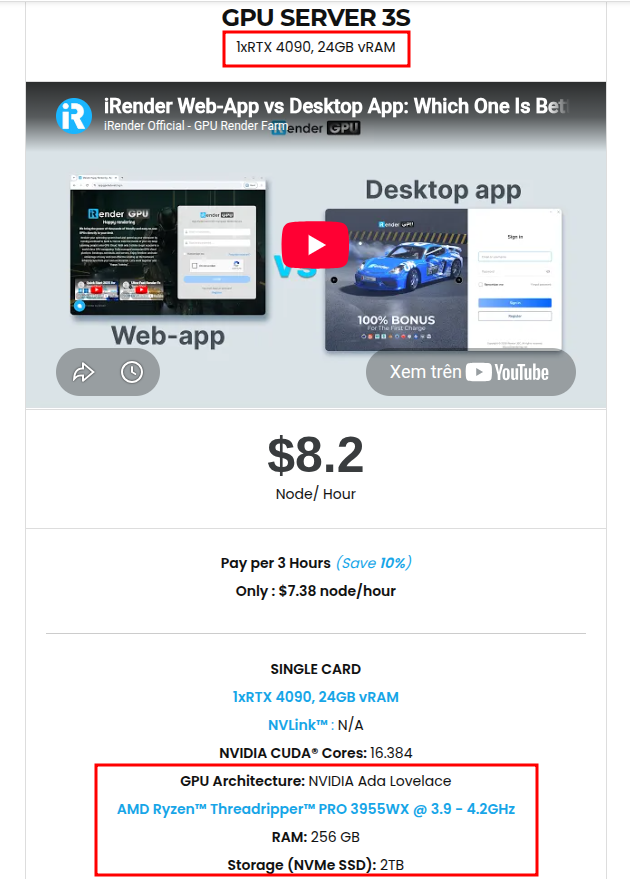
iRender provides a remote machine rental service by offering flexible configurations of 1, 2, 4 GPU machines using the top-tier RTX 4090. Built with powerful CPUs (AMD Ryzen™ Threadripper™ PRO 3955WX @ 3.9 – 4.2GHz and AMD Ryzen™ Threadripper™ PRO 5975WX @ 3.6 – 4.5GHz), 256GB RAM, and 2TB NVMe SSD storage, our machines can handle even the most demanding scenes in your 3D projects.
We treat your rented machines like your personal workstations – no restrictions apply. This freedom enables you, 3D artists, to realize creative visions without limitations. Moreover, iRender offers an iRender GPU app. In this all-in-one application, you can free your workflow from accessing iRender website, and just have to work on the iRender GPU app. This app is only for Windows users.
As far as we know, Twinmotion only uses 1 GPU for rendering. So you can refer to our configuration of the server single card 4090:
Enjoy our FREE TRIAL to try our RTX 4090 machines and boost your rendering now!
For more detailed information, please contact us via Live chat or WhatsApp: +(84) 912-785-500 or Email: [email protected].
iRender – Happy Rendering!
[/vc_section]






