
Why does Octane only use a single GPU?
You’re working with Octane but realize the engine is only optimizing for a single GPU. Many artists run into this and wonder if something is wrong with their setup. What’s the reason? This article explains why and provides some tips to speed up Octane rendering on a single-card machine.
Issue: Octane only uses a single GPU
One of the most common issues new users face is that Octane seems to use only a single GPU, even when the system has multiple GPUs installed. This can be frustrating, especially for heavy rendering projects where speed is everything.
Why does it happen?
The main reason Octane only uses a single GPU often comes down to your license plan. With the Octane X free trial or Octane Prime Free Tier, you’re limited to just one GPU. This restriction is built into the software. To unlock multi-GPU rendering, you need the Octane Studio+ license, which is a paid version that lets you fully use Octane’s power and performance.
You should also go to the Device Preferences tab where it shows all the GPUs available in your PC to check if you have selected all the GPUs during rendering.
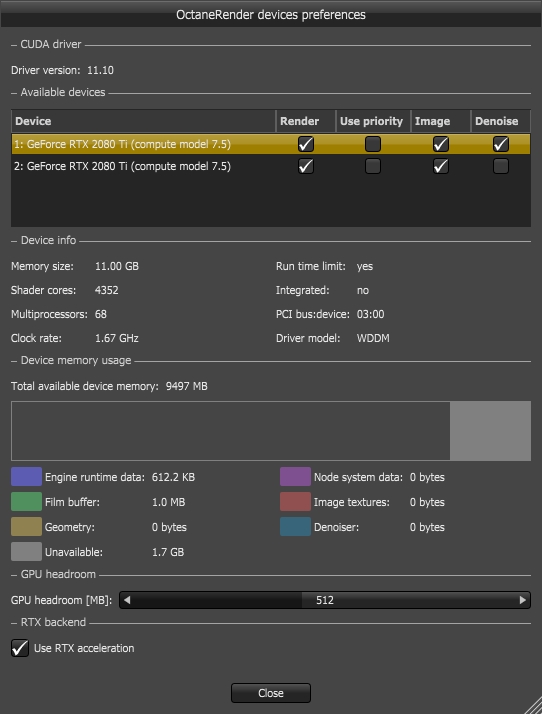
In other cases, Octane may still stick to a single GPU because of hardware limitations or because the scene is too simple, so the renderer doesn’t need more than one GPU to finish the job.
How to speed up Octane rendering on a single-card PC?
If your computer only has a single GPU to render Octane, here are some tips to make it faster.
Update NVIDIA driver
Octane performance relies heavily on CUDA updates. Also, new software versions are often compatible with the latest NVIDIA Drivers, so keep your Drivers updated to improve performance.
If you’re using an iRender server:
- Go to the X drive on your remote machine
- Open NVIDIA RTX 4090 DRIVER > Studio
- Choose the latest driver by Date Modified
- Install it, restart the machine, and reconnect
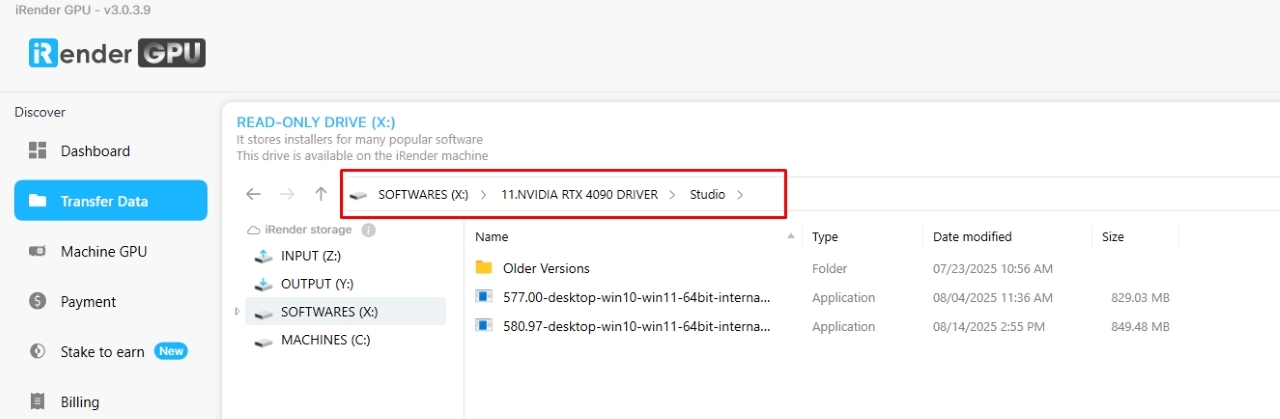
Note: New machines at iRender usually come with the latest drivers, but older ones may require manual updates. Many customers have fixed performance issues this way.
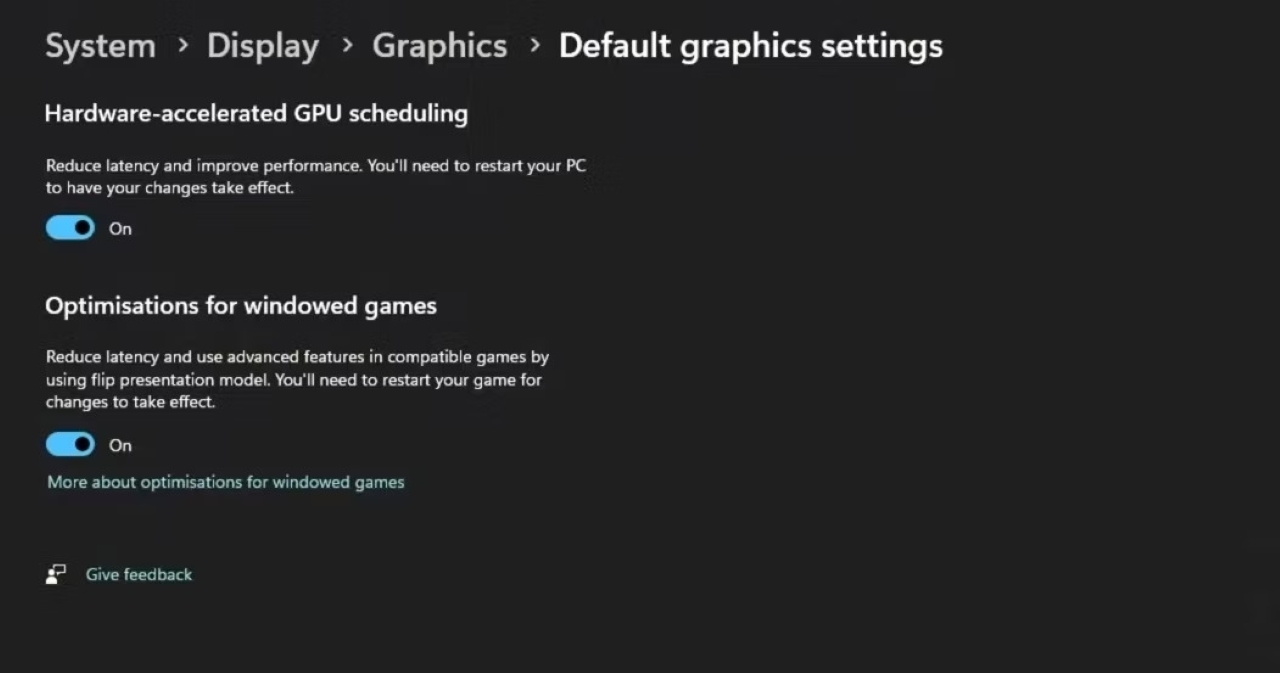
Turn on/ off HAGS (Hardware-Accelerated GPU Scheduling)
Some users report better Octane performance with HAGS off, but others find it better with it on. You should try turning it on/off to see which one gives better performance. This is also a tip for dealing with Octane lag or crashes in the middle.
Avoid CPU bottlenecks
Make sure your CPU is powerful enough to work well with your GPU. A weak CPU slows down the task division process, which slows down the entire rendering process.
Use Out-of-Core textures
If your GPU VRAM is limited, enable Out-of-Core to offload textures to system RAM and avoid memory overload.
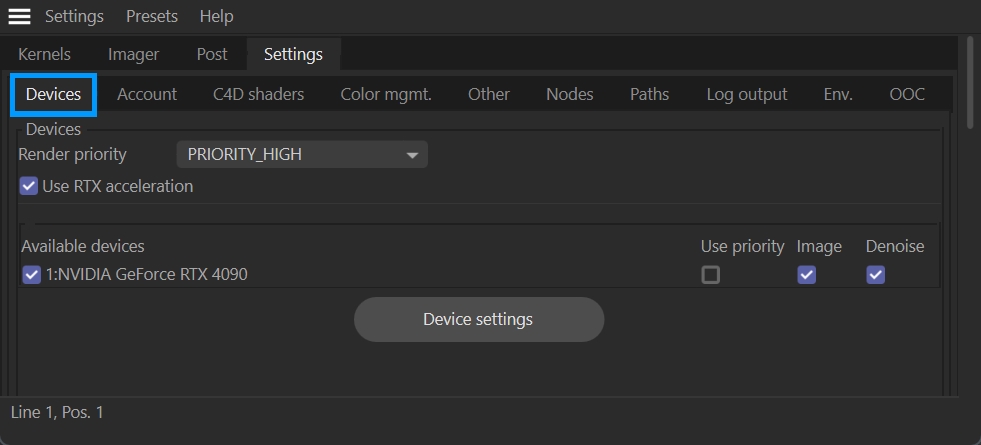
GPU priority
Adjust the render priority in Octane’s Device Tab. For the display GPU, reduce the priority to avoid latency. Keep the dedicated GPU rendering at full speed.
Use iRender render farm for your Octane projects
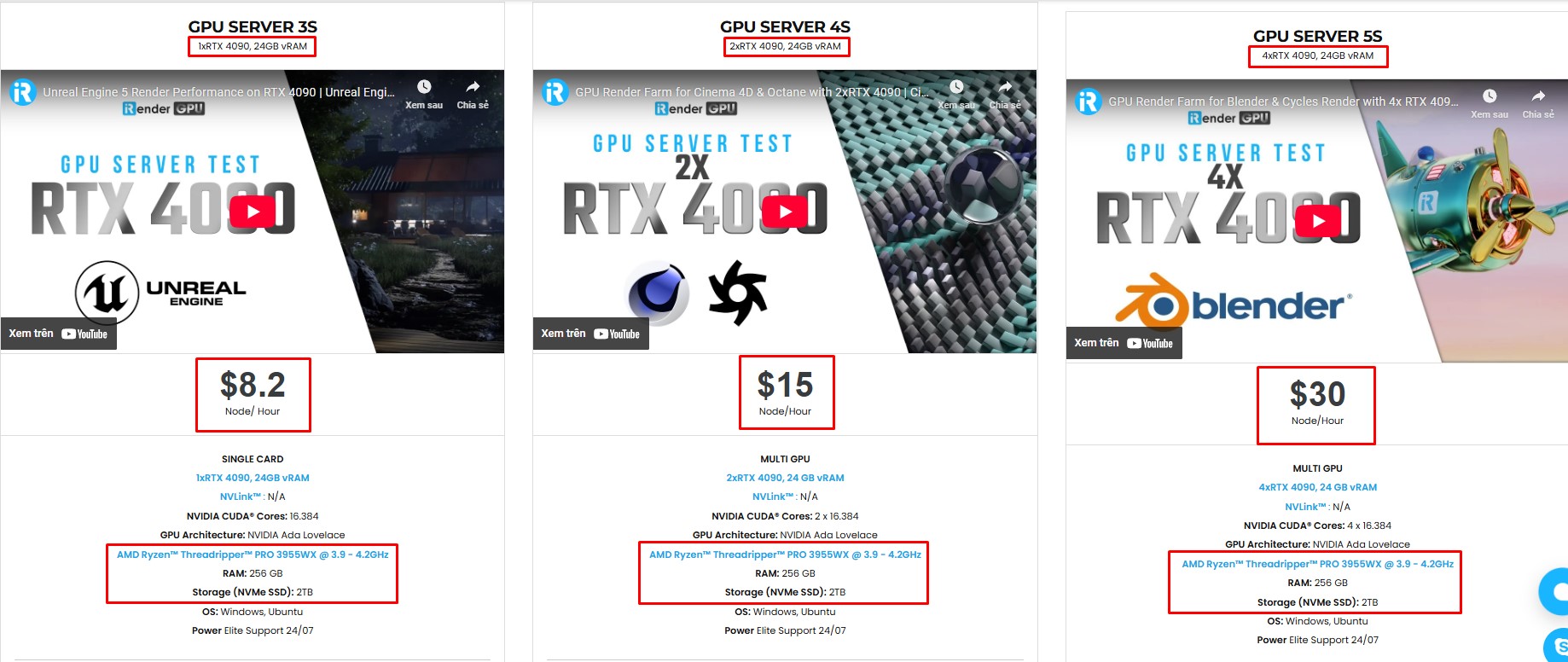
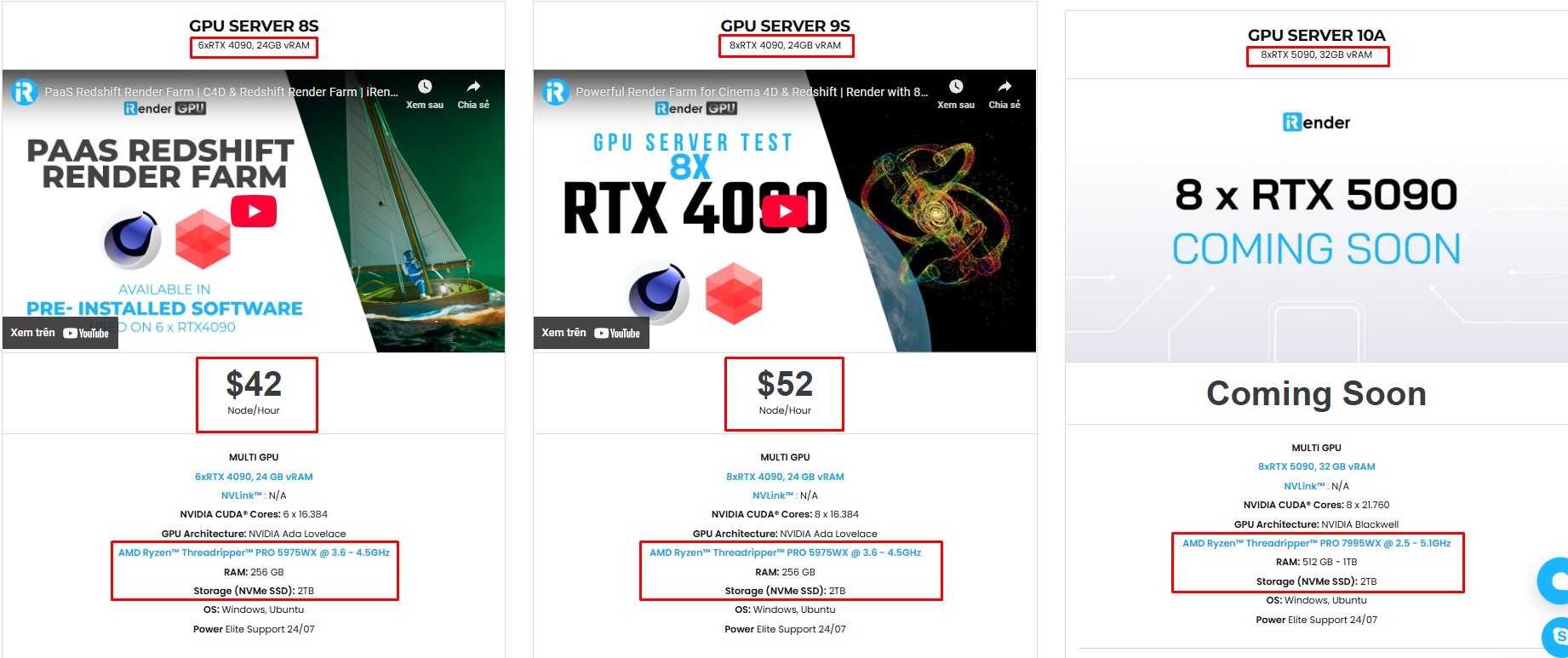
For heavy projects, using iRender render farm will help you scale up multiple GPUs without upgrading your PC.
iRender supports all popular 3D software and render engines, including Octane. We give you access to high-performance GPUs, so you can render faster and more efficiently, no need to upgrade your own hardware. All servers are equipped with:
- AMD Ryzen™ Threadripper™ PRO 3955WX (3.9-4.2GHz) or
- AMD Ryzen™ Threadripper™ PRO 5975WX (3.6-4.5GHz)
- (1/2/4/6/8x) – RTX 3090/4090
- 256GB RAM
- 2TB NVMe SSDs
Why choose iRender?
Unlike other services, iRender lets you upload and download files without starting the server, saving you both time and money. We offer a Desktop app for Windows with a full feature set and a simple Drive app for macOS for easy file transfers. Here’s why iRender is a top choice for your rendering needs:
- 100% Software Support: We support all 3D software, their plugins, and render engines.
- Full Control: Our service will give you full control over the servers you rent. Therefore, you are free to create your own working environment.
- Go Green: We are committed to using 100% solar renewable energy towards environmental sustainability.
- Real-human 24/7 Support: Our professional support agents and technicians guarantee to bring you the best rendering experience.
Let’s see how C4D Octane performs on our server!

If you still wonder if this is the right place for your project, REGISTER NOW to get a trial and receive a 100% bonus promotion for your first transaction within 24 hours of registration with us.
This September, let’s fall into savings and enjoy double bonus points!

For more detailed information, please contact us via Live chat 24/7 or WhatsApp: +(84) 912-785-500 or Email: [email protected]
iRender – Happy Rendering!
Related Posts
The latest creative news from Octane Cloud Rendering, Cinema 4D Cloud Rendering , Houdini Cloud Rendering , 3D VFX Plugins & Cloud Rendering.





