
Converting Principled Shader Materials to MaterialX for Karma XPU
KEY TAKEAWAYS // MATERIALX MIGRATION FOR KARMA XPU
Karma XPU Will Never Support VEX: Karma XPU relies strictly on OpenUSD standards and MaterialX; legacy VEX-based Principled Shaders are automatically downgraded to a basic UsdPreviewSurface fallback.
Use Karma MaterialX Builder: Always set up your networks using the Karma MaterialX Builder rather than the standard USD builder to ensure TAB menu nodes are filtered for XPU compatibility.
MtlX Standard Surface is the Direct Equivalent: The mtlxstandard_surface node serves as the 1:1 physical replacement for the classic Principled Shader, handling base color, metallic, specular IOR, transmission, and subsurface properties.
Strict Signature Matching for Textures: MaterialX enforces strict data types—color textures require color3, normal maps need vector3 (passed through mtlxnormalmap), and displacement maps connect directly to the terminal output.
Optimize Thin Geometry: For foliage and thin glass, enable thin_walled and use monochrome opacity maps instead of physical refraction to preserve GPU VRAM and drastically reduce render times.
Test on XPU Hardware: Verifying converted materials on dedicated GPU servers (such as iRender’s RTX 5090 nodes) ensures accurate displacement, sub-surface scattering, and flicker-free sequence rendering.
You switch Karma from CPU to XPU hoping for a fast interactive preview, but your scene breaks immediately. Metallic surfaces turn a flat gray, glass shaders lose their transparency, and your color textures look completely washed out. The core issue lies in how Karma XPU handles materials: it does not support legacy VEX-based shaders. Because the classic Principled Shader relies entirely on VEX, Karma XPU forces a basic fallback conversion to UsdPreviewSurface. This temporary fix strips away specular reflections, subsurface scattering, and procedural attributes.
To render your materials correctly in Karma XPU, you need to rebuild them with MaterialX. This guide walks you through converting Principled Shaders into MaterialX Standard Surface networks, mapping parameters accurately, fixing texture signatures, and verifying your results.
Why Principled Materials Break in Karma XPU
When Karma CPU renders a Principled Shader, it evaluates VEX code compiled dynamically for your machine’s processor. Karma XPU, on the other hand, operates on a hybrid architecture built around OptiX and Vulkan/C++ pipelines to execute lighting and shading math directly on the GPU.
SideFX explicitly built Karma XPU around OpenUSD standards, designating MaterialX as its primary material specification. When Karma XPU encounters a legacy VEX Principled Shader in the stage, it cannot compile the underlying VEX code on the graphics processor. Instead, it converts the network down to a minimal UsdPreviewSurface.
This fallback strips away:
- Advanced specular IOR calculations and custom anisotropic highlights.
- Dual-roughness clearcoat layers.
- Physical subsurface scattering profiles.
- Custom VEX-driven procedural noise and utility logic.
To achieve physical accuracy, stability, and speed in Karma XPU, you must build your shading networks using MaterialX nodes.
Set up a Karma MaterialX Builder the right way
Inside a Material Library LOP, create a Karma MaterialX Builder, rename the subnet to something meaningful, and dive inside. Drop an MtlX Standard Surface node in and connect it to the output. That is the whole skeleton.
I use the Karma builder instead of the USD MaterialX Builder whenever the scene only ever renders in Karma. The SideFX docs say the same thing: the USD builder is for when you need pure-USD MaterialX graphs, and the Karma builder is usually the better experience for Karma-only work. A practical bonus is that the Tab menu inside the Karma builder only shows nodes that are compatible with Karma, Preview Surface and MaterialX, so you cannot wander into a VEX node by accident.
If you want a quicker start, Houdini also ships Quick Surface Material, a PBR material built around Standard Surface that already wires image inputs with the right signatures for each parameter. It is a fine starting point for simple assets, though for anything custom I still build my own so I know where every connection goes.
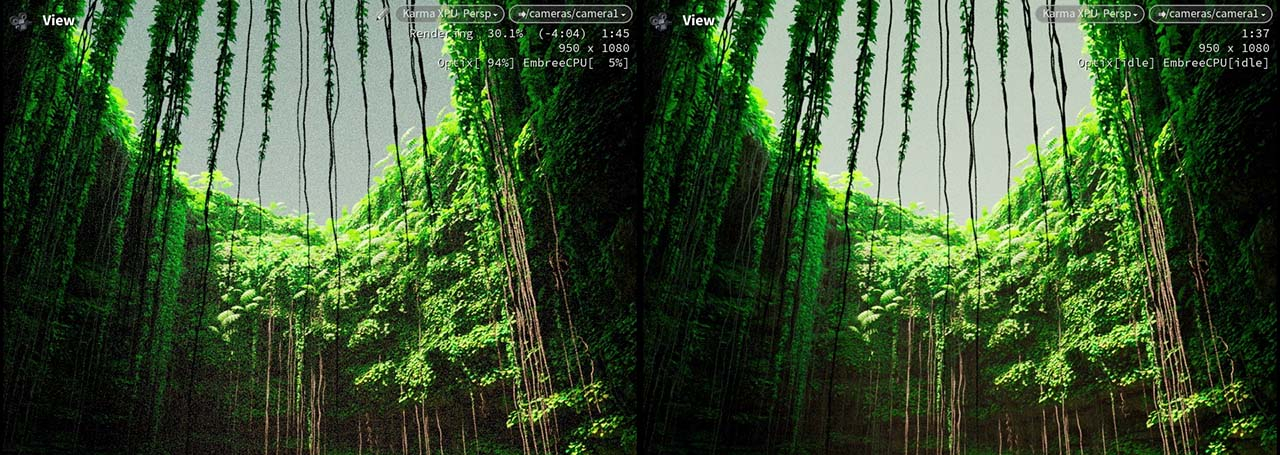
Parameter map: Principled to Standard Surface
The mtlxstandard_surface node is an open-standard uber-shader based on Autodesk’s Standard Surface specification. Because the original Houdini Principled Shader shares a similar physical foundation, most parameters translate directly, though a few require manual visual adjustment.
Textures, normals and displacement
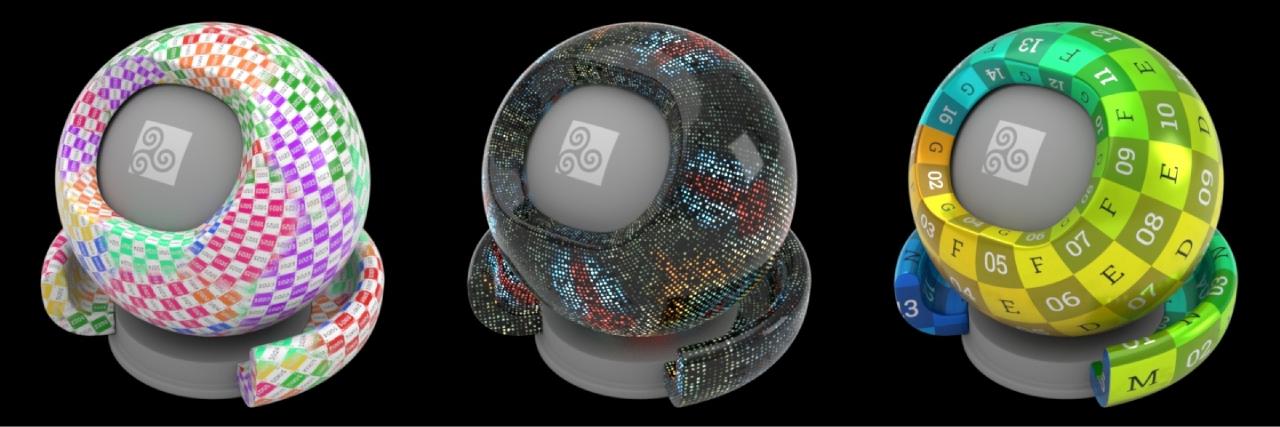
Textures go through the MtlX Image node, and the Signature setting decides whether the data gets treated as color or as raw values. For a base color texture, the chain is short:
- Create an MtlX Texcoord and set its Signature to Vector2.
- Create an MtlX Image, set the Signature to Color, and point it at your file.
- Wire Texcoord into the image’s texcoord input, then wire the image output into base_color.
UDIM works through the <UDIM> token in the file path. Other MaterialX path tokens such as {frame} are not used by Karma or Houdini, so do not build file sequences around them.
Normal maps are where most conversions go wrong. MtlX Image defaults to a color signature, which applies a color transform to data that is not a color. The symptom is a surface that renders darker or lit from the wrong direction, and I have seen the same complaint pop up in SideFX forum threads more than once. Set the image Signature to Vector3, then pass it through an MtlX Normalmap node before it reaches the normal input of Standard Surface. The Normalmap node expects a typical tangent-space map with values in the 0 to 1 range.
Displacement goes through an MtlX Displacement node. Connect it to the displacement input of an MtlX Surface Material (or a Collect VOP, which can stand in for it). A standalone Standard Surface will not take displacement without one of those wrappers.
Glass, foliage and thin surfaces in XPU
For leaves and other thin cutout surfaces, use opacity instead of transmission. SideFX staff have recommended this on the forums, and in my own tests it is also the cheaper option to render. Transmission on a flat leaf card does extra work for a look that an opacity cutout gives you directly.
For glass that is a single sheet rather than a closed volume, such as a window pane or a thin bottle wall, look at the thin-walled behavior on MtlX Standard Surface. Forum answers from SideFX indicate it works in XPU.
Two limits from the docs are worth keeping in mind while you rebuild:
- Karma does not support surface and volume materials on the same prim, and volume materials only work on VDB primitives.
- String inputs are not allowed, even for passing a name through a material’s public interface. That means you cannot drive a primvar name from a material parameter. The docs suggest mixing USD Preview nodes with MaterialX as the current workaround.
If a converted glass material still looks off after all of this, check the shader before touching the lights. I wasted an afternoon once adjusting a dome light for a problem that lived entirely in one IOR value.
Converting a whole library: workflow tips
Rebuilding dozens or hundreds of legacy materials one node at a time is inefficient. To streamline your material migration across larger projects, structure your conversion workflow with these steps:
Step 1
Build a Standard Base HDA Template
Create a pre-configured Karma MaterialX Builder network containing a Standard Surface node, an mtlximage for Base Color, a Normal Map chain, and an Opacity map setup. Save this setup as a digital asset (HDA). When converting assets, drop down this template to eliminate repetitive wiring.
Step 2
Standardize Primvar Names
When pulling geometry attributes (like Cd for point colors or custom UV sets) into MaterialX, use the mtlxgeomcolor or mtlxgeompropvalue nodes. Ensure your Houdini geometry streams export these attributes as USD primvars (primvars:displayColor or primvars:st) so MaterialX can read them directly.
A Note on OpenPBR
SideFX and the broader VFX industry are actively adopting OpenPBR Surface, a unified sub-specification within MaterialX designed to replace legacy vendor-specific shaders. While mtlxstandard_surface remains the default choice for converting Principled materials today, mtlxopenpbr_surface nodes are fully functional in Houdini 22. If your studio pipeline targets multi-engine parity (e.g., rendering the same asset in both Karma and Unreal Engine or Maya), consider adopting OpenPBR for new assets.
Check the Result: CPU vs. XPU Side by Side
Once you have translated your Principled network into a MaterialX Standard Surface, set up a side-by-side LookDev scene to verify visual parity and measure your render time improvements.
- Create a Karma Render Settings LOP and set the Engine to CPU.
- Render a frame using your legacy Principled Shader.
- Switch the Engine setting to XPU and switch your material assignment to the new MaterialX network.
- Compare your specular highlights, edge falloffs, and shadow passes.
Benchmark Example: 4K LookDev Asset
Converting your shaders to MaterialX unlocks massive GPU acceleration through Karma XPU, turning quarter-hour CPU renders into sub-minute passes.
Rebuilding and fine-tuning an entire material library requires fast interactive feedback. While you can perform basic conversion steps on a local workstation, testing complex MaterialX displacement networks, subsurface scattering, and multi-light setups on heavy scenes can saturate local GPU VRAM.
Accelerated LookDev and Final Rendering on iRender
Rebuilding and fine-tuning an entire material library requires fast interactive feedback. While you can perform basic conversion steps on a local workstation, testing complex MaterialX displacement networks, subsurface scattering, and multi-light setups on heavy scenes can saturate local GPU VRAM.
iRender provides high-performance Infrastructure-as-a-Service (IaaS) remote GPU nodes tailored for Houdini and Karma XPU workflows:
- Dedicated GPU Power: Choose server configurations ranging from a single RTX 4090 / RTX 5090 (32GB VRAM) for interactive MaterialX LookDev up to 4x or 8x RTX 5090 nodes for fast production rendering.
- Full Workstation Control: Because iRender provides full administrative access to a remote Windows or Ubuntu desktop, you install your own Houdini license, custom HDAs, and third-party plugins directly on the machine.
- No Pipeline Limits: Run complex Karma XPU simulations, VDB volumes, and heavy USD stages without hitting the constraints of restrictive managed SaaS farms.
Check out the benchmark and material test videos below to see Karma XPU in action below:
iRender Cloud GPU Packages for MaterialX & Karma XPU Workflows
Dedicated IaaS cloud workstations providing full root access to convert legacy VEX/Principled Shaders, test MaterialX networks interactively, and render native Karma XPU shots.
NVIDIA RTX 4090 Tiers • 24GB GDDR6X VRAM per GPU
| Package | Hardware Specs & Pricing | Recommended Workflow |
|---|---|---|
| Server 3S 1x RTX 4090 (24GB VRAM) |
AMD Threadripper™ PRO 3955WX 256GB Host RAM 2TB NVMe SSD Rate: $8.20 / Node/Hour
|
Interactive LookDev, converting legacy VEX shaders to mtlxstandard surface, and real-time MaterialX viewport testing. |
| Server 4S 2x RTX 4090 (24GB VRAM / GPU) |
AMD Threadripper™ PRO 3955WX 256GB Host RAM 2TB NVMe SSD Rate: $15.00 / Node/Hour
|
Fast preview rendering and validation of converted USD MaterialX asset libraries across medium production shots. |
| Server 5S 4x RTX 4090 (24GB VRAM / GPU) |
AMD Threadripper™ PRO 5975WX 256GB Host RAM 2TB NVMe SSD Rate: $30.00 / Node/Hour
|
High-speed multi-GPU batch rendering for fully converted MaterialX scenes in Karma XPU with zero VEX grey-shader fallback errors. |
NVIDIA RTX 5090 Series • Blackwell Architecture • 32GB GDDR7 per GPU
| Package | Hardware Specs & Pricing | Recommended Workflow |
|---|---|---|
| Server 3i 1x RTX 5090 (32GB GDDR7) |
AMD Threadripper™ PRO 3955WX 256GB Host RAM 2TB NVMe SSD Rate: $10.80 / Node/Hour
|
Next-Gen MaterialX LookDev: Fast single-card Karma XPU previews with 32GB VRAM headroom to handle high-resolution 8K UDIM texture maps. |
| Server 4i 2x RTX 5090 (32GB VRAM / GPU) |
AMD Threadripper™ PRO 3955WX 256GB Host RAM 2TB NVMe SSD Rate: $20.00 / Node/Hour
|
Dual-GPU acceleration for heavy USD stages using complex MaterialX blend networks, transmission, and subsurface scattering (SSS). |
| Server 5i 4x RTX 5090 (32GB VRAM / GPU) |
AMD Threadripper™ PRO 5975WX 256GB Host RAM 2TB NVMe SSD Rate: $38.00 / Node/Hour
|
Ultimate Karma XPU Powerhouse: Maximum multi-GPU performance for heavy MaterialX production passes with unprecedented turnarounds. |
Check out the benchmark and material test videos below to see Karma XPU in action below:


Say Goodbye to Grey VEX Shader Fallbacks
Converted your scene to MaterialX? Launch an iRender cloud node with RTX 5090 (32GB VRAM) for fast previews and zero-error Karma XPU renders.
Get a 100% bonus on your first deposit!
Frequently Asked Questions (FAQ)
1. Does Karma XPU support the legacy Houdini Principled Shader?
No. The Principled Shader is built on VEX code, and SideFX has stated that Karma XPU will never support VEX shaders. When Karma XPU encounters a Principled Shader, it converts it to a basic UsdPreviewSurface fallback, resulting in missing material properties, incorrect specular responses, and broken textures.
2. What is the MaterialX equivalent of the Principled Shader in Houdini?
The mtlxstandard_surface node (built inside a Karma MaterialX Builder) is the direct physical equivalent of the Principled Shader. It implements Autodesk’s open Standard Surface specification and covers base color, metalness, specular IOR, transmission, subsurface scattering, clearcoat, sheen, and emission.
3. How do I use normal maps with MaterialX in Karma XPU?
To set up a normal map in MaterialX, plug your texture file into an mtlximage node with its Signature explicitly set to vector3 and color space set to raw. Connect its output into an mtlxnormalmap node, and then wire the mtlxnormalmap output directly into the normal input of your mtlxstandard_surface shader.
4. Why does my MaterialX displacement look blown out or exploded in Karma XPU?
This usually happens because the scale or zero-value offset on your mtlxdisplacement node is set too high for your mesh scale. Ensure your mtlximage node for displacement uses a float signature and set the displacement scale down to small increments (e.g., 0.01 or 0.05), then verify that your geometry prim has Subdivision enabled in its USD render settings.
5. Can I mix VEX utility nodes with MaterialX inside the same shading network?
No. Karma XPU cannot evaluate VEX nodes on the GPU, so mixing VEX nodes inside a MaterialX network will break the shader compilation. You must use MaterialX native math and utility nodes—such as mtlxmultiply, mtlxadd, or mtlxmix—for all procedural calculations within your Karma MaterialX Builder.






