
How to Fix “Botaniq Assets Missing” in Blender?
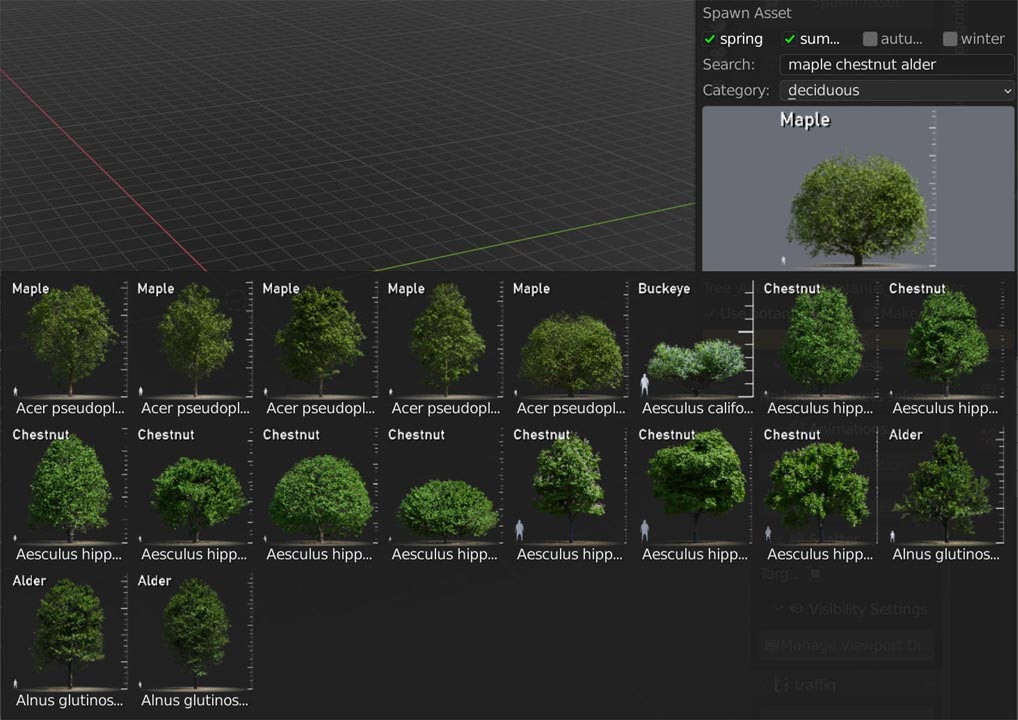
If you use Blender for environment design, you’ve probably encountered the ‘Botaniq Assets Missing” when working with add-ons like Botaniq or other plant libraries. This issue typically appears when you attempt to add a tree, shrub, flower, or grass model. In this blog, you’ll learn why the error happens and how to fix it permanently.
What Is Botaniq?
Botaniq is a paid asset library and Blender add-on used for quickly adding vegetation to 3D scenes.
It’s widely used in:
- Architecture visualization
- Environment art
- Landscape design
- Animation
- Game concepting
What Causes the “Botanic Assets Missing” Error?
Add-ons like Botaniq do not store their 3D plant models inside the main .zip add-on file. Instead, they come with a large asset library folder containing:
- .blend files
- textures (PNG, JPG)
- proxies
- thumbnails
Blender must know where this folder is located. If the path disappears or is changed, the add-on fails and shows “assets missing” in Blender.
How to Fix “Botaniq Assets Missing” in Blender?
Re-locate the Asset Library
This usually happens when the asset folder is moved, renamed, deleted, or stored on a drive that changed paths.
To fix this, go to Edit → Preferences → Add-ons, locate your vegetation add-on (Botaniq, Botanic, or similar), and expand its settings. You’ll see an option like “Locate Assets,” “Asset Path,” or “Library Path.” Once you select the correct directory, Blender will instantly reconnect all the files, restoring thumbnails, textures, and the ability to add plants without errors.
Uninstall and reinstall Botaniq
Uninstalling and then reinstalling Botaniq (including its asset library) can fix the “assets missing” problem, but only if the issue is caused by a corrupted install or broken file paths.
-
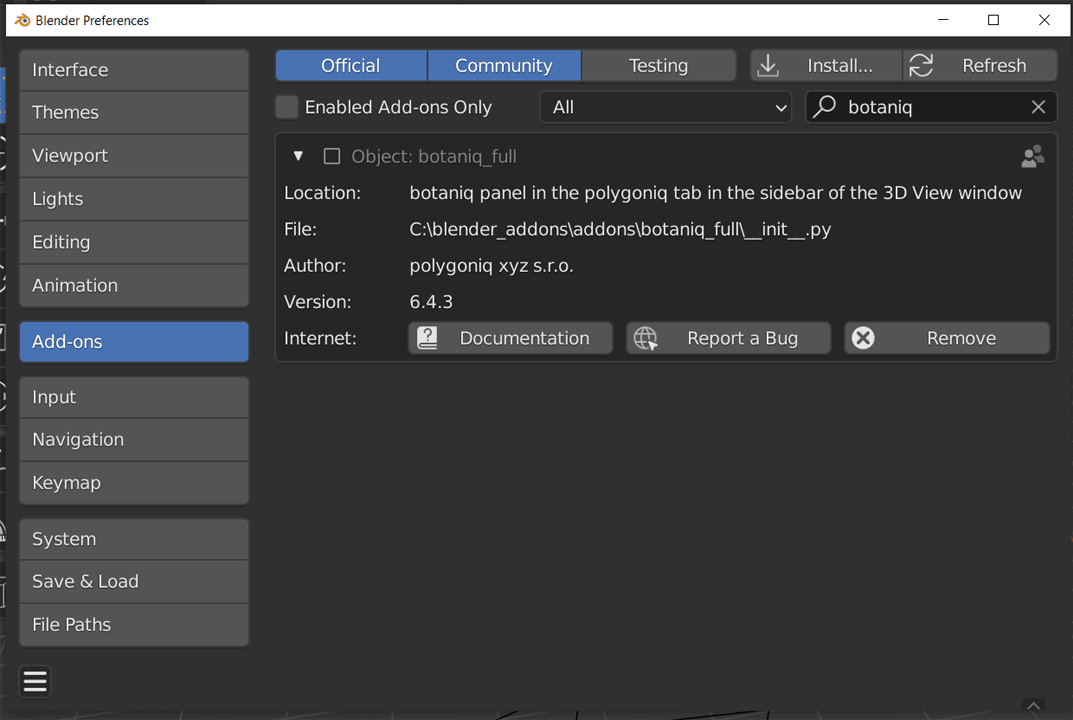
Go to Edit → Preferences → Add-ons
-
Search for Botaniq
-
Click the dropdown arrow
-
Press Remove
-
Restart Blender (important)
Next step you need to install the Add-on:
-
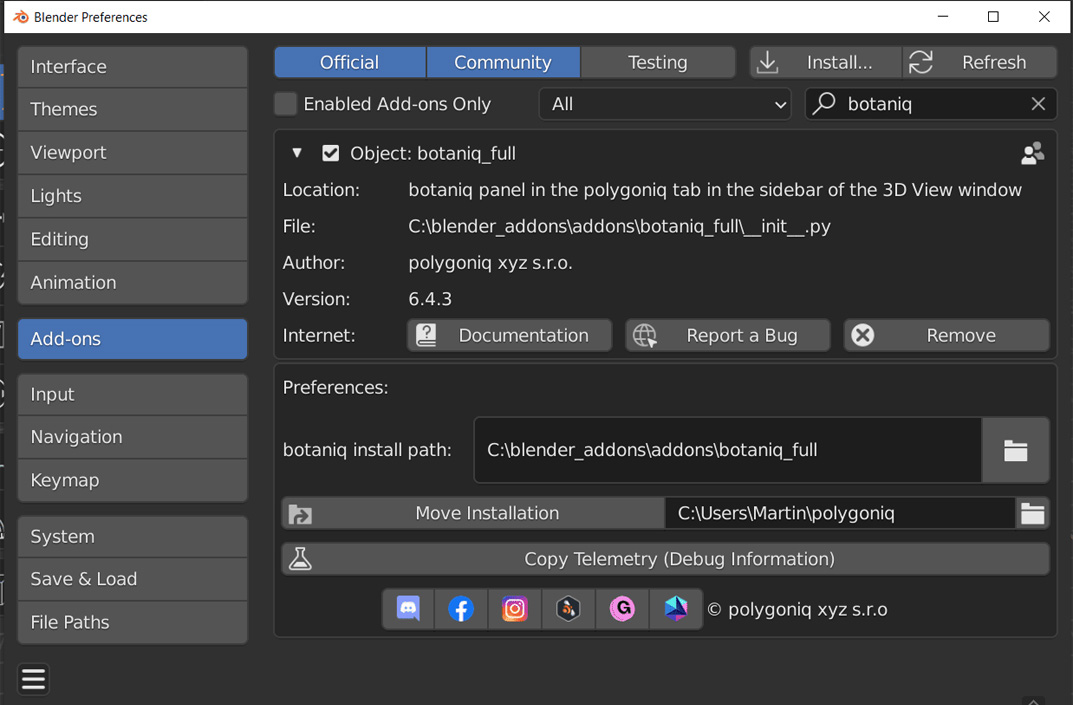
In Blender: Edit → Preferences → Add-ons → Install
-
Select the downloaded add-on
.zip -
Enable it
Enable Asset Loading in Blender Preferences
Sometimes Botaniq shows the “Assets Missing” error because Blender is blocking access to external files. Blender has settings that control how add-ons load things like textures, models, and files from other folders. If these settings are wrong or become corrupted, Blender won’t let Botaniq read its asset library.
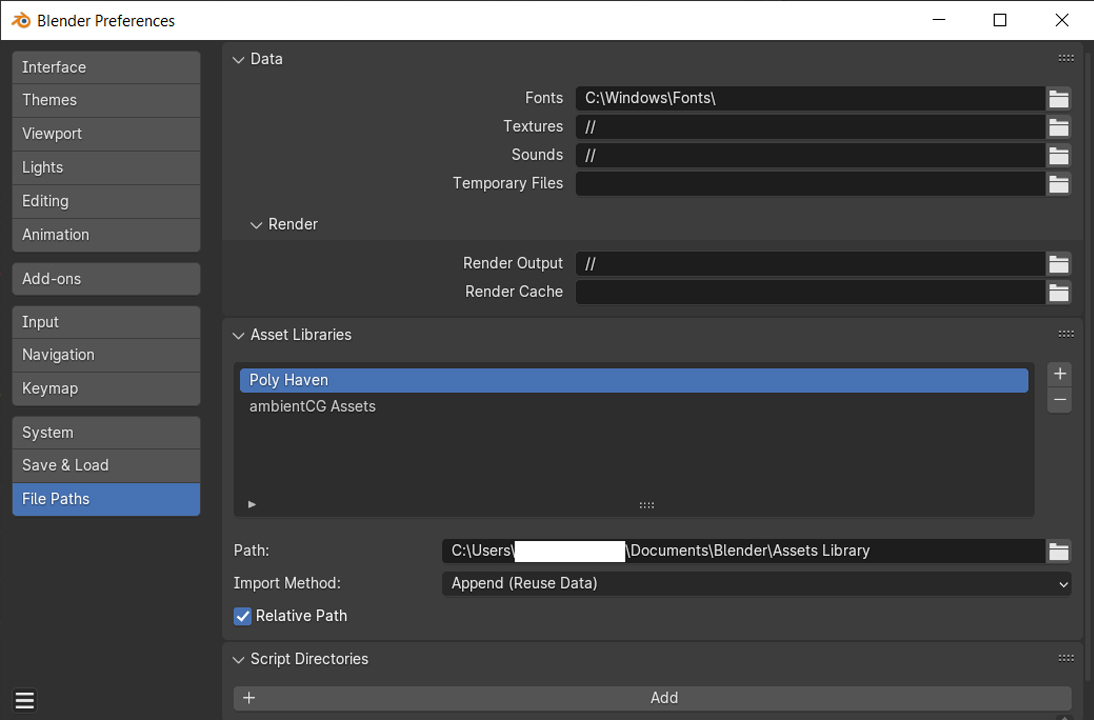
So, you can try enable Asset Loading in Preference:
-
Edit → Preferences → File Paths
-
Ensure nothing is blocking external file linking
-
Reset the file path settings if unsure
Final Thoughts
The “Botaniq Assets Missing” error in Blender usually comes from incorrect paths, missing files, or blocked access. By reinstall a new Botaniq, checking Blender’s file-loading settings, and reinstalling the assets if needed, you can quickly get Botaniq working again. Once everything is set correctly, you’ll be able to use Botaniq’s plant library smoothly and get back to creating your scenes.
iRender - The best Render Farm for Blender rendering
Our service
iRender Render Farm is a cloud-based rendering service that allows 3D artists, studios, and designers to render heavy projects faster using powerful remote machines. If your own computer is not powerful enough to render, you can rent high-performance servers equipped with top-tier GPUs like RTX 4090 and CPUs.
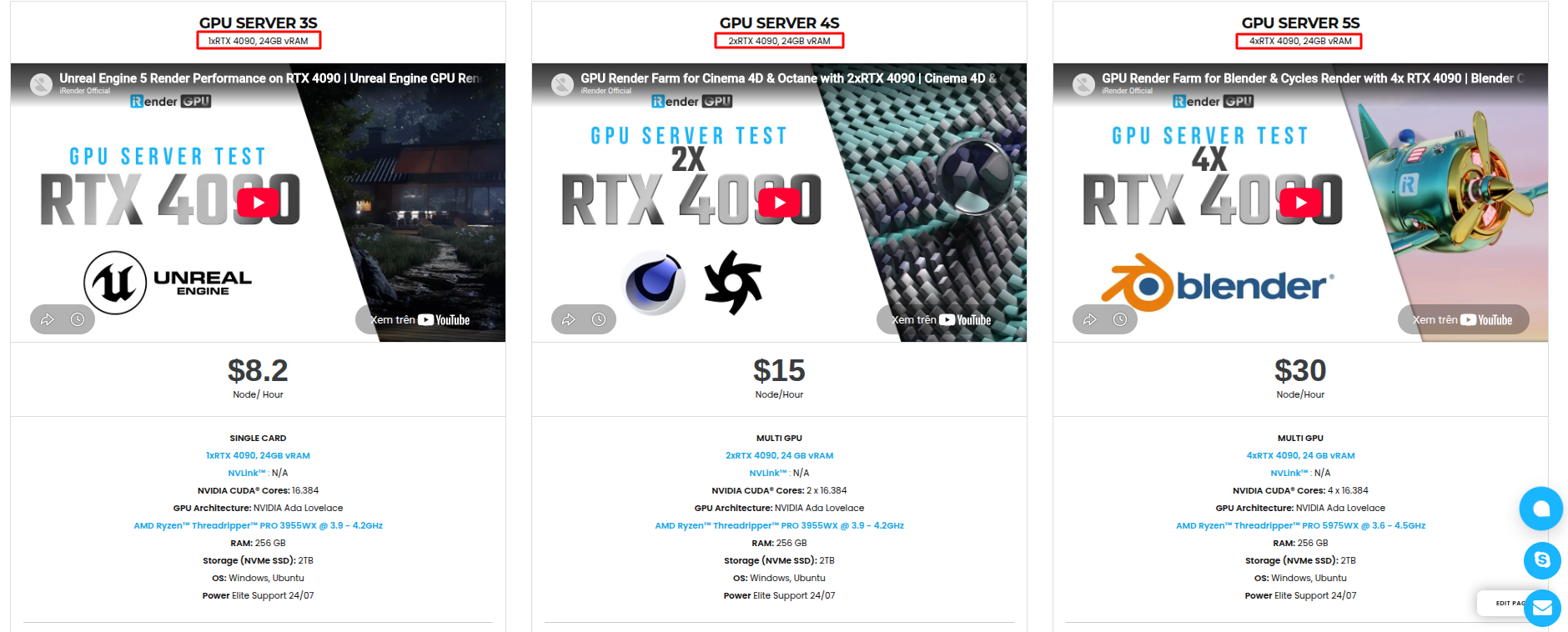
iRender Render Farm is a GPU-Acceleration Cloud Rendering Service for Blender Multi-GPU Rendering with Powerful Render Nodes: 2/4x RTX 4090.
All servers are equipped with:
- CPU ‘AMD Ryzen™ Threadripper™ PRO 3955WX (3.9-4.2GHz) or AMD Ryzen™ Threadripper™ PRO 5975WX (3.6-4.5GHz)
- 1/2/4x RTX –4090
- 256GB RAM
- 2TB NVMe SSDs
We have pre-installed Blender 5.0 option when you create a machine, so you won’t take time to install software. Blender can use multi cards to render, you can refer any servers to speed up your rendering. Please have a look at all servers following:
Why Choose Us?
iRender offers a powerful and free file transfer tool: iRender drive for macOS and Linux user. You can transfer all the necessary data into our iRender drive tool at any time without connecting to the server. The data will be automatically synchronized in the Z drive inside the server, ready for you to use.
The tool is also integrated into iRender GPU app, an all in one application where you can free your workflow from accessing iRender website, and just have to work on the iRender GPU app.
Price is also an important factor affecting a customer’s decision to use the service. In addition to the moderate cost of only $8.2/hour, iRender also offers a Fixed Rental plan: rent for 3 hours or more and save 10% compared to regular hourly pricing. This is an extremely beneficial advantage for professional artists having demand on using the server continuously for their project, without paying the full hourly rate for every hour used.
We are running a SPECIAL OFFER: 100% Additional Bonus for new clients who register an account and make a top-up after their registration.
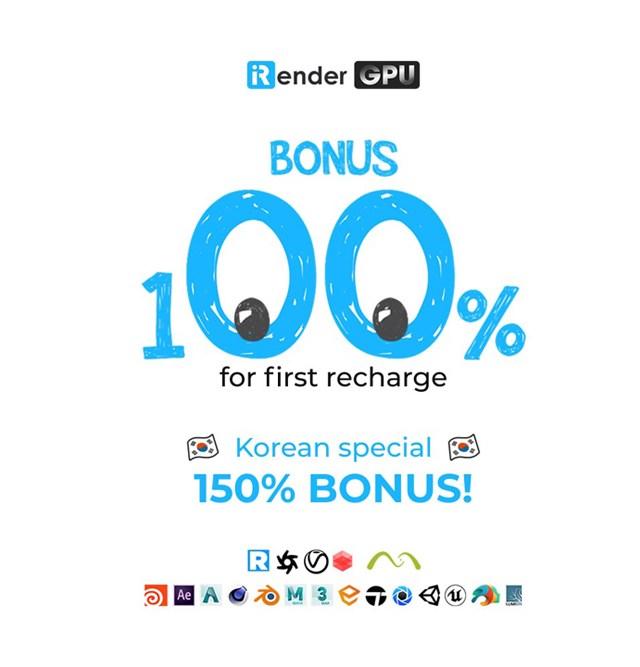
Take advantage of this limited-time offer to maximize your rendering power and boost your productivity. Don’t miss out—upgrade your projects with more value today!
Whether you’re an iRender customer or just curious about our service, our friendly team is willing to support you.
Register an account today to experience our service or contact us via the email [email protected] or WhatsApp: (+84) 912075500 for advice and support.
Happy Rendering!
Reference source: blenderartists
Related Posts
The latest creative news from Blender Cloud rendering.





