
How to fix Cinema 4D errors or failed jobs on iRender?
If you have ever tried to render your Cinema 4D project on the iRender server and encountered unexpected errors or failed jobs, this article is for you. These Cinema 4D render errors can appear for many reasons. But don’t worry, most of them are easy to fix once you know where to look. In this article, we will look at the most common causes and guide you through the steps to solve them so that your rendering runs smoothly on iRender.
Why do these errors happen?
Cinema 4D render errors often occur because of:
- Different software versions between your local setup and the iRender machine
- Missing or unlinked textures in your scene
- Outdated GPU drivers
- Incompatible GPU settings
- Temporary software issues
The good news is that all of these issues can be easily fixed by following a few steps below.
How to fix Cinema 4D errors or failed jobs on iRender farm?
Check software version
One of the most common reasons for rendering errors or different results is software version mismatch. If your version of Cinema 4D or a render engine like Redshift, Octane or V-Ray is different from the version installed on iRender, this can cause errors or incomplete rendering.
So, make sure you are using the same software version on both your workstation and iRender. If they are different, install the same version you used on your machine before starting the render.
Check missing textures
Missing or unlinked textures can lead to errors or black frames in Cinema 4D. If the textures are not added properly when you upload the project, the render engine will not be able to find them.
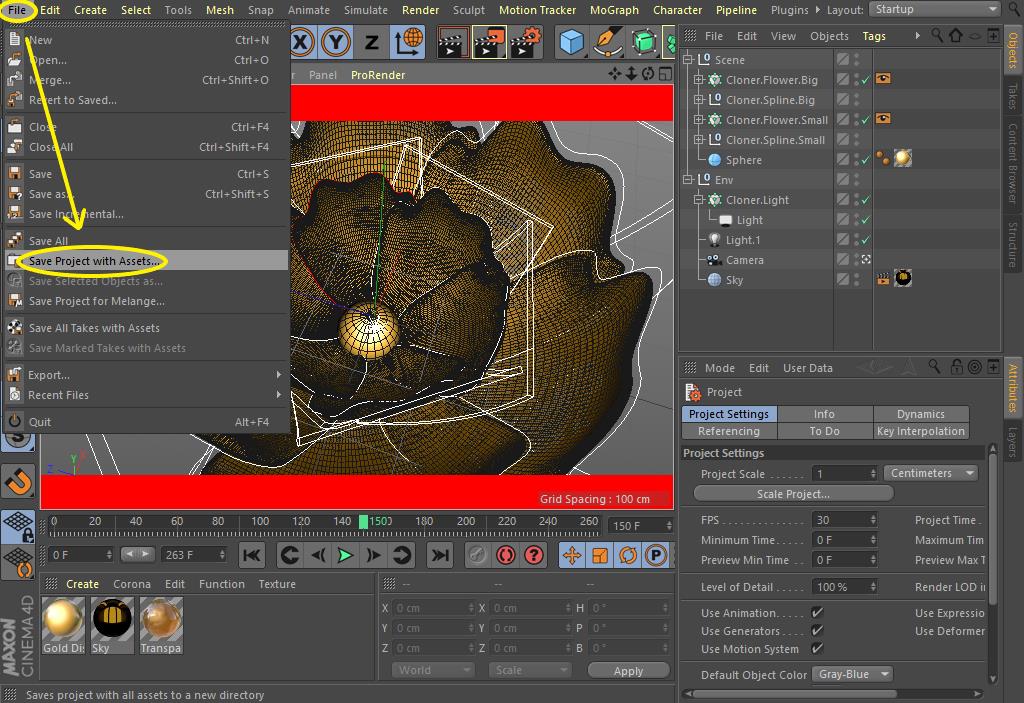
The solution is to use File > Save Project with Assets in Cinema 4D before uploading the project to collect all the textures into one folder.
After uploading to the iRender server, open the project and check the Texture Manager to confirm that there are no missing textures.
Update NVIDIA Studio Driver
If your project runs fine on your local machine but crashes or renders incorrectly on iRender, the GPU driver may be outdated or incompatible with the render engine.
If you’re using an iRender server, you can update to the latest NVIDIA driver by:
- Go to the X drive on your remote machine
- Open NVIDIA RTX 4090 DRIVER > Studio
- Choose the latest driver by Date Modified
- Install it, restart the machine, and reconnect
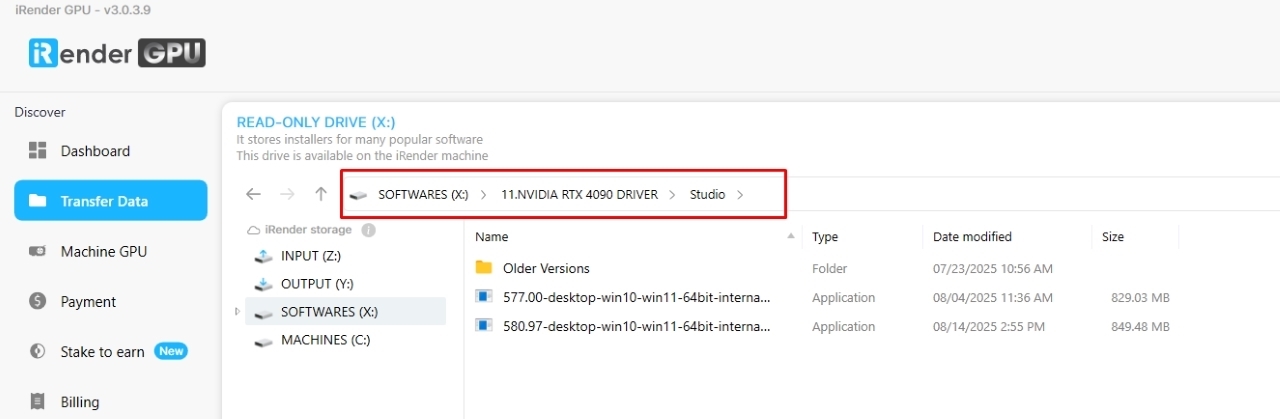
Note: Newly created machines at iRender usually come with the latest drivers, but older machines may need to be updated manually. Many customers have fixed performance issues this way.
Turn off Accelerated GPU Scheduling
Some users experience rendering issues or slow performance due to Windows GPU scheduling conflicts. Turning this option off can often stabilize your rendering.
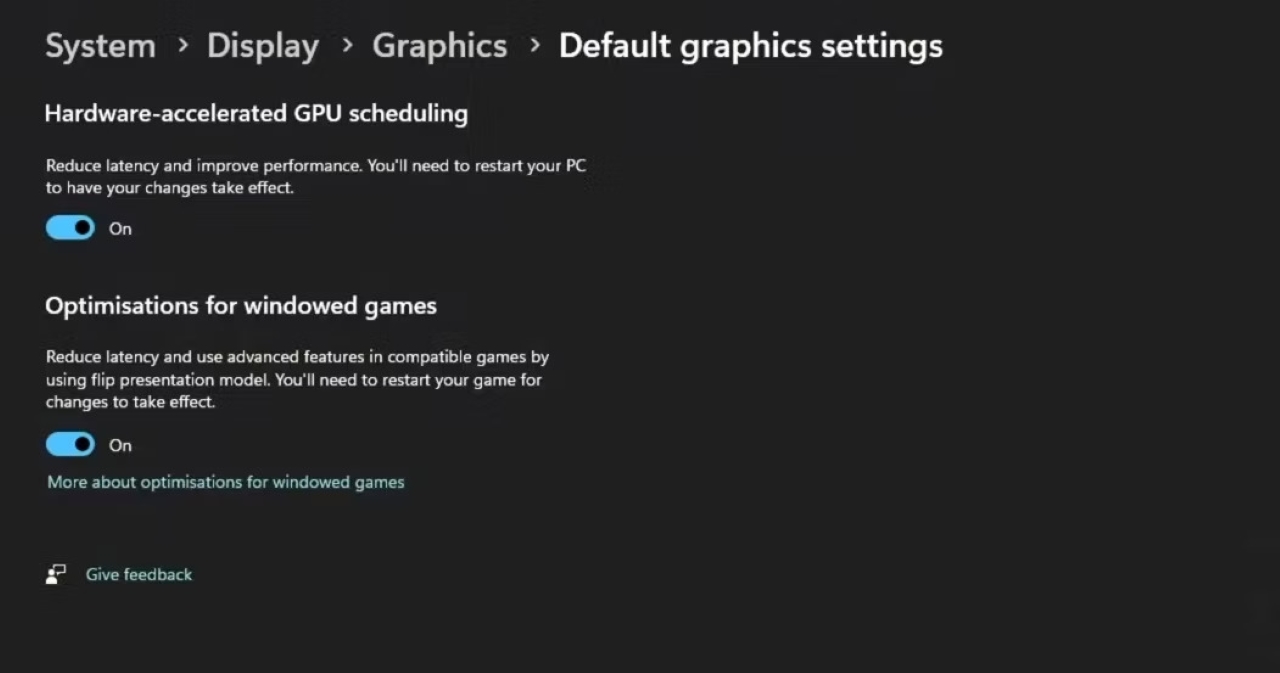
- Open Windows Settings > System > Display > Graphics > Default Graphics Settings.
- Turn off Hardware-accelerated GPU scheduling.
- Restart your server
Restart software
Sometimes the problem is not so serious that Cinema 4D or your render engine may just need a restart. Temporary memory allocation errors or GPU errors can cause errors or slow rendering.
Note: If you are using Octane or Redshift, restart your render engine or Live Viewer before trying again.
Contact iRender support
If you have tried everything and still cannot render, please contact our customer support team via Live chat 24/7 for the earliest support. Our technicians will help verify your settings, check your server configuration, and suggest the best solution for your case.
Boost up Cinema 4D rendering with iRender render farm
iRender not only helps you save hours of rendering time but also has a dedicated technical support team always ready to assist you with any issues you may encounter on our render servers.
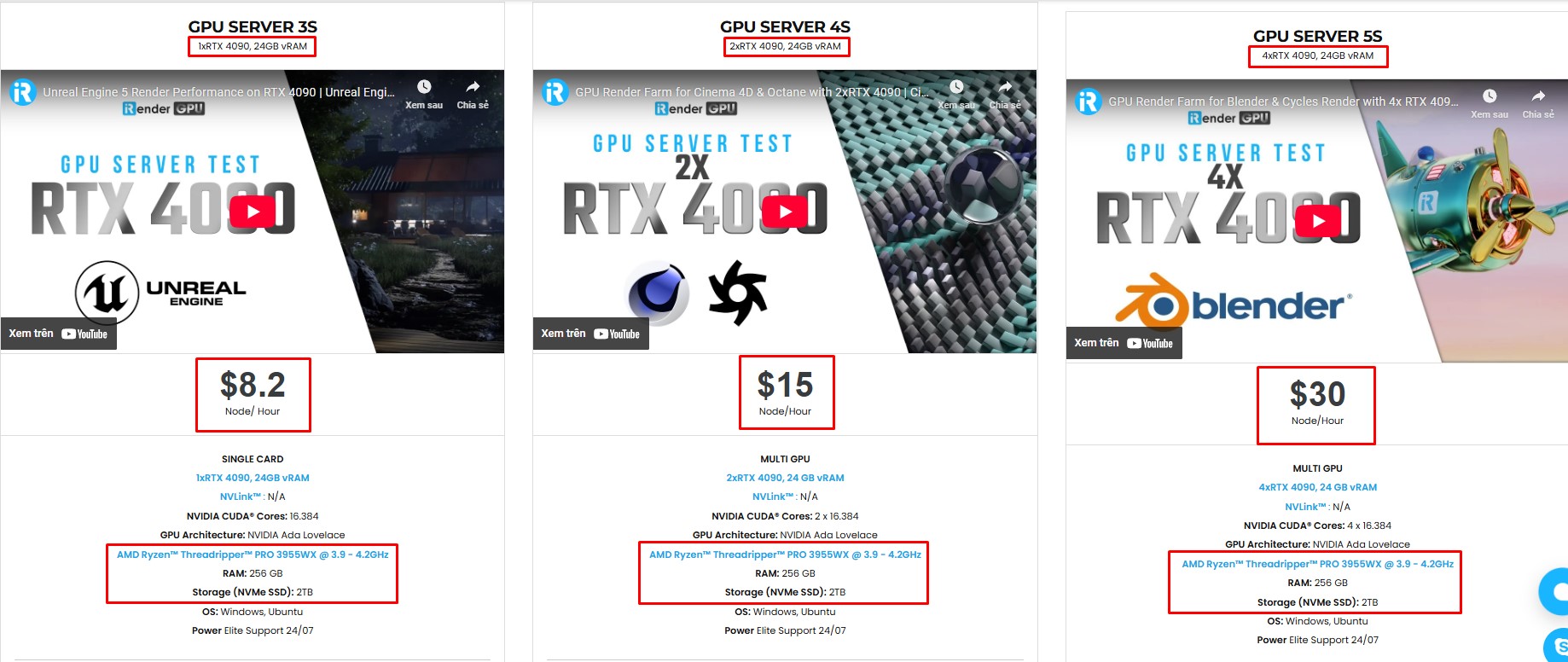
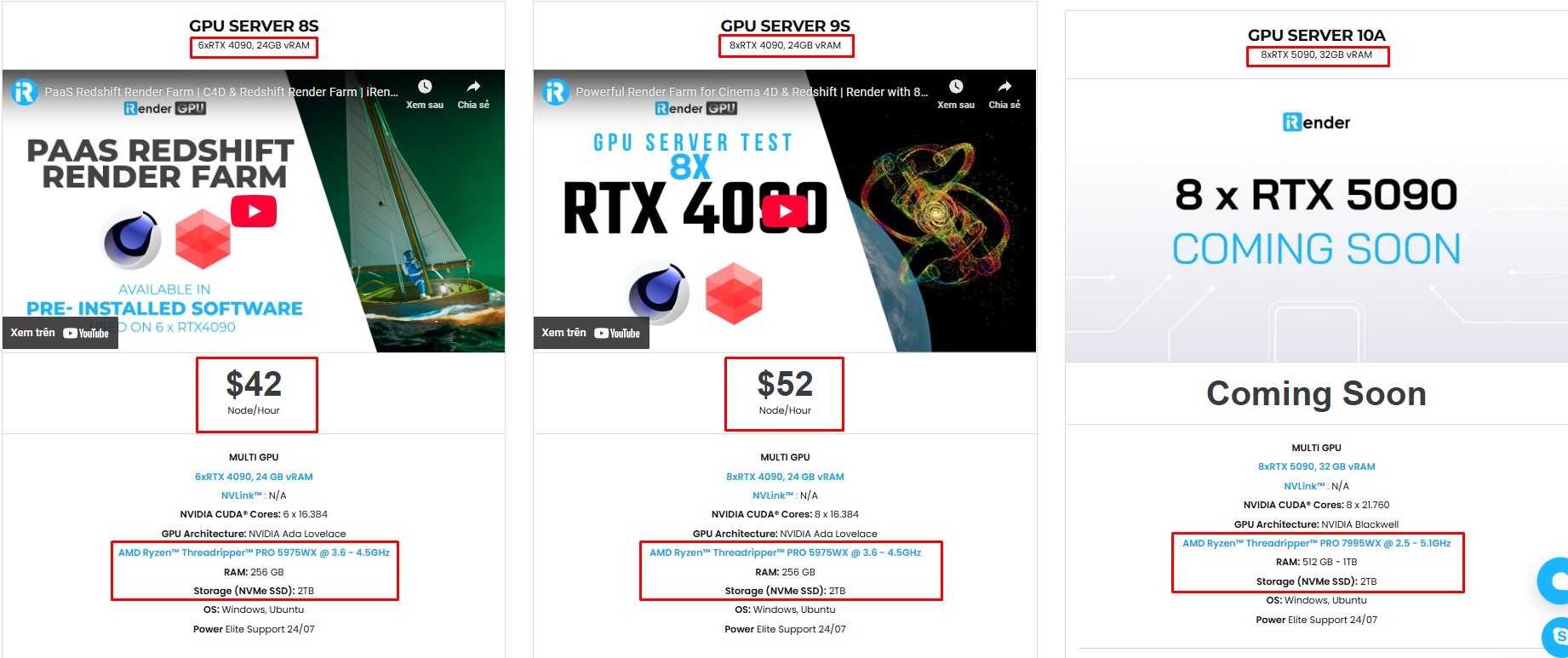
We support all popular 3D software and render engines, including Cinema 4D and all render engines or plugins needed. We provide you with access to high-performance GPUs, allowing you to render faster and more efficiently, eliminating the need to upgrade your own hardware. All servers are equipped with:
- AMD Ryzen™ Threadripper™ PRO 3955WX (3.9-4.2GHz) or
- AMD Ryzen™ Threadripper™ PRO 5975WX (3.6-4.5GHz)
- (1/2/4/6/8x) – RTX 3090/4090
- 256GB RAM
- 2TB NVMe SSDs
Simple Your Workflow with Cinema 4D Preinstalled
Our servers have Cinema 4D and Redshift preinstalled. As an official partner of Maxon, each user can also use a combo C4D Redshift license for free from us. You just need to transfer your files, connect to the remote machine. Then you can render yourself like the way you do on your local PC. Setting up ONCE and your working environment will be saved and ready to use at any time.

Why choose iRender?
Unlike other services, iRender lets you upload and download files without starting the server, saving you both time and money. We offer a Desktop app for Windows with a full feature set and a simple Drive app for macOS for easy file transfers. Here’s why iRender is a top choice for your rendering needs:
- 100% Software Support: We support all 3D software, their plugins, and render engines.
- Full Control: Our service will give you full control over the servers you rent. Therefore, you are free to create your own working environment.
- Go Green: We are committed to using 100% solar renewable energy towards environmental sustainability.
- Real-human 24/7 Support: Our professional support agents and technicians guarantee to bring you the best rendering experience.
Let’s see our latest performance test for C4D on our servers, you’ll definitely see the difference!


If you still wonder if this is the right place for your project, REGISTER NOW to get a trial and receive a 100% bonus promotion for your first transaction within 24 hours of registration with us.

For more detailed information, please contact us via Live chat 24/7 or WhatsApp: +(84) 912-785-500 or Email: [email protected]
iRender – Happy Rendering!






