
How to fix ‘CUDA error: Invalid value in cuMemcpy2DUnaligned’ in Blender?
When working with CUDA-based libraries in Blender, have you run into confusing errors, “Invalid value in cuMemcpy2DUnaligned,” yet? Although it looks technical, this error is not really hard to fix.
In this blog, iRender will guide you to understand what’s going on and suggest some solutions to fix the error.
Understanding of CUDA error: Invalid value in cuMemcpy2DUnaligned
cuMemcpy2DUnaligned is a CUDA driver API call used when copying a 2D block of memory that is not guaranteed to be aligned. Cycles uses this when uploading:
-
Textures
-
Tile buffers
-
BVH data
-
Kernel parameters
When the Cycles CUDA renderer in Blender tries to copy data to or from the GPU, it fails because the data being transferred is not properly aligned or shaped for CUDA. Imagine Blender attempting to send an image to your graphics card, but CUDA gives an Invalid Value error because the “width, height, or memory layout” doesn’t match what the GPU expects.
What causes this in Blender?
- Corrupted or Unsupported Textures:
In Blender, this error usually happens when Cycles tries to send textures or scene data to your GPU, but something about the data doesn’t fit what CUDA expects.
- GPU VRAM Issues:
This can happen when your graphics card doesn’t have enough memory left. If your scene has big textures or lots of details, the GPU can run out of space. When Blender tries to send more data to the GPU than it can hold, it shows this error.
- Multi-GPU or External GPU (eGPU) Setup:
If you use more than one GPU or an external GPU, Blender might get confused about which GPU should receive the data. When the GPUs don’t match or don’t share memory the same way, Blender can send data to the wrong place, causing this error.
How to fix ‘CUDA Error: Invalid value in cuMemcpy2DUnaligned’ in Blender?
1. Render on single GPU instead multi GPU
Quick Solution (Client-Friendly)
In some Blender versions—starting from 2.80 with the memory, rendering heavy scenes on dual-GPU systems can trigger the error “CUDA Error: Invalid value in cuMemcpy2DUnaligned.” This happens because the swap-memory feature works well with one GPU, but becomes unstable with multiple GPUs, especially in versions like 2.83–2.92.
One of our client experienced and suggested:
-
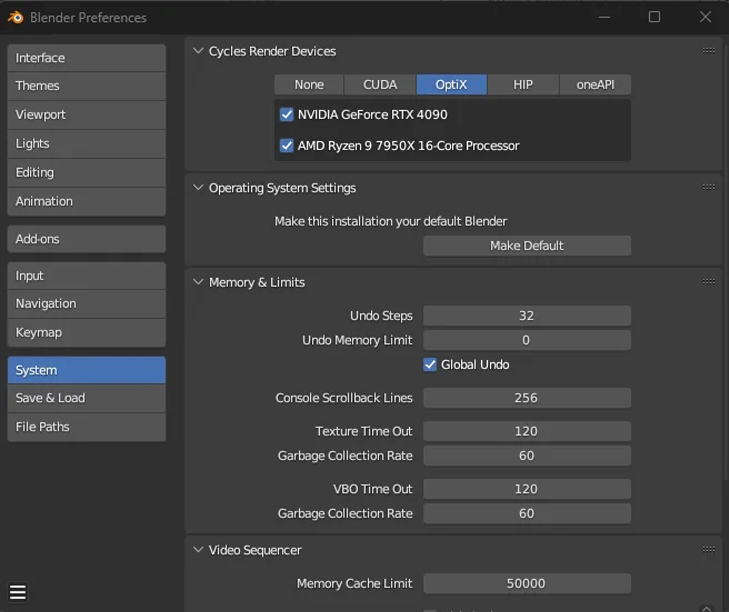
Disable one of the GPUs in Blender (Preferences → System → CUDA/OptiX).
-
Choose the faster GPU of the two for rendering.
-
Render again — the error disappears.
Even though it’s not perfect, this method allowed the scene to render reliably without crashes or CUDA errors, and significantly improved performance by using the faster GPU. You can refer this as a solution.
2. Reduce GPU VRAM usage
The error “CUDA Error: Invalid value in cuMemcpy2DUnaligned” often happens when the GPU runs out of available VRAM. Also, heavy scenes can exceed the GPU’s memory limits, especially with large textures (8K–16K) or high render resolutions (4K–8K). Therefore, reducing VRAM usage usually prevents the error.
3. Switch CUDA → Optix (or vice versa)
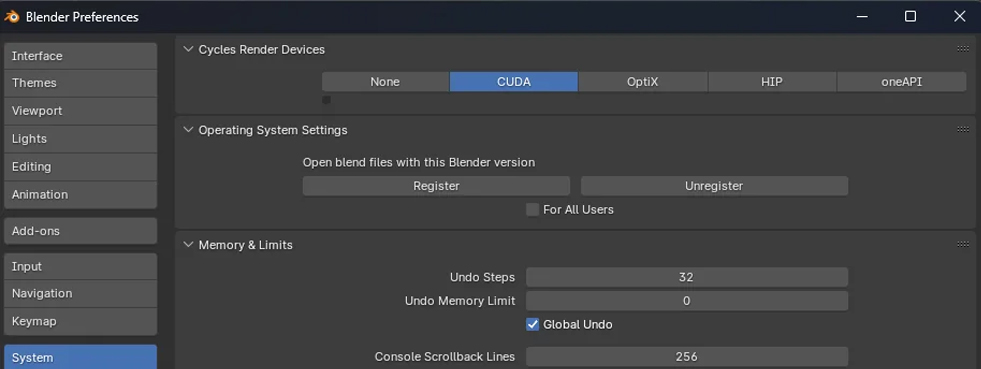
Switching between CUDA and OptiX can fix this error because they use different GPU memory systems. Therefore, changing the backend forces Blender to rebuild GPU data and often avoids the failing CUDA memory copy.
To do this, you should:
- Go to Edit → Preferences → System.
- Under Cycles Render Devices, select OptiX instead of CUDA, or CUDA instead of OptiX, and make sure your GPU is checked.
- After that, you need to restart Blender.
- After restarting, go to Render Properties → Cycles and set Device to GPU Compute.
4. Update NVIDIA Studio Driver
This CUDA error is often caused by bugs or instability in older NVIDIA drivers, especially when Blender is using features like memory swapping or multi-GPU rendering. Therefore, updating to the latest NVIDIA Studio Driver is one of the solutions.
If you encounter this issue on our iRender server, please follow the following steps:
Step 1: Go to the X: Drive on the remote machine and open the folder: 11. NVIDIA RTX 4090 DRIVER > Studio
Step 2: Find the latest Studio Driver installer
Step 3: Copy it to the remote desktop and run it.
Step 4: After installation, restart the machine.

Conclusion
The “CUDA Error: Invalid value in cuMemcpy2DUnaligned” in Blender mainly comes from GPU memory limits, driver issues, or conflicts in multi-GPU setups. The most reliable fixes are updating NVIDIA Studio drivers, reducing VRAM usage, or disabling one GPU. These steps eliminate the memory-copy failures that causes the error and restore stable rendering in Blender.
iRender - The top Render Farm providing RTX 4090 power for Blender
As Blender scenes grow more complex—with heavier geometry, high-resolution rendering, the demand for powerful GPUs continues to increase. While your local computer often struggle with VRAM limitations or slow render speeds, iRender stands out as one of the best render farms offering access to NVIDIA’s RTX 4090. It provides high-performance computing with the latest GPUs for Blender rendering.
Why our configuration makes a difference for Blender?
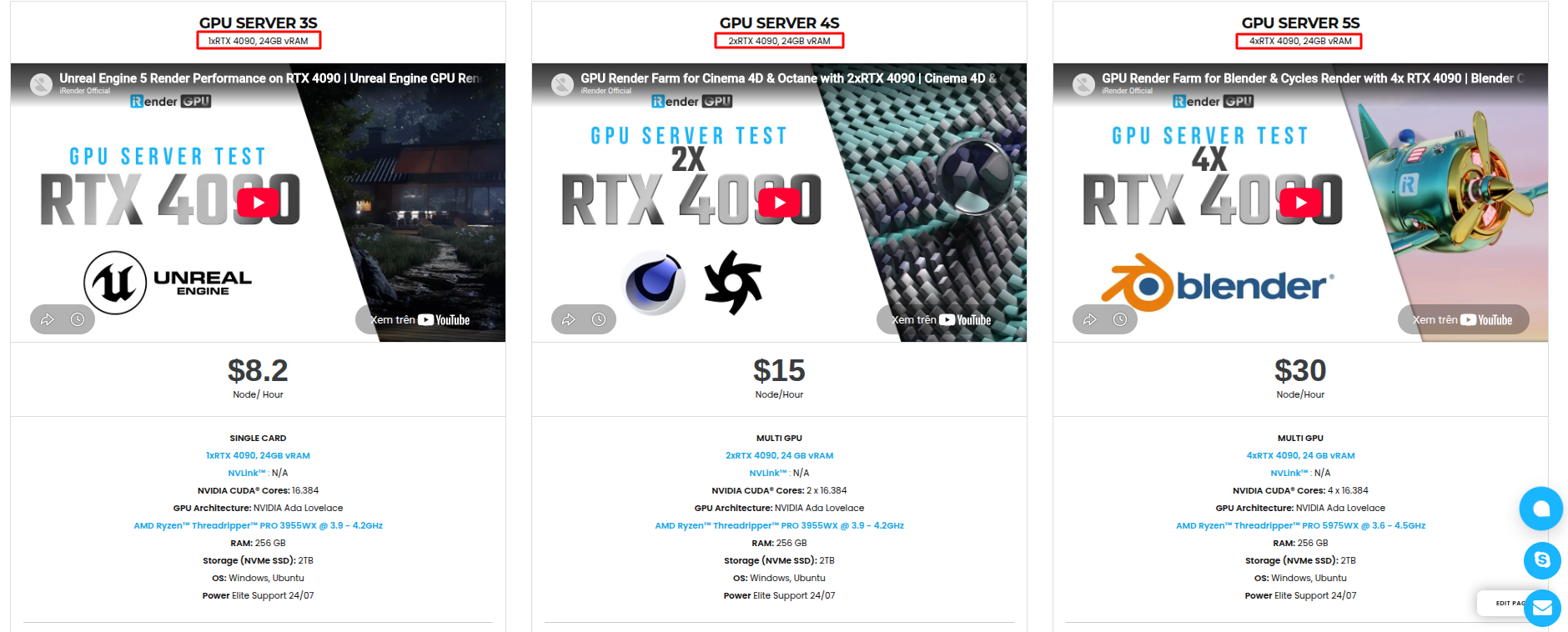
iRender is proud to be one of the best GPU service providers on the market. We are releasing new servers for iRender’s users, which have powerful processing capabilities:
- CPU AMD Ryzen Threadripper Pro 3955WX @ 3.90GHz – 4.2GHz orAMD Ryzen™ Threadripper™ PRO 5975WX @ 3.6 – 4.5GHz
- RAM: 256GB
- VRAM: 24GB
- Hardware storage: 2TB
We have pre-installed Blender 5.0 option when you create a machine, so you won’t take time to install software. Blender can use multi cards to render, you can refer any servers to speed up your rendering.
iRender offers a powerful and free file transfer tool: iRender drive for macOS and Linux user. You can transfer all the necessary data into our iRender drive tool at any time without connecting to the server. The data will be automatically synchronized in the Z drive inside the server, ready for you to use.
The tool is also integrated into iRender GPU app, an all in one application where you can free your workflow from accessing iRender website, and just have to work on the iRender GPU app.
In case you have any problems or questions, don’t hesitate to contact the support team. We will be happy to help you with your questions and problems at all times.
 Big promotions
We are running a SPECIAL OFFER: 100% Additional Bonus for new clients who register an account and make a top-up after their registration wwithin 24hours.
Warm up your workflow this winter with one of our biggest bonus events of the year! For one week only, your purchase goes further:
🔥 Get 25% bonus credits when you purchase $575+
🔥 Get 50% bonus credits when you purchase $1500+
Stack up extra power, speed up your projects, and make this cold season your most productive yet. We hope you won’t miss out this promotion so that we can work together.

Take advantage of this limited-time offer to maximize your rendering power and boost your productivity. Don’t miss out—upgrade your projects with more value today!
Register an account today to experience our service or contact us via the email [email protected] or WhatsApp: (+84) 912075500 for advice and support.
Happy Rendering!
Reference source: Reddit
Related Posts
The latest creative news from Blender Cloud rendering.





