Karma XPU Crashes With CUDA or OptiX Errors: A Troubleshooting Order
EXECUTIVE SUMMARY // KEY PRODUCTION TAKEAWAYS
Provides a structured troubleshooting order for diagnosing and resolving silent GPU failures, CUDA crashes, and OptiX device dropouts in Houdini Solaris Karma XPU. Because Karma automatically falls back to CPU rendering when a GPU fails, artists often face extreme render slowdowns without receiving a visible error dialog box.
Key technical insights and workflow considerations include:
- VRAM Headroom as Primary Trigger: Over 99% of OptiX critical errors stem from GPU VRAM exhaustion caused by uncompressed 4K textures, dense volume caches, or multiple stacked viewport render views.
- Driver Mismatches & Full Restarts: Specific CUDA errors like
CUDA_ERROR_MISALIGNED_ADDRESSrequire explicit driver updates and a complete Houdini application restart rather than simply resetting the XPU viewport device. - Scene Feature Isolation: Animated or varying-topology geometry (e.g. dynamic USD layers) under motion blur and complex shader combinations (subsurface scattering mixed with transmission) are common non-memory crash triggers.
- Exposing Silent Failures: Force GPU-only rendering and surface hidden device crashes immediately by setting the environment variable
KARMA_XPU_DISABLE_EMBREE_DEVICEto disable CPU fallback. - Windows TDR Timeout Safeguard: Heavy frames taking longer than 2 seconds to respond can trigger Windows OS TDR resets, which can be diagnosed by adjusting
TdrDelayin the registry.
For Cloud Diagnostics & Render Farms, isolate VRAM bottlenecks by scaling your Karma XPU scenes to high-memory remote instances, such as iRender’s RTX 5090 (32GB VRAM) or RTX 4090 (24GB VRAM) nodes. Take advantage of automated shut-down scheduling to conduct cost-effective diagnostic passes without idling billable hours.
If you’ve rendered a Solar is scene with Karma XPU long enough, you’ve probably seen this line in the log: “KarmaXPU: device Type:Optix ID:0 has registered a critical error, so will now stop functioning.”
When that happens, the GPU device doesn’t just slow down, it drops out of the render entirely. Karma XPU is built to keep going when a device fails, so the frame usually finishes anyway, picked up by whatever’s left, which on a single-GPU machine means the CPU. You get a finished frame, a render time far longer than you expected, and no dialog box telling you what went wrong.
This article will provide you with a troubleshooting process. Let’s take a look!
Step 1: Check VRAM before anything else
On the same Karma XPU forum thread where a studio artist, dhemberg, reported OptiX crashes on an RTX 3090 Ti, another forum member, jsmack, offered a rule of thumb: “99% of the time Optix fails it’s simply running out of VRAM. The other 1% is driver problems.”
That matches what the official Karma XPU documentation says about device failure in general: “If a device fails, as may be the case with a GPU running out of memory, the other devices (including the CPU) will pick up the load.” The crash you’re chasing is very often just the visible symptom of running out of memory, not a bug in your scene.
You should check some elements as below:
- Texture resolution and count. High-resolution textures across many unique materials add up fast, especially with 4K+ texture sets and no UDIM-aware caching.
- Volume and point cloud density. Dense smoke, fire, or particle caches eat VRAM in a way that’s easy to underestimate from the viewport alone.
- Multiple render views or viewport renders running at once. Every open Karma render view holds its own GPU memory, so a few stacked viewport renders can quietly eat the budget a final render needs.
- Other applications holding GPU memory. A browser with hardware acceleration on, or another DCC app open in the background, can leave less headroom than Task Manager’s idle reading suggests.
If you’re on a single consumer GPU, this is also the point to ask whether the scene has simply outgrown the card. A 24GB card handling a dense archviz interior with GI caching and multiple AOVs is a different proposition than the same card on a simple product shot.
Step 2: Check the driver and the Houdini build
Jsmack’s “other 1%” is driver problems, and that 1% is worth ruling out early because it’s quick to check and easy to miss. On the same forum, a separate reporter, ajz3d, posted a different Karma XPU error, “Unable to create CUDA context for device 0 [CUDA_ERROR_MISALIGNED_ADDRESS],” and noted it required a driver at version 535 or newer.
Also worth checking: whether the crash is new since your last Houdini update.SideFX staff said they’d had trouble reproducing the issue from the report alone and asked whether the user could help narrow down which build introduced it. No confirmed root cause came out of that thread, but it’s a reminder that a crash appearing right after an update is a real, recurring pattern on this forum, not a rare fluke.
Step 3: Isolate the scene element
If VRAM and drivers check out, the next step is narrowing down which part of the scene triggers it.
The failures only happened with motion blur enabled on a particular USD layer, specifically trees with a varying point count across frames. Disabling motion blur on that layer stopped the crash.
There are two points you should check it carefully:
- Varying point counts can count as animated topology even when the actual values repeat. This still forces Karma to treat the geometry as changing every frame for motion-blur purposes, which is more expensive than it looks from the viewport.
- Opacity is often the safer choice over transmission for leaf-style shaders.
The general method: disable motion blur and test. Re-enable it, swap one shader input at a time (subsurface, transmission, opacity), test. Isolate by USD layer if the scene has several. It’s slower than reading a single error string, but it’s the only way to tell a VRAM problem from a specific feature combination that happens to be unstable.
Step 4: Make failures clearly
By design, Karma XPU hides most of this from you. A device fails, the CPU picks up the slack, and the render finishes looking normal except for how long it took.
To force failures to be visible instead of silently absorbed, disable the CPU fallback device so a GPU failure stops the render instead of handing it to the CPU. SideFX’s own Karma XPU documentation lists the environment variable for this directly: KARMA_XPU_DISABLE_EMBREE_DEVICE. Set it, and Karma XPU “will not create any Embree CPU devices,” meaning there’s nothing left to quietly take over when the GPU device fails.
- KARMA_XPU_DISABLE_OPTIX_DEVICE, which does the opposite: disables the GPU device so you can confirm a render is clean on CPU alone.
- KARMA_XPU_DEVICES, which takes a comma-separated list of device IDs to enable. Setting it to optix has the same practical effect as disabling Embree, forcing GPU-only and surfacing the failure instead of masking it.
Step 5: Rule out Windows TDR on very long frames
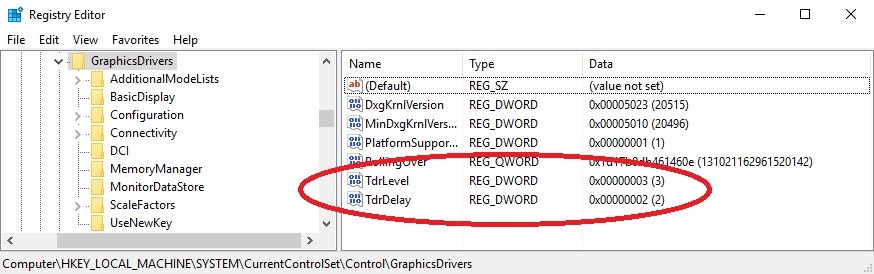
Image Source: Puget Systems
If your crashes cluster specifically around your heaviest frames, the longest sims, the densest volumes, the most AOVs, there’s a Windows-level mechanism worth knowing about: Timeout Detection and Recovery, or TDR.
Per Microsoft’s own driver documentation, Windows watches how long a GPU driver takes to respond to the display scheduler. The relevant setting is TdrDelay, under HKEY_LOCAL_MACHINE\System\CurrentControlSet\Control\GraphicsDrivers, which Microsoft describes as “effectively the timeout threshold.” The default is 2 seconds. If a single operation blocks the GPU for longer than that, Windows assumes the driver has hung, resets it, and whatever was running gets interrupted, which can look exactly like a random GPU device failure inside Karma.
A frame that’s just genuinely heavy, not actually broken, can trip this on some systems. This is the step to reach for last, after VRAM, drivers, and scene isolation haven’t explained it, because Microsoft is explicit that these registry keys exist for driver development and testing, not as a routine end-user tuning knob.
Scale Up to an RTX 5090 on iRender to Test It
Troubleshooting Karma XPU crashes usually means testing the same scene across more than one GPU, more than one driver version, and sometimes more than one VRAM tier, which is an awkward thing to do if you own exactly one workstation.
iRender provides cloud workstations with high-end GPU and CPU configurations.
- GPU: RTX 5090 and RTX 4090, from single-GPU to multi-GPU configurations
- CPU: AMD Ryzen™ Threadripper™ PRO 3955WX and 5975WX
- RAM: Up to 256GB
- Storage: Up to 2TB
Our workstation gives you control over the software environment, so you can install the Houdini version and applications required by your project. This makes it useful for rendering, scene work, and lookdev when your local machine does not have enough capacity.
We are having promotion: you will receive 100% bonus if you recharge within 24hours of registration. Check it out now!
iRender GPU Cloud Packages for Houdini & Karma XPU
Dedicated bare-metal IaaS remote workstations tailored for Houdini lookdev, CPU simulations, and multi-GPU Karma XPU / Redshift rendering.
| Houdini Server Package | Hardware Specs (CPU / RAM / SSD) | Recommended Houdini Workflow |
|---|---|---|
| NVIDIA RTX 4090 Series • 24GB GDDR6X VRAM per GPU | ||
| Package 3S 1x RTX 4090 (24GB VRAM) |
AMD Threadripper™ PRO 3955WX
256GB Host RAM 2TB NVMe PCIe 4.0 SSD |
Lookdev, test renders, and single-card Karma XPU / Redshift scene setup. |
| Package 4S 2x RTX 4090 (24GB VRAM / GPU) |
AMD Threadripper™ PRO 3955WX
256GB Host RAM 2TB NVMe PCIe 4.0 SSD |
Dual-GPU accelerated rendering for medium-scale Karma XPU shot sequences. |
| Package 5S 4x RTX 4090 (24GB VRAM / GPU) |
AMD Threadripper™ PRO 5975WX
256GB Host RAM 2TB NVMe PCIe 4.0 SSD |
Final batch rendering via husk across 4x GPUs for tight deadlines. |
| Package 9S 8x RTX 4090 (24GB VRAM / GPU) |
AMD Threadripper™ PRO 5975WX
256GB Host RAM 2TB NVMe PCIe 4.0 SSD |
Maximum multi-GPU speed for heavy production sequences (Solaris / USD). |
| NVIDIA RTX 5090 Series • 32GB GDDR7 per GPU (32GB In-Card Memory for Heavy USD Stages) | ||
| Package 3i 1x RTX 5090 (32GB GDDR7) |
AMD Threadripper™ PRO 3955WX
256GB Host RAM 2TB NVMe PCIe 4.0 SSD |
Best for FX Sims & Lookdev: Cost-effective FLIP/Pyro/Vellum CPU solves + 32GB VRAM headroom. |
| Package 4i 2x RTX 5090 (32GB VRAM / GPU) |
AMD Threadripper™ PRO 3955WX
256GB Host RAM 2TB NVMe PCIe 4.0 SSD |
Next-Gen Dual-GPU rendering for massive Karma XPU scenes exceeding 24GB VRAM limits. |
| Package 5i 4x RTX 5090 (32GB VRAM / GPU) |
AMD Threadripper™ PRO 5975WX
256GB Host RAM 2TB NVMe PCIe 4.0 SSD |
High-performance production rendering for heavy Solaris USD stages and Redshift volumes. |
| Package 9i 8x RTX 5090 (32GB VRAM / GPU) |
AMD Threadripper™ PRO 5975WX
256GB Host RAM 2TB NVMe PCIe 4.0 SSD |
Ultimate VFX studio node for massive multi-GPU batch rendering via hython / husk. |
iRender bills from the moment Connect button appears, not from your first render frame, so a quick troubleshooting session is cheap but an idle server left running overnight on a VRAM test adds up the same as a real render would. Setting a reminder, or using Schedule shutdown is worth doing for exactly this kind of short diagnostic rental.
Check out Quick Start for Houdini at iRender:

Maximum Speed – Absolute Freedom
FAQ
- Why does my Karma XPU render finish successfully but take much longer than usual, with no error dialog?
This is the most common and most confusing symptom, because Karma XPU is designed to keep rendering even after a GPU device fails. When a device fails partway through, the remaining devices, which on a single-GPU machine means the CPU, pick up the load automatically. The render completes, just much slower, and nothing on screen tells you a device dropped out unless you check the render log for a line like “registered a critical error.” If a render is taking noticeably longer than a similar one did before, check the log before assuming it’s just a heavy scene.
- Does restarting the XPU device fix a crash, or do I need to fully restart Houdini?
It varies with the specific error. SideFX support has confirmed that cudaErrorIllegalAddress specifically requires a full restart of Houdini, not just the device. For other errors, restarting just the XPU device from the viewport dropdown is worth trying first, since it’s faster and sometimes works.
- Is a Karma XPU crash always a VRAM problem?
Not yet. One experienced forum poster put the split at roughly 99% VRAM and 1% driver issues, and that roughly matches what SideFX’s own documentation says about why devices fail in general. Scene-specific causes, like a particular shader combination or animated topology triggering motion blur, account for a smaller but real share of cases.
- Does switching Karma XPU to CPU-only rendering avoid these crashes for good?
Mostly, yes, since the crashes in this article are specific to the GPU devices, OptiX and CUDA, not Karma’s CPU engine. CPU-only rendering removes the failure mode. It’s a reasonable fallback for a deadline, not a long-term fix if the GPU device is crashing on scenes it should handle.
- Why does the crash only show up in the final render, not in the viewport?
The viewport render usually runs at a lower resolution, with fewer samples and less memory pressure than a final-quality render, so it can stay under the threshold that triggers a VRAM-related failure even when the full render doesn’t. If a scene renders fine in the viewport but fails at final settings, treat it as a VRAM problem first per Step 1, rather than assuming the viewport result means the scene itself is clean.