
Reasons and solutions for Redshift Error with iRender
When working with Cinema 4D and Redshift, you might sometimes get the error: You’re using the Optix denoiser, but there are no NVIDIA CUDA devices currently enabled. This is probably because you don’t have a GPU-enabled license or own an Nvidia GPU. Please use a GPU-enabled license (with an Nvidia GPU) or disabled…’.
There are lots of reasons that can cause this error when working with Redshift. To troubleshoot the error, let’s discuss the Reasons and solutions for Redshift Error with iRender in this blog!
The Redshift Error and its reasons
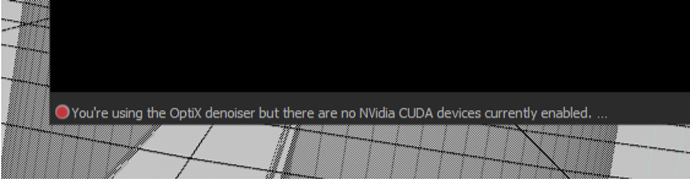
The error occurs because the OptiX denoiser, which is built to run on NVIDIA GPUs using CUDA technology, cannot detect any active CUDA devices on your system. When Redshift (or another renderer) attempts to initialize the denoiser, it expects an NVIDIA GPU to handle the process. If no GPU is found or enabled, the renderer will throw this warning.
There are several common reasons why this error happens, it might be one of the following reasons:
Missing or Outdated NVIDIA Drivers
If the Nvidia drivers are not installed or are outdated, the software may fail to recognize the GPU.
Unsupported GPU
OptiX denoiser needs a CUDA-capable NVIDIA GPU (Maxwell generation or newer). If you’re on AMD or Intel GPU, OptiX won’t work. Use the Altus denoiser or OIDN (Intel’s Open Image Denoiser) instead.
License Issue
You may not have a valid GPU-enabled license for Redshift. Without this license, the software will not allow you to utilize GPU features, including the Optix denoiser. Please remember to enable Cinema 4D and Redshift licenses when working.
Incorrect Render Settings
The rendering settings in Redshift may not be configured to use the GPU. Ensure that the rendering engine is set to use the GPU and that the necessary features are enabled.
Recommend solutions for Redshift error
Update the latest Studio Driver
Sometimes, an old studio driver can cause some errors when rendering Redshift. Therefore, you can check and update to the latest version. You can go to Nvidia website and download the most recent version of Studio drivers and install it. You will need to restart the machine after it’s done.
On iRender machine, we always update to the latest driver version. Sometimes, if we haven’t updated on time, you can always go to X drive of the remote machine, then click the part’ 11. NVIDIA RTX 4090 DRIVER > Studio > take the latest driver to the remote desktop and run it.

After updating NVIDIA driver, you will need to restart the machine, then you can connect to it again after a few minutes. It will take some minutes to restart the machine, and then you can connect again. Don’t shutdown the machine while it’s updating. After it’s done, you can start the render again.
Enable GPU on Redshift Preferences
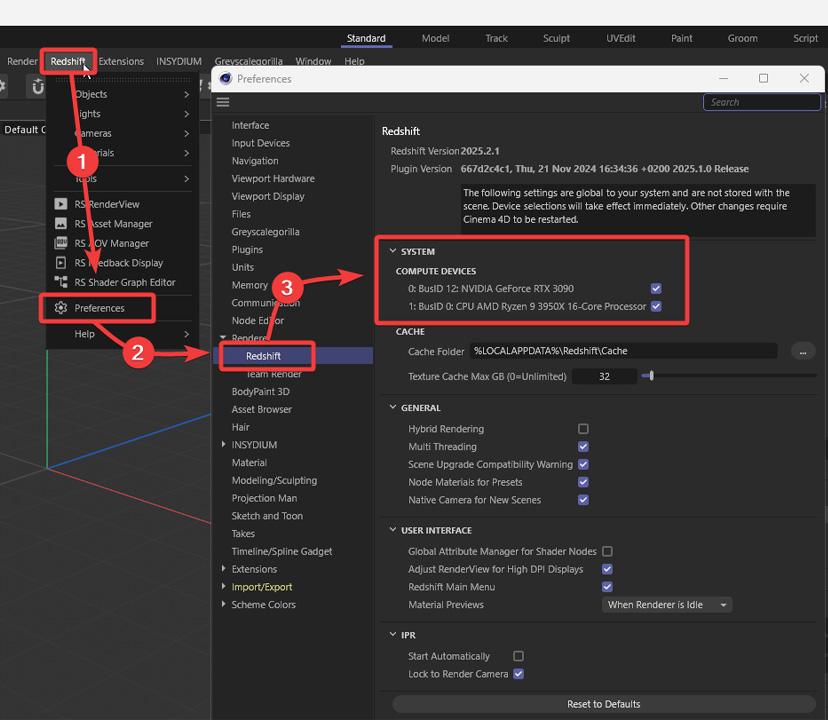
In Cinema 4D, you can enable your GPU for Redshift by opening Render Settings and setting the renderer to Redshift Renderer. In Cinema 4D, you can navigate to Edit > Preferences > Renderer > Redshift. Simply check the box next to your NVIDIA GPU to enable it for rendering.
After applying the changes, restart Cinema 4D so Redshift can initialize your GPU properly. If your GPU does not appear, update your NVIDIA Studio drivers and make sure Cinema 4D is set to run on the NVIDIA GPU in your system settings.
Please make sure that you uncheck CPU unless you want CPU fallback.
Enable Software licenses
You can open your Maxon app and enter your Credentials to use your own license.
In case you don’t have a Cinema 4D and Redshift license, iRender provides customers with Cinema 4D and Redshift pre-installed and licenses with specific conditions. This means that customers can use Cinema 4D and Redshift easily and do not have to worry about issues with software licenses.
To use Cinema 4D and Redshift on iRender server, you should follow Instruction link.
iRender- The best render farm for Cinema 4D and Redshift
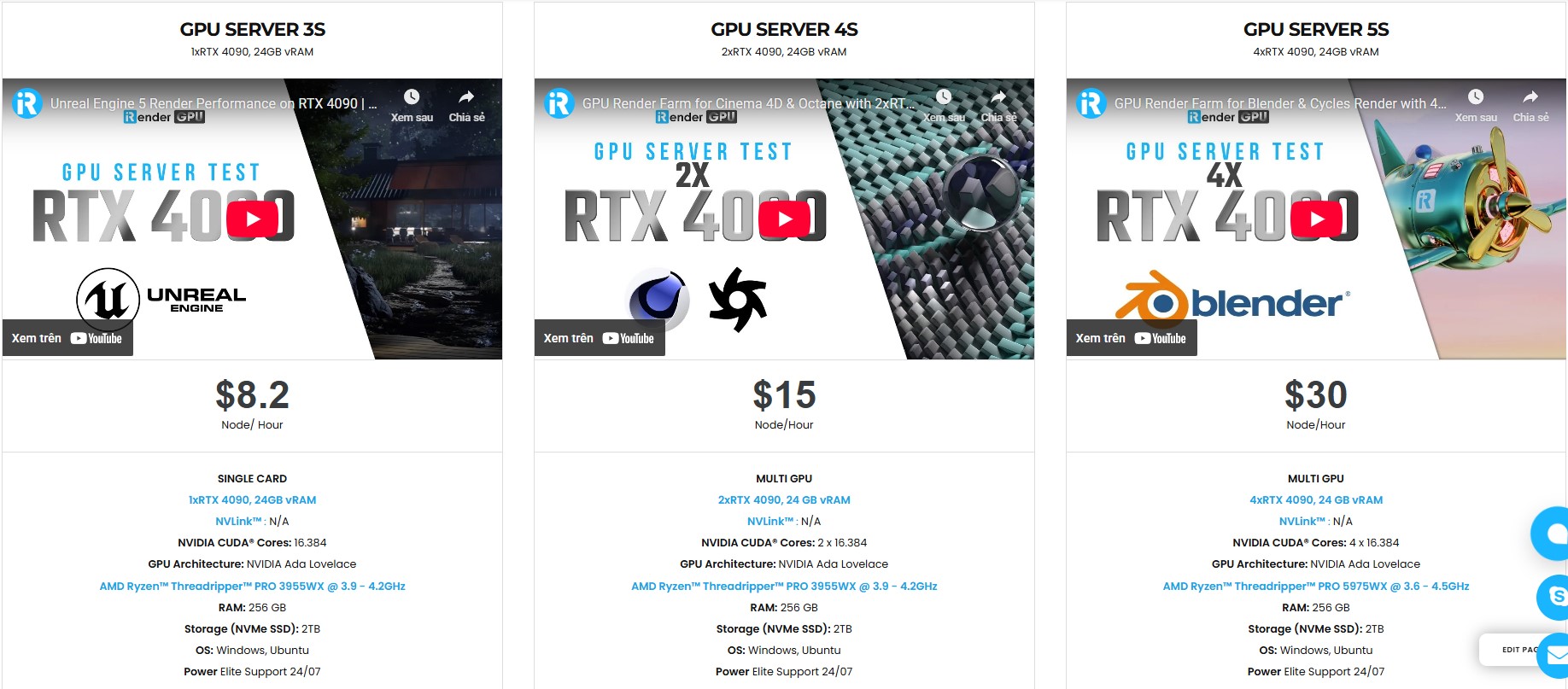
iRender is the most powerful render farm for Cinema 4D and Redshift users. We are a PaaS rendering service, providing you remote machine from single to multiple RTX4090. Our supercomputers come with high-end specifications like AMD Ryzen™ Threadripper™ PRO 3955WX @ 3.9 – 4.2GHz or AMD Ryzen™ Threadripper™ PRO 5975WX @ 3.6 – 4.5GHz, RAM 256GB, Storage NVMe SSD 2TB. Most importantly, we always update to the latest GPU technology, with single to multi RTX4090. You can check all the servers’ configuration following:
Especially, we are having remote servers with Cinema 4D and Redshift pre-installed. Therefore, you don’t waste your time installing software. We also provide one combo Cinema 4D and Redshift license for free for each user. You just need to activate it via our license app, and start to render your project without having to waste time to install the software or transfer your license.
Check out some of our Redshift tests on our server RTX 4090:


We suggest Windows users work with our all-in-one application, iRender GPU instead of coming our website. For Linux or macOS users, we provide a helpful and free transferring program called iRender drive. You can take a look at this video For Windows or For Mac OS to understand our workflow.
On the occasion of Independence Day, we are pleased to present an exclusive rewards promotion:
- Earn 862.5+ render points with purchases of $575 or more
- Earn 3000+ render points with purchases of $1500 or more
This limited-time offer is designed to provide additional value for your creative projects. Take advantage of these rewards and maximize your rendering potential this holiday season.
Especially, we are having a mega promotion’ Only for Vietnamese Users on National Day Holiday’.
- Earn 460+ bonus points with purchases of $230 or more
- Earn 1437.5+ render points with purchases of $575 or more

In case you have any problems or questions, don’t hesitate to contact the livechat support team. We will be happy to help you with your questions and problems.
Your Renders, Your Rules!
Related Posts
The latest creative news from Redshift Cloud Rendering, Cinema 4D Cloud Rendering






