
How to fix ’Advanced 3D is not supported by the current hardware’ error in After Effects
Sometimes when using Adobe After Effects, you may see the error “Advanced 3D is not supported by the current hardware.” This means your computer may not be able to run some 3D features in After Effects. In this guide, iRender will show you easy ways to fix this problem so you can keep working on your project.
Describe the error’ Advanced 3D is not supported by the current hardware’
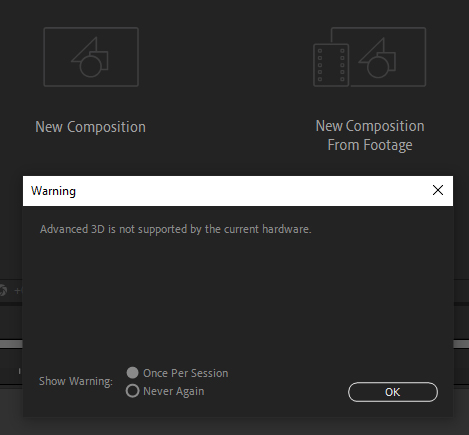
The error “Advanced 3D is not supported by the current hardware” in Adobe After Effects usually appears when you’re trying to use a 3D renderer or feature (like Cinema 4D or 3D Draft/Final) that your system’s GPU (graphics card) doesn’t support — or when After Effects fails to detect compatible hardware/drivers.
If your hardware is too old, not powerful enough, or using outdated drivers, After Effects will show this error and disable those 3D features.
How to fix’ Advanced 3D is not supported by the current hardware’ error in After Effect
Reset Preferences or Reinstall After Effects
Sometimes, After Effects misidentifies your GPU or disables hardware acceleration. Resetting preferences clears that out.
- Quit After Effects completely if it’s running.
- Hold down the following keys while launching After Effects:
On Windows: Ctrl + Alt + Shift
On Mac: Command + Option + Shift
- Keep holding the keys until you see a dialog that says: “Are you sure you want to delete your preferences file? or ‘Are you sure you want to reset all preferences files and workspaces to their default state?’
- Click Yes or OK
- After Effects will launch with default settings.
You can follow the tutorial video here to reset Preferences to default settings:
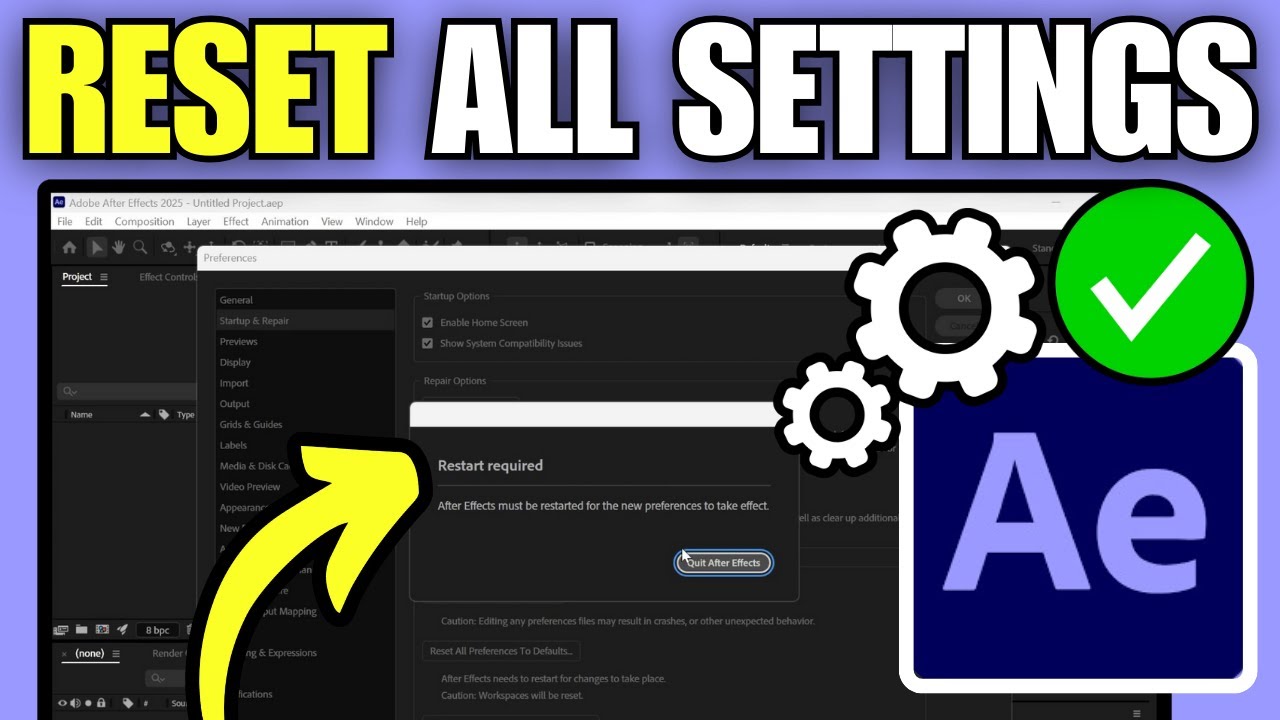
If resetting preferences doesn’t solve the problem, you should reinstall After Effects
- Open the Creative Cloud Desktop App
- Find After Effects in the list
- Click the three dots (⋮) → choose Uninstall
- When prompted, choose “Remove Preferences” (optional but recommended)
- After uninstalling, click Install to reinstall After Effects.
Check After Effects version
Older versions of After Effects had Ray-Traced 3D, which is now deprecated and unsupported on most systems. Newer versions use Cinema 4D renderer, which is more stable.
-
Update to the latest version of After Effects via the Creative Cloud app
-
Avoid using the Ray-traced 3D renderer; use Cinema 4D or Classic 3D.
Additional References
We found two useful videos from the 3D Artist who encountered the same error. This is a hot and helpful tip straight from our research. If you’re having performance issues in Adobe apps, making this system change can be helpful. And if you’re just simply wondering how to dedicate a GPU, this is how.
You can watch the video following:


Update NVIDIA Studio Driver
When you got After Effects error, one of the way to solve is updating NVIDIA Studio Driver.
In case you got the error on iRender server, please follow the following steps:
Step 1: Go to the X: Drive on the remote machine and open the folder: 11. NVIDIA RTX 4090 DRIVER > Studio
Step 2: Find the latest Studio Driver installer
Step 3: Copy it to the remote desktop and run it.
Step 4: After installation, restart the machine.

Create a new machine and install/ work on Desktop
If you’re still getting the “Advanced 3D is not supported by the current hardware” error in After Effects, one way to completely eliminate hardware-related issues is to set up a new machine with compatible specification and a clean environment.
After creating a new machine, you should install After Effects and render on Desktop instead of network drivers such as Z or Y driver to avoid the error.
Conclusion
This error in After Effects usually happens when your computer’s graphics card isn’t supported or is not set up correctly. To fix it, you can try updating your graphics drivers, check After Effects versions, or resetting After Effects preferences.
If that doesn’t work, the problem might be your hardware — using a more powerful computer with a better graphics card can solve it.
iRender - The best Render Farm for rendering After Effects
Our service
iRender is proud to be a professional GPU Accelerated Cloud Rendering Service provider in HPC optimization for Render, CGI, and VFX tasks with more than 25,000 clients. We are appreciated in many global rankings (e.g. CGDirector, Lumion Official, Radarrender, InspirationTuts CAD, All3DP, VFX Rendering.
iRender provides remote machine rental service with 1, 2, 4, 6, and 8 GPU machines using the top-tier RTX 4090. Built with powerful CPUs (AMD Ryzen™ Threadripper™ PRO 3955WX @ 3.9 – 4.2GHz and AMD Ryzen™ Threadripper™ PRO 5975WX @ 3.6 – 4.5GHz), 256GB RAM, and 2TB NVMe SSD storage, our machines can handle even the most heavy and complex scenes in your 3D projects.
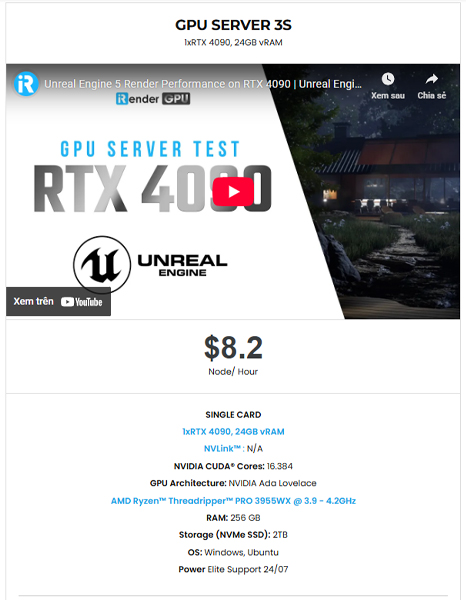
As I know that After Effects relies primarily on the CPU for rendering, but uses the GPU for specific accelerated effects. Therefore, I suggest you try with our server 3S (1xRTX4090) with strong CPU AMD Ryzen™ Threadripper™ PRO 3955WX @ 3.9 – 4.2GHz. You can refer its configuration here:
Why choose iRender for your rendering?
- Powerful GPU Rendering
- Full Control & Customization
- Flexible Pricing
- Fast Data Upload
- Fast Livechat support
If you’re working with complex After Effects compositions, GPU-heavy plugins, or need render power without investing in expensive hardware, iRender offers a flexible and powerful solution.
iRender offers a powerful and free file transfer tool iRender GPU app, an all in one application where you can free your workflow from accessing iRender website, and just have to work on the iRender GPU app.

In case you have any problems or questions, don’t hesitate to contact the 24/7 support team. We will be happy to help you with your questions and problems at all times.
We are running a SPECIAL OFFER: 100% Additional Bonus for new clients who register an account and make a top-up within 24 hours after their registration.
Register an account today to experience our service or contact us via the email [email protected] or WhatsApp: (+84) 912075500 for advice and support.
Happy Rendering!





