
How to fix Redshift Error ‘Missing or Corrupted Shader Kernel’ in Cinema 4D
When you are trying to install Redshift for Cinema 4D, you might encounter the error’ Shader kernel ‘C:\ProgramData\Redshift\GPUKernels\Shaders\x64\Shader_LightPhoton.cubin86’ does not exist or has been corrupted’. This error occurs due to various reasons. In the blog, iRender will identify the specific issue and discuss’ How to fix Redshift Error ‘Missing or Corrupted Shader Kernel’ in Cinema 4D.’
Why does this Redshift Error happen?
This error shows that the Redshift installation on the machine may be incomplete or corrupted — specifically, the .cubin86 shader file is missing or inaccessible.
Redshift relies on GPU shader kernels (.cubin files) to handle rendering. These are small compiled programs that run on your GPU. If these files are missing, corrupted, Redshift can’t function properly, resulting in the error.
Common causes include:
- A corrupted Redshift installation
- Interruptions during the shader compilation process
- Outdated or incompatible GPU drivers
- Missing files after an OS update or disk cleanup
- Conflicts with third-party antivirus or security software
How to fix Redshift Error ‘Missing or Corrupted Shader Kernel’ in Cinema 4D.’
Reinstall Redshift in Cinema 4D
A clean reinstallation often resolves issues related to missing or corrupted files. You should uninstall Redshift before reinstalling the latest stable version.
Here are some steps to reinstall Redshift:
-
Open the Maxon App and uninstall Redshift.
-
Manually delete any remaining Redshift files:
- Go to look at the Redshift Preferences which are available in the Cinema 4D Preferences window. Next, select the “Redshift” menu from the Cinema 4D’s menu bar and then choose the “Preferences” option.
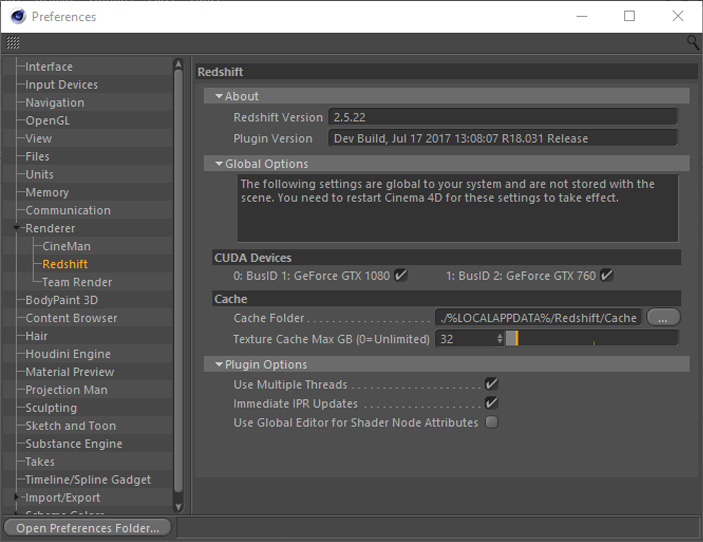
Cinema4D will display Redshift Preferences when you select. Then you can check to see that Redshift has detected all your GPUs and everything is working correctly.

Update NVIDIA Studio Driver
When you got Redshift error on iRender server, one of the way to solve is updating NVIDIA Studio Driver.
In case you got the error on iRender server, please follow the following steps:
Step 1: Go to the X: Drive on the remote machine and open the folder: 11. NVIDIA RTX 4090 DRIVER > Studio
Step 2: Find the latest Studio Driver installer
Step 3: Copy it to the remote desktop and run it.
Step 4: After installation, restart the machine.

Create a preinstalled Cinema 4D and Redshift machine
One of our user used to get the Redshift error when he was trying to install Redshift for Cinema 4D.
If you encounter this error on our iRender machine, you can check and create a preinstalled Cinema 4D and Redshift machine. Therefore, you don’t need to waste your your time installing them again.

iRender- The perfect choice for Cinema 4D and Redshift rendering
If you’re looking for speed, power, and flexibility in your Cinema 4D and Redshift workflow, iRender offers high-performance GPU cloud rendering tailored to meet the demands of professional 3D artists and studios.
iRender have powerful processing capabilities of AMD Ryzen Threadripper Pro 3955WX @ 3.90GHz- 4.2GHz and AMD Ryzen™ Threadripper™ PRO 5975WX @ 3.6 – 4.5GHz. Besides, they have single to multi-GPUs RTX 4090 24GB VRAM to boost performance in the rendering process.
Let’s check all serves’ configuration following:
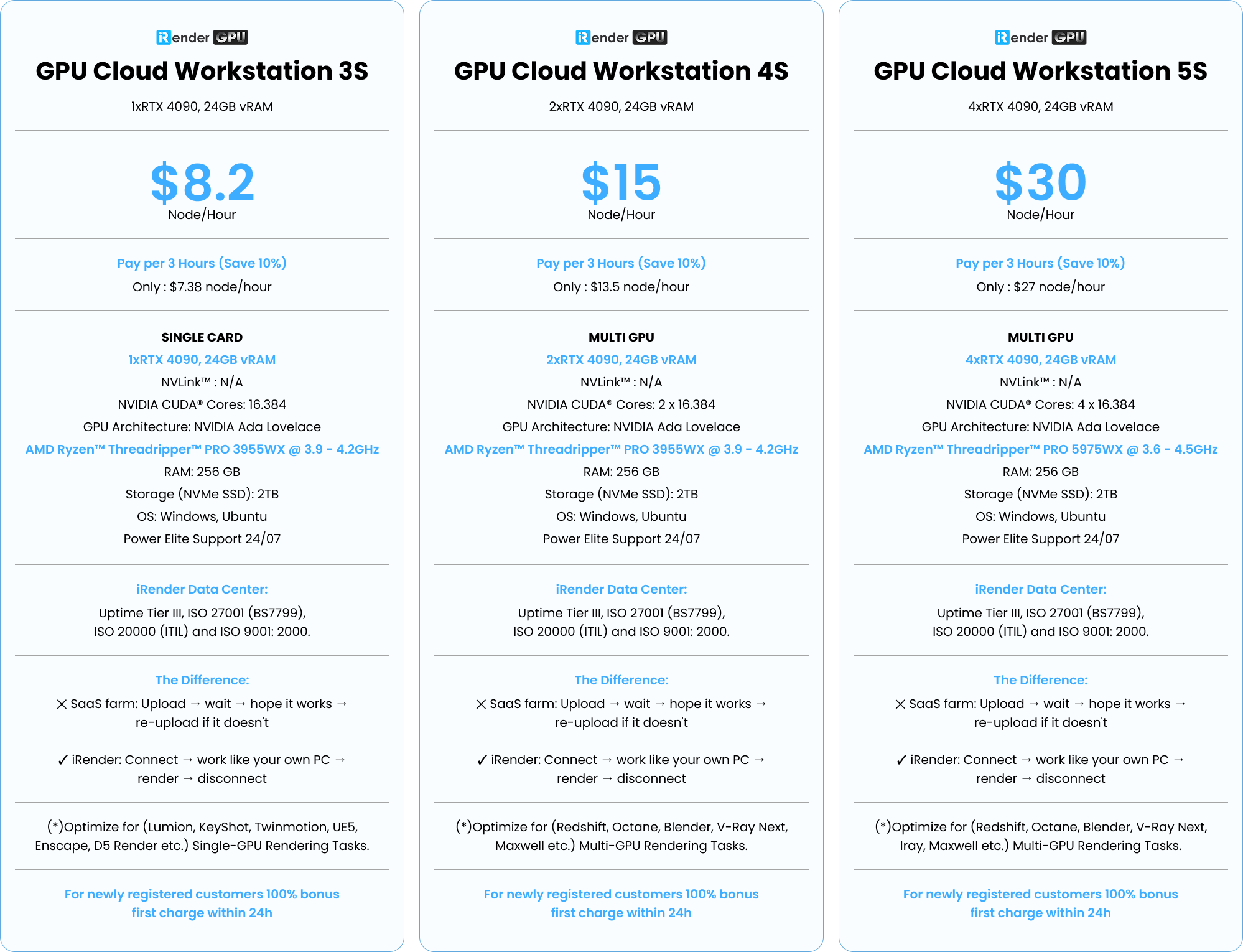
Speed up rendering with Cinema 4D and Redshift preinstalled
Our servers are equipped with the latest version of Cinema 4D and Redshift pre-installed. Therefore, you only need to transfer files to the remote machine, connect to the machine, and render as on your personal PC.
You can check the tutorial video for Cinema 4D and Redshift on our server following:

iRender offers a powerful and free file transfer tool iRender GPU app, an all in one application where you can free your workflow from accessing iRender website, and just have to work on the iRender GPU app.
In case you have any problems or questions, don’t hesitate to contact the support team. We will be happy to help you with your questions and problems at all times.
We are running a SPECIAL OFFER: 100% Additional Bonus for new clients who register an account and make a top-up within 24 hours after their registration.
Additionally, this month we also have Special Promotion ‘Purchase Less – Harvest More Value’
From 16 Sep – 30 Sep, 2025, unlock extra Render Points when you top up at iRender:
✨ Earn 1150+ Render Points when purchasing $575+
✨ Earn 345+ Render Points when purchasing $230+
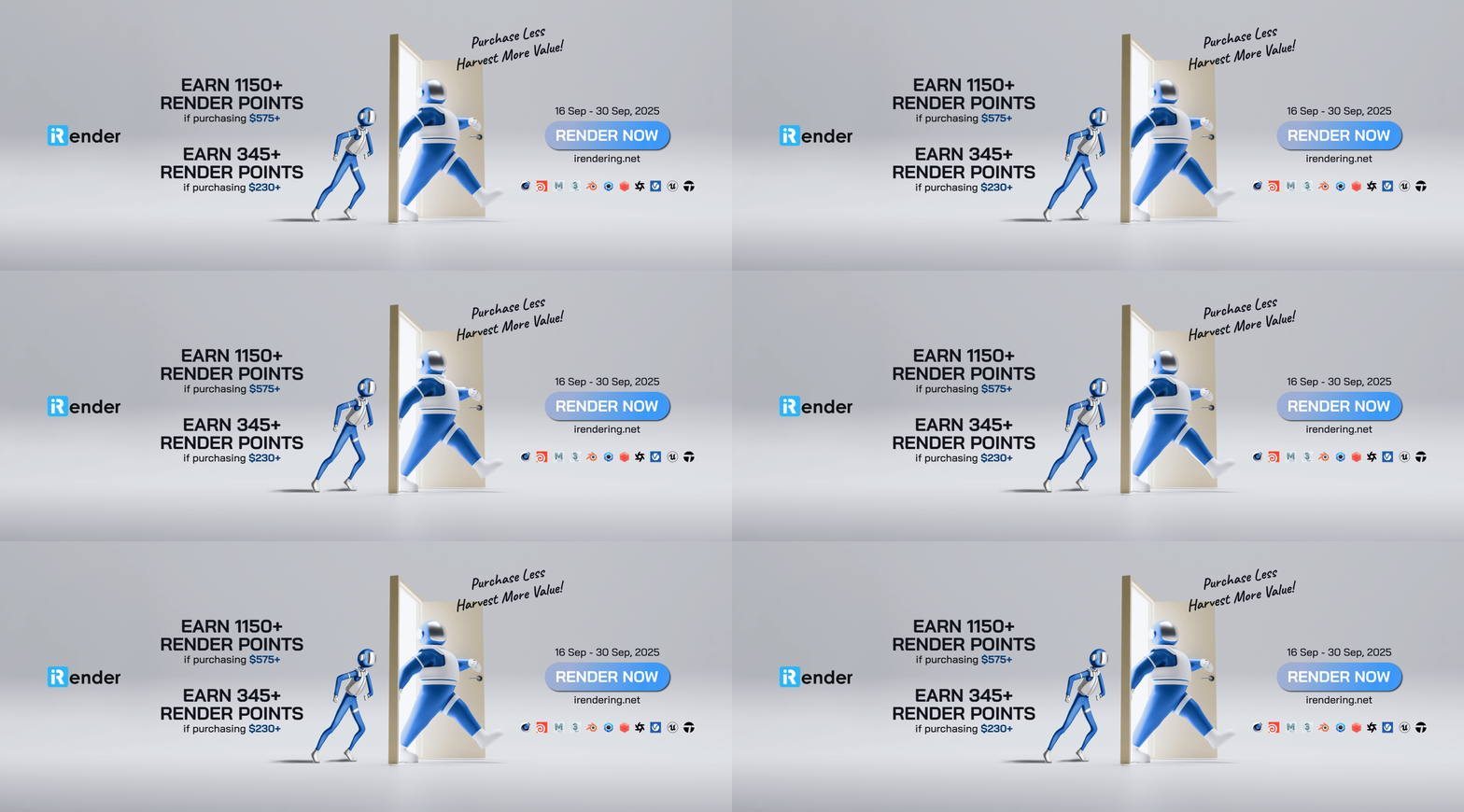
Take advantage of this limited-time offer to maximize your rendering power and boost your productivity. Don’t miss out – upgrade your projects with more value today!
Register an account today to experience our service or contact us via the email [email protected] or WhatsApp: (+84) 912075500 for advice and support.
Your Renders, Your Rules!
Related Posts
The latest creative news from Cinema 4D Cloud Rendering , V-Ray Cloud Rendering , Redshift Cloud Rendering, Octane Cloud Rendering, 3D VFX Plugins & Cloud Rendering.






