
How to Fix Redshift Stuck at Initializing OptiX RT in Cinema 4D?
Many artists encounter the problem of rendering much more slowly due to Redshift being stuck at the initialization stage. In this guide, we will analyze why Redshift gets stuck at initializing OptiX RT, the most common causes, and effective ways to fix it.
Describe issue: Redshift stuck at initializing OptiX RT
One of our customers encountered a situation where rendering on his personal computer took only 1.5 minutes per frame with C4D Redshift. However, when rendering the same scene on the 2xRTX 4090 server, it took nearly 30 minutes without finishing even a single frame. The reason was that Redshift got stuck during initialization of OptiX RT, wasting 7 minutes before the actual render started.
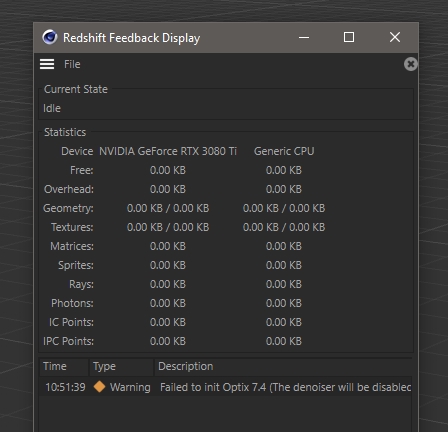
Why does it happen?
The main reasons why Redshift initializing OptiX RT slows down rendering include:
- Complex GPU setup: If you use a mixed setup (RTX + GTX), Redshift has to synchronize between the RTX card that supports OptiX and the GTX card that doesn’t. This mismatch often creates large delays during initialization.
- Hardware Ray Tracing overhead: With Hardware Ray Tracing enabled, Redshift needs to load and compile OptiX data. In scenes with many shaders, displacement, or complex lighting, this process makes the OptiX RT initialization time significantly longer.
- Incompatible GPU driver: Some NVIDIA drivers are not fully compatible with specific Redshift versions. For example, driver versions 560.xx and 555.xx have issues that can lead to Redshift errors.
How to fix Redshift stuck at initializing OptiX RT in Cinema 4D?
Update NVIDIA Driver
New software versions are usually best compatible with the latest NVIDIA Driver. Especially if you are using Driver 560.xx or 555.xx, these are the problematic driver versions, so update to the latest driver to fix the Redshift stuck at initializing OptiX RT error.
How to update:
- Download and install the latest driver from the official NVIDIA website
- Restart your system after installation.
If you’re using an iRender server:
- Go to the X drive on your remote machine
- Open NVIDIA RTX 4090 DRIVER > Studio
- Choose the latest driver by Date Modified
- Install it, restart the machine, and reconnect
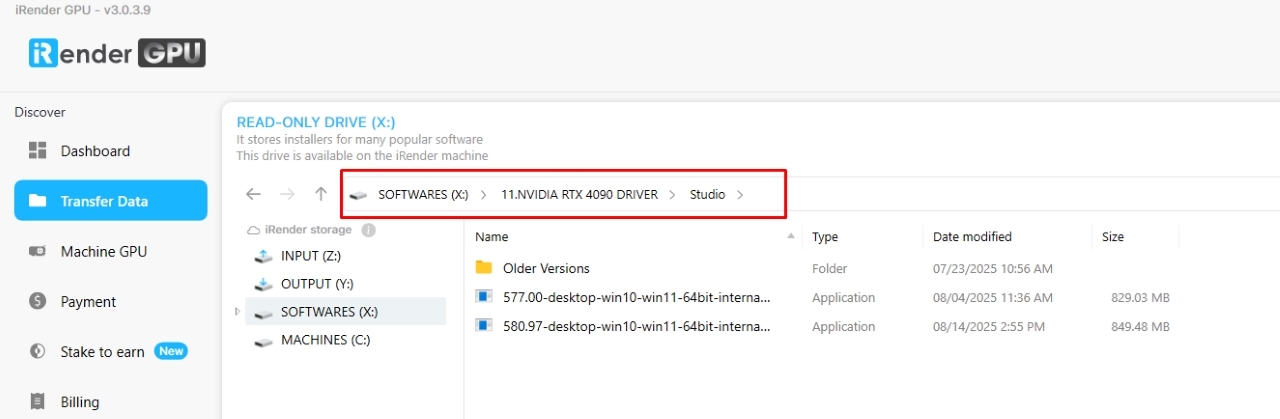
Note: New machines at iRender usually come with the latest drivers, but older ones may require manual updates. Many customers have fixed performance issues this way.
Turn off hardware ray tracing
When Redshift initializes OptiX, it loads ray tracing acceleration structures into the GPU. This process can be slow if the scene is complex or you are using a combination of GPUs (like RTX + GTX). GTX does not support hardware ray tracing, so it can easily cause a bottleneck.
- In Cinema 4D, go to Render Settings > Redshift > Globals > Hardware Raytracing.
- Disable hardware ray tracing, especially when testing in viewport or progressive rendering.
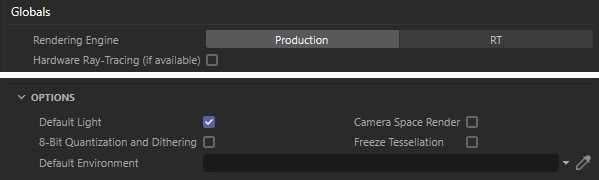
This reduces OptiX RT initialization time because Redshift no longer restarts the RTX accelerator. However, keep in mind that disabling hardware ray tracing may make rendering 15-20% slower (or more) depending on your shaders and scene complexity.
Disable Threadripper
Another reason for Redshift error is a conflict between multi-core CPUs (like AMD Threadripper) and the GPU during initialization. When Redshift tries to use the CPU alongside the GPU, it can create a bottleneck, resulting in unusually long initializing times.
How to fix:
- In C4D, go to Render Settings > Redshift > System.
- Under CPU Devices, uncheck any CPU support.
- Leave only the GPU active for rendering.
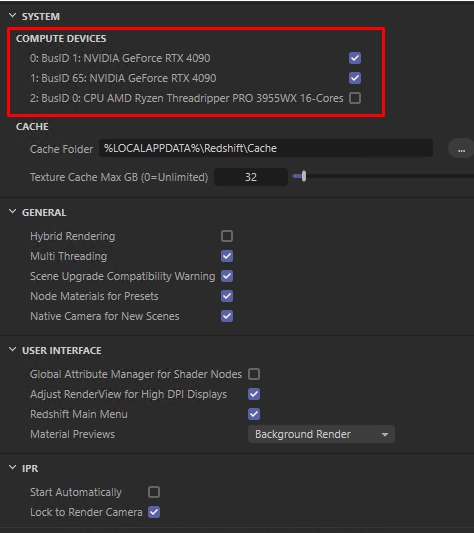
Disabling Threadripper allows Redshift to focus all resources on the GPU, avoiding freezing or long delays at the OptiX RT initializing step.
Speed up Redshift rendering with iRender render farm
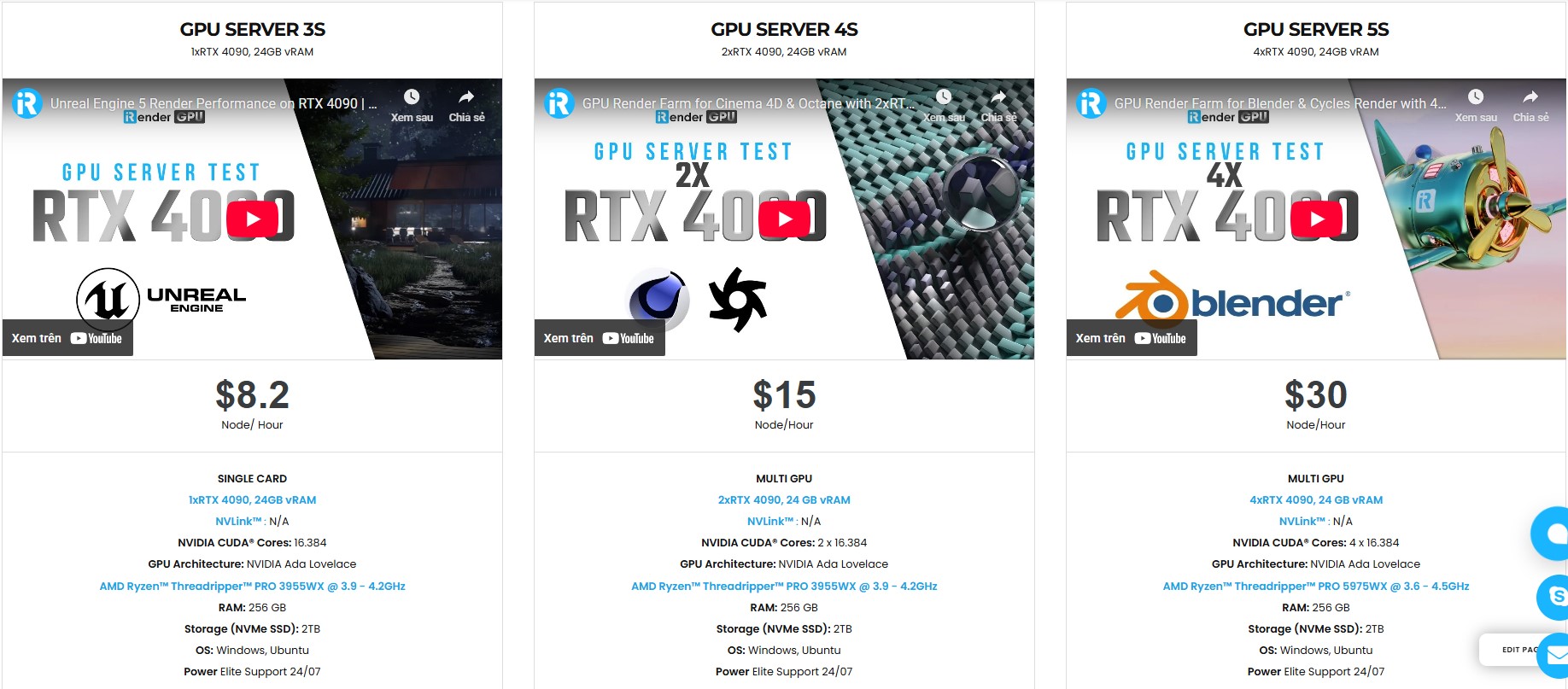
If you often encounter errors or take too long when rendering with Redshift on your personal machine, the optimal solution is to use iRender – the best render farm for Redshift. With a powerful GPU system, you can significantly shorten the rendering time and avoid hardware compatibility issues.
iRender supports all popular 3D software and render engines, including Redshift and all software or plugins needed. We give you access to high-performance GPUs, so you can render faster and more efficiently, no need to upgrade your own hardware. All servers are equipped with:
- AMD Ryzen™ Threadripper™ PRO 3955WX (3.9-4.2GHz) or
- AMD Ryzen™ Threadripper™ PRO 5975WX (3.6-4.5GHz)
- Single to multi – RTX 3090/4090
- 256GB RAM
- 2TB NVMe SSDs
Render faster with C4D Redshift preinstalled
Our servers are equipped with the latest C4D and Redshift versions. Each user gets a completely free combo C4D Redshift license from us. So all you need to do is transfer files to the remote machine, connect to the machine, and render as on your personal PC.

Why choose iRender?
Unlike other services, iRender lets you upload and download files without starting the server, saving you both time and money. We offer a Desktop app for Windows with a full feature set and a simple Drive app for macOS for easy file transfers. Here’s why iRender is a top choice for your rendering needs:
- 100% Software Support: We support all 3D software, their plugins, and render engines.
- Full Control: Our service will give you full control over the servers you rent. Therefore, you are free to create your own working environment.
- Go Green: We are committed to using 100% solar renewable energy towards environmental sustainability.
- Real-human Support: Our professional support agents and technicians guarantee to bring you the best rendering experience.
Let’s see how C4D Redshift performs on our server!

If you still wonder if this is the right place for your project, REGISTER NOW to get a trial and receive a 100% bonus promotion for your first transaction within 24 hours of registration with us.
This September, let’s ‘Harvest More Bonus with Less Purchase’ and enjoy double bonus points with iRender!

For more detailed information, please contact us via Live chat or WhatsApp: +(84) 912-785-500 or Email: [email protected]
iRender – Your Renders, Your Rules!






