Karma XPU Not Using Your GPU? Drivers, Device Lists and the Silent CPU Fallback
EXECUTIVE SUMMARY // KEY PRODUCTION TAKEAWAYS
The article addresses the issue where Houdini’s Karma XPU silently falls back to CPU rendering instead of utilizing the GPU. Users often observe high CPU utilization alongside minimal GPU activity in Task Manager because Karma XPU automatically defaults to Embree CPU rendering whenever the GPU rendering path fails to initialize.
The guide details five main causes and their respective solutions:
- Outdated Drivers: Houdini 22 requires NVIDIA driver version 570 or newer (with 575+ or 580+ recommended depending on GPU architecture) for OptiX initialization. Older drivers cause OptiX initialization errors, triggering a silent fallback to CPU rendering.
- Unsupported Hardware: Karma XPU GPU acceleration strictly requires NVIDIA GPUs with Compute Capability 5.0 or higher. AMD, Intel, and Apple Silicon chips are unsupported and automatically run on CPU. On dual-GPU laptops, users must manually assign Houdini to the high-performance GPU in Windows Graphics Settings.
- Environment Variables: Configurations such as
KARMA_XPU_DEVICES="cpu"orKARMA_XPU_DISABLE_OPTIX_DEVICEexplicitly force Karma XPU to bypass GPU devices. - Incorrect Measurement & VRAM Limits: Task Manager often misreports CUDA rendering activity, requiring dedicated monitoring tools like nvidia-smi or GPU-Z. Additionally, running out of VRAM forces texture evictions, significantly degrading render speeds.
If local troubleshooting fails, you can try a clean driver reinstallation using Display Driver Uninstaller (DDU) or testing scenes on cloud GPU workstations (such as iRender) to isolate system configuration issues.
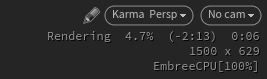
You ever encounter this problem: Task Manager shows 3% GPU usage and 100% CPU usage, while Karma XPU renders almost as slowly as Karma CPU. When the GPU is unavailable, Karma XPU may continue rendering on the CPU instead of stopping with an obvious error. This guide explains how to diagnose and fix Karma XPU not using GPU, from driver issues to unsupported devices and incorrect measurements.
Is Karma XPU actually using my GPU? A two-minute check
When Karma XPU is not using your GPU, start by checking which device actually performs the render. Open Houdini from a terminal to inspect its startup and rendering logs. Then render a demanding frame at higher resolution and sample counts while monitoring CUDA activity and power usage in NVIDIA-SMI or GPU-Z. Finally, check Karma’s render statistics to confirm which devices are participating.
Cause 1: The driver is too old for this Houdini build
An outdated NVIDIA driver is a common reason Houdini fails to use the GPU. The Karma XPU driver requirement depends on your Houdini version and GPU generation. For Houdini 22, check that your driver meets the documented minimum. NVIDIA driver 570 or newer is a baseline, with 575+ recommended on Windows and 580+ for Maxwell, Pascal, and Volta GPUs. RTX 50-series cards also need a sufficiently recent driver for compatibility.
You can check your NVIDIA driver version in two places on Windows.
- NVIDIA Control Panel: Right-click the desktop and open NVIDIA Control Panel. Select Help > System Information, then find Driver Version near the top of the Details window.
- Windows Device Manager: Right-click Start or press Windows + X, then open Device Manager. Expand Display adapters, right-click your NVIDIA GPU, and select Properties. Open the Driver tab to view the version number. The last five digits identify the driver version.
If OptiX fails to initialize, check the terminal for related errors. For example, KarmaXPU: Failed to initialize Optix 70400 [Unsupported ABI version] may indicate a driver compatibility problem. The message alone does not prove that the driver is the cause, so verify the version against the requirements for your Houdini build.
A Karma XPU OptiX failed error can prevent the GPU rendering path from initializing. In this situation, Karma may fall back to Embree CPU rendering, leaving the GPU unused. Update to a compatible NVIDIA driver, restart Houdini, and render a test frame again. If the error remains, review the full startup log for additional clues.
Cause 2: The GPU is not a supported device
Karma XPU not using GPU can also mean that the installed hardware is unsupported. Karma XPU’s GPU rendering path requires compatible NVIDIA hardware. AMD, Intel, and Apple Silicon GPUs are not supported for this path, so rendering may fall back to Embree CPU. Older NVIDIA cards below Compute Capability 5.0 may also be unable to use the GPU rendering path. This Karma XPU Embree fallback can explain why rendering continues even when the GPU does not appear active.
On laptops with both integrated and discrete GPUs, Houdini may run with the integrated GPU instead of the dedicated NVIDIA card. This can happen when Windows or the driver assigns the application to the integrated GPU. The issue has also been discussed in the SideFX community. You can try assigning Houdini to the high-performance GPU through Windows Graphics Settings.
-
-
-
- Open Settings > System > Display > Graphics.
- Add the Houdini executable, commonly located at
C:\Program Files\Side Effects Software\Houdini [version]\bin\houdinifx.exe. - Select Options, choose High performance, and save the setting.
- Restart Houdini and check the render statistics to confirm whether the NVIDIA GPU is being used.
-
-
Cause 3: An environment variable switched the GPU off
An environment variable can prevent Karma XPU from detecting GPU devices. If KARMA_XPU_DISABLE_OPTIX_DEVICE is enabled in an environment configuration, JSON package, or houdini.env file, Karma XPU will not create OptiX GPU devices. Similarly, setting KARMA_XPU_DEVICES = "cpu" in houdini.env forces Karma XPU to use CPU rendering only.
Cause 4: The GPU is working, but you're measuring it wrong
Low GPU usage does not always mean Karma XPU is failing to use your GPU. Your monitoring tool, test scene, or denoising process may give you a misleading picture.
Task Manager does not always show the most useful GPU metrics for rendering. Check CUDA activity and power consumption with tools such as GPU-Z or nvidia-smi. A lightweight scene may finish before GPU usage becomes noticeable, while denoising at the end of a frame can shift the workload back to the CPU.
For a reliable test, use a demanding scene with high samples and a consistent resolution. Compare render times with KARMA_XPU_DEVICES set to OptiX only and then Embree only. This helps determine whether Karma XPU not using GPU is a real problem.
Cause 5: VRAM is full and textures are being evicted
If rendering starts quickly but slows down significantly later, your GPU may be running out of VRAM. Houdini may need to evict textures to free memory, which can reduce performance. Try using smaller textures, disabling unnecessary AOVs, or splitting the scene into separate render layers to reduce memory pressure.
A clean test on a known-good machine
If you have tried every fix and Houdini still cannot use your GPU, leftover driver files may be causing problems. You can use Display Driver Uninstaller (DDU) from Guru3D to remove existing GPU drivers before installing a fresh version. Alternatively, testing on a cloud workstation can help you narrow down the cause without changing your local system first.
An iRender cloud workstation can help determine whether the issue comes from your drivers, hardware, or scene. iRender provides bare-metal machines with physical NVIDIA GPUs, including the RTX 4090 and RTX 5090. Install Houdini 22 with a compatible NVIDIA driver, log in with your own license, and render a test frame. Then compare the rendering logs with those from your local machine. If the rented workstation uses the GPU correctly, your local setup is the likely source of the problem.
If you use a Mac, renting an RTX 5090 workstation provides a practical way to test GPU rendering with Karma XPU. Apple Silicon does not support Karma XPU’s NVIDIA GPU rendering path, so it uses CPU rendering instead.
Before using a cloud workstation, make sure you understand its billing model. iRender charges from the moment the machine starts, including time spent installing drivers and software. Allow an additional 15 to 30 minutes for the initial Houdini setup, and prepare your own Houdini license before starting the session.
Right now, iRender is launching the 100% bonus for new user’s first deposit. Check it out.
Check out iRender test on Houdini:

Karma XPU may fail to use your GPU for several reasons, from outdated drivers to unsupported hardware or memory limitations. Use this checklist to identify the likely cause and find the right fix.
Karma XPU GPU Troubleshooting Checklist
| Symptom | Possible Cause | How to Check | How to Fix |
|---|---|---|---|
|
High CPU usage GPU near 0%, CPU at 100% |
Driver below the required version or an OptiX initialization failure. | Launch Houdini from a terminal and inspect the startup and render logs. | Install an NVIDIA driver that meets the requirements for your Houdini 22 build. |
|
Unsupported hardware Using a Mac or AMD GPU |
The device is not supported by Karma XPU's GPU rendering path. | Check the device list in Karma's render statistics. | Use a supported NVIDIA GPU for XPU GPU rendering. |
|
Configuration issue GPU stopped working after a configuration change |
KARMA_XPU_DISABLE_OPTIX_DEVICE is enabled, or
KARMA_XPU_DEVICES = "cpu" is set in houdini.env.
|
Inspect houdini.env, environment variables, and JSON package configurations. |
Remove or correct the setting that disables OptiX devices or forces CPU-only rendering. |
|
Low GPU activity Low GPU usage with a small test scene |
The scene is too lightweight, or the monitoring tool is showing the wrong GPU metric. | Test a heavier scene and monitor GPU activity and power consumption with GPU-Z or nvidia-smi. |
Repeat the test with a more demanding scene and suitable GPU monitoring tools. |
|
Memory pressure Rendering starts fast, then slows down significantly |
VRAM is full, causing texture eviction and additional memory transfers. | Use nvidia-smi to check GPU memory usage during rendering. |
Reduce texture sizes and unnecessary AOVs, split the scene into layers, or consider a GPU with 32 GB of VRAM. |
FAQ
Q: Why is Karma XPU only using my CPU?
The most common cause is an outdated NVIDIA driver that prevents OptiX from initializing, so Karma XPU falls back to CPU rendering. Other causes include an unsupported GPU or an incorrect KARMA_XPU_DEVICES setting. A test scene that is too lightweight can also make GPU activity difficult to measure, so check the logs for the Karma XPU not using GPU issue.
Q: What driver does Karma XPU need in Houdini 22?
For Houdini 22, the NVIDIA driver requirement starts at version 570 or newer. SideFX recommends driver 575 or later on Windows, while Maxwell, Pascal, and Volta GPUs require version 580 or later according to the stated recommendations. Check the requirements for your specific Houdini build before updating, especially if you use an older NVIDIA GPU.
Q: Does Karma XPU work on AMD GPUs or Apple Silicon?
Karma XPU supports CPU rendering and GPU rendering through compatible NVIDIA GPUs. AMD GPUs do not support its NVIDIA GPU rendering path. On Apple Silicon Macs, Karma XPU uses the CPU rather than the GPU for rendering. If you need GPU acceleration, use a compatible NVIDIA workstation, either locally or through a cloud service.
Register an account on iRender to claim your 100% bonus for the first deposit and render without limitations.
iRender – Maximum Speed – Absolute Freedom.