
How Much VRAM for Houdini GPU Rendering and Volumes?
One client wrote to us last week with a very specific problem. His Pyro smoke scene rendered fine on our test machine, but on his own workstation Houdini kept throwing an out of memory error. His card has 24GB. His question was simple: is 24GB enough, or does he need to upgrade?
That question does not have one universal answer. However, you can still find your own answer after reading the article below. Let’s find out together!
How much VRAM does Houdini actually need?
There is no single number that fits every Houdini scene, because Houdini spends VRAM in several places at the same time, not only during the final render. The viewport, GPU simulation, COPs and Karma XPU can all be pulling from the same card while you work. So instead of handing you one figure, this article shows you how to measure your own scene and read the result correctly.
Houdini competes with itself for VRAM
This is the part that surprises people coming from other 3D software. In many DCCs, VRAM pressure mostly shows up during the render itself. In Houdini, several systems draw on the same pool of GPU memory simultaneously.
SideFX documentation breaks viewport VRAM usage into three areas: geometry (your models and particle systems), textures (both regular 2D textures and the 3D textures used for volumes), and the framebuffer. On top of that, OpenCL based simulation for Pyro and Vellum uses VRAM when enabled, Karma XPU uses VRAM because it is a hybrid CPU and GPU renderer, and COPs can use it too when you have image processing networks open. When VRAM runs low, the failure is not always a crash with a clear message. Geometry can simply disappear from the viewport, or the whole application can slow to a crawl while everything technically still runs.
Why volumes are a different kind of heavy
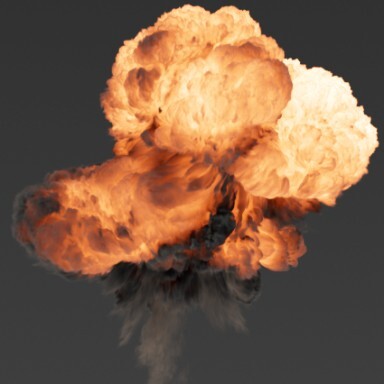
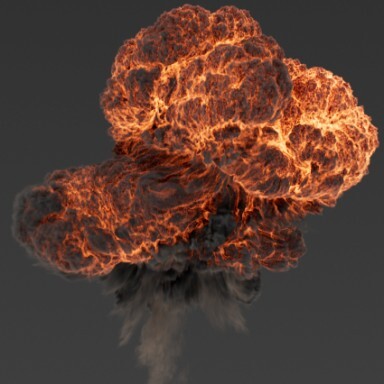
Image Source: Side FX
Ordinary geometry is comparatively light on VRAM. Volumes are not, because smoke, fire and liquid surfaces are stored as 3D textures rather than simple meshes, and 3D textures cost far more memory than a 2D texture of the same visual complexity.
Resolution is the lever that matters most here. A higher voxel resolution volume needs proportionally more VRAM, both in the viewport and at render time. There is also a link back to the simulation stage that people miss: if your Pyro or FLIP cache was heavy on system RAM while simulating, that same voxel data tends to be heavy on VRAM again once you load it into the viewport or hand it to a GPU renderer.
Measure instead of guessing
Houdini has a built-in hscript command, gpumem -U, that prints a detailed breakdown of what is currently consuming your VRAM, split by category such as geometry and textures. Very few artists ever run it, but it is the fastest way to stop guessing and actually diagnose your own scene instead of a generic one from a forum post.
Pair that with a system-level GPU monitor while you render or simulate, so you can watch usage climb in real time rather than only seeing a peak after the fact. And use the same approach you would for system RAM: build a smaller version of your scene, note the peak VRAM usage, then scale that number up based on how resolution or particle count actually grows in your setup. Volumes scale close to cubically with resolution, so a small linear guess will undershoot badly.
24GB or 32GB: what the extra memory buys you
Two GPU memory sizes come up most often in Houdini conversations right now: 24GB (on cards like the RTX 4090, GDDR6X) and 32GB (on cards like the RTX 5090, GDDR7). The extra 8GB matters most on exactly the kind of work this article is about: high resolution volume simulations, dense point clouds, and heavier texture sets pushed through a GPU renderer.
One thing to keep firmly in mind before you decide anything: VRAM does not pool across multiple GPUs, and neither the RTX 4090 nor the RTX 5090 supports NVLink. Two 24GB cards give you two separate 24GB spaces, not one 48GB space. If a single volume needs more than 24GB, adding a second card of the same size will not make it fit. This is purely a decision about how much memory a single card carries, not about how many cards you have.
When you cannot buy more VRAM
A few options exist before hardware is the only answer.
Reduce volume resolution wherever the camera cannot see the difference, and restrict simulation bounds to the region that actually matters instead of simulating empty space. Optimize how much of the cache you keep loaded at once rather than pulling in every frame. If you use a renderer with out of core memory management, such as Redshift, some of the heaviest data can page out to system RAM, but that is not a free pass: rays, acceleration structures and working buffers still need free VRAM to operate, so out of core support reduces pressure, it does not remove the ceiling entirely.
The remaining option is testing on a machine with more VRAM than yours before you commit to buying anything.
VRAM usage by component in Houdini
| Component | Uses VRAM for | How to ease the load |
| Viewport geometry | Models and particle systems | Use packed primitives, reduce display detail |
| Viewport textures | 2D textures and 3D textures for volumes | Reduce mipmapping and volume display quality |
| Framebuffer | Open viewports and display data | Reduce the number of open viewports |
| OpenCL simulation | Pyro and Vellum when OpenCL is enabled | Disable OpenCL if not needed, or lower sim resolution |
| Karma XPU | Hybrid CPU and GPU rendering | Leave extra VRAM headroom for other processes |
| COPs | GPU-based image processing | Close unused COP networks while rendering |
How iRender’s RTX 5090 Cloud Workstation Accelerates Houdini Workflows
iRender currently offers both an RTX 4090 (24GB GDDR6X) and an RTX 5090 (32GB GDDR7), so this is a decision you can actually test rather than guess at. If your volume work regularly pushes close to the ceiling on 24GB, that is a concrete reason to reach for the bigger card.
VRAM does not stack across cards, so renting a multi-GPU node will not make one oversized volume fit better, it will just give you several cards each carrying their own separate limit, and matching the card to your scene matters more than counting how many cards a server has. If your actual bottleneck turns out to be at the simulation stage rather than the render or viewport stage, what you need is system RAM, not VRAM, so figure out which stage is struggling before you rent anything.
We are having promotion: you will receive 100% bonus if you recharge within 24hours of registration. Check it out now!

Check out Quick Start for Houdini at iRender:

FAQ
Q1: Is 24GB of VRAM enough for Houdini?
For a lot of work, yes. The ceiling shows up on high resolution volume scenes or texture-heavy scenes rendered through a GPU renderer. Keep in mind that Houdini also uses VRAM for the viewport, OpenCL simulation, COPs and Karma XPU at the same time, so you need real headroom rather than sizing your GPU right up to the edge.
Q2: How do I check what is using my VRAM in Houdini?
Run the hscript command gpumem -U, which prints a detailed breakdown of what is consuming your VRAM at that moment, split by category such as geometry, textures and framebuffer. Combine that with a system-level GPU monitor while rendering, so you can see which part of your workflow is actually responsible instead of upgrading the wrong component.
Q3: Do two GPUs give me more VRAM for a heavy volume scene?
No. VRAM is tied to each card individually and does not pool across GPUs, so two 24GB cards give you two separate 24GB spaces, not 48GB. A volume scene that needs more than 24GB will not fit better because a second card is present. Neither the RTX 4090 nor the RTX 5090 supports NVLink, so this stays true regardless of which of the two cards you use.
Maximum Speed – Absolute Freedom
Related Posts
The latest creative news from Houdini Cloud Rendering , 3D VFX Plugins & Cloud Rendering.





