Karma XPU Suddenly Slows Down Mid-Render: Texture Eviction and VRAM Limits
key takeaways: RESOLVING KARMA XPU MID-RENDER SLOWDOWNS
Cause of Slowdowns: A sudden jump in frame times (e.g., from 40 seconds to 6 minutes per frame) occurs when GPU VRAM reaches capacity. This triggers texture eviction, where the GPU repeatedly swaps textures in and out of VRAM, leading to severe performance drops.
Diagnostic Approach: Monitor memory usage with Houdini render statistics and nvidia-smi alongside frame render times to verify VRAM pressure and track memory spikes.
Sequential VRAM Optimization: Following a structured workflow reduces scene VRAM usage from ~25.0 GB to ~11.8 GB before layer splitting:
- Zero Visual Impact (~4.7 GB saved): Hiding the Karma viewport/disabling Houdini GL (-1.2 GB), removing unused AOVs (-1.5 GB), and locking geometry topology across frames (-2.0 GB).
- Texture Downscaling (-6.0 GB saved): Downscaling distant 8K textures to 4K provides the single largest memory reduction.
- Hair & Houdini Versioning (~2.5 GB saved): Setting KARMA_XPU_OPTIX_CURVE_OPT_LEVEL=1 saves ~1.5 GB, and upgrading to Houdini 22 saves ~1.0 GB.
- Render Layering: Splitting environment and character elements drops peak VRAM to ~7.0 GB per layer.
Hardware & Cloud Solutions: Because multi-GPU setups cannot pool VRAM via NVLink, switching to GPUs with higher native VRAM (such as 32GB RTX 5090 cloud workstations on iRender) provides a definitive fix when scenes exceed 24GB limits.
A Karma XPU render may run smoothly for the first 10 frames at 40 seconds each, then suddenly take 6 minutes per frame without reporting an error. This pattern often points to Karma XPU slow VRAM full issues, as texture eviction begins when GPU memory reaches its limit.
Why does Karma XPU get slow halfway through?
When VRAM fills up, Karma XPU may move textures in and out of GPU memory to keep rendering instead of stopping immediately. This process can cause a major performance drop.
The easiest way to confirm a Karma XPU slow VRAM full issue is to monitor device memory usage. If VRAM reaches its limit just as frame times increase, memory pressure is a likely cause.
Texture eviction in plain terms
Think of texture eviction like managing a small bookshelf. When there is no room left, you must put some books away and retrieve them whenever you need them again. This repeated swapping, often called thrashing, takes time and can slow rendering significantly. A GPU with more VRAM can keep more textures available, reducing the need for frequent transfers.
However, Karma texture eviction applies to textures that can be moved out of GPU memory. Geometry that exceeds available memory can cause a different problem and may lead to rendering failures. For more details, see Karma XPU Crashes With CUDA or OptiX Errors: A Troubleshooting Order.
Measure it: render stats, nvidia-smi and frame times
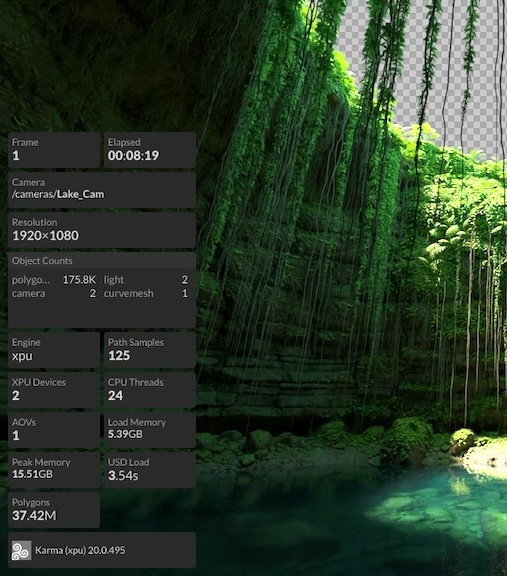
To understand why Karma XPU slows down or fails, start by collecting data instead of guessing. Use Houdini’s render statistics and nvidia-smi to record device memory usage and render time for each frame. Plot the frame times to identify sudden jumps, then compare them with VRAM usage. This gives you a clearer starting point for optimization.
Cut VRAM in the order that pays off most
When VRAM stays full, repeated texture transfers can make rendering much slower. These adjustments can help reduce Karma XPU memory usage before you consider changing hardware.
-
-
-
- Free up viewport VRAM. Hide the Karma viewport while rendering to MPlay or in the background. Avoid keeping Houdini GL active unnecessarily, as it may retain GPU memory, and remove viewport background images that consume additional VRAM.
- Reduce texture memory. Lower texture resolution where fine detail is unnecessary, and choose memory-efficient formats when they suit your pipeline.
- Reduce AOVs. Keep only the render passes you need, since additional AOVs can increase memory use and affect XPU performance.
- Check for dynamic topology. Changing geometry topology can increase memory requirements, so review whether dynamic changes are necessary for the shot.
- Split the scene into render layers. Separate heavy elements into different layers when practical, allowing you to render parts of the scene independently and manage memory more effectively.
-
-
Karma XPU VRAM Optimization Workflow
Estimated memory savings from sequential optimization steps in Houdini. Actual results depend on the scene, hardware, and render settings.
| Step | Optimization | Memory Before → After | VRAM Saved | VRAM Remaining | Visual Impact |
|---|---|---|---|---|---|
| 0 | Starting point | Viewport 1.5 + Textures 10 + Geometry 4 + Topology 3 + Hair 3 + AOVs 2.5 + OptiX 1 GB | – | ~25.0 GB Exceeds 24 GB |
Not optimized |
| 1 | Hide the Karma viewport and disable Houdini GL | Viewport: 1.5 → 0.3 GB |
~1.2 GB | ~23.8 GB | None expected |
| 2 | Reduce 24 distant 8K textures to 4K | Textures: 8.0 → 2.0 GB |
~6.0 GB | ~17.8 GB | Low; check close-up shots |
| 3 | Reduce AOVs from 20 to 8 | AOVs: 2.5 → 1.0 GB |
~1.5 GB | ~16.3 GB | None expected if unused passes are removed |
| 4 | Keep geometry topology fixed across frames | Topology: 3.0 → 1.0 GB |
~2.0 GB | ~14.3 GB | None expected if geometry remains visually unchanged |
| 5 | Set KARMA_XPU_OPTIX_CURVE_OPT_LEVEL=1 |
Hair: 3.0 → ~1.5 GB |
~1.5 GB | ~12.8 GB | Render-test hair and curves |
| 6 | Upgrade to Houdini 22 | Subdivision/dicing: 3.0 → ~2.0 GB |
~1.0 GB | ~11.8 GB | None expected; verify with the target scene |
| 7 | Split the scene into environment and character render layers | Estimated 55–65% of the original load per layer | Major reduction | ~7.0 GB per layer | Requires compositing in post |
KEY FINDINGS // ESTIMATED RESULTS
1. Low-risk optimizations: Viewport cleanup, removing unused AOVs, and keeping topology fixed are estimated to save about 4.7 GB without a noticeable visual change, provided the scene and required render passes remain equivalent.
2. Biggest memory reduction: Reducing distant 8K textures to 4K is estimated to save 6 GB. Consider converting textures to .rat or .tx for efficient mipmap handling where supported by your pipeline.
3. Hair and curve optimization: The KARMA_XPU_OPTIX_CURVE_OPT_LEVEL=1 setting needs a close-up render test. Check strand thickness and curve details for unwanted changes.
4. Render-layer separation: Splitting environment and character elements can reduce the peak memory needed for each render, but it requires a compositing pass and careful handling of interactions between layers.
When the answer is simply more VRAM
Sometimes, no amount of optimization can reduce VRAM usage enough because the scene is simply too large. In that case, upgrading to a GPU with more VRAM may be the most practical solution. This usually means buying or renting a higher-memory card, since newer GPUs generally no longer support NVLink for pooling VRAM across multiple cards.
If your 24GB GPU is already full, a quick way to test whether more memory will help is to open the scene on iRender’s single RTX 5090 32GB workstation, using the 3i package. Check whether the sudden frame-time spikes disappear. For final rendering, the 4x RTX 5090 package (5i) provides four GPUs, each with 32GB VRAM. You can also consider 4x RTX 4090, but each card still has a 24GB limit. VRAM is not simply combined across the four cards, so this option may not solve texture eviction.
iRender GPU Cloud Packages for Houdini & Karma XPU
Dedicated IaaS remote workstations providing full administrator access, 100% SideFX license compliance, and optimized performance for Karma XPU rendering.
NVIDIA RTX 4090 Tiers • 24GB GDDR6X VRAM per GPU
| Package | Hardware Specs & Pricing | Recommended Workflow |
|---|---|---|
| Server 3S 1x RTX 4090 (24GB VRAM) |
AMD Threadripper™ PRO 3955WX 256GB Host RAM 2TB NVMe SSD Rate: $8.20 / Node/Hour
|
Entry-level Karma XPU LookDev, material testing, and interactive GUI sessions fitting within 24GB VRAM. |
| Server 4S 2x RTX 4090 (24GB VRAM / GPU) |
AMD Threadripper™ PRO 3955WX 256GB Host RAM 2TB NVMe SSD Rate: $15.00 / Node/Hour
|
Dual-GPU accelerated Karma XPU rendering for medium shot sequences. |
| Server 5S 4x RTX 4090 (24GB VRAM / GPU) |
AMD Threadripper™ PRO 5975WX 256GB Host RAM 2TB NVMe SSD Rate: $30.00 / Node/Hour
|
High-speed multi-GPU batch rendering for production passes at an optimized $0.30 cost-per-frame metric. |
NVIDIA RTX 5090 Series • Blackwell Architecture • 32GB GDDR7 per GPU
| Package | Hardware Specs & Pricing | Recommended Workflow |
|---|---|---|
| Server 3i 1x RTX 5090 (32GB GDDR7) |
AMD Threadripper™ PRO 3955WX 256GB Host RAM 2TB NVMe SSD Rate: $10.80 / Node/Hour
|
Next-Gen LookDev: ~21% faster single-card Karma XPU renders with 32GB GDDR7 headroom preventing OOM stalls on heavy assets. |
| Server 4i 2x RTX 5090 (32GB VRAM / GPU) |
AMD Threadripper™ PRO 3955WX 256GB Host RAM 2TB NVMe SSD Rate: $20.00 / Node/Hour
|
Next-Gen Dual-GPU rendering for massive Karma XPU scenes exceeding 24GB VRAM limits. |
| Server 5i 4x RTX 5090 (32GB VRAM / GPU) |
AMD Threadripper™ PRO 5975WX 256GB Host RAM 2TB NVMe SSD Rate: $38.00 / Node/Hour
|
Ultimate Production Rig: Peak multi-GPU performance for heavy Pyro volumes and Solaris USD stages with maximum time efficiency at $0.30/frame. |
Large texture-heavy scenes can take a long time to upload. Clean up unused textures and compress files before transferring the project. Remember that cloud workstation charges start when the machine is powered on, not when rendering begins. You will also need to install and configure Houdini and provide your own valid license.
Right now, iRender is launching the 100% bonus for new user’s first deposit, use it to try your actual job and calculate the cost before committing the whole sequence. Check it out.
Check out iRender test on Houdini:

FAQ
Q: Why does Karma XPU slow down during a render?
A common cause of Karma XPU slow VRAM full problems is GPU memory reaching its limit. When this happens, Karma XPU may move textures in and out of GPU memory through texture eviction. This allows rendering to continue, but repeated transfers can significantly increase frame times. Check GPU memory usage when the slowdown occurs.
Q: Does Karma XPU support out-of-core rendering?
Karma XPU supports texture eviction when GPU memory fills up, allowing certain textures to be moved out of memory. However, this can reduce rendering performance significantly. Geometry that exceeds available VRAM may cause rendering errors instead. Check the documentation for your Houdini version to confirm the supported behavior and limitations.
Q: How can I reduce Karma XPU VRAM usage?
Start by hiding the Karma viewport when rendering in the background, then reduce texture resolution for distant objects. Remove unnecessary AOVs and keep geometry topology fixed where possible. You can also split the scene into separate render layers to reduce peak memory requirements, although this may require additional compositing in post-production.
Register an account on iRender to claim your 100% bonus for the first deposit and render without limitations.
iRender – Maximum Speed – Absolute Freedom.