
5 Steps to Create a “Cinematic” Atmosphere in Lumion 2026 Without Post-Production
In 2026, the line between cinema and architectural visualization is gradually disappearing. Thanks to the rapid advancement of real-time Ray Tracing, ArchViz images today are no longer just “beautiful”; they must convey emotion, spatial depth, and a compelling story.
However, many artists still rely heavily on post-production in Adobe Photoshop. This often leads to extended workflows, inconsistent color grading, and sometimes even a loss of the natural realism that physically accurate lighting provides.
The good news is that with Lumion 2026, you can achieve true cinematic quality directly inside the renderer. Powered by Lumion Ray Tracing Generation 3, AI Enhancer, and a fully upgraded lighting, material, and atmospheric toolkit, creating film-like visuals has never been more seamless. In this article, iRender shares 5 essential steps to help you build a cinematic atmosphere in Lumion 2026 without relying on post-production.
Step 1: Master Lighting with Lumion Ray Tracing (LRT) Generation 3
According to Lumion, the 2026 version significantly upgrades its Ray Tracing system by doubling the number of calculated light rays, resulting in:
- Reduced noise in deep shadow areas
- More accurate bounce light calculations
- Softer, more natural shadows
- Realistic reflections on glass and water surfaces
Key Techniques
1. Leverage Real Skies Instead of Overusing Omni Lights
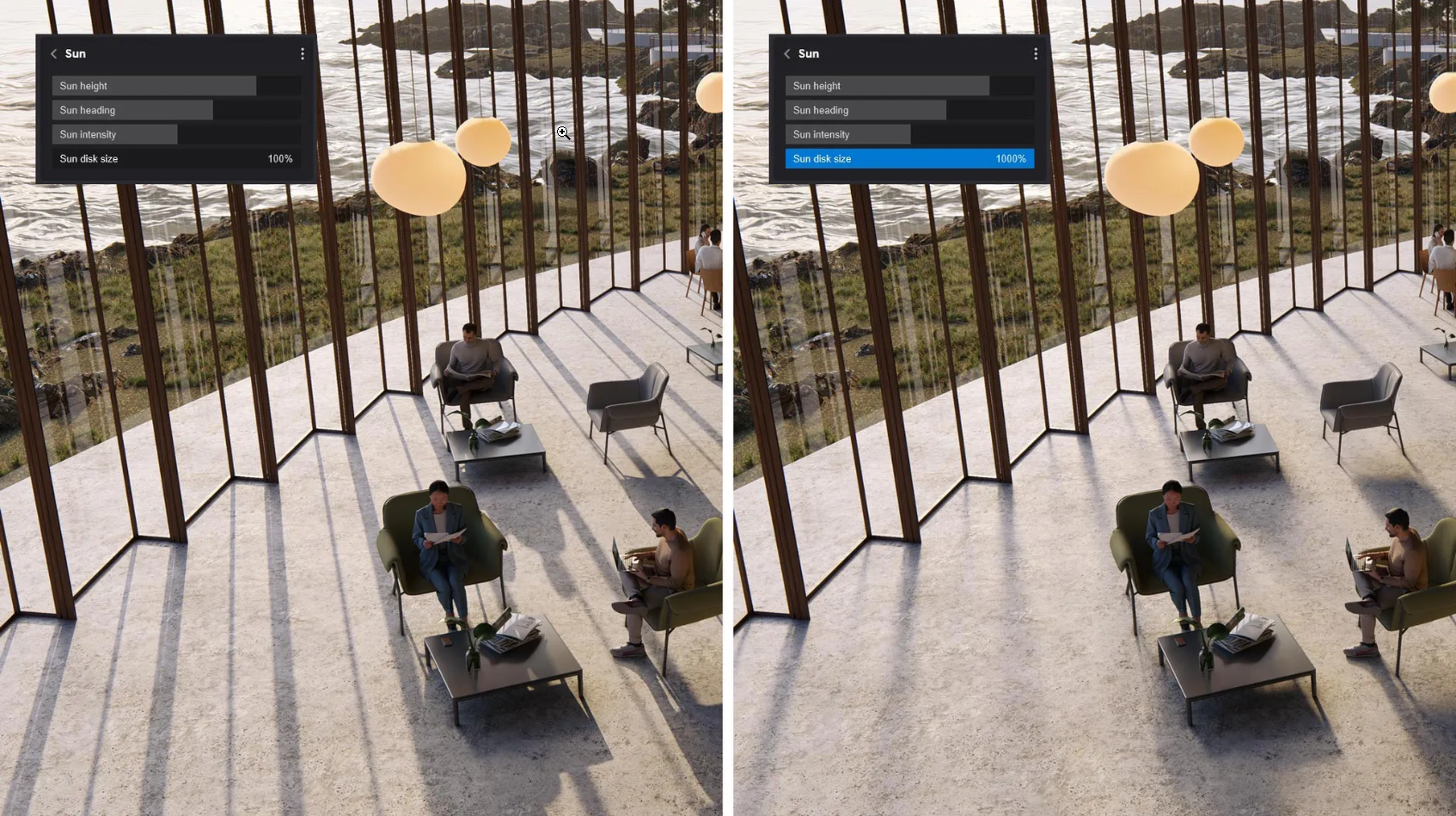
Rather than placing multiple artificial lights, maximize natural lighting using Real Skies. When combined with the Ray Tracing Effect, environmental lighting produces smoother tonal transitions and far greater spatial depth.
2. Optimize Ray Tracing Effect Settings
- Increase the bounce light for interior spaces
- Fine-tune reflections to avoid overly harsh glass highlights
- Adjust shadow softness to eliminate hard shadow edges
According to research from NVIDIA on real-time Ray Tracing for architectural design, powerful GPUs enable more accurate light calculations, directly impacting the viewer’s emotional perception.
Step 2: Depth of Field (DOF) & Cinematic Camera Angles
A cinematic frame is never perfectly sharp from front to back. Film language always guides the viewer’s eye intentionally.
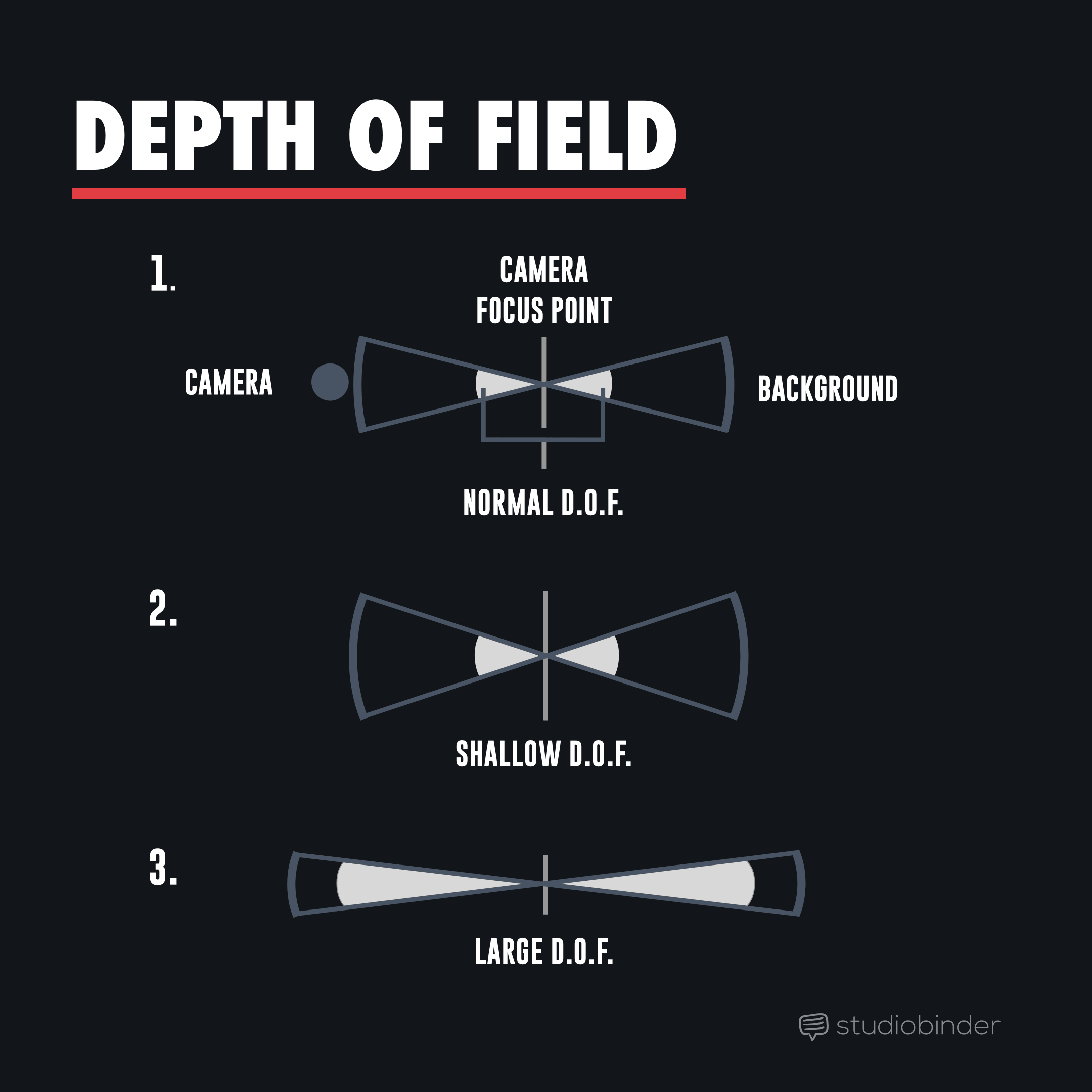
1. Use Depth of Field (DOF)
- Lower the aperture to blur the background
- Slightly blur the foreground to create spatial layering
- Keep your focal point sharp where you want attention
DOF creates physical depth rather than the flat look often seen in technical renders.
2. Choose the Right Focal Length
According to photography principles from Photography Life:
- 35mm – 50mm delivers a natural, realistic perspective
- Avoid ultra-wide lenses that distort architectural lines
- Use Two-point Perspective to maintain perfectly vertical lines
This step is critical if you want your render to feel like a movie still rather than a catalog image.
Step 3: Atmospheric Effects – Volumetric & Weather
The difference between a standard render and a cinematic one lies in the atmosphere.
1. Volumetric Sunlight (God Rays)
Light beams passing through windows or foliage add a sense of time and dynamic space. Ray Tracing ensures these light shafts interact physically and accurately with the environment.
2. Fog & Mist
A subtle layer of background fog can:
- Separate spatial layers
- Enhance depth perception
- Soften the background
3. Micro-weather & Dust Particles (2026)
Lumion 2026 allows fine control of airborne dust particles. These tiny details make light visible in space — a defining characteristic of cinematic imagery.
Step 4: Material Aging – Imperfection Creates Realism
The human eye trusts natural imperfections more than perfectly smooth surfaces.
1. Weathering
Add subtle details such as:
- Slight stains at the base of the walls
- Moss buildup in damp corners
- Worn edges on materials
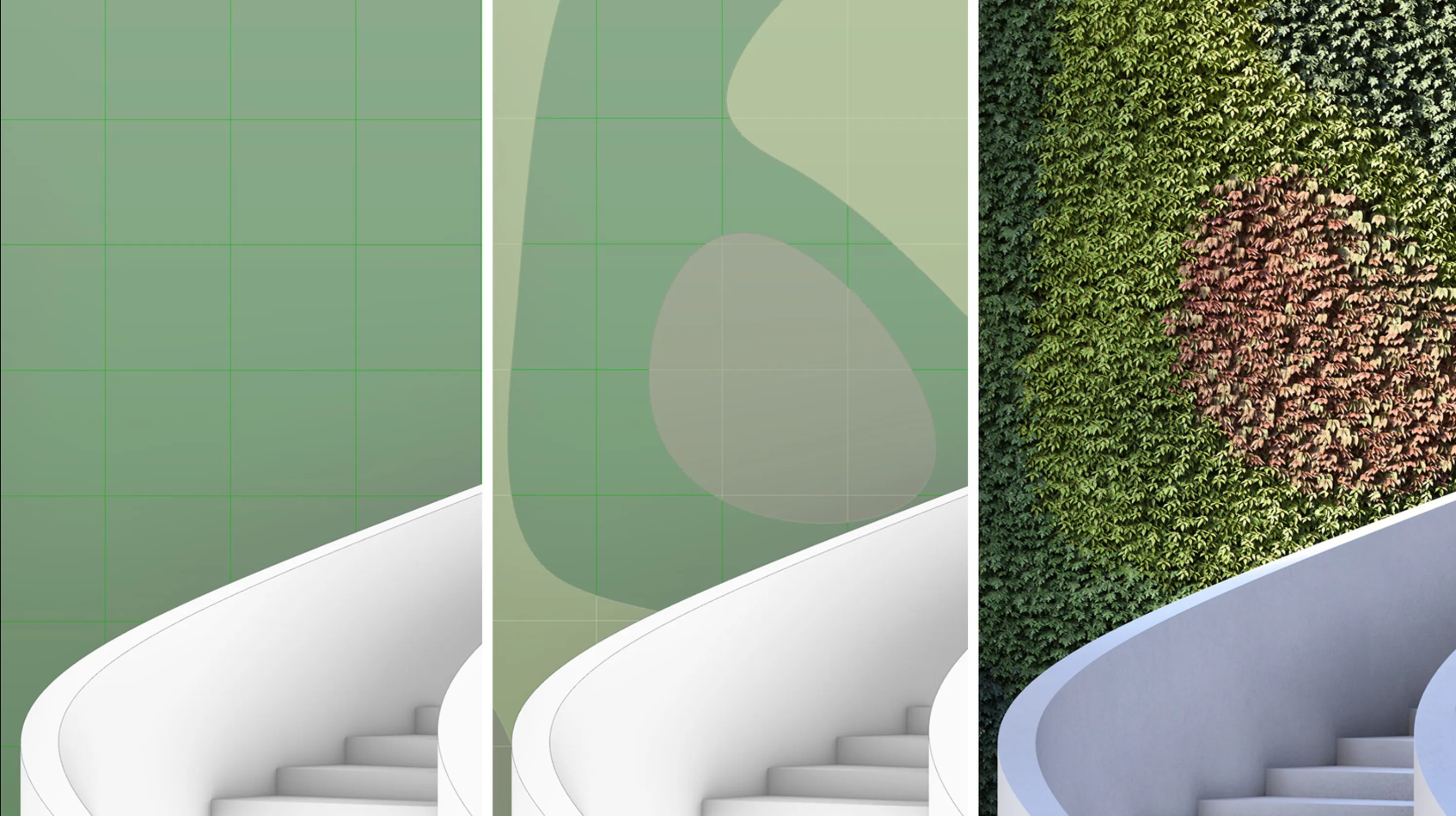
2. Displacement Maps
Ensure that:
- Bricks have true physical depth
- Gravel reflects light accurately
- Walls avoid a flat shader appearance
Under Ray Tracing, displacement truly shines because light interacts physically with surface geometry.
Step 5: Color Correction & AI Enhancer Inside Lumion
Why switch to Adobe Photoshop when Lumion already offers powerful color tools?
1. Color Correction for a Hollywood Look
- Slightly increase contrast
- Reduce saturation by about 5–10%
- Add subtle warmth for sunset scenes
- Control highlights to prevent blown-out areas
2. AI Image Enhancer (New in 2026)
The new AI tool helps:
- Automatically balance white levels
- Reduce noise in dark areas
- Increase clarity based on image content
The result: clean, consistent visuals ready for delivery and no post-production required.
Conclusion: Hardware Power – The Key to “No-Wait” Rendering
To run all five cinematic steps smoothly in Lumion 2026, especially with Lumion Ray Tracing Generation 3 enabled, you need a GPU with:
- Large VRAM capacity
- Strong Ray Tracing performance
- High memory bandwidth for displacement, volumetrics, and AI processing
Currently, iRender provides systems equipped with the RTX 4090 GPU — one of the most powerful GPUs available for architectural visualization and real-time rendering.
With RTX 4090, you can:
- Preview Ray Tracing almost in real time
- Test multiple lighting setups quickly
- Render complex interiors with deep bounce lighting without VRAM bottlenecks
- Significantly reduce waiting time when fine-tuning DOF, volumetric effects, and weathering
According to research from NVIDIA on real-time Ray Tracing in design workflows, GPU performance directly affects lighting accuracy and the creative experience of artists.
In short, cinematic rendering in Lumion 2026 is no longer about heavy post-production; it’s about mastering lighting, atmosphere, materials, and color directly inside the engine, supported by powerful hardware.
Maximize Stability and Speed in Lumion with iRender
If you’ve ever found yourself limited by your hardware when working with large models or rendering high-quality Lumion scenes, iRender high-performance cloud GPU service is the perfect solution. With powerful, customizable remote workstations optimized for Lumion, iRender enables you to:
- Render faster and in higher resolution without upgrading your local PC
- Work from anywhere, directly in your Lumion environment
- Access powerful GPUs on demand, including support for real-time rendering with LiveSync
- Scale your projects—whether you’re a solo architect or a full studio
iRender is proud to be one of the best GPU service providers on the market. We provide you with high-configuration models with advanced specifications such as AMD Ryzen™ Threadripper™ PRO 3955WX @ 3.9 – 4.2GHz or AMD Ryzen™ Threadripper™ PRO 5975WX @ 3.6 – 4.5GHz, 256GB RAM, 2TB NVMe SSD storage. Most importantly, we always update to the latest GPU technology, with 1/2/4 RTX4090.
With the benefits that iRender brings to you, as well as the configuration that is very suitable for all versions of Lumion, do not hesitate to use the service at iRender to have a great experience with your rendering time. Under the IaaS (Infrastructure as a Service) model, you will have full control over the entire rendering process and use it as your machine. Therefore, you can install any software and plug-ins you want, add your license, and render or modify your project yourself.
Below is information about our 3S package, which is the most suitable for Lumion:
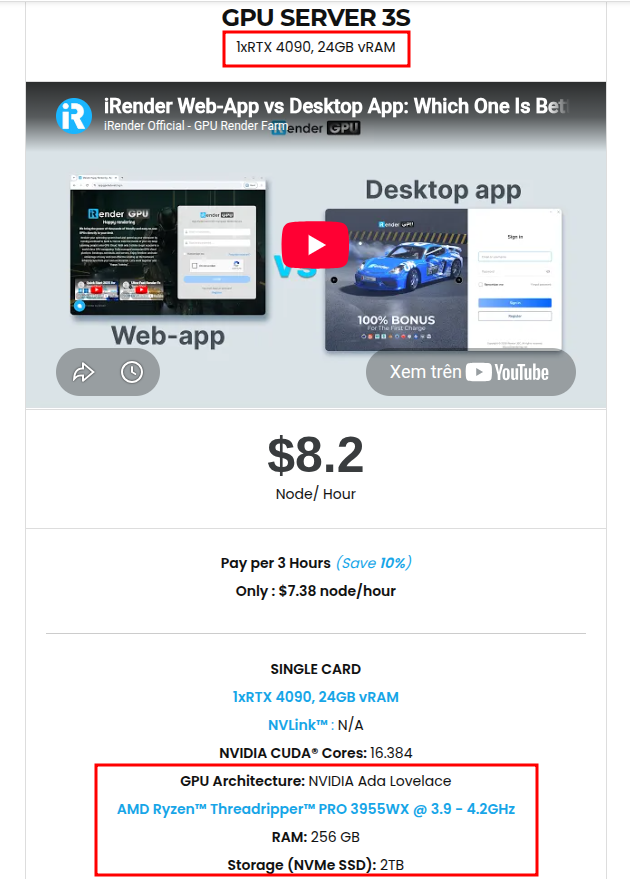
Not only does it have powerful configurations, but iRender also provides you with many more services. Free and convenient transfer tool, iRender drive for macOS and Linux users. For Windows users, we recommend the iRender GPU application, you will not need to access our website anymore. The price at iRender is also very flexible with hourly rental (pay as you use), and daily/weekly/monthly rental with a 10-20% discount.
We’re always happy to help you with any questions. If you have any problems or questions, don’t hesitate to contact our support team. Or via Whatsapp: 0912 785 500 for free advice and support.
Right now iRender has a SPECIAL PROMOTION program with a 100% bonus for the first transaction within 24 hrs of registration. It means that you can get an extra 100% of the money you recharged the first time. And points never expire, so you can use them at any time.
Sign up for an account today to experience and enjoy our services.
Thank you & Happy Rendering!
Source and image:support.lumion.com

Related Posts
The latest creative news from Lumion Cloud Rendering





