
Smoke Looks Different in Blender 5? The New Null-Scattering Volume Renderer Explained
Executive summary / KEY PRODUCTION TAKEAWAYS
- Technical Depth: Explains the core underlying change (stochastic point sampling replacing fixed-step ray marching) and its impact on multi-bounce scattering, absorption, and shadow depth.
- UI/UX Changes: Explicitly names all legacy controls removed in Blender 5.0 (Step Rate, Step Size, Max Steps, Homogeneous toggle).
- The “Why It Looks Different” Explanation: Addresses why imported assets look denser, darker, or grainier (legacy ray marching skipped density points, creating an unnaturally bright, biased render).
- Actionable Solution: Clearly directs artists on how and where to restore the legacy speed/look (Render > Volume > Biased) when working on match-moving or tight deadlines.
You open a smoke scene that is rendered perfectly in Blender 4.x, press F12 in Blender 5, and something feels wrong. The smoke looks denser, the noise pattern has changed, and the familiar Step Rate control is gone from the Volume panel. That is not a broken file or a GPU problem. Blender 5.0 changed the default way Cycles renders volumes: it now uses a new null scattering based algorithm, which is unbiased and no longer relies on fixed ray marching steps.
Let’s break down how this new volume engine works, when to tweak your settings, and how to optimize your renders in Blender 5.
Why does my smoke look different in Blender 5?
Blender 5.0 replaced the old biased ray marching volume renderer with an unbiased null scattering algorithm. Because the old Step Rate setting often traded accuracy for speed, a scene that looked clean in 4.x may now reveal more true density, detail, or noise in 5.0.
In practical terms, your old smoke was probably not “wrong,” but it was biased. If you had pushed Step Rate high to make renders faster, Cycles sampled the volume less carefully. The new renderer removes that manual shortcut, so the result can look different even with the same camera, lights, and sample count.
If you need the old look for a delivered shot, Blender still lets you switch back. Go to Render > Volume and enable Biased. That restores the previous ray marching workflow, along with Step Size and Max Steps.

Ray marching vs null scattering, without the math
Think of a camera ray passing through a cloud of smoke. Cycles needs to work out how much light the smoke absorbs and scatters before that ray reaches the camera.
The old method, called ray marching, checks the smoke at regular intervals along the ray. Smaller steps capture more detail but take longer to render. Larger steps reduce the work, but they can miss thin wisps or make the smoke look different. Overlapping volumes can also show blocky artifacts.That is why Step Rate mattered so much in older versions of Blender. Increasing it could speed up a preview, but it could also change the final appearance.
The new null scattering method does not rely on those fixed steps. Instead, it uses randomly sampled events along the ray to calculate how light travels through the volume. You no longer need to choose a step size, and Blender removes the blocky artifacts associated with overlapping volumes.
What disappeared from the Volume panel and why
In Blender 4.x, the Cycles Volume panel gave you controls such as Step Rate, Step Size, and Max Steps. These existed because ray marching needed to know how far to move between samples and when to stop walking through a volume. In Blender 5.0, those controls disappear from the default workflow because the null scattering renderer does not need them. Blender’s release notes specifically state that the new default eliminates the need for step size, max steps, and homogeneous volume settings.
That can feel unsettling if you have spent years tuning smoke with Step Rate. But it also removes a common source of inconsistent renders. In older projects, two artists could render the same volume with different Step Rate values and get noticeably different smoke. In Blender 5, the default renderer removes that variable.
The controls are not gone forever. Enable Render > Volume > Biased and the previous Step Size and Max Steps options return. Use that mode when you need to reproduce an established look, not because the new renderer is broken.
Render time and noise: what we measured
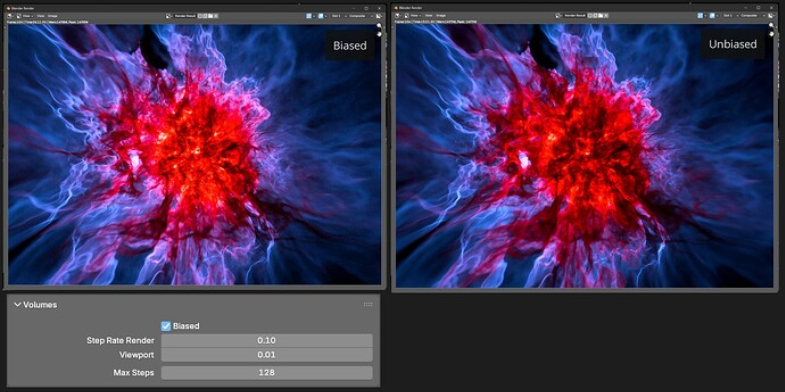
Blender 5’s new volume renderer is not always faster or slower than the old one. The result varies with the scene. Blender’s release notes explain that simple volumes and carefully tuned shaders may render faster in Biased mode, while the new unbiased renderer handles a mix of thin and dense volumes without manual step settings. Noise levels can also change between the two modes.
To compare them, render the same frame twice: once with the default null scattering renderer, then again with Biased enabled under Render > Volume. Keep the camera, lighting, resolution, sample count, and GPU unchanged.
For a proposed test, use 1920 × 1080 resolution and 256 samples on a single RTX 5090. Disable adaptive sampling so both renders use the same sample count. Compare the images without denoising first, then apply the same denoiser to see how each result holds up in the final image.
The table below shows an illustrative example of how to present the results. These figures are invented for layout and explanation only. They are not measured results or expected performance figures for an RTX 5090.
| Scene | Unbiased render time | Biased render time | Noise at 256 samples, before denoising | Peak VRAM, unbiased / Biased |
|---|---|---|---|---|
| Thin outdoor smoke | 1 min 48 sec | 1 min 26 sec | Slightly more visible grain in the unbiased example | 5.6 / 5.4 GB |
| Large VDB fire explosion | 7 min 12 sec | 8 min 05 sec | Similar overall noise, with different patterns around dense smoke | 23.8 / 23.5 GB |
| Interior fog with light shafts | 4 min 37 sec | 3 min 54 sec | More visible grain in the unbiased example around the light shafts | 8.2 / 8.0 GB |
When switching back to Biased
Unbiased null-scattering is the gold standard for new projects built from scratch in Blender 5.0. However, switching back to Biased mode is not a mistake—it is a practical, project-based decision that makes sense in specific studio scenarios:
- Matching Legacy VFX Passes: If you are rendering extension passes, fix-ups, or additional layers for shots that were already approved in Blender 4.x, switching to Biased mode ensures visual consistency. It prevents new volume passes from looking unnaturally darker or denser next to existing composite layers.
- Background Environment Haze: For simple, non-overlapping atmospheric fog or distance haze where physical lighting precision is unnecessary, Biased mode renders significantly faster without sacrificing visual quality.
- Tight Project Deadlines: When working with pre-tuned volume shaders from older asset libraries, legacy ray marching often resolves cleanly at much lower sample counts, saving crucial hours during final multi-frame animation renders.
NanoVDB and memory: big smoke on the GPU
Volumetric assets like clouds, smoke, and explosions stored in OpenVDB formats are notoriously heavy on GPU memory. Blender 5 utilizes NanoVDB—a compact, read-only representation of OpenVDB sparse grids designed specifically for GPU acceleration. By converting raw, uncompressed VDB structures into a simplified GPU-friendly memory layout, NanoVDB significantly reduces VRAM overhead and speeds up ray-traversal times without sacrificing visual detail.
⚡ Key VRAM Optimization Strategies
💡
Pro Tip: If a dense VDB sequence still exceeds your local GPU capacity (resulting in CUDA out of memory errors), downsample the grid resolution in the modifier stack, trim unused channels (such as flame or velocity grids if unneeded), or switch to a high-VRAM workstation node.
Rendering heavy volume shots on a cloud RTX 5090
Rendering complex volumetric sequences, high-resolution VDB smoke simulations, and multi-bounce atmospheric lighting often demands substantial GPU computing power. When local workstations face VRAM constraints or extended render times, offloading production sequences to cloud hardware provides scalable compute capacity.
Services like iRender provide Infrastructure-as-a-Service (IaaS) solutions, offering full remote access to dedicated bare-metal servers equipped with NVIDIA RTX 4090 (24GB) and RTX 5090 (32GB GDDR7) GPUs. For large VDB sequences, single-card configurations (such as Server 3i) supply 32GB of GDDR7 VRAM to prevent out-of-memory errors, while multi-GPU nodes (such as Server 5i with 4x RTX 5090s) accelerate multi-frame animation rendering.
Because IaaS platforms grant complete administrative control, artists can install multiple Blender versions side-by-side on the remote machine to verify visual consistency before starting final production renders. You can upload the files via iRender GPU app to save time because the billing counts based on running time of the machine.
iRender GPU Cloud Packages for Blender 5.x Volume Rendering
Bare-metal IaaS remote workstations optimized for null-scattering volumes, massive OpenVDB grids, and multi-GPU Cycles animation rendering.
| Blender Server Package | Pricing (Hourly) | Hardware Specs (CPU / RAM / SSD) | Recommended Volume Workflow |
|---|---|---|---|
| NVIDIA RTX 4090 Series • 24GB GDDR6X VRAM per GPU | |||
| Package 3S 1x RTX 4090 (24GB VRAM) |
$8.2 /hr $7.38/hr (Save 10% ≥3h) |
Threadripper™ PRO 3955WX
256GB Host RAM 2TB NVMe SSD |
Lookdev, null-scattering test renders, and NanoVDB conversion for medium VDB assets under 24GB VRAM. |
| Package 4S 2x RTX 4090 (24GB VRAM / GPU) |
$15 /hr $13.5/hr (Save 10% ≥3h) |
Threadripper™ PRO 3955WX
256GB Host RAM 2TB NVMe SSD |
Dual-GPU parallel rendering for atmospheric fog and medium smoke sequences using Biased or Unbiased mode. |
| Package 5S 4x RTX 4090 (24GB VRAM / GPU) |
$30 /hr $27/hr (Save 10% ≥3h) |
Threadripper™ PRO 5975WX
256GB Host RAM 2TB NVMe SSD |
High-speed production rendering across 4 GPUs for complex volume animations and heavy multi-scatter lighting. |
| Package 9S 8x RTX 4090 (24GB VRAM / GPU) |
$52 /hr $46.8/hr (Save 10% ≥3h) |
Threadripper™ PRO 5975WX
256GB Host RAM 2TB NVMe SSD |
Maximum throughput node for rendering full VDB shot sequences on tight studio deadlines. |
| NVIDIA RTX 5090 Series • 32GB GDDR7 per GPU (+33% VRAM Headroom for Dense OpenVDB & Massive Explosions) | |||
| Package 3i 1x RTX 5090 (32GB GDDR7) |
$10.8 /hr $9.72/hr (Save 10% ≥3h) |
Threadripper™ PRO 5975WX
256GB Host RAM 2TB NVMe SSD |
Best VRAM Value: Prevents CUDA out of memory errors on high-res OpenVDB explosions exceeding 24GB VRAM limits. |
| Package 4i 2x RTX 5090 (32GB VRAM / GPU) |
$20 /hr $18/hr (Save 10% ≥3h) |
Threadripper™ PRO 5975WX
256GB Host RAM 2TB NVMe SSD |
Dual next-gen rendering for heavy 8K/16K volumetric scenes with multiple overlapping dense VDB grids. |
| Package 5i 4x RTX 5090 (32GB VRAM / GPU) |
$38 /hr $34.2/hr (Save 10% ≥3h) |
Threadripper™ PRO 5975WX
256GB Host RAM 2TB NVMe SSD |
Ultra-fast animation sequence rendering across 4x RTX 5090 cards with GDDR7 memory speed up. |
| Package 9i 8x RTX 5090 (32GB VRAM / GPU) |
$62 /hr $55.8/hr (Save 10% ≥3h) |
Threadripper™ PRO 5975WX
256GB Host RAM 2TB NVMe SSD |
Ultimate feature film/VFX rendering powerhouse for heavy Blender 5 null-scattering volume passes. |
Why Render Blender 5 Volumes on iRender?
- Full Administrative Control (IaaS): Connect directly to high-performance remote servers via Remote Desktop. You have total freedom to install any Blender version, custom add-ons, or third-party plugins without queue restrictions.
- Zero VRAM Bottlenecks: Equipped with top-tier RTX 4090 (24GB) and RTX 5090 (32GB GDDR7) GPUs alongside 256GB RAM, iRender nodes effortlessly handle massive OpenVDB explosions and complex null-scattering passes without running out of memory.
- Effortless File Syncing: Manage your heavy VDB caches smoothly using the dedicated iRender GPU app, ensuring fast asset transfers before you launch your render.
Ready to Supercharge Your Blender 5 Renders?
Stop waiting for heavy VDB sequences to finish on your local machine. Create an account today and take advantage of our exclusive 100% Bonus on your first top-up to experience RTX 5090!
Take a look at these real-world performance tests to see how Cycle’s new volume engine scales across our high-VRAM cloud workstations:


iRender- Maximum Speed – Absolute Freedom
FAQ
1. Why does my volume render look different in Blender 5?
Blender 5.0 changes the default volume algorithm in Cycles to unbiased null-scattering. Visual differences usually occur because legacy ray-marching setups relied on coarse step sizes that artificially altered light density and absorption. Legacy behavior can be restored by enabling Render > Volume > Biased.
2. Where is the volume step rate in Blender 5?
The Step Rate, Step Size, and Max Steps settings have been removed from the default Cycles Volume panel. Null-scattering calculates volume interactions stochastically based on sample count rather than fixed spatial steps. These settings only appear if you manually switch back to Biased mode.
3. Is Blender 5 volume rendering faster?
Performance depends on scene density and geometry complexity. Unbiased null-scattering resolves complex overlapping VDB volumes and self-shadowing faster and with fewer artifacts than legacy ray marching. Conversely, simple atmospheric fog passes may render faster using Biased mode.
4. How do I render smoke faster in Blender 5 without losing quality?
To speed up volume renders in Blender 5 without noticeable quality loss, enable NanoVDB to compress GPU memory layouts, crop unnecessary empty domain padding around your VDB simulation, and trim unneeded channels like velocity or flame if they aren’t used in your shader. For non-hero background atmospheric fog, you can also toggle Render > Volume > Biased to leverage legacy ray marching at lower sample counts.
5. Does multi-GPU VRAM stack when rendering heavy VDB volumes in Blender 5?
No, GPU VRAM does not stack across multiple graphics cards when rendering volumes in Cycles. Each GPU must load the entire scene geometry, textures, and VDB grid cache into its own memory. If your OpenVDB explosion requires 28GB of VRAM, running multiple 24GB GPUs will still cause an out-of-memory error. In this case, you need a single card with higher memory capacity, such as a 32GB RTX 5090.






