
How Much RAM Do You Need for Houdini Simulations? A Practical Guide
There is no single number, because RAM demand in Houdini scales with the type of simulation and its resolution rather than with the software itself. As a starting orientation: learning and low resolution work sits comfortably in 16 to 32GB, mid-sized Pyro and FLIP shots usually want 64 to 128GB, and hero quality or multi-layer work runs past 128GB and into 256GB. You should run a smaller version of your own sim, watching peak memory, and scaling up from there. Let’s break down in this article!
Simulation and rendering ask for different hardware
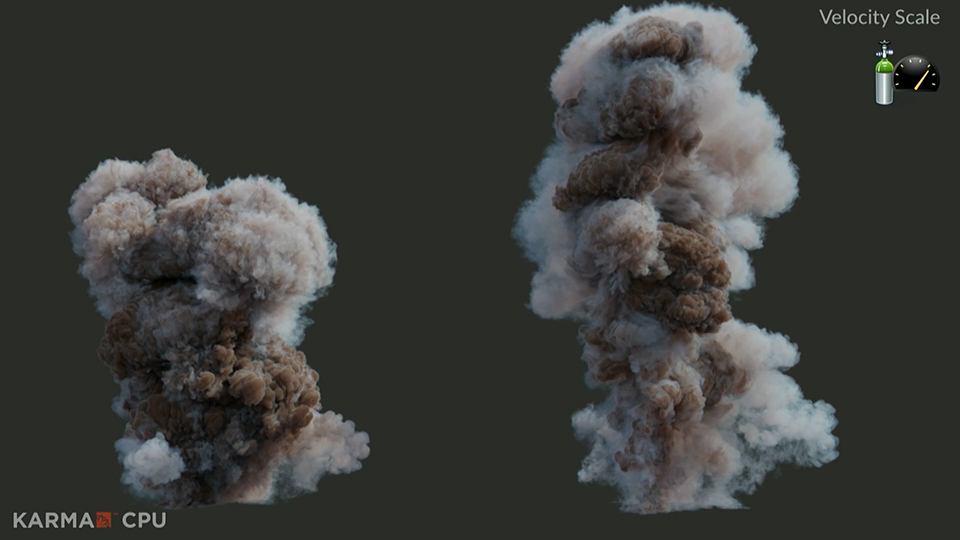
Image Source: SideFX
Houdini has two distinct stages with two distinct appetites.
The simulation stage runs on the CPU, with the data held in system RAM. The solver steps forward, evaluating forces, resolving collisions, advecting fields, and the working set lives in your main memory. Your graphics card sits mostly idle during this.
The render stage is where the GPU and VRAM decide things. If you use a GPU renderer, the card and its memory determine how fast frames come out and whether a scene fits at all.
SideFX notes in the Houdini system requirements that “on certain graphics cards, Houdini can use the GPU to dramatically increase the performance and speed of your Vellum and Pyro FX simulations.” That OpenCL path exists for those two solvers, it has to be enabled rather than happening on its own, and once your sim runs on the card, VRAM becomes a constraint too. The requirements ask for 12GB of VRAM or more, and 16GB and above is ideal for larger simulations. For most simulation work, system RAM is the ceiling.
What actually eats the memory
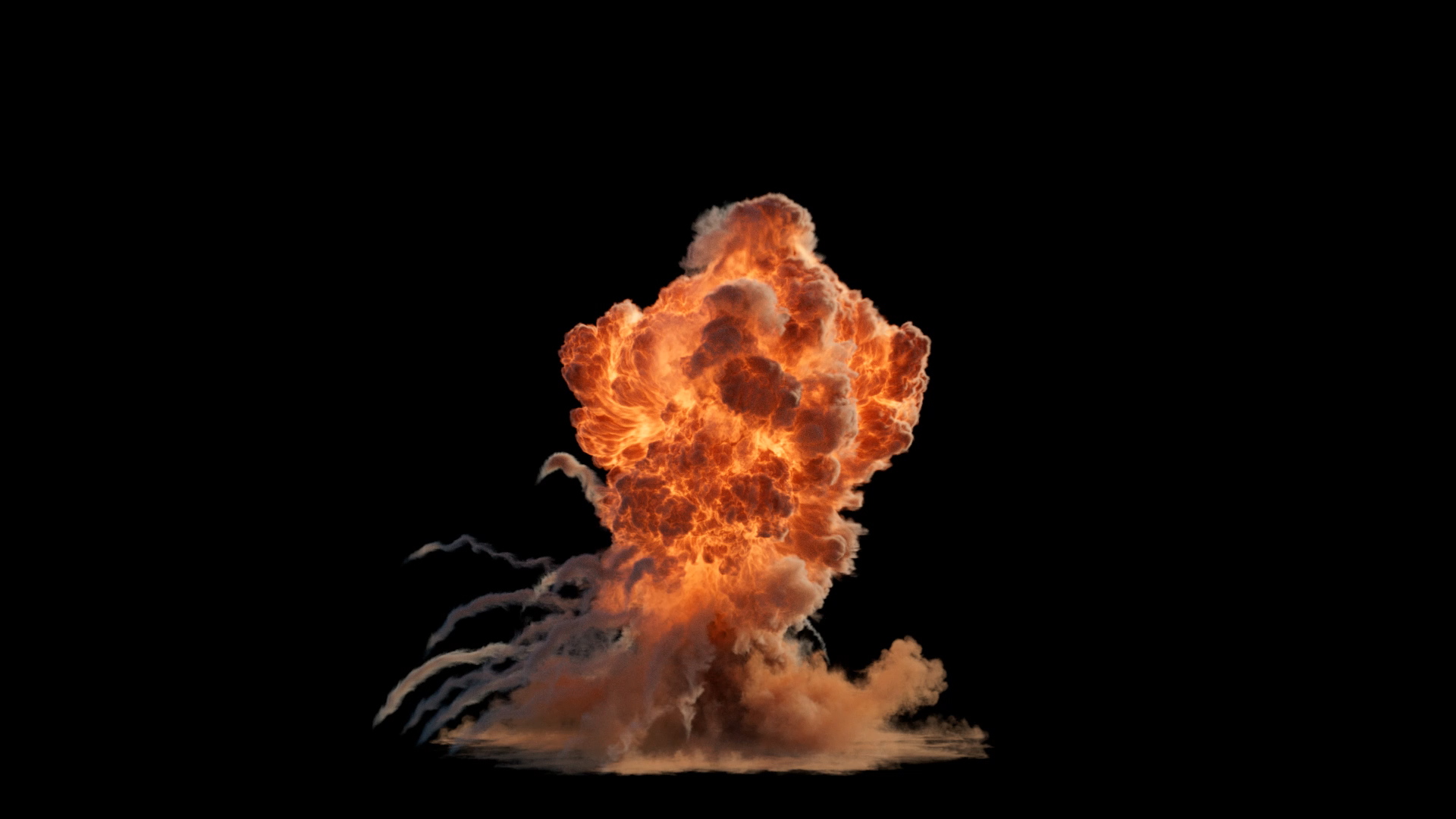
Image Source: SideFX
Different solvers consume memory in different ways.
Pyro scales with voxel count, and voxel count scales brutally. A volume is three dimensional, so doubling your resolution multiplies the number of voxels by roughly eight . You did not double your memory requirement when you doubled resolution. You multiplied it by about eight, and the machine that comfortably handled the previous version now has nowhere to put the data.
FLIP scales with particle count and surface detail. Particle separation drives the count, and whitewater adds a substantial layer on top of the base sim, often turning a comfortable shot into a difficult one. Because FLIP and Pyro scale on different terms, a RAM figure you measured on one tells you very little about the other.
Vellum and RBD scale with points, constraints and substeps. Constraint count matters more than people expect on cloth and soft body setups.
The cache itself takes space. Houdini keeps simulated frames in memory so you can play them back, and that cache competes for the same RAM as the solve. Cached shot data on disk is a separate matter and can reach tens or hundreds of gigabytes for a heavy Pyro or FLIP shot, which is why storage speed becomes part of the working loop as soon as you start reading caches back.
On Windows, the virtual memory setting can be its own bottleneck. There are crashes that come from hitting a virtual memory limit rather than a physical RAM limit, and if your machine dies while Task Manager still shows free RAM, you should check the settings first.
Estimating your own number
Build a small version of your sim. Keep the setup identical and cut the resolution, or the particle separation, to something the machine handles easily. Run it, and watch peak memory while it runs, using Houdini’s own Performance Monitor together with Task Manager or the equivalent on your platform.
Then scale the measurement using the relationships above. For a Pyro sim, doubling resolution means roughly eight times the memory, so a small test at half resolution that peaked at 12GB implies something close to 96GB at full resolution.
Always leave headroom. Your operating system, your browser, your other applications and Houdini’s own interface all want memory, and a sim that fits exactly into your total RAM does not actually fit.
Signs you are already short on RAM
You cannot play the whole sim back. This is the clearest early warning, and SideFX documents the mechanism plainly: “When Houdini runs out of space in memory for new cached frames, it will drop older cached frames and you can’t replay the whole simulation.” Your sim is fine. Your memory ran out, so the earliest frames were discarded to make room for the newest ones.
The sim slows down progressively, then dies partway through. Memory pressure builds as the sim grows, the machine starts swapping, and frame times degrade in a curve rather than a straight line before the process finally fails.
Your machine starts leaning on virtual memory and everything else becomes unresponsive. When the operating system pages simulation data to disk, the entire session grinds, including applications that have nothing to do with Houdini.
RAM by simulation type and scale
| Simulation type and scale | RAM typically needed | What drives it up fastest | Notes |
| Learning and low resolution work | 16 to 32GB | Grid resolution | Enough for study and experimentation |
| Mid-sized Pyro for a short shot | 32 to 64GB | Voxel count, scaling cubically | Doubling resolution is a different problem entirely |
| Mid-sized FLIP | 64 to 128GB | Particle count and surface detail | Whitewater adds a significant layer |
| Hero quality Pyro or FLIP | 128GB and up | Close-to-camera resolution | Beyond what most desktop machines carry |
| Very large or multi-layer sims | 256GB and up | Several sims stacked together | Usually split into passes or run on dedicated hardware |
What to do when the sim is bigger than your machine
You can follow some suggestions as below:
- Reduce resolution, and use adaptive settings where the solver supports them, so detail goes where the camera can see it.
- Cache to disk rather than holding everything in memory, which is exactly what the SideFX documentation suggests as the alternative to memory caching, with the caveat that scrubbing on-disk frames is slower than scrubbing in-memory ones.
- Split the simulation into parts and run them separately.
- Run the whole thing on a machine with more memory than yours.
iRender: Ultimate RTX 5090 GPU Cloud Service for High-Performance Houdini Simulations
For Houdini, the strongest thing we offer is not the graphics card. It is 256GB of RAM paired with an AMD Threadripper PRO CPU, which is precisely the combination the simulation stage asks for. Because iRender runs an IaaS model, you rent that whole machine and install your own Houdini build on it, so the sim you could not run this morning runs this afternoon at the resolution you originally wanted, without you buying memory modules you will use for one project. The usual alternative is choosing between lowering your sim quality and spending on a desktop upgrade, and renting removes that choice for the duration of the shot. There is also the iRender GPU app, our all-in-one app, so you can push heavy caches and assets up ahead of time and have them waiting in the machine.
You also have full control over your files and software. Upload your project before starting the server, then connect when the machine is ready. Billing starts when the server is fully booted and the Connect button appears, so you only pay when the workstation is ready to use. For artists who want more control, predictable costs, and fewer surprises, iRender provides a straightforward alternative to traditional render farms.
Register today to take advantage of a 100% bonus on your very first deposit!
Let’s watch the tutorial video to see how our service works:

Maximum Speed – Absolute Freedom
Frequently Asked Questions
How much RAM do you need for Houdini simulations?
Why does doubling Pyro resolution need so much more RAM?
How can I estimate the RAM a Houdini sim will need before running it at full size?






