
How to fix poor multi-GPU scaling on 4×RTX 4090 in Blender Cycles?
Many 3D artists have upgraded to a powerful workstation with four RTX 4090 GPUs and expect Blender Cycles to scale almost linearly. However, they discover that their render is only 10–25% faster with all four GPUs than it is with just one. The Task Manager shows low GPU utilization, and their renders don’t speed up.
Have you encountered this problem before? In the blog, iRender will delve into the issue and find the solution to fix poor multi-GPU scaling on 4×RTX 4090 in Blender Cycles.
Why does 4×RTX 4090 get only 20% Faster than RTX 4090?
Cycles' tile becomes a bottleneck with extremely multi GPUs
When you use 4×RTX 4090 in Blender Cycles, you often get only about 20% more speed than a single card because Blender can’t keep all the GPUs working. Blender Cycles does not scale well beyond 1–2 GPUs, and the RTX 4090 is so fast that the software becomes the bottleneck.
The renderer spends a lot of time preparing the scene, managing tiles, and syncing the GPUs—tasks that mostly run on the CPU or only one GPU. This makes the other GPUs wait, so they sit idle much of the time.
CPU becomes bottleneck
One common reason for poor scaling with four RTX 4090 GPUs is that the CPU becomes the bottleneck. Blender needs the CPU to prepare and send work to each GPU. A single 4090 is already very fast, so when you add more GPUs, the CPU may not be able to keep up with them quickly enough. When this happens, the GPUs sit idle, and GPU usage drops. As a result, the render becomes only slightly faster than using one GPU.
Incorrect “GPU usage” in Task Manager
Sometimes, Windows Task Manager does not show real GPU activity. It only tracks general graphics work, not the special ray-tracing cores that OptiX uses. This means your GPU may look idle even when it’s actually working hard on rendering.
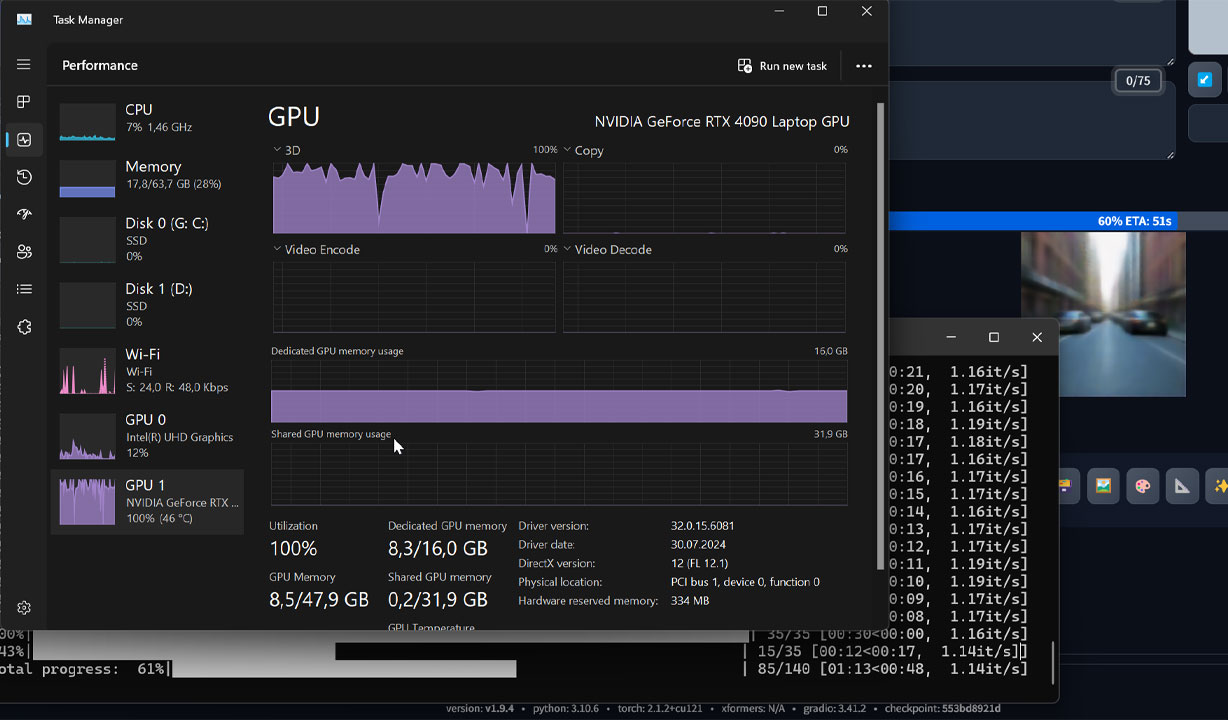
How to fix poor multi-GPU scaling on 4×RTX 4090 in Blender Cycles?
Check performance with other tools such as MSI Afterburner, Nvidia-SMI, or GPU-Z
When you have slow rendering, the first thing you should check is GPU usage in Task Manager to see how your GPU is working or not. However, sometimes, Task Manager is actually misleading. It measures compute utilization, not ray-tracing hardware, which leads to incorrect results.
Therefore, we always verify performance with additional tools such as MSI Afterburner, Nvidia-SMI, or GPU-Z as more reliable alternatives.
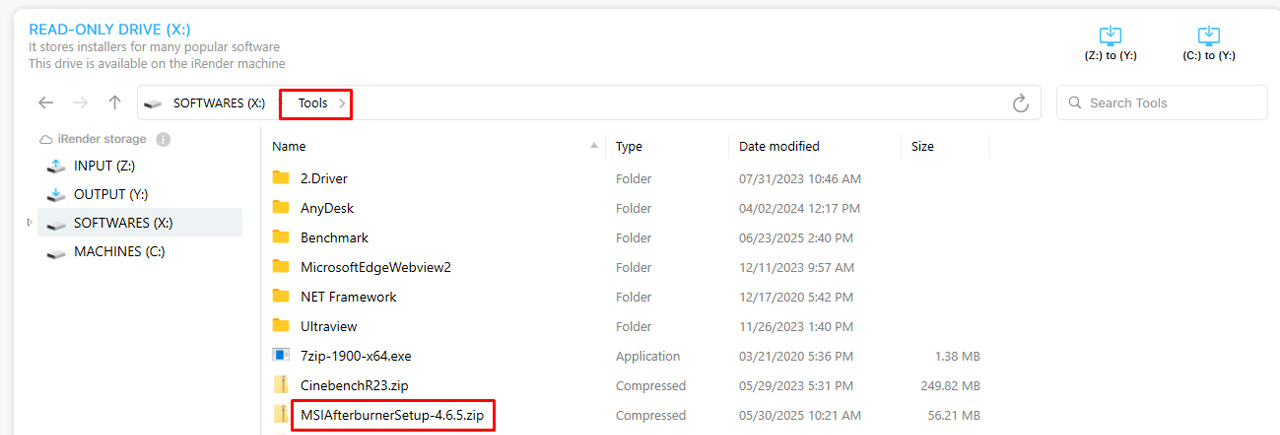
If you got the issue when working on our iRender machine, you should double check GPU usage on both Task Manager and MSI Afterburner. We put SI Afterburner installer on X drive, you can go to Tools Folder and copy it to desktop and run it.
Split frames into chunks and start 4 blender instances each for one GPU
A simple and effective way to fix poor scaling is to split your frame range into four parts and run one Blender instance for each GPU. Instead of all GPUs sharing one render task—which can create CPU and PCIe bottlenecks—each GPU gets its own set of frames to render independently. This removes most of the communication overhead, keeps every GPU fully loaded, and often delivers near-linear performance gains on multi-GPU systems.
Update NVIDIA Studio Driver
If you get a Blender issue when working on iRender server, you can update NVIDIA Studio Driver.
Please follow the following steps:
Step 1: Go to the X: Drive on the remote machine and open the folder: 11. NVIDIA RTX 4090 DRIVER > Studio
Step 2: Find the latest Studio Driver installer
Step 3: Copy it to the remote desktop and run it.
Step 4: After installation, restart the machine.

Render on multi fewer-GPU servers
Using multiple smaller servers with fewer GPUs can also fix scaling problems. Instead of forcing one machine to handle four GPUs, you spread the render across several 1–2-GPU servers. Each server works at full speed with no bottlenecks, and the total render finishes much faster.
One of our clients encountered this issue and reported that:
- On single-card RTX 4090: it took 8 minutes to render a frame.
- On four-card RTX 4090: it took 6 minutes to render a frame.
So we realize that the render time did not increase much when rendering on multiple cards. We suggest he try rendering on fewer-GPU servers instead.
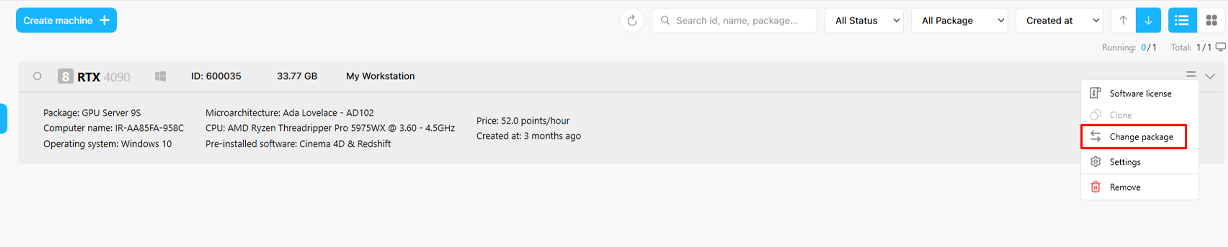
You can easily change package to fewer GPU servers without installing anything:
Conclusion
To fix poor multi-GPU scaling on a 4×RTX 4090 setup in Blender Cycles, ensure that tile size is optimized for GPU rendering, keep all cards on the same PCIe generation and bandwidth where possible, and use the latest NVIDIA Studio drivers. Sometimes, rendering on multi fewer GPU server is a good solution, which can optimize your budget too.
iRender - The best Render Farm for Blender rendering
Our service
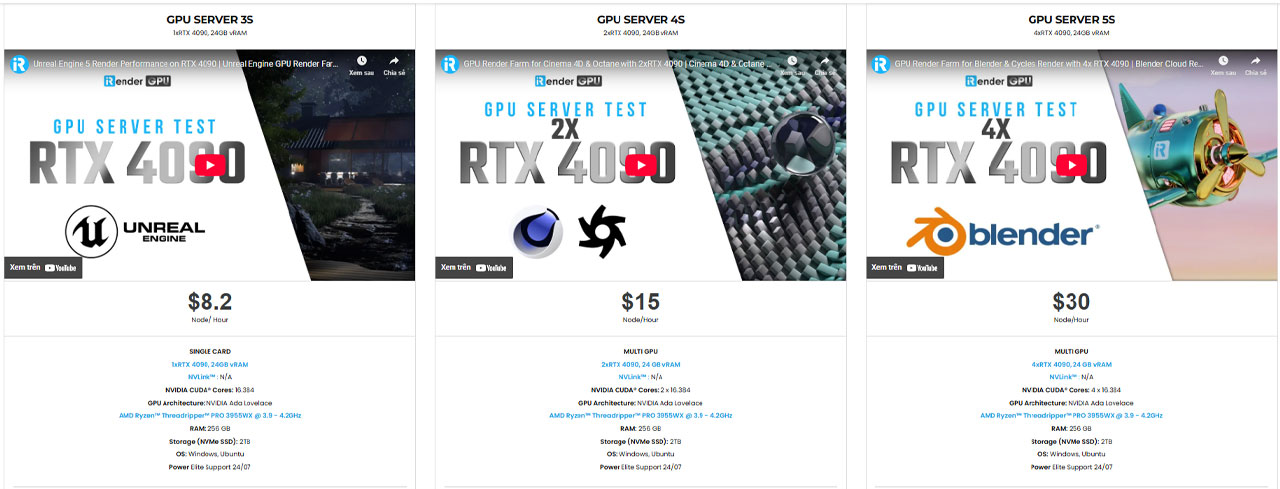
iRender is proud to be one of the best GPU service providers on the market. We are releasing new servers for iRender’s users, which have powerful processing capabilities of AMD Ryzen Threadripper Pro 3955WX @ 3.90GHz- 4.2GHz and AMD Ryzen™ Threadripper™ PRO 5975WX @ 3.6 – 4.5GHz. Besides, they have multi-GPUs:1/ 2/ 4/ 6/ 8 RTX 4090 24GB VRAM to boost performance in the rendering process.
We have pre-installed Blender 4.5.3 option when you create a machine, so you won’t take time to install software. Blender can use multi cards to render, you can refer any servers to speed up your rendering. Please have a look at all servers following:
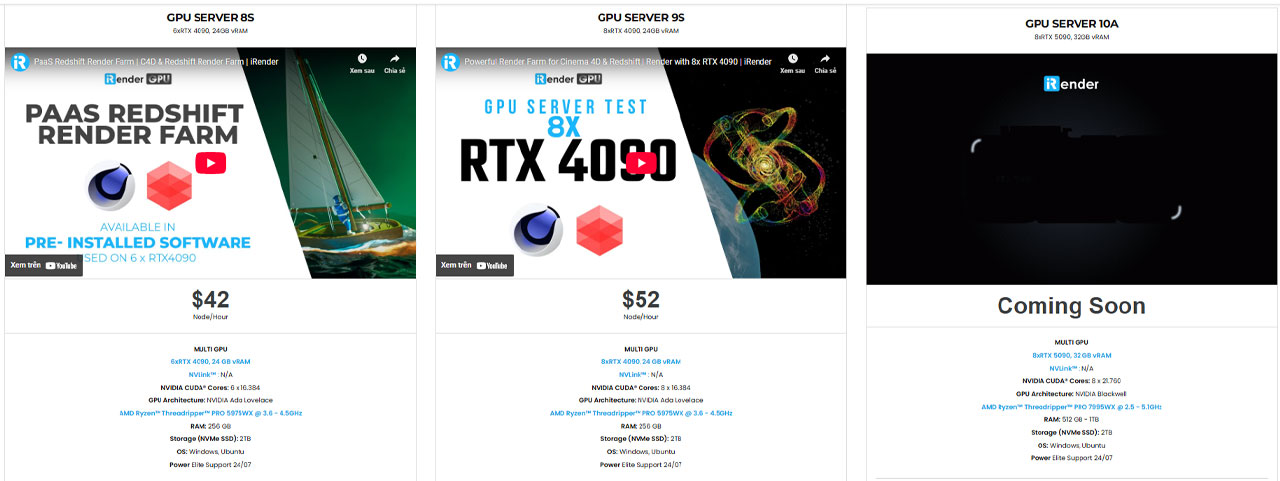
Convenient transfering tools
iRender offers a powerful and free file transfer tool: iRender drive for macOS and Linux user. You can transfer all the necessary data into our iRender drive tool at any time without connecting to the server. The data will be automatically synchronized in the Z drive inside the server, ready for you to use.
The tool is also integrated into iRender GPU app, an all in one application where you can free your workflow from accessing iRender website, and just have to work on the iRender GPU app.
Flexible prices
Moreover, our pricing is already highly economical, but customers can save from 6% to 20% with our Fixed Rental feature. For those who are in need of a server for more than a day or have an extremely large project, we advise you to choose a daily/ weekly/monthly rental package. The discount is attractive (10% for daily packages, 20% for weekly and monthly packages).
In case you have any problems or questions, don’t hesitate to contact the support team. We will be happy to help you with your questions and problems at all times.
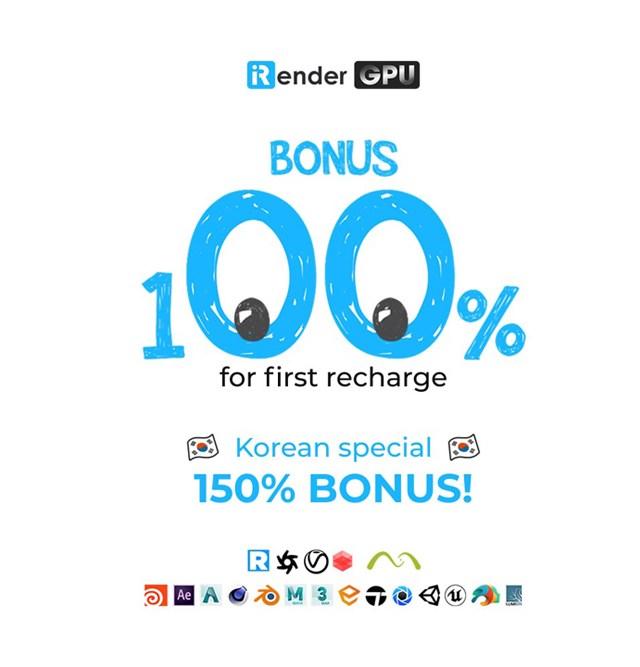
We are running a SPECIAL OFFER: 100% Additional Bonus for new clients who register an account and make a top-up after their registration.
Currently, we are having Biggest Render Event of the Year. Double your credits with zero waiting and unlock massive bonus Render Points during our once-a-year sale!
✨ Earn 862.5+ Points when you purchase $575+
🔥 Earn 3000+ Points when you purchase $1500+
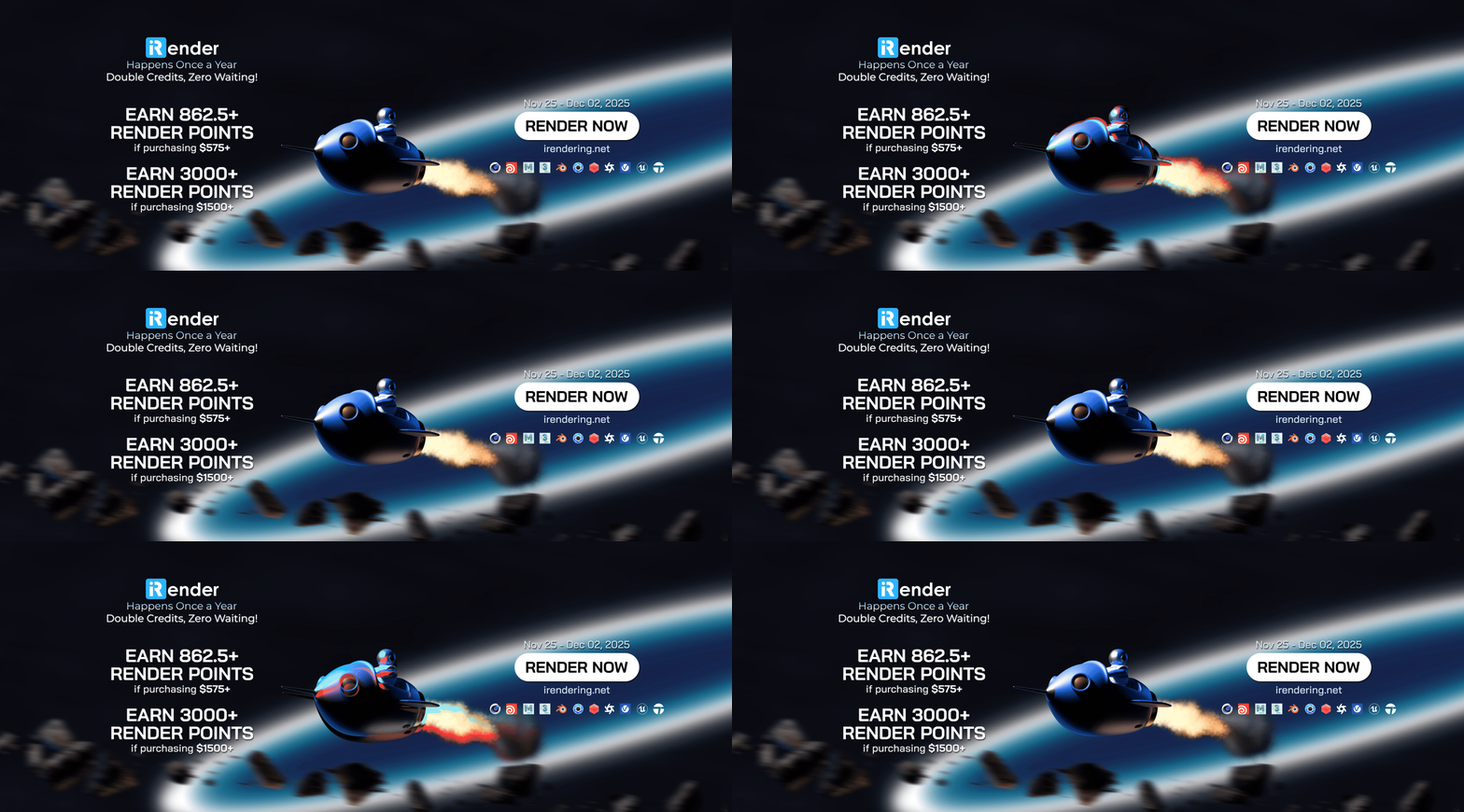
Take advantage of this limited-time offer to maximize your rendering power and boost your productivity. Don’t miss out—upgrade your projects with more value today!
Register an account today to experience our service or contact us via the email [email protected] or WhatsApp: (+84) 912075500 for advice and support.
Happy Rendering!
Reference source: Reddit
Related Posts
The latest creative news from Blender Cloud rendering.





