
4 Effective Ways to Fix “Out of Memory” Errors When Rendering in Lumion
You are working on a large-scale architectural project. Everything is ready: the model is complete, the lighting is stable, and the cameras are well set. However, the moment you click Render, Lumion suddenly crashes with a familiar message: “Out of Memory.” This is one of the most frustrating errors for 3D artists, especially when rendering exterior scenes with heavy vegetation, highly detailed interiors, or 4K videos. What makes it even more annoying is that the scene runs smoothly in the viewport, but the render never finishes.
The good news is that a Lumion bug does not cause this issue. It stems from how the software utilizes GPU memory (VRAM), and it can be resolved if you take the correct approach. In this article, iRender focuses on the main causes and the four most important solutions, from software to system settings, workflow optimization, and finally, the ultimate solution when your hardware reaches its limit.
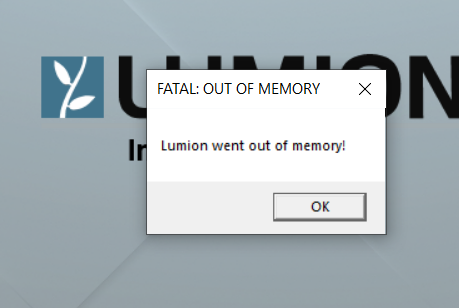
What Is the “Out of Memory” Error in Lumion?
Lumion is a rendering software that relies heavily on the GPU, especially VRAM (Video Memory). During rendering, Lumion needs to load all of the following into memory at the same time:
- The entire 3D model
- Textures (diffuse, normal, reflection, etc.)
- Vegetation
- Shadows, reflections, global illumination
- Advanced effects such as Ray Tracing, Panorama, and Video rendering
When VRAM (or RAM plus virtual memory) is not enough to hold all this data, Lumion cannot allocate more memory. As a result, it shows the Out of Memory error or crashes immediately. The key point is this: A smooth viewport does not mean the scene can be rendered, and rendering always uses much more memory than real-time preview.
Common Causes of the Out-of-Memory Error in Lumion
- GPU drivers are not optimized for creative software
- Not enough virtual memory when RAM or VRAM is full
- Render settings are too heavy for the current hardware
- GPUs with low VRAM (4GB–8GB) are used for large scenes, 4K, or panoramas
- The scene is optimized, but still exceeds hardware limits
How to Fix the Out of Memory Error in Lumion
1. Update to the Latest NVIDIA Studio Driver
A very common mistake is using the default Game Ready Driver instead of a driver made for creative work. Even with the same hardware, drivers are optimized for different purposes.
Why should you use NVIDIA Studio Driver?
Although they run on the same GPU, Studio Driver and Game Ready Driver are designed for completely different use cases. For architects and 3D artists, Studio Driver is the recommended choice, not an optional one.
NVIDIA Studio Driver:
- Built specifically for creative applications
- Thoroughly tested with Lumion, 3ds Max, Blender, Cinema 4D, Unreal Engine, Adobe apps, and more
- Prioritizes stability during long rendering sessions
- Reduces driver conflicts, crashes, and memory-related errors
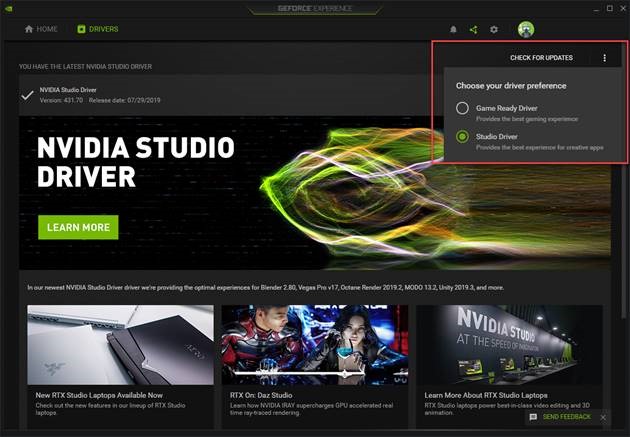
How to switch to Studio Driver
- Open NVIDIA GeForce Experience
- Go to the Drivers tab
- Click the three-dot icon (⋮)
- Select Studio Driver
- Update to the latest version
2. Increase Virtual Memory in Windows
When your physical RAM and VRAM are full, Windows uses part of your storage as temporary memory, known as Virtual Memory (Pagefile). If this value is set too low, Lumion will not have enough “room to breathe,” leading to Out of Memory errors.
How to set up:
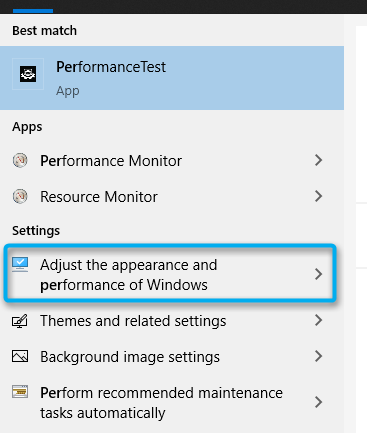
Step 1: Click the Windows Start button, type “performance” in the search bar, then select “Adjust the appearance and performance of Windows.”
source: lumion.com
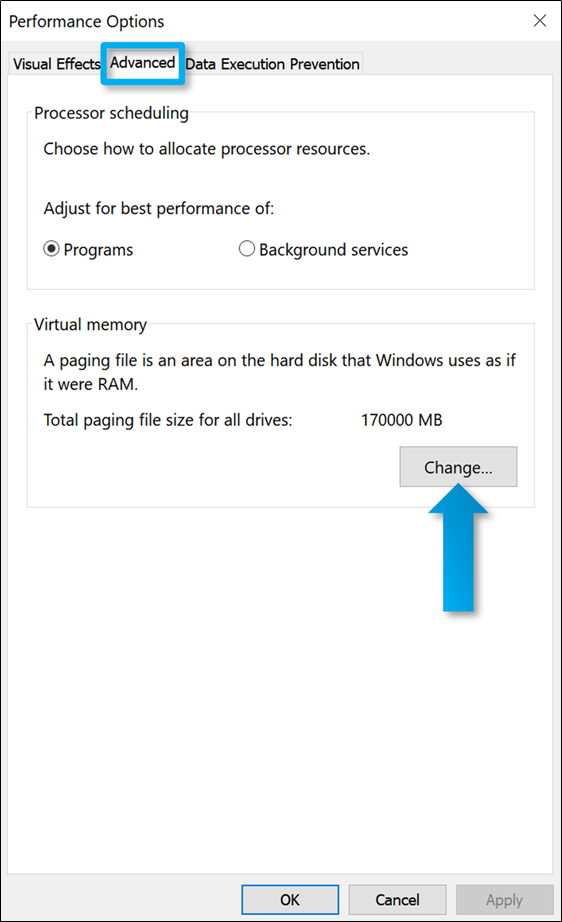
Step 2: In the Performance Options window, go to the Advanced tab and click “Change” under Virtual Memory.
Step 3: Select a drive with enough free space, then choose “Custom size” and enter the values recommended by Lumion. Set the Initial size and Maximum size to about 1.5 to 2 times your physical RAM (for example, with 32GB of RAM, set it to around 48,000MB–64,000MB).
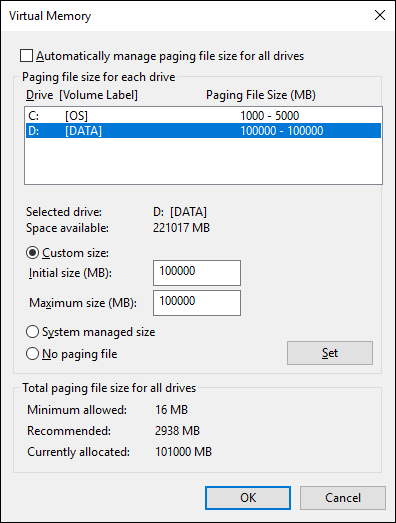
Step 4: Uncheck “Automatically manage paging file size for all drives,” then click “Set” and “OK,” and restart your PC.
3. Optimize Render Settings to Reduce VRAM Usage
In many cases, the issue is not weak hardware but excessive use of heavy render effects. You should carefully review your render settings by:
- Limiting reflection effects to only important surfaces, such as large glass areas or water, and avoiding reflections on many small objects.
- For Ray Tracing in Lumion 2023 and later, reduce the number of samples to a reasonable level, as the visual difference between 512 and 2048 samples is often minimal, while resource usage can double.
- Proper layer management is also essential; always turn off layers containing vegetation or interior objects that do not appear in the current camera view to instantly free up VRAM.
4. Final Solution – Cloud Rendering to Break Hardware Limits
If you have already switched to Studio Driver, Increased Virtual Memory, optimized your render settings…but Lumion still runs out of memory, then your personal hardware has reached its limit.
GPUs with 6GB–8GB VRAM struggle with:
- Large-scale projects
- Long architectural animations
- Heavy exterior scenes
At this point, Cloud Rendering (Render Farm) becomes a smart and professional solution.
Why is Render Farm the best backup solution?
- Massive GPU power: Render Farms provide high-end GPUs such as RTX 4090 or RTX 5090, with 24GB–48GB VRAM. Even the heaviest Lumion scenes can be rendered smoothly.
- Time-saving: A video that takes two days to render on a personal PC can be completed in less than two hours on the cloud.
- Maximum safety: No more worrying about crashes, power failures, or overheating. The process is automated and supported by technical teams 24/7.
Maximize Stability and Speed in Lumion with iRender
If you’ve ever found yourself limited by your hardware when working with large models or rendering high-quality Lumion scenes, iRender high-performance cloud GPU service is the perfect solution. With powerful, customizable remote workstations optimized for Lumion, iRender enables you to:
- Render faster and in higher resolution without upgrading your local PC
- Work from anywhere, directly in your Lumion environment
- Access powerful GPUs on demand, including support for real-time rendering with LiveSync
- Scale your projects: whether you’re a solo architect or a full studio
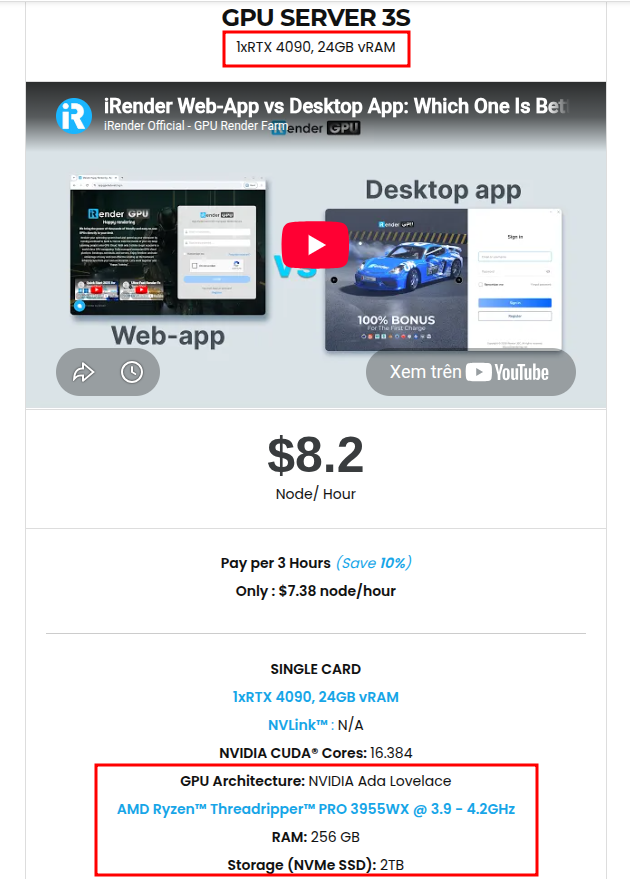
iRender is proud to be one of the best GPU service providers on the market. We provide you with high-configuration models with advanced specifications such as AMD Ryzen™ Threadripper™ PRO 3955WX @ 3.9 – 4.2GHz or AMD Ryzen™ Threadripper™ PRO 5975WX @ 3.6 – 4.5GHz, 256GB RAM, 2TB NVMe SSD storage. Most importantly, we always update to the latest GPU technology, with 1/2/4 RTX4090.
With the benefits that iRender brings to you, as well as the configuration that is very suitable for all versions of Lumion, do not hesitate to use the service at iRender to have a great experience with your rendering time. Under the IaaS (Infrastructure as a Service) model, you will have full control over the entire rendering process and use it as your machine. Therefore, you can install any software and plug-ins you want, add your license, and render or modify your project yourself.
Below is information about our 3S package, which is the most suitable for Lumion:
Not only does it have powerful configurations, but iRender also provides you with many more services. Free and convenient transfer tool, iRender drive for macOS and Linux users. For Windows users, we recommend the iRender GPU application, you will not need to access our website anymore. The price at iRender is also very flexible with hourly rental (pay as you use), and daily/weekly/monthly rental with 10% discount.
We’re always happy to help you with any questions. If you have any problems or questions, don’t hesitate to contact our support team. Or via Whatsapp: 0912 785 500 for free advice and support.
Right now iRender has a SPECIAL PROMOTION program with a 100% bonus for the first transaction within 24 hrs of registration. It means that you can get an extra 100% of the money you recharged the first time. And points never expire, so you can use them at any time.
Sign up for an account today to experience and enjoy our services.
Thank you & Happy Rendering!
Source and image:support.lumion.com

Related Posts
The latest creative news from Lumion Cloud Rendering





