
Blender 5.2 Texture Cache Explained: What .tx Files Mean for VRAM and Render Farms
Provides practical production guidance on leveraging Cycles’ new Texture Cache (blender_tx) in Blender 5.2 to optimize VRAM usage and prevent memory crashes during heavy scene rendering. Performance gains are primarily driven by tiled, mip-mapped texture streaming, rather than full-image VRAM loading.
Key technical insights and workflow considerations include:
- Automatic Tiling & Mip-mapping: The
blender_txfolder stores pre-tiled.txfiles, enabling Cycles to load only the specific resolution tiles needed per frame instead of entire high-res maps. - Drastic VRAM Savings for Textures: Memory footprint remains flat across 4K, 8K, or 16K renders because texture detail loads strictly on a per-tile basis using ray differentials.
- Packed Texture Limitations: Textures packed inside
.blendfiles bypass the cache system completely and will not save VRAM unless unpacked. - Non-Texture Bottlenecks: The texture cache will not resolve VRAM limit issues caused by heavy geometry, dense hair systems, or volumetrics.
For Render Farms & Cloud Workflows, pre-generating .tx files via CLI (--command maketx) saves compute time across farm nodes. Utilizing high-VRAM cloud instances like iRender’s RTX 5090 (32GB VRAM) allows artists to maintain maximum headroom for non-texture assets while saving pre-built cache images for instant future rendering.
After updating to Blender 5.2, opening an existing project may reveal an unfamiliar folder named blender_tx located alongside texture files. This folder serves as Cycles’ new Texture Cache, a feature designed to optimize VRAM usage and allow heavy scenes to render more smoothly without running out of memory.
What Is the blender_tx Folder?
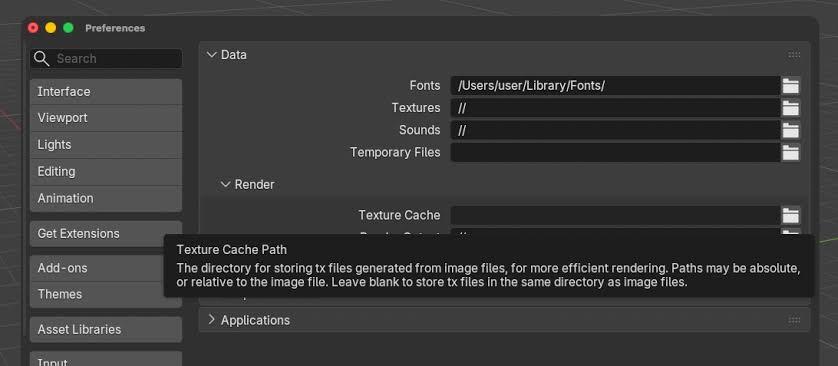
Image Source: Blender
For every image used in your scene, Cycles can generate a matching .tx file in a blender_tx folder next to the original image. Each .tx file is pre-tiled and mip-mapped, so Cycles can load only the part of the image a given frame actually needs instead of the whole thing. The folder is created automatically once you turn on Auto Generate, and deleting it is harmless. Blender just rebuilds it the next time it needs to.
How the Cycles Texture Cache Works, in Plain Terms

Image Source: BlenderNation
Before this feature, rendering a scene with a 8K texture meant Cycles loaded that entire 8K image into VRAM, whether the camera ever got close enough to see the detail or not. A background building three hundred meters away paid the same memory cost as the hero asset filling the frame.
The texture cache changes that math. It only loads the image tiles and resolution levels a frame actually needs, and it decides which mip level to use based on ray differentials, the same math that already tells a renderer how much a ray has spread out by the time it hits a surface. A ray that bounced twice before hitting a distant wall has spread out enough that it does not need the full-resolution texture on that wall.
On the GPU side, the cache runs on CPU rendering and on every GPU backend Cycles supports. Cycles defaults to large 2048 pixel tiles, and an image that was not needed by either of the last two render tiles gets evicted from the cache to make room. In the viewport, unused images get cleared out periodically too, once a render finishes and Blender goes idle, so a long viewport session does not just accumulate every texture you have ever looked at.
One detail worth sitting with if you render at high resolution: because the cache loads by tile rather than by whole image, cache memory for a tiled 4K, 8K or even 16K render tends to stay close to flat as resolution climbs, since each tile is still just loading the detail that tile needs.
Does It Really Cut VRAM? What to Expect
A scene where textures are the dominant memory cost stands to gain a lot. A scene where the memory pressure comes from geometry, particle hair or volumetrics gains little to nothing, because the texture cache only touches texture memory.
How to Turn It On and Pre-Generate .tx Files
In the interface: Render Properties, then Performance, then Texture Cache, then check Auto Generate. The same panel has a button to generate .tx files manually, which matters more than it sounds like it should, because you usually want to generate once rather than let it happen automatically mid-render.
- From the command line, for a whole file: blender scene.blend –command maketx
- For a single image, with an explicit color space: blender –command maketx image.png –colorspace sRGB
If you want the .tx files stored somewhere other than next to the source images, set that under Preferences, then File Paths.
What It Means When You Send a Project to a Render Farm
Packed textures are not cached. If you are in the habit of packing textures into the .blend file before sending it anywhere, specifically to avoid the classic pink missing-texture problem, you lose the texture cache benefit entirely on that file. Blender’s own blog lists packed texture support as likely future work, not something 5.2 does today.
Upload them and a node does not waste time rebuilding what you already built, at the cost of a larger upload. Skip them and every node generates its own, at the cost of time instead of bandwidth. For a handful of nodes on one project, generating on the farm once is usually fine. For a larger batch hitting the same asset library repeatedly, pre-built .tx files uploaded once are the better trade.
When the Texture Cache Won't Save You
Three situations where this feature is not going to rescue a scene that is out of memory. Heavy geometry, dense hair systems or volumetrics push memory pressure that has nothing to do with textures, so a texture cache cannot touch it. Packed textures skip the cache path entirely, for the reason above. And Blender’s own blog lists investigating performance on older GPUs as unfinished work for this release, so a scene that is slow on an older card may not see the gain a newer one does.
In any of those cases, the fix is still increase more VRAM on the card doing the work.
Running Blender 5.2 with Texture Cache on a Cloud RTX 5090
Generating hundreds of .tx files and holding a texture-heavy scene in VRAM both demand fast storage and headroom your own workstation may not have to spare, and a SaaS render farm that hands you a fixed Blender build with no shell access will not let you control any of it either. A smarter approach is to build and shade the scene on your local PC, then offload the Blender 5.2 maketx build and the final Cycles render to iRender cloud servers.
iRender provides powerful Infrastructure-as-a-Service (IaaS) cloud remote desktops built specifically for heavy 3D rendering. For Blender 5.2 projects, iRender offers the GPU Cloud Workstation 3i, equipped with a single RTX 5090 (32GB GDDR7 VRAM), AMD Threadripper PRO processor, and fast NVMe storage. Since Cycles still renders on one primary GPU even with the texture cache on, this single-card RTX 5090 instance gives you the most VRAM headroom for the scenes the cache cannot help, heavy geometry, hair, volumetrics, without paying for extra GPUs that would sit idle. For an animation on a deadline instead, the 4x RTX 5090 configuration (5i) splits frames across four cards, though VRAM never pools between them.
iRender GPU Cloud Packages for Blender 5.2 Cycles Rendering
Bare-metal IaaS remote workstations tailored for Blender texture caching, heavy VRAM scenes, and multi-GPU animation rendering.
| Blender Server Package | Hardware Specs (CPU / RAM / SSD) | Recommended Blender Workflow |
|---|---|---|
| NVIDIA RTX 4090 Series • 24GB GDDR6X VRAM per GPU | ||
| Package 3S 1x RTX 4090 (24GB VRAM) |
AMD Threadripper™ PRO 3955WX
256GB Host RAM 2TB NVMe PCIe 4.0 SSD |
Single-frame lookdev, shading, and building blender_tx cache files. |
| Package 4S 2x RTX 4090 (24GB VRAM / GPU) |
AMD Threadripper™ PRO 3955WX
256GB Host RAM 2TB NVMe PCIe 4.0 SSD |
Medium-scale Cycles animation rendering with multi-GPU parallelization. |
| Package 5S 4x RTX 4090 (24GB VRAM / GPU) |
AMD Threadripper™ PRO 5975WX
256GB Host RAM 2TB NVMe PCIe 4.0 SSD |
High-speed animation sequence rendering across 4 GPUs on tight deadlines. |
| Package 9S 8x RTX 4090 (24GB VRAM / GPU) |
AMD Threadripper™ PRO 5975WX
256GB Host RAM 2TB NVMe PCIe 4.0 SSD |
Maximum throughput production farm for heavy Blender sequence batches. |
| NVIDIA RTX 5090 Series • 32GB GDDR7 per GPU (+33% VRAM Headroom for Heavy Geometry & Hair) | ||
| Package 3i 1x RTX 5090 (32GB GDDR7) |
AMD Threadripper™ PRO 5975WX
256GB Host RAM 2TB NVMe PCIe 4.0 SSD |
Best Value for Cycles: Maximum 32GB VRAM for scenes that texture cache can’t save (heavy geometry/hair). |
| Package 4i 2x RTX 5090 (32GB VRAM / GPU) |
AMD Threadripper™ PRO 5975WX
256GB Host RAM 2TB NVMe PCIe 4.0 SSD |
Dual Next-Gen rendering for complex 8K/16K scenes with heavy texture streaming. |
| Package 5i 4x RTX 5090 (32GB VRAM / GPU) |
AMD Threadripper™ PRO 5975WX
256GB Host RAM 2TB NVMe PCIe 4.0 SSD |
Ultra-fast animation rendering splitting frames across 4x RTX 5090 cards. |
| Package 9i 8x RTX 5090 (32GB VRAM / GPU) |
AMD Threadripper™ PRO 5975WX
256GB Host RAM 2TB NVMe PCIe 4.0 SSD |
Enterprise production powerhouse for massive 3D film and VFX animation projects. |
How the Workflow Operates
- Full Control (IaaS): You get complete Remote Desktop access to a dedicated Windows or Ubuntu machine. We have pre-installed Blender 5.2 machine.
- Easy Project Transfer: Sync your project folder, source textures included, using iRender GPU App (a free transfer app).
- Render & Save Machine Image: Connect to the remote server, run –command maketx to build your .tx cache once, then render your scene. Once your first setup is done, save a Machine Image so your Blender build, add-ons, and blender_tx cache stay ready for every future session, instead of paying to rebuild the cache each time.
That first .tx build in step 3 still burns billable node hours like any other compute step, so saving the image right after it finishes is what actually pays off on every session after.
Register today to take advantage of a 100% bonus on your very first deposit!


Maximum Speed – Absolute Freedom
FAQ
- What are .tx files in Blender 5.2?
They are pre-tiled, mip-mapped versions of your source images, generated by Cycles’ new Texture Cache into a blender_tx folder next to the original image. Instead of loading a whole texture into VRAM, Cycles can load just the tile and resolution level a given frame actually needs, which is where the memory savings come from on texture-heavy scenes. The files are generated automatically when Auto Generate is enabled, or on demand through a manual button in the same panel, and deleting the folder is harmless since Blender rebuilds it the next time it is needed.
- Does the Blender texture cache work on GPU?
Yes. According to Blender’s own developer blog, the texture cache runs on CPU rendering and on every GPU backend Cycles supports. How much memory it actually saves depends on the scene: textures that make up a large share of your memory footprint benefit the most, while a scene whose memory pressure comes mostly from geometry, hair or volumetrics sees little benefit, since the cache only affects texture memory. Blender’s own stated figure, a reduction of around 30 percent, applies specifically to widening ray differentials on indirect bounces, not to VRAM savings in general.
- Should I upload blender_tx folders to a render farm?
Comes down to the farm and the job size. If the farm runs Blender 5.2 or newer, uploading pre-built .tx files means each node skips rebuilding them, at the cost of a larger upload. Skipping the upload means every node generates its own copies on first use instead, trading bandwidth for compute time on each machine. For a one-off job, generating on the farm is usually simpler. For a larger batch reusing the same texture library repeatedly, uploading pre-built files once tends to pay off. One catch either way: textures packed inside the .blend file are not supported by the texture cache yet, so packing to avoid missing-texture errors means losing this benefit entirely on that file.






