
Blender Crashes When Rendering: The Full Troubleshooting Checklist
You hit F12. The render starts, frames fill in one by one, and somewhere between minute two and minute twenty, it stops. Sometimes Blender closes without a dialog box or interface locks up with a driver error in the corner and also the current frame finishes but the next one in the animation never starts.
Blender crashes during rendering for a short list of recurring reasons: running out of VRAM or RAM, Windows resetting a GPU driver that took too long to respond, a broken or newly updated driver, a conflicting add-on, or a corrupted scene file. Each is different.
In this article, we’ll explore each cause in detail and find solutions to stop Blender from crashing mid-render.
Why Does Blender Crash When I Hit Render?
Most render crashes fall into one of five groups: running out of VRAM or system RAM (the most common cause on GPU renders with Cycles), Windows TDR resetting the GPU driver when it stops responding within the OS default threshold, an outdated or freshly-updated driver, a conflicting add-on, or a scene file carrying corrupted data from a previous crash.
First, Find Out What Kind of Crash It Is
Blender gives you two very different symptoms that point to two different fixes. If Blender closes completely with no message at all, that’s usually memory exhaustion or a driver-level crash. If it freezes, shows a CUDA or OptiX error, or the screen flickers before the render stops, that’s closer to a TDR event or driver instability.
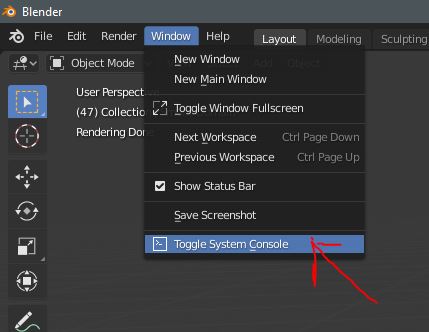
Before touching any setting, turn on Window > Toggle System Console on Windows. This keeps a console window open behind Blender and prints the last lines of output before the crash. If Blender crashes too fast to read the console, run it from the command line instead (blender.exe from the folder it’s installed in) so the output gets written to a log you can scroll back through. This one step tells you which section below actually applies to your case, instead of guessing.
The Memory Checklist
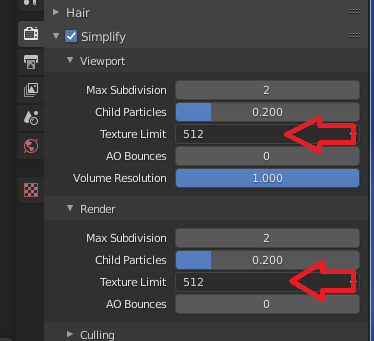
If the console log shows VRAM or RAM maxing out right before the crash. You can do some steps below:
You should keep an eye on VRAM and system RAM usage while rendering, using Task Manager’s Performance tab or a GPU monitoring tool, to see whether usage climbs steadily or spikes at a specific frame.
Render Properties > Simplify > Texture Limit is the fastest emergency fix. It caps the resolution textures get downsized to at render time, which can cut VRAM use significantly on scenes with a lot of 4K or 8K textures at the cost of some visible detail. Subdivision and real displacement are also common VRAM sinks since both generate actual geometry. Lowering subdivision levels or switching displacement to “Bump” where the extra detail isn’t visible can help.
One detail worth remembering: VRAM does not pool across multiple GPUs in the same machine. A system with two 12GB cards gives Blender 12GB per card, not 24GB combined. Then a scene needing more than one card’s worth of VRAM still fails no matter how many cards are installed.
The Windows TDR Checklist
If frames that normally finish in a minute or two are taking much longer, and the crash comes with a CUDA synchronization error or a brief screen flicker just before it, Windows TDR is a likely cause. TDR exists to keep the OS responsive if a GPU driver stops responding, so on a normal desktop it resets the driver after a few seconds of no response. A single-frame render that legitimately takes longer than that default window can get caught by the same mechanism even though nothing is actually broken.
You should back up the registry before changing anything, and follow Microsoft’s own documentation on TDR registry keys. This is an OS-level setting, not a Blender setting, so getting it wrong can affect more than just render sessions.
Driver and Denoiser Checklist
If the crash started right after a driver update, that update is one of the causes. You can try rolling back to the previous version you know was stable, rather than assuming the newest release is automatically best. NVIDIA driver releases have shipped with bugs affecting specific renderer features before. Blender’s OptiX support in particular has been sensitive to certain versions.
If the crash happens specifically during animation renders, with VRAM climbing frame by frame instead of staying flat, check which denoiser is active. OptiX denoising only runs on NVIDIA RTX cards and can behave differently across scenes and driver versions, while OpenImageDenoise is more broadly supported from Blender 4.0 onward. Switching between the two isolates whether the denoiser itself is the source of the memory creep.
Add-ons and Scene File Checklist
If memory, TDR, and driver all check out and the crash still happens, the problem may be in the scene setup itself. Disable non-essential add-ons and test again, or start Blender with Factory Settings to rule out add-on conflicts entirely; if the render completes cleanly with add-ons off, re-enable them one at a time to find the culprit.
If that doesn’t resolve it, try appending the objects from the problem file into a brand new .blend file. Scene files that have been through previous crashes can carry corrupted data, broken modifier stacks, or bad linked libraries that a normal save doesn’t clean up, and starting fresh with the same assets often fixes crashes that nothing else touches.
If the crash type has been correctly identified, memory optimized, TDR ruled out, drivers stable, and the scene file clean, but the render still fails, the conclusion is that the scene is heavier than the machine can handle. No amount of further troubleshooting fixes a hardware ceiling, and the next step is moving to a machine with more VRAM and RAM headroom.
However, moving to a more powerful machine will not fix a conflicting add-on or a corrupted scene file, since those issues follow the file wherever it’s opened. What a stronger machine does fix is a scene that is genuinely too heavy for the VRAM and RAM available locally. If the scene is still too demanding after going through the checklist, you can consider using a cloud render farm.
How iRender Farm Handles the Blender Projects
iRender is well suited for Blender rendering. iRender offers from single to 4 cards RTX 4090 with CPU AMD Ryzen™ Threadripper™ PRO 3955WX @ 3.9 – 4.2GHz and AMD Ryzen™ Threadripper™ PRO 5975WX @ 3.6 – 4.5GHz, RAM 256 GB, Storage 2 TB, since Blender scales exceptionally well across multiple GPUs, allowing you to cut render times exponentially. With up to 24GB VRAM per RTX 4090 card and 256GB of system RAM, these high-end nodes eliminate the memory bottlenecks that cause Blender to crash during complex renders. You can comfortably render heavy 3D scenes packed with high-resolution textures, dense geometry, complex volumetric effects, and detailed particle systems without running out of memory. Additionally, because iRender operates as an IaaS (Infrastructure as a Service) platform, you will have full control over a remote physical machine. This means you can launch your exact version of Blender, set up custom add-ons, and utilize multi-GPU rendering just as you would on a local workstation but with cloud power.
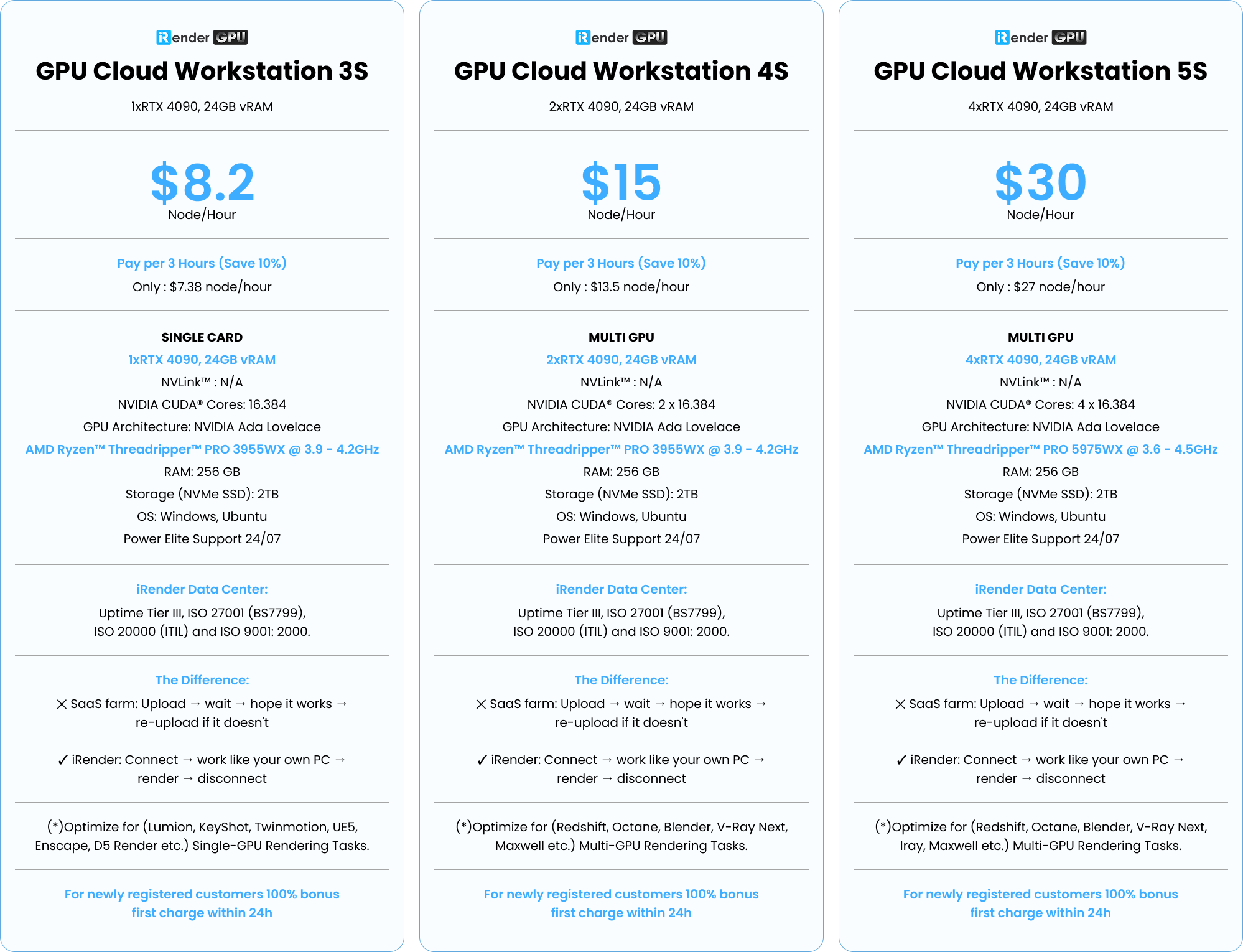
Don’t hesitate, start render now!
Check out some of iRender’s test on RTX 4090:


FAQ
- Why does Blender crash when rendering with GPU?
Usually one of three things: the scene ran out of VRAM, Windows reset the GPU driver because it didn’t respond within the default timeout, or the installed driver has a bug affecting the renderer.
- How do I reduce VRAM usage in Blender?
Use Render Properties > Simplify > Texture Limit to cap texture resolution at render time, switch repeated objects from Shift+D to Alt+D so they share mesh data, reduce subdivision and real displacement where the detail isn’t visible, and remove assets sitting outside the camera view.
- Should I always install the newest NVIDIA driver for Blender?
Not necessarily. Newer drivers often bring improvements, but some releases have introduced bugs affecting specific renderer features, including OptiX support.
iRender – Your Renders, Your Rules!
Related Posts
The latest creative news from Blender Cloud Rendering.





