
Flickering in Animation Renders: Causes and Cures for Frame Inconsistency
Your animation looks clean when you inspect individual frames, but once you press play, subtle brightness shifts, crawling noise, or unstable details suddenly appear. This kind of flicker can come from several parts of the render process, including denoising, sampling, lighting caches, scene precision, texture filtering, or differences between render machines. In this article, we will break down the common causes of animation flicker and show you what to check before rendering the entire sequence again.

Why does my animation flicker when every frame looks fine?
Animation flicker usually means that something is changing inconsistently from one frame to the next. Each frame may look acceptable on its own, but small variations in noise, lighting, shading, or fine details become much easier to notice when the frames play continuously.
That is why flicker is often a sequence-level problem. Checking individual still frames may not reveal the temporal inconsistency that becomes visible in motion.
Watch the sequence, not the stills
Render a short sequence and watch it in motion when checking for flicker. Small differences between consecutive frames can be difficult to notice in individual stills but become visible during playback.
Pay particular attention to dark areas, fine details, and reflections, where flicker may be easier to spot. Once you identify where the instability appears, you can start narrowing down its cause.
The denoising culprit
Denoising can cause flicker when each frame is processed independently. Small differences in noise from frame to frame can lead to slightly different denoised results, which may become visible during playback.
If your renderer provides a temporal denoising option, it can use information across multiple frames to improve consistency over time. Availability, feature names, and setup vary by renderer and version, so check the documentation for the renderer you are using before enabling it.

Sampling that never fully converged
Flicker can also appear when frames stop rendering before the noise has been reduced to a consistent level. Because the noise pattern can vary between frames, residual noise may change from one frame to the next and become noticeable during playback.
Noise thresholds and sampling settings affect when rendering stops, while the seed influences the noise pattern. There is no single sampling value that works for every scene, so test a short representative sequence and adjust the settings based on the actual result.
Lighting caches recomputed per frame
Some rendering workflows use cached lighting data for indirect illumination. If that data is recalculated independently for every frame, small differences between calculations can appear as flicker in an animation.
The appropriate fix depends on the renderer and the GI method being used. Check the renderer’s documentation for its recommended animation workflow and cache settings rather than applying the same cache method across different render engines.
Flicker that is not about sampling at all
Not every flicker problem comes from sampling or denoising. Overlapping or nearly coplanar surfaces can produce unstable visibility as the camera moves, often known as z-fighting. Fine or distant textures can also shimmer when texture filtering or mipmapping does not handle the changing screen-space detail well.
These problems usually appear as unstable edges, surfaces, or texture details rather than random render noise. Identifying that visual pattern helps separate geometry and texture issues from sampling-related flicker.

Identify flicker by what you see
| Symptom | Possible cause | What to check |
|---|---|---|
| Flicker across the image, especially in dark areas | Frame-by-frame denoising | Check whether your renderer supports a temporal denoising workflow |
| Noise changes between frames | Sampling has not sufficiently converged | Test sampling and noise threshold on a short sequence |
| Indirect lighting changes between frames | Lighting data is recomputed per frame | Check the renderer’s recommended GI and cache workflow for animation |
| Surfaces change as the camera moves | Overlapping or nearly coplanar geometry | Check for overlapping surfaces and geometry issues |
| Fine or distant details shimmer | Texture filtering | Check texture filtering and mipmapping settings |
| Flicker appears only on some farm-rendered frames | Inconsistent render environment | Compare software, renderer, plugins, assets, and relevant driver versions |
The render farm cause people miss
Flicker can also appear when frames in the same sequence are rendered in different software environments. Differences in renderer or plugin versions, scene dependencies, or GPU drivers can potentially produce inconsistent results between machines.
Before distributing an animation across multiple render nodes, keep the rendering environment consistent across the sequence. This includes the software and renderer versions, required plugins and assets, and relevant driver versions.
This is also an important consideration when moving animation rendering to a cloud render environment such as iRender.
iRender - Keep your render environment consistent across frames
With iRender, you can set up a remote GPU workstation with the software, renderer, plugins, and project dependencies required for your animation. The working environment is saved between sessions, so you can reuse the same setup instead of rebuilding it each time. This can be useful after you have already traced the flicker to differences between render machines. Keeping the rendering environment consistent helps remove one variable when distributing frames across cloud machines. However, iRender does not automatically fix flicker caused by denoising, insufficient sampling, lighting caches, overlapping geometry, or texture filtering. Those issues still need to be diagnosed and corrected in the scene or renderer settings first.
The practical approach is to troubleshoot the sequence before moving the full render to the cloud. Once the source of the flicker is resolved, a consistent iRender workstation setup can help you render the remaining frames without introducing unnecessary environment differences.
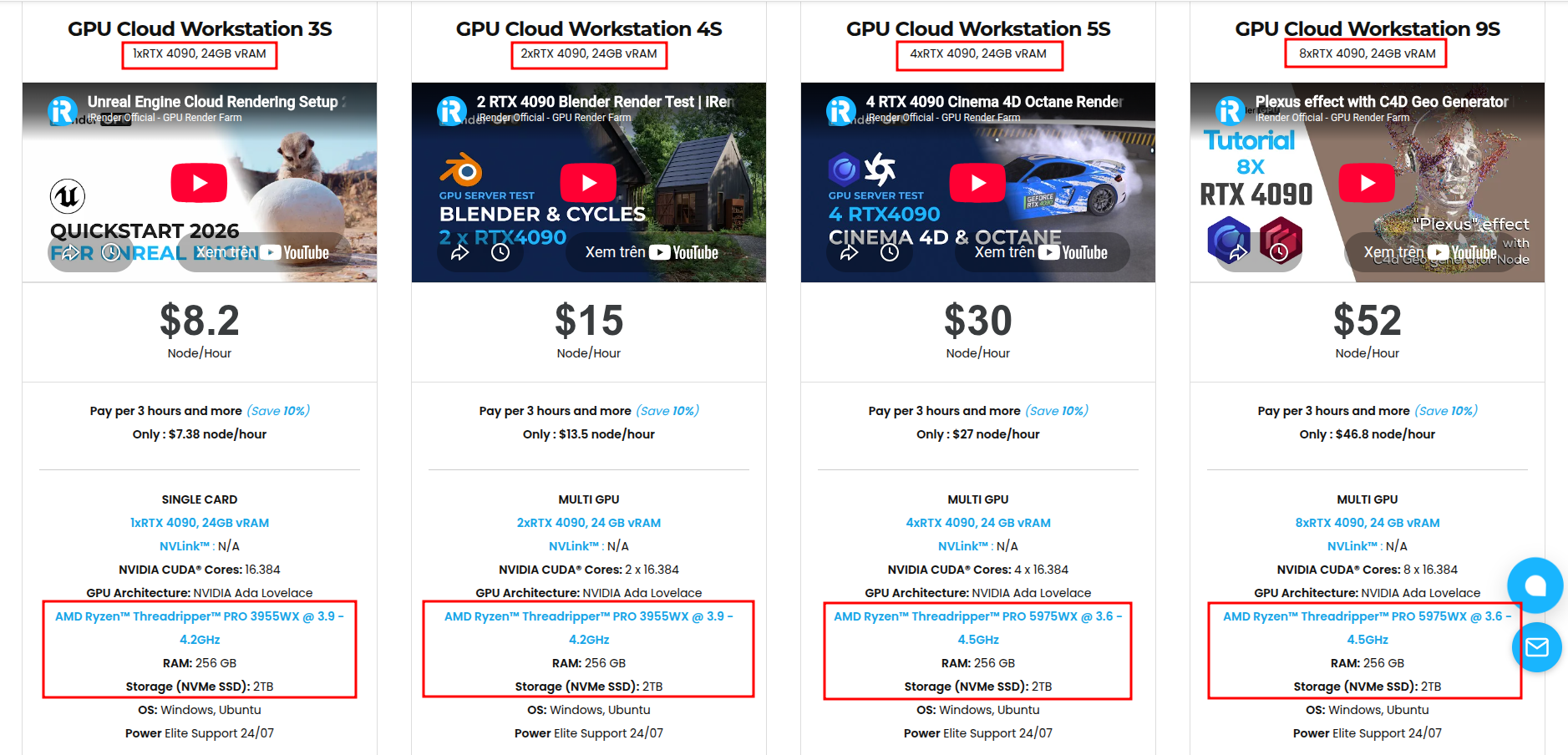
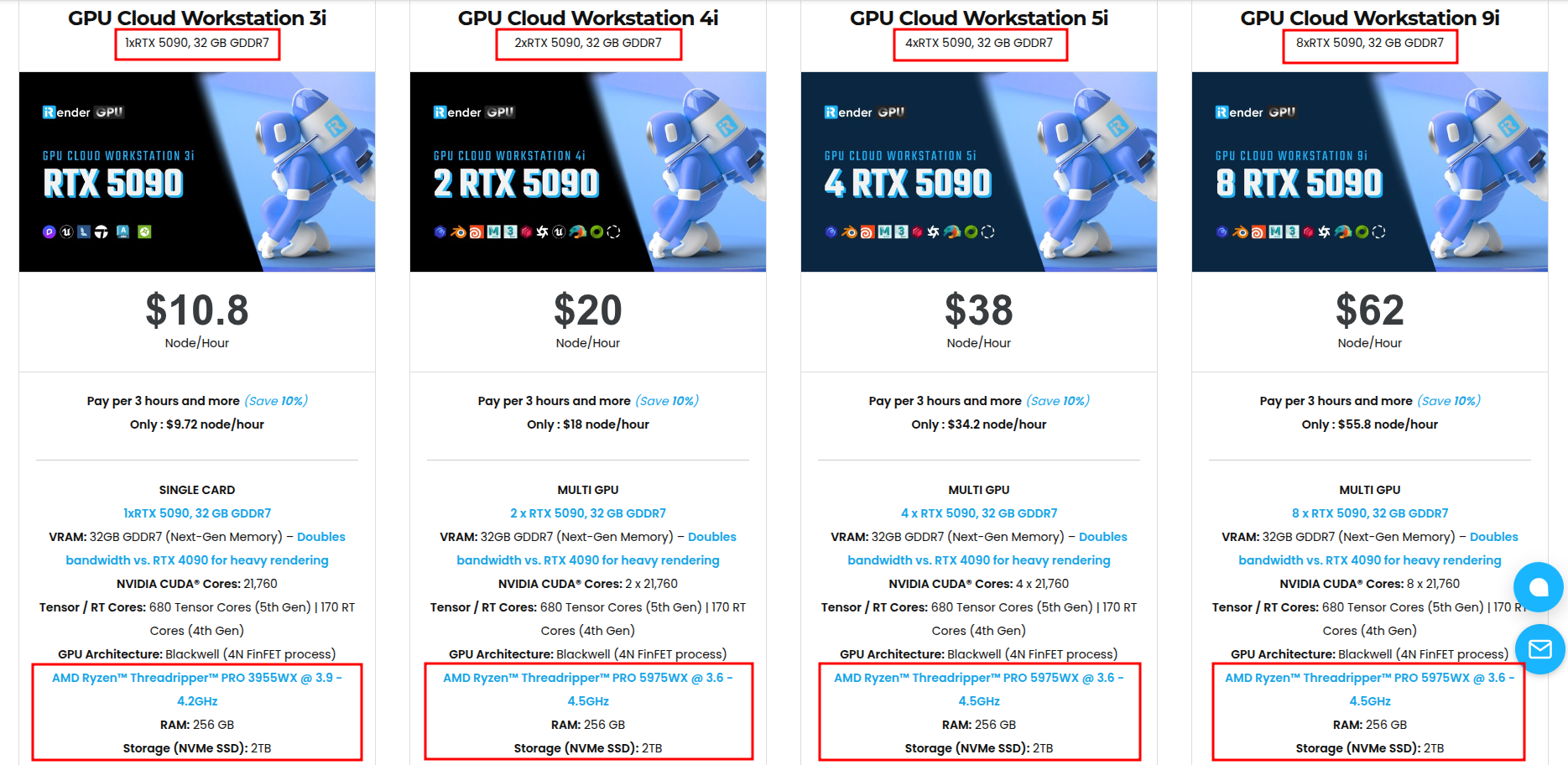
Available configurations include:
- CPU: AMD Ryzen™ Threadripper™ PRO 3955WX (3.9-4.2GHz) and AMD Ryzen™ Threadripper™ PRO 5975WX (3.6-4.5GHz)
- GPU: 2/4/8 RTX 4090 with 24GB vRAM and 1/2/4/8 RTX 5090 with 32GB vRAM
For new users, iRender currently offers a 100% bonus on the first deposit within 24 hrs of registration, giving you additional rendering credits to get started with larger projects.
Maximum Speed – Absolute Freedom
Source: docs.blender.org, openexr.com, help.maxon.net
Let’s see how our service works:


FAQ
Why does my rendered animation flicker when each frame looks correct?
Flicker can appear when something changes inconsistently between consecutive frames. Common causes include frame-by-frame denoising, sampling that has not sufficiently converged, lighting data that changes between frames, or geometry and texture issues that become visible only during playback.
How do I stop denoising from causing flicker?
If your renderer supports a temporal denoising workflow, use it when appropriate instead of processing every frame independently. If temporal denoising is unavailable, improving the quality of the input render before denoising can help reduce frame-to-frame inconsistencies. Check the renderer and version documentation for the available denoising options.
Can rendering on multiple machines cause flicker?
Rendering across multiple machines can contribute to inconsistent frames if the machines do not use the same rendering environment. Keep software, renderer and plugin versions, required assets, and relevant GPU drivers consistent across the machines rendering the sequence.
Related Posts
The latest creative news from Houdini Cloud Rendering , 3D VFX Plugins & Cloud Rendering.





