Old GPU Still Rendering? Squeezing Life Out of Aging Hardware and Knowing the Limit
An aging GPU can still be perfectly usable for rendering. It may simply take longer each year as newer cards raise the performance baseline. For artists working with a limited budget, keeping an existing card can make sense when the workload still fits its capabilities. The important part is knowing whether the problem is something you can optimize or a hard limit you cannot remove. If a scene exceeds available VRAM, a renderer drops support for your GPU architecture, or driver support ends, scene optimization alone will not solve the problem. Knowing whether an old GPU still good for rendering is really a question of matching the card to the work, not comparing it with the newest hardware.
Is my old GPU still good enough for rendering?
When I evaluate an older GPU, I first separate performance problems from compatibility problems. If the card still completes renders, even slowly, it may still be an old GPU still good for rendering for the right workload.
I think of these as soft and hard limits. A soft limit means the workload still runs, but the render time is becoming difficult to manage. A hard limit means the workload cannot run properly at all. This distinction tells me whether optimization can help or whether the hardware itself has become the blocker.
The three hard limits you cannot optimize around
There are a few hardware limits that no amount of scene tweaking can completely remove.
-
-
-
- Not enough VRAM: If the scene requires more VRAM than the GPU has available, the render may fail or become impractical. Reducing textures, geometry, or other scene data is usually the only direct solution.
- Renderer or feature no longer supports the architecture: Software support changes over time, and newer features may require hardware capabilities that older GPUs do not have. In that case, the issue is compatibility rather than speed.
- Driver support has ended: When the GPU vendor stops updating drivers for an older architecture, newer software may eventually lose compatibility or behave unexpectedly.
-
-
This is where I stop looking for performance tweaks. If the GPU lacks the required memory, architecture support, or driver support, optimization cannot create capabilities that the hardware does not have.
Check the heat before you blame the age
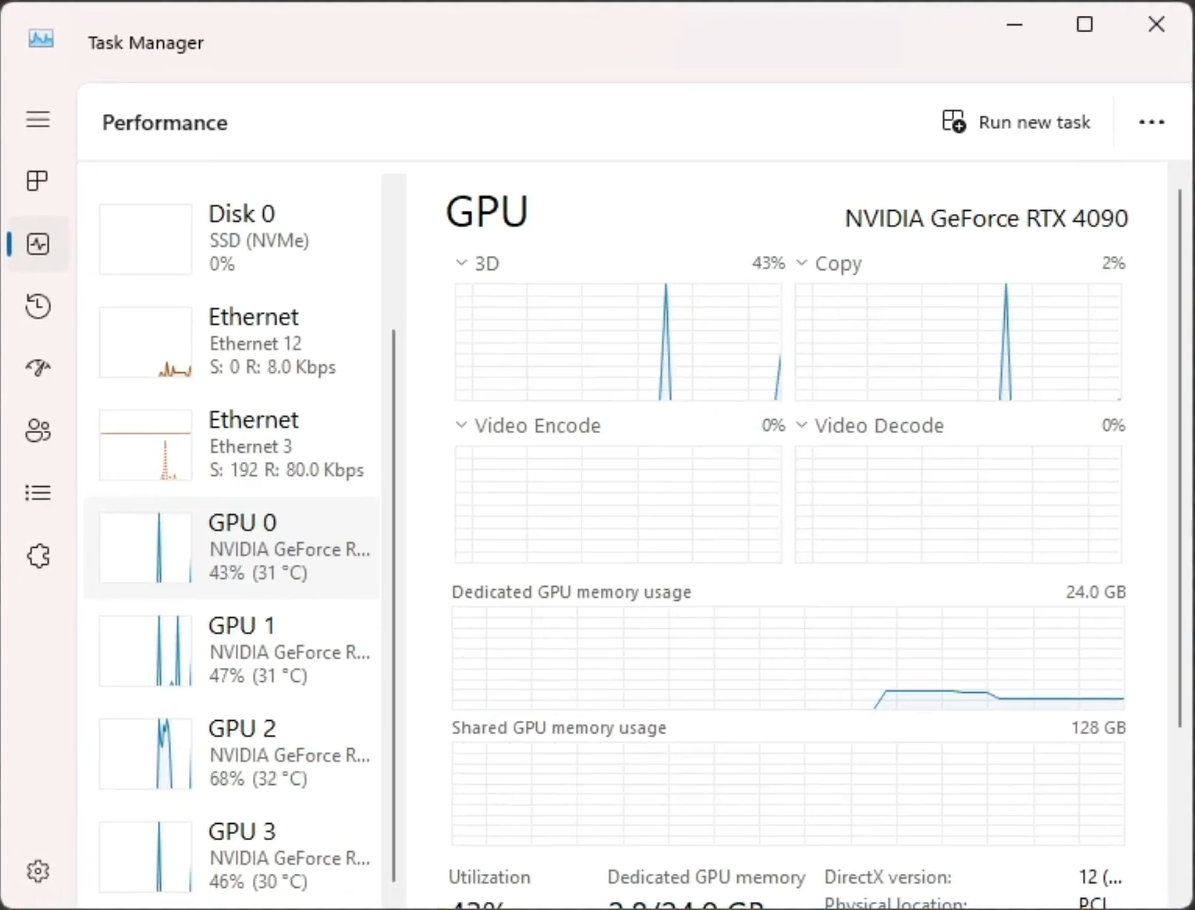
Temperature is one of the first things I check when an older GPU suddenly feels slower. Dust buildup and dried thermal paste can reduce cooling performance, causing the card to lower its clock speed to protect itself during long renders.
I usually monitor GPU Temperature and GPU Clock while a render is running. Windows Task Manager can provide basic information, while tools such as MSI Afterburner offer more detailed monitoring. Around 70 to 80°C is generally a reasonable range under sustained load, although the exact target depends on the GPU and cooling setup. If temperatures stay much higher, thermal throttling becomes a possibility worth investigating.
A proper cleaning can sometimes recover performance that seems to have disappeared with age. Removing dust and replacing old thermal paste can improve cooling, which may help the GPU maintain higher clock speeds during long rendering sessions.
Make the scene fit the card you have
I can often extend the useful life of an older GPU by reducing the amount of data it needs to process without changing the final image significantly.
-
-
-
- Reduce texture resolution: Use lower-resolution textures for assets that are far from the camera.
- Use proxies and instances: Avoid storing unnecessary duplicate geometry.
- Remove off-camera assets: Cut objects that never contribute to the final frame.
- Match the renderer to the hardware: Choose a renderer and settings that work well with the GPU generation
-
-
Soft vs. Hard Limits: How to Identify Them
| What you are experiencing | Type of limit | Can it still be fixed? |
|---|---|---|
| Rendering is slow but still produces a result | Soft | Yes, optimize the scene and check temperatures |
| The scene exceeds available VRAM and cannot render | Hard | Reduce scene data or use a different GPU |
| The renderer no longer supports the GPU architecture | Hard | Use an older software version or a different GPU |
| A new feature requires specialized hardware | Hard | There is no software workaround |
| The GPU gets hot and clocks down during long renders | Soft | Yes, clean the card and replace the thermal paste |
Split your workflow instead of replacing your machine
If money is not a concern, buying a GPU that matches every project is straightforward. For most artists, however, hardware prices make a full upgrade harder to justify. I prefer to split the workload when possible. The goal is simple: keep the existing workstation productive while moving only the most demanding tasks to stronger hardware.
I keep my older GPU for scene building, lookdev, modeling, and everyday work. Final rendering is different because it can keep the workstation busy for hours. When that happens, I would rather send the heavy render to a more powerful machine and keep working locally.
This approach can be especially useful when the budget is limited. The rented machine handles the longest and most demanding part of the job, while my workstation remains available for other tasks. I can prepare the next scene, make revisions, or start a new project while the final sequence renders elsewhere. That gives the existing hardware more useful life without forcing an immediate upgrade.
Knowing when to stop
There are three clear signs that an upgrade is becoming necessary. If the scene exceeds the GPU’s VRAM, the renderer drops support for its architecture, or a required feature needs hardware that the card does not provide, you have reached a hard limit. Optimization cannot remove these restrictions. For long-term work, replacing the GPU becomes the practical solution.
If the only problem is slow rendering, I would not rush into buying a new card. A slow GPU can still be a useful GPU.
Speed up your render with iRender RTX 5090 cloud workstation
If your budget is limited, moving part of the workload can be more practical than replacing the entire workstation. Keep your existing GPU for scene building, lookdev, and daily work, then use a stronger cloud machine for final rendering or scenes that exceed your local hardware. This can open the door to larger projects without requiring a major upfront hardware investment.
iRender offers cloud workstations with several hardware configurations for GPU rendering and 3D production.
-
-
-
- GPU: RTX 5090 and RTX 4090, from single-GPU to multi-GPU configurations
- CPU: AMD Ryzen™ Threadripper™ PRO 3955WX and 5975WX
- RAM: Up to 256GB
- Storage: Up to 2TB
-
-
The workstation can also be configured with your preferred applications and working environment, which makes it useful when you need more than raw rendering power. You can prepare a project, set up the required software, and use the remote machine for demanding production tasks.
For daily scene work, I would still keep using the local workstation because direct interaction is usually smoother. For rented machines, remember that billing starts while the instance is running. I prepare the scene and files first, then start the machine, run the render, and use auto-shutdown when the job is finished to avoid paying for idle time.
Right now, iRender is launching the 100% bonus for new user’s first deposit, check it out.
Check out some of iRender tests on RTX 5090 and 4090:


FAQ
Q: How do I know when my GPU is too old for rendering?
Separate soft limits from hard limits. If your GPU is only slow, you can still improve performance by reducing scene data and checking its temperature. But if the scene exceeds available VRAM, the renderer no longer supports the GPU architecture, or a required feature needs newer hardware, you have reached a hard limit. That tells you whether your old GPU still good for rendering.
Q: Can cleaning my GPU actually improve render speed?
Yes, it can, and this is easy to overlook. Dust buildup and dried thermal paste can increase temperatures, causing the GPU to reduce its clock speed during long renders. Check the temperature and GPU clock while the card is under sustained load. If temperatures are unusually high, cleaning the card may recover performance that seemed to disappear with age.
Q: Is it worth renting cloud rendering instead of buying a new GPU?
For a limited budget, it often is, especially when you only need extra power for final rendering. Keep your existing GPU for scene work and daily tasks, then send demanding renders to a stronger cloud workstation. This lets you take on heavier projects without a large upfront investment. If you render heavy workloads continuously throughout the year, buying may make more financial sense.
Register an account on iRender to claim your 100% bonus for the first deposit and render without limitations.
iRender – Maximum Speed – Absolute Freedom.