
Running Windows-Only Viz Apps from a Mac: Cloud GPU Workstation Guide
I recently upgraded to a powerful MacBook Pro with Apple Silicon. The battery life is amazing, the screen looks incredible, and it handles heavy video editing and 3D modeling in Blender like a dream. But then, a major project came in that required Lumion and D5 Render. I went to download them, only to hit a massive wall: these industry-standard real-time visualization apps simply do not have a macOS version. It is a frustrating reality for many architects and 3D designers who prefer the Apple ecosystem. You own a premium machine, yet you cannot open the software your client demands. If you are stuck in this exact situation, you do not need to sell your Mac or run out to spend thousands of dollars on a bulky Windows desktop.
Let us dive into why this happens, what your real options are, and how a remote cloud GPU workstation like iRender can solve it.
Why won't Lumion or D5 run on my Mac?
It comes down to a platform limitation, not because your Mac lacks power. Software like D5 Render is built entirely around Windows technologies, specifically Microsoft’s DirectX 12 (DXR) for real-time ray tracing. Apple uses its own graphics system called Metal. Until these software companies rewrite their whole code for Mac, native versions will not exist. Lumion is the same; it relies heavily on Windows graphics drivers to get high speeds.
What about Twinmotion? While it does have a Mac version, it misses out on the best features:
- The high-quality Path Tracer engine and VR Mode do not work on Mac at all.
- The Lumen lighting system on Mac is limited to software rendering, meaning it is not as fast or sharp as hardware ray tracing on Windows.

Which viz apps actually run on macOS
To keep your workflow realistic, it helps to know where each major rendering app stands regarding macOS support:
- D5 Render: No Mac version. Requires Windows and a DXR-compatible GPU.
- Lumion: No Mac version. Officially requires Windows.
- Twinmotion: Has a Mac version, but lacks Path Tracer, VR Mode, and hardware Lumen support.
- Enscape: Has a Mac version, but feature availability varies compared to the Windows version.
- Unreal Engine: Runs on Mac, but hardware-accelerated Ray Tracing features prefer Windows environments.
- Blender / Cycles: Fully supports macOS and takes great advantage of Apple Silicon GPU acceleration.
The four ways Mac users try to solve this
When Mac users discover these limitations, they generally look at four possible workarounds:
Boot Camp
In the past, you could partition your Mac’s hard drive and install Windows directly using Boot Camp. However, Boot Camp only works on older Intel-based Macs. Apple Silicon Macs (M1, M2, M3, M4 chips) do not support Boot Camp at all, meaning this door is permanently shut for newer hardware.
Virtual Machines (VMs)
Software like Parallels lets you run Windows inside a window on your Mac desktop. While convenient for office apps, virtual machines on Apple Silicon run the ARM version of Windows. Their ability to pass through and accelerate heavy 3D graphics is highly limited. Heavy real-time apps like Lumion or D5 will either refuse to launch or run like a slideshow.
Buying a Second Windows PC
Purchasing a dedicated Windows desktop equipped with an NVIDIA graphics card works perfectly, but it is expensive. It also adds another physical machine to your office that you have to maintain, update, and eventually upgrade.
Remote Cloud GPU Workstations
This path allows you to rent a powerful Windows computer located in a secure datacenter. You stream its desktop onto your Mac screen over the internet. You keep your Mac as your daily driver, using the remote cloud PC only when you need to run Windows-only visualization apps.
How a cloud GPU workstation fits a Mac workflow
You use a free remote desktop app on your Mac to connect to the cloud machine. Once connected, your Mac screen displays a standard Windows 11 desktop. You can install your own licenses of Lumion, D5 Render, or any other application exactly as you often do on your own computer.
The workflow is highly practical: you do all your heavy 3D modeling, drafting, and client communication locally on your Mac. When it is time to populate the scene with heavy assets, set up complex lighting, and render high-resolution animations, you upload your project file and jump onto the cloud workstation.
Note: Traditional SaaS render farms where you simply upload a project file and wait for frames to return—cannot help you here. Real-time apps like Lumion and D5 Render require an active, interactive live desktop so you can move the camera, place assets, and tweak materials manually.
Comparing the Options for Mac Users
| Approach | Works on Apple Silicon? | Real-World Limitations |
| Boot Camp | No | Restricted entirely to older Intel-based Mac models. |
| Virtual Machines | Yes | Very weak GPU acceleration; unusable for complex real-time rendering. |
| Buying a Windows PC | Yes (as separate hardware) | High upfront cost, low portability, requires dedicated desk space. |
| Cloud GPU Workstation | Yes | Performance varies with your internet connection speed. |
| SaaS Render Farm | No | Cannot open real-time software interfaces; frame-only engines only. |
Setting expectations before you rent
While cloud workstations are incredibly powerful, your overall experience relies heavily on the quality of your internet connection. Because your Mac is streaming high-resolution video data from the remote server, a stable, wired internet connection or strong 5G/Wi-Fi is essential to avoid mouse lag.
It is always smart to run a brief, inexpensive test session to check the latency before migrating a massive, time-sensitive client project to the cloud.
Renting a Windows Workstation via iRender
If you want to try this workflow, iRender provides a direct solution. We offer remote Windows cloud workstations equipped with top-tier hardware, including the NVIDIA RTX 4090 featuring 24GB of VRAM, AMD Threadripper Pro processors, and 256GB of system RAM. You can check all servers’ configuration below:
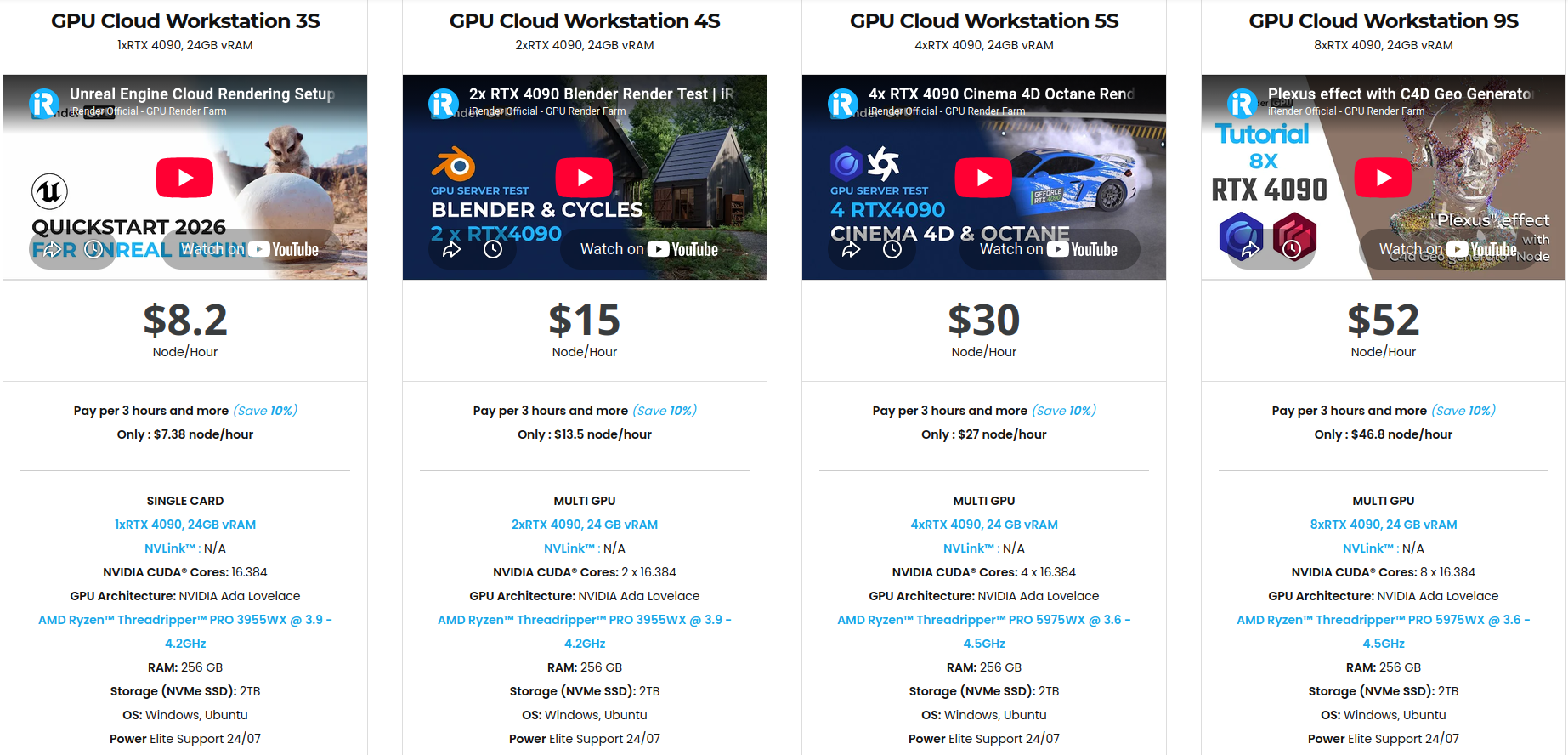
Through their IaaS model, you receive a completely clean, private Windows environment. You have full control of installing your specific versions of D5 Render, Lumion, or Twinmotion. To speed things up, we provide a free transferring tool called iRender GPU app, allowing you to transfer your project into the cloud workspace before you even boot up the server.
Register today to take advantage of a 100% bonus on your very first deposit!
Let’s watch the tutorial video to see how our service works:

FAQ
- Can I run Lumion or D5 Render on a Mac?
No, you cannot run them natively on macOS. These applications are built strictly for Windows and depend heavily on Windows-only graphics technologies like DirectX 12. The most practical solution for modern Mac users is connecting to a remote Windows cloud workstation that features a powerful dedicated GPU, then installing and controlling the software from there.
2. Does Boot Camp still work for running viz apps on Mac?
Boot Camp only works on older Mac computers built with Intel processors. Modern Apple Silicon Macs do not support Boot Camp installations at all. For newer Macs, your realistic paths are limited to local virtual machines which offer very poor graphics speed or renting a remote cloud GPU workstation.
3. Does Twinmotion work on macOS?
Yes, Twinmotion has an official macOS version, but it lacks several key features found in the Windows version. The high-fidelity Path Tracer and VR Mode are completely unsupported on Mac, and the Lumen illumination engine is limited to slower, software-based ray tracing. If your job relies heavily on these production features, utilizing a Windows environment remains necessary.






