
Understanding and Resolving Blender’s Missing Texture Error
If you’ve ever opened a Blender project and your model suddenly looks like it’s been dunked in pink paint, don’t worry. You’re not alone. This issue of pink textures is one of the most common errors Blender artists face, and thankfully, it’s an easy one to fix.
This article guides you through the reasons behind the issue and provides solutions, drawing on insights from Poliigon’s official support article. Let’s explore in this blog with iRender!
What Does Pink Mean in Blender?
In Blender, pink (or magenta) textures are a warning sign:
Blender can’t find the texture file you linked to the material.
This typically occurs when:
- You’ve moved or deleted the image file from its original location.
- The .blend file was transferred to another computer or folder without its texture files.
- Texture file paths are absolute and no longer valid.
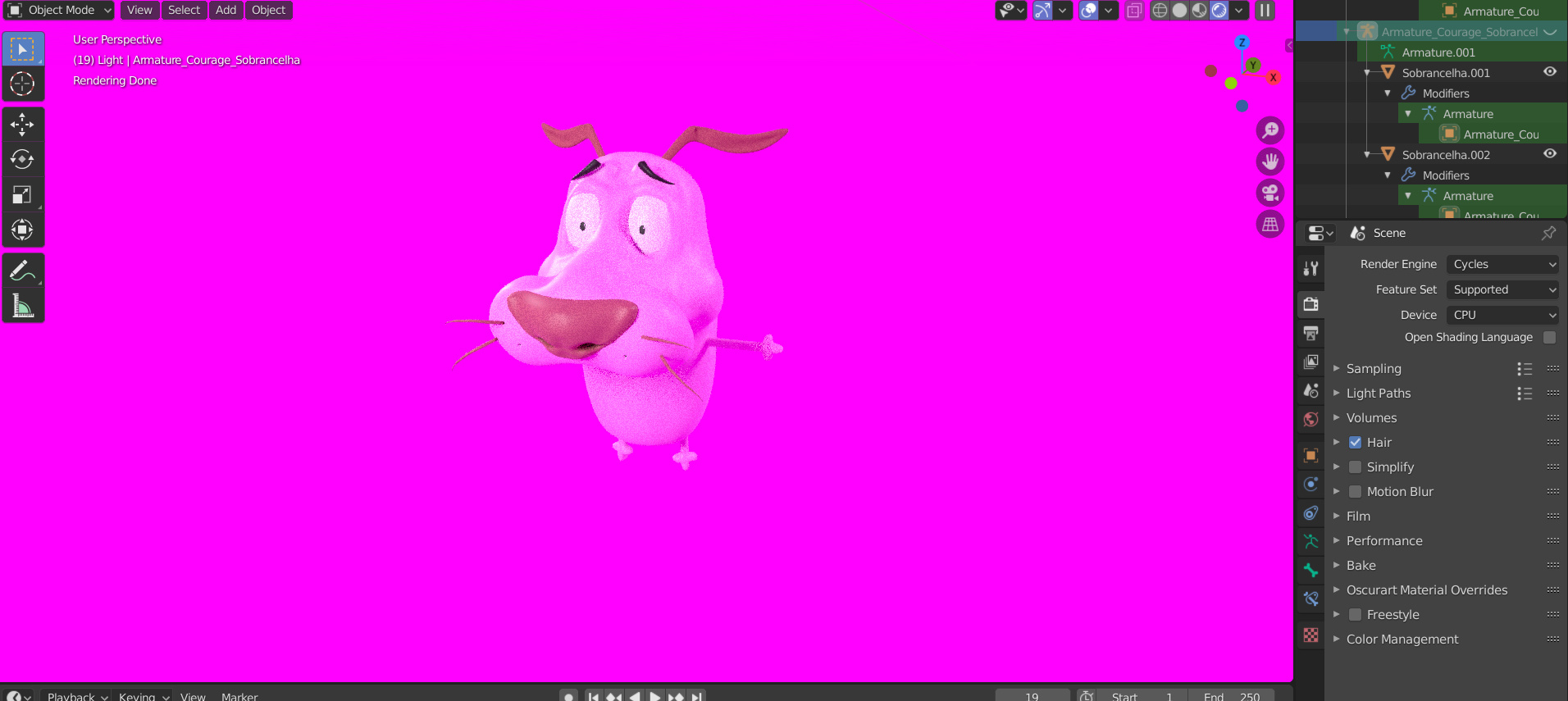
Step-by-Step: How to Fix Pink Textures
1️⃣ Reconnect the Texture Manually
Blender materials often use Image Texture nodes in the Shader Editor.
To fix a missing image:
- Open the Shader Editor.
- Locate the Image Texture node (it’ll display a pink preview or “Missing”).
- Click the folder icon 📂 to browse and reselect the missing texture file.
- Repeat for other Image Texture nodes as needed.
* If you’re using textures from Poliigon, make sure you’ve downloaded the correct resolution and texture set.
2️⃣ Use “Find Missing Files” in Blender
When multiple textures are missing, use this feature to locate them quickly:
- Go to File > External Data > Find Missing Files…
- Choose the folder where the texture files are stored.
- Blender will search and re-link the missing images.
✅ Best practice: Keep all textures in a central folder or use a “textures” subfolder in your project directory.
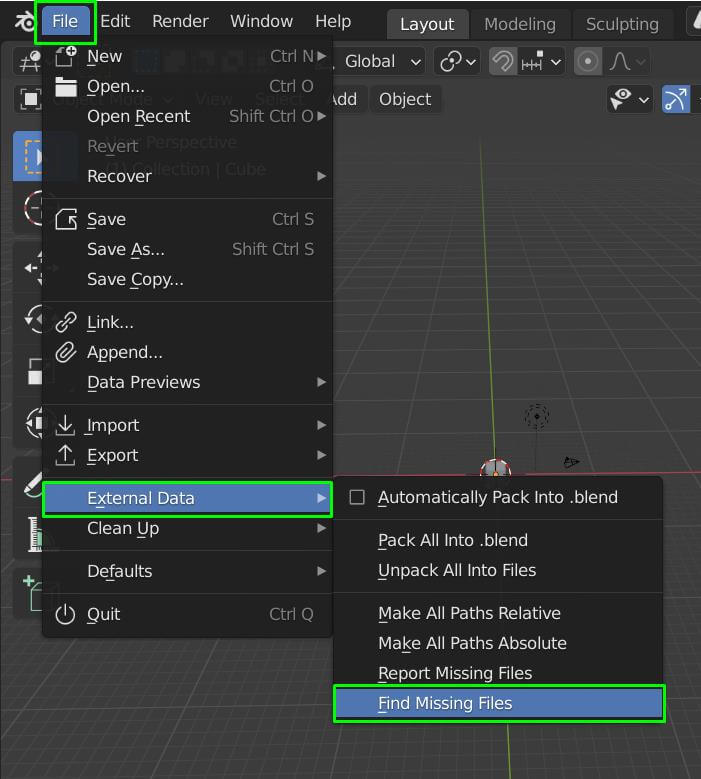
3️⃣ Use Relative File Paths
If you move your project folder around or use cloud storage, absolute paths can break. Switch to relative file paths so Blender can locate images based on the project’s current location:
- Go to File > External Data > Make All Paths Relative
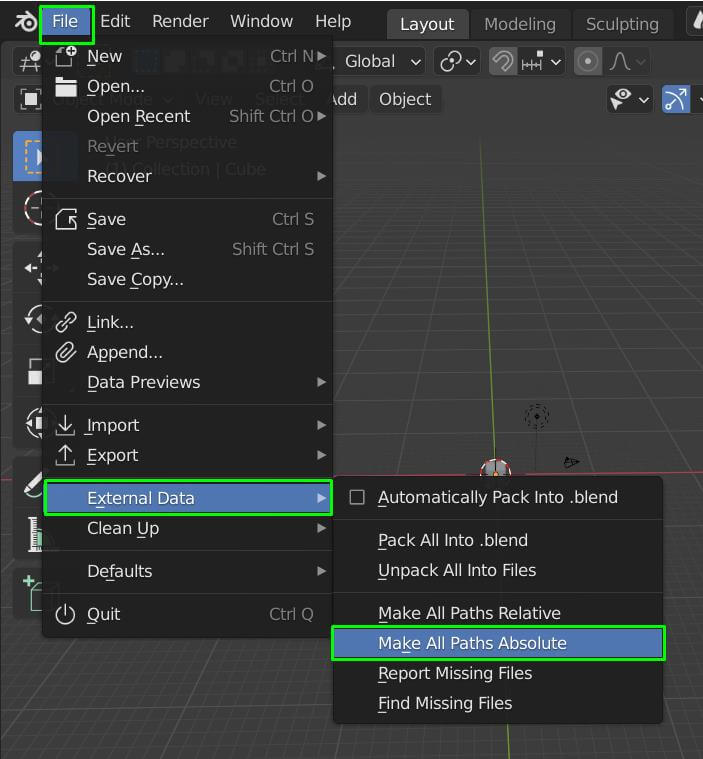
4️⃣ Pack Resources into the .blend File
To avoid missing files completely—especially when sending projects or rendering on another system—you can embed textures directly into the .blend file:
- Go to File > External Data > Pack Resources
- Save the .blend file to ensure everything is stored inside.
This increases your file size but ensures no external texture is left behind.
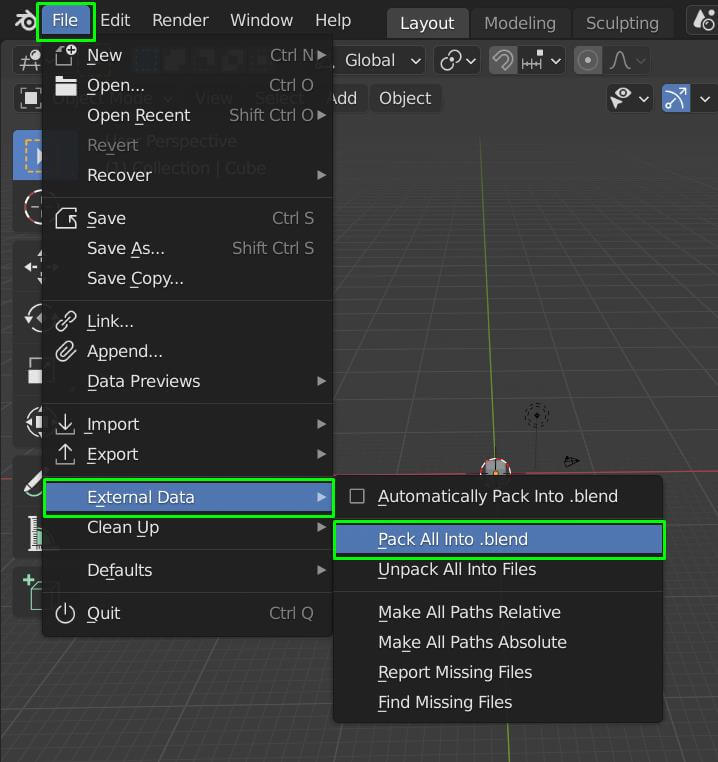
Bonus Tips to Avoid Missing Textures
- Keep all project files (blend, textures, HDRIs) in a single parent folder.
- Avoid renaming image files after assigning them in Blender.
- When downloading assets (like from Poliigon), keep the folder structure intact.
- If you’re using multiple machines or render farms (like iRender), always pack your files before uploading.
Conclusion
The pink texture issue is a reminder of how crucial file management is in 3D workflows. Whether you’re rendering locally or using a cloud-based solution like iRender, making sure your textures and linked files are properly packed and referenced is essential.
At iRender, thousands of Blender users render high-end scenes on powerful GPU servers. To ensure your scene renders exactly as intended:
-
Always pack your external files before uploading to the farm.
-
Or use relative paths to keep things portable and organized.
-
Use Blender’s “Find Missing Files” feature before uploading to avoid broken textures during render.
With a properly prepared .blend file, iRender ensures fast, seamless, and high-quality rendering—without any pink surprises.
iRender - The Best Cloud Rendering for Blender
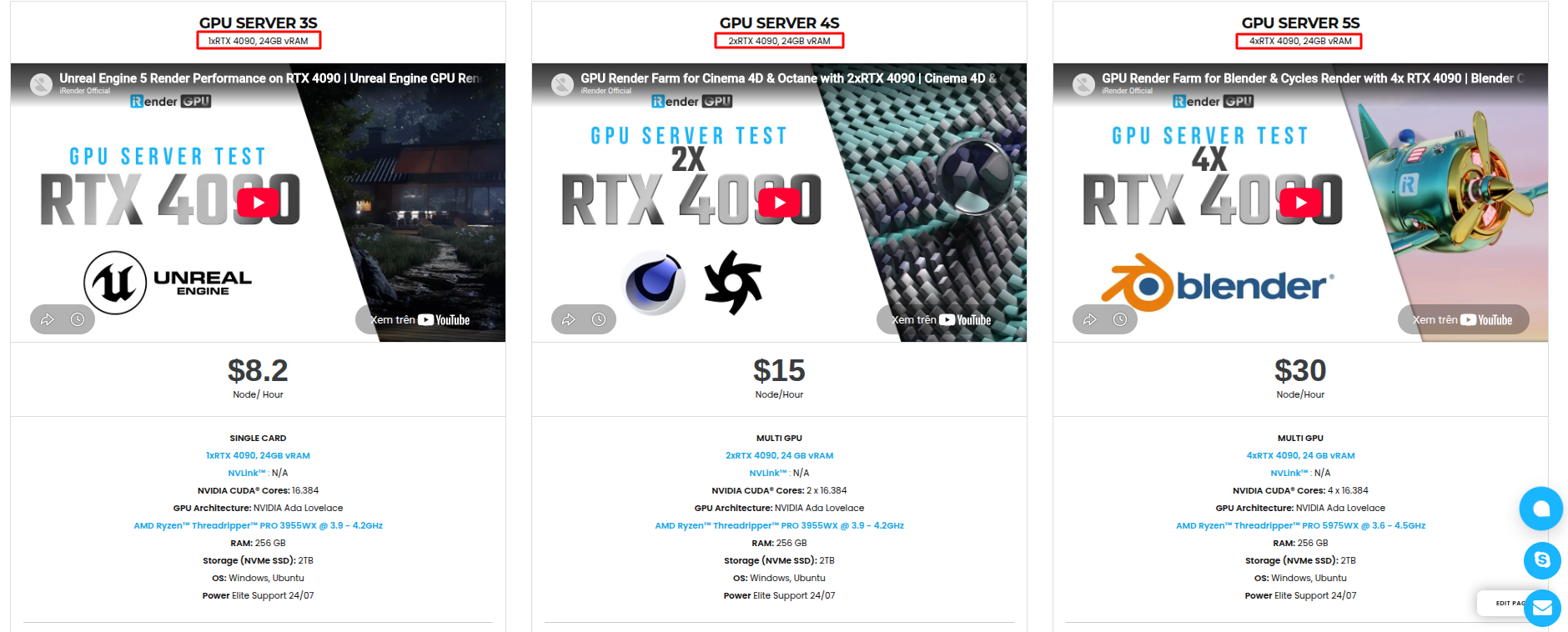
iRender is proud to be one of the best GPU service providers on the market. We provide you with high-configuration models with advanced specifications such as AMD Ryzen™ Threadripper™ PRO 3955WX @ 3.9 – 4.2GHz, 256GB RAM, 2TB NVMe SSD storage. Most importantly, we always update to the latest GPU technology, with 1/2/4x RTX4090.
Under the IaaS (Infrastructure as a Service) model you will have full control over the machine via a remote desktop app, similar to TeamViewer but more stable. You will be able to proactively install the software and use it on the server just like using a personal computer. You can find many server packages with high-end configurations that are extremely suitable for complex projects.
🔧 Full Blender Compatibility
You can install any version of Blender, your favorite add-ons, or even niche rendering tools. Whether you’re using Octane’s Blender plugin, Redshift via Houdini Bridge, or exporting USD for Arnold, you can set it up just like you would on your local machine.
💪 Multi-GPU Monster Machines
iRender offers virtual machines equipped with up to 4x RTX 4090, RTX 3090, and even high-memory GPUs for massive scenes. These setups are ideal for:
- OctaneRender: Linear scaling across GPUs for ultra-fast path tracing.
- Redshift: Fast, efficient biased rendering, especially for animations.
- Arnold GPU: Seamless support for multi-GPU via OptiX, great for VFX and hair/fur-heavy scenes.
- V-Ray GPU: Trusted by archviz professionals for both stills and animations.
💰 Scalable & Affordable Pricing
One of the biggest barriers to multi-GPU rendering is the upfront cost of hardware. With iRender, you pay only for the time you use, making it highly cost-effective whether you’re a freelancer rendering a single scene or a studio handling large projects with tight deadlines.
Below is information about iRender’s service packages:
We’re always happy to help you with any questions. If you have any problems or questions, don’t hesitate to contact our support team. Or via WhatsApp: 0912 785 500 for free advice and support.
Right now, iRender has a SPECIAL PROMOTION program with a 100% bonus for the first transaction within 24 hours of your registration. It means that you can get an extra 100% of the money you recharged the first time. And points never expire, so you can use them at any time.
Sign up for an account today to experience and enjoy our services.
Thank you & Happy Rendering!
Source and image:poliigon.com, gachokistudios.com

Related Posts
The latest creative news from Blender Cloud Rendering





