
Your 3D Software Keeps Crashing on Render: A Diagnostic Guide by App
Quick Answer: 3D software crashing on render is rarely a random error. It is almost always triggered by hardware limits or system conflicts. The primary causes include insufficient VRAM/RAM (leading to Out-of-Memory crashes), GPU driver timeouts (such as Windows TDR delay resets during heavy ray tracing), corrupted scene assets or unoptimized textures, incompatible third-party add-ons/plugins, and hardware overheating or power instability.
In this comprehensive diagnostic guide, we will break down the cause leading to render crashes and suggest troubleshooting steps to help you get your projects across the finish line smoothly.
Why Does My 3D Software Keep Crashing When Rendering?
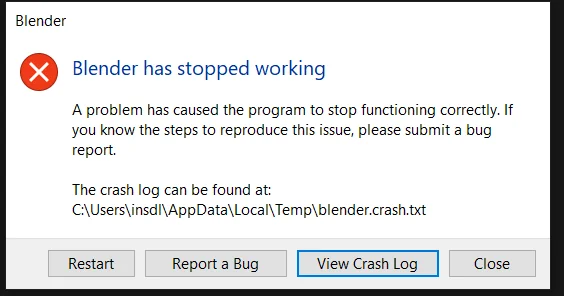
Rendering is the moment a scene asks the most of a machine at once: full VRAM load, full CPU or GPU utilization, sustained power draw, and sustained heat, all at the same time. That’s exactly why crashes show up during rendering and not while modeling or animating.
Software conflicts, such as outdated GPU drivers or rogue third-party plugins, also frequently introduce memory leaks during frame transitions. Prolonged render jobs push hardware to its limit, making thermal throttling and power supply instabilities a silent driver of mid-render crashes.
The Diagnostic Order That Saves the Most Time
Below is a step-by-step process to help you diagnose the potential causes of a render crash.
Step 1: Reproduce the crash. Note when it happens, on which scene, and whether it repeats consistently or only sometimes. A crash that happens at the exact same frame every time points somewhere very different than one that happens at random.
Step 2: Read the log and the error message. Most 3D applications write something to a console or log file right before they close, even if the on-screen popup is generic.
Step 3: Check VRAM and system RAM while rendering. Watch usage climb during the render rather than just checking it beforehand. A steady climb to the ceiling points at memory.
Step 4: Check the driver. Update it if it’s old. If the crash started right after an update, roll back to the version that was stable before, since a driver being new is not the same as a driver being correct.
Step 5: Disable add-ons and plugins, and test with a clean scene file. If the crash disappears, the cause was in the scene or the plugin stack, not the machine.
Step 6: Only now suspect temperature, power, or hardware. This is the last step.
The Windows Setting Behind a Lot of Mystery Crashes
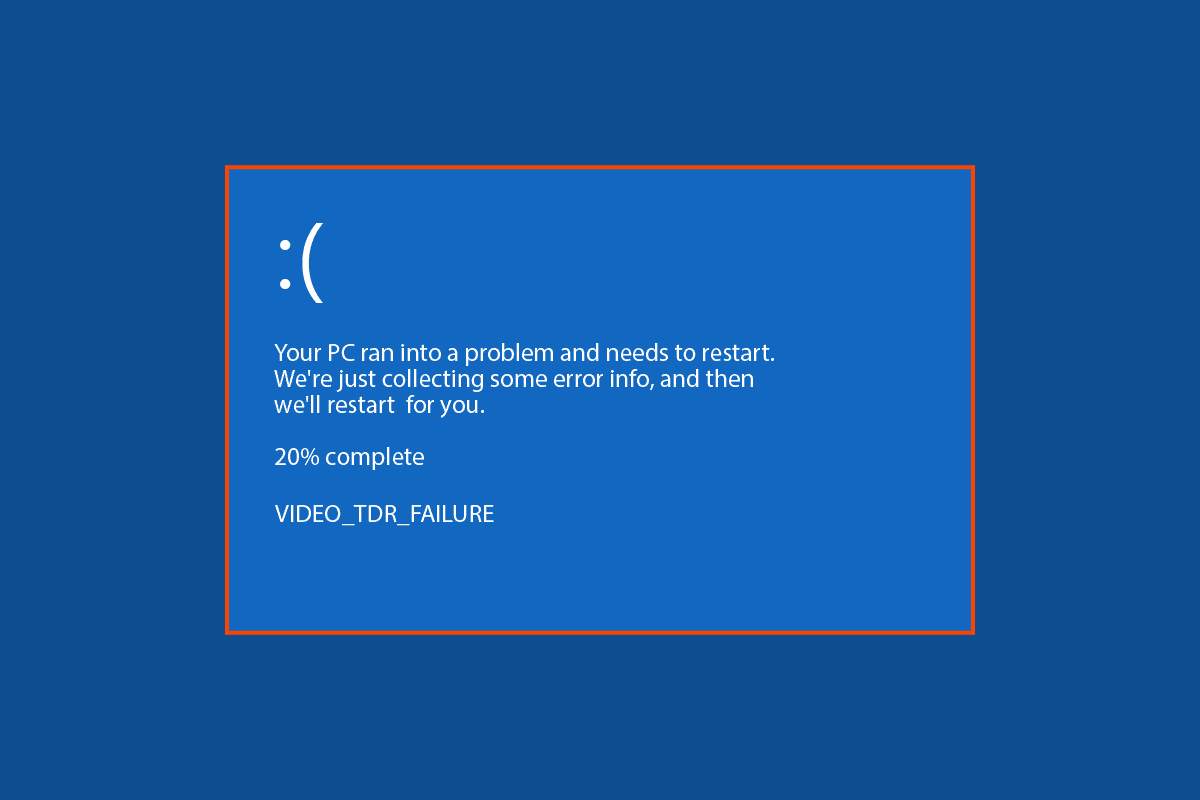
One cause on this list is common and still widely misunderstood: Windows TDR, short for Timeout Detection and Recovery. Windows watches the GPU, and if it doesn’t respond within a default window, usually around two seconds, Windows assumes the GPU has hung and resets the driver. On a normal desktop this recovers a frozen display. During a heavy 3D render, a single frame legitimately taking longer than that default window can trigger the exact same reset, killing the render mid-frame with what looks like a random crash.
VRAM doesn’t add up across multiple graphics cards. Adding a second GPU never fixes a crash caused by running out of memory on one.
TDR is a setting at the operating system level, not a bug in the 3D software itself, which is why the same crash can affect Blender, 3ds Max, and Maya identically on the same machine. It can be adjusted through the Windows registry. Also, you should back up the registry before changing anything, and follow Microsoft’s own documentation for the correct key.
Crash Patterns by Application
As we know each application tends to fail in its own characteristic way. Here are some specific examples:
- Blender most often runs into VRAM limits on GPU-based Cycles renders, alongside the TDR issue above.
- 3ds Max and V-Ray crashes tend to cluster around driver mismatches with V-Ray’s GPU mode and around scenes with heavy proxy or VRayFur setups that spike VRAM late in the render.
- Cinema 4D and Redshift most commonly crash from out-of-core memory settings being misconfigured for the available VRAM, or from a Redshift version being paired with a driver it wasn’t validated against.
- Maya and Arnold crashes are frequently tied to Arnold’s memory management with heavy volumetrics or hair systems, and to plugin conflicts from older rigs and shaders that haven’t been updated for the current Maya version.
- Houdini behaves differently because simulation and rendering stress the machine in different ways. Simulations are usually system RAM and CPU heavy, while the render pass afterward shifts the load to the GPU. So a crash during sim and a crash during render usually point to entirely different causes even in the same project.
- Real-time engines such as Lumion, D5 Render, and Unreal Engine crash primarily from VRAM limits and driver mismatches as well.
When the Machine Is the Problem
After working through software, drivers, and add-ons, some crashes genuinely trace back to the machine. For example, a GPU running hotter than it should under sustained load, a power supply that can’t hold steady output for the length of the render, or RAM that’s failing intermittently. And sometimes there’s no fault at all, the scene is simply heavier than the hardware in front of you can handle.
| Symptom | Common Cause | What to Do |
| Application closes completely mid-render | Out of VRAM or system RAM | Reduce texture size and subdivision, leave memory headroom, add more RAM |
| Render stops with a CUDA sync error | Windows TDR resetting a long-running GPU process | Adjust per Microsoft’s documentation, back up the registry first |
| Crash starts right after a driver update | New driver has a bug with the renderer | Roll back to the previous stable version |
| Only one specific scene crashes | Corrupted scene file or asset | Test with a clean scene, import assets in batches |
| Crashes are random, machine runs hot | Insufficient cooling or unstable power | Check cooling, PSU, and RAM health |
If the bottleneck really is the machine, that’s time we need to consider using a cloud render farm.
How iRender Handle The Crash Issue
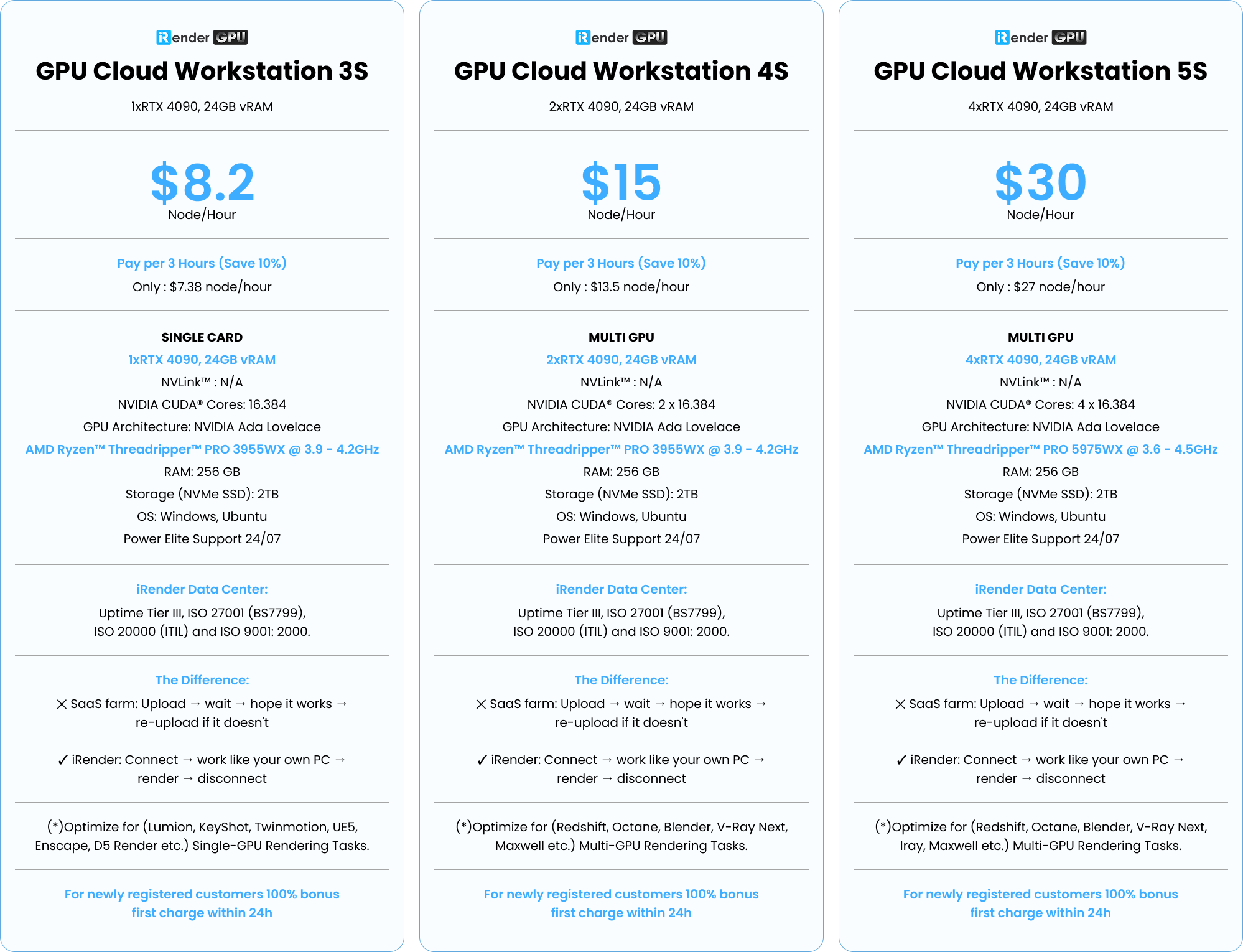
iRender provides a dedicated machine with an RTX 4090 24GB and 256GB of system RAM, CPU AMD Ryzen™ Threadripper™ PRO 3955WX @ 3.9 – 4.2GHz and AMD Ryzen™ Threadripper™ PRO 5975WX @ 3.6 – 4.5GHz gives considerably more memory headroom than most local workstations, running inside a datacenter environment with stable power and cooling. Because you install your own software on it, you can also match the exact driver and plugin versions you already know are stable.
Whether your workflow relies on CPU rendering, GPU rendering, AI training or VFX production, iRender provides high-performance cloud workstations designed to handle demanding professional workloads. Here is the configurations iRender provides, you can refer:
Don’t hesitate, start render now!
Check out some of iRender’s test on RTX 4090:


FAQ
- Why does my 3D software crash only when rendering?
Rendering pushes GPU, VRAM, and RAM to their highest sustained load, which is exactly when hidden weaknesses surface: running out of memory, a driver bug, or the OS resetting a GPU process that ran too long.
- How do I find out what is causing a render crash?
Reproduce the crash to learn when it happens, read the log and error message, watch VRAM and RAM during the render, try updating or rolling back the driver, and disable add-ons while testing with a clean scene file.
- Does rendering in the cloud stop crashes?
It removes the causes tied to your own machine, such as insufficient memory, unstable heat, or unstable power, but it doesn’t fix a broken scene or a conflicting plugin. You still need to diagnose those, just in a more stable environment.
iRender – Your Renders, Your Rules!
Related Posts
The latest creative news from Cinema 4D Cloud Rendering , 3D VFX Plugins & Cloud Rendering.





