
Houdini Sim or Render Crashing: Memory, Cache and GPU Fixes
Houdini crashing is almost always related to memory, not a hardware issue. The single most important step in any Houdini crash simulation cache memory fix is figuring out whether the crash happens during simulation or during render, because those two stages draw on completely different resources.
Is Your Houdini Crash Happening in the Sim or in the Render?
Image Source: Side FX
Simulation and render pull from different resource pools entirely, so the solution is also different.
Simulation crashes are almost always about CPU and system RAM. Render crashes, especially with a GPU renderer, are about VRAM and driver stability. Mixing these up is the most common way a Houdini crash simulation cache memory fix goes sideways, because it leads people toward upgrades that were never going to touch the actual bottleneck. Buying a stronger GPU to fix a simulation crash, or adding system RAM to fix a render crash, is money spent solving the wrong problem.
Simulation Crashes Are a RAM Story
Simulation in Houdini runs mainly on the CPU and pulls from system RAM, not the graphics card. A lot of people buy a more powerful GPU expecting their sims to run faster and crash less. However, this method does not help solve the problem.
Voxel grids are a big part of why simulation memory demand jumps so fast. Grid memory scales roughly with the cube of resolution, so doubling the simulation resolution can push memory use up by around eight times, not two. A sim that was comfortably stable at one resolution can blow straight through available RAM the moment resolution doubles, which is exactly why simulations that ran fine last week suddenly start crashing after a small settings change. You should follow both system RAM and Windows virtual memory while a heavy sim runs. Some crashes trace back to hitting the virtual memory ceiling specifically, not physical RAM.
Cache to Disk the Right Way
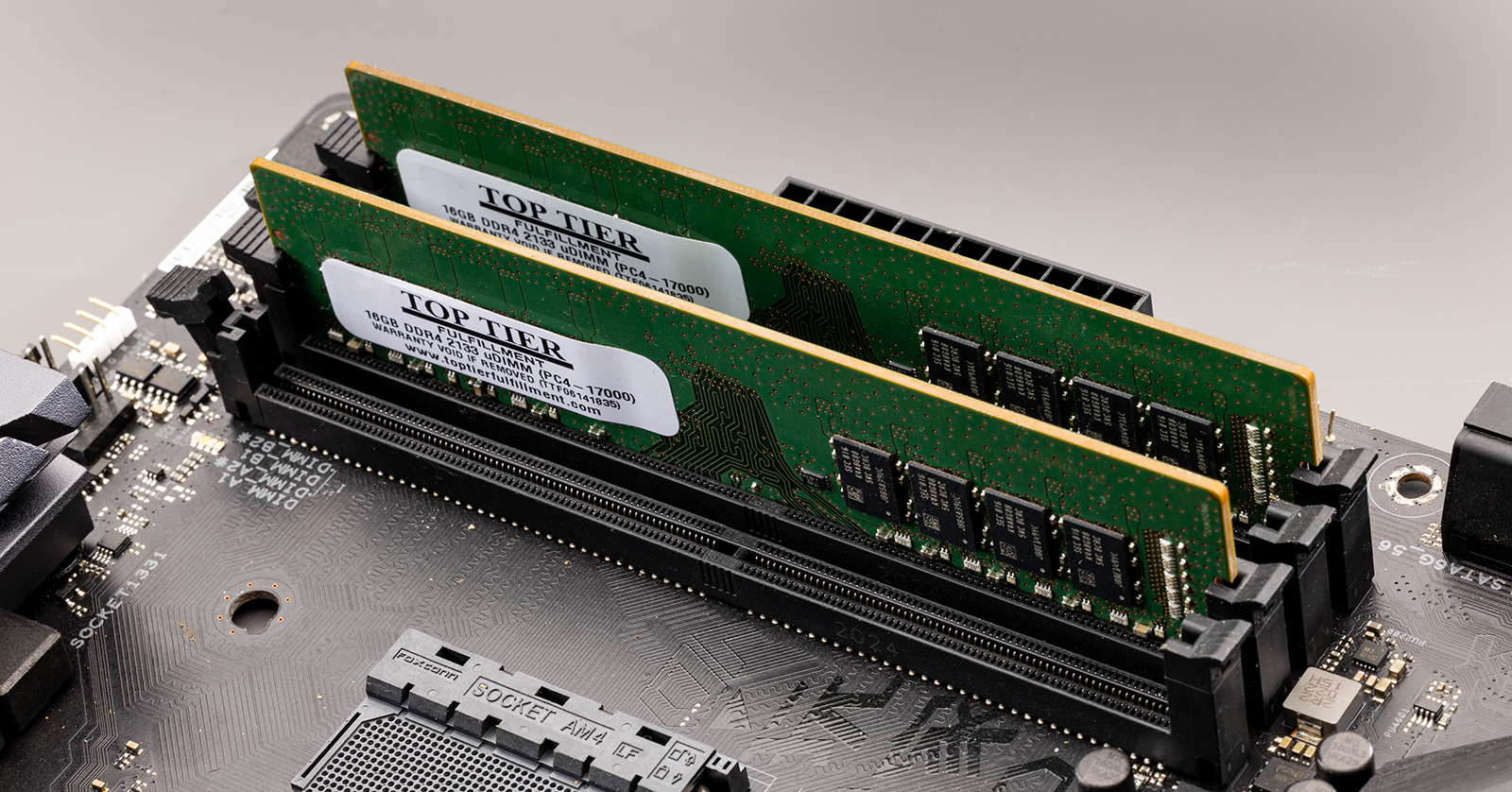
Houdini caches simulation data in memory first, for fast playback. When memory runs out for new cached frames, Houdini drops older cached frames. That’s the reason why you can’t scrub back through a simulation you swear you already ran in full.
Turning on Allow Caching To Disk makes Houdini write frames as .sim files to a temporary directory, but only once the simulation exceeds the RAM you’ve allocated to it. It doesn’t cache to disk by default from frame one. There’s another catch that trips people up constantly: disk caching is disabled when a simulation runs in the background, unless Cache to Disk in Non-Interactive Sessions is specifically turned on.
The most approach for heavy simulations is the File Cache SOP. It writes simulation data to disk deliberately, so you can resume playback or further work from a cached frame instead of re-running the entire simulation from frame one after every crash.
Render Crashes Are a VRAM and Driver Story
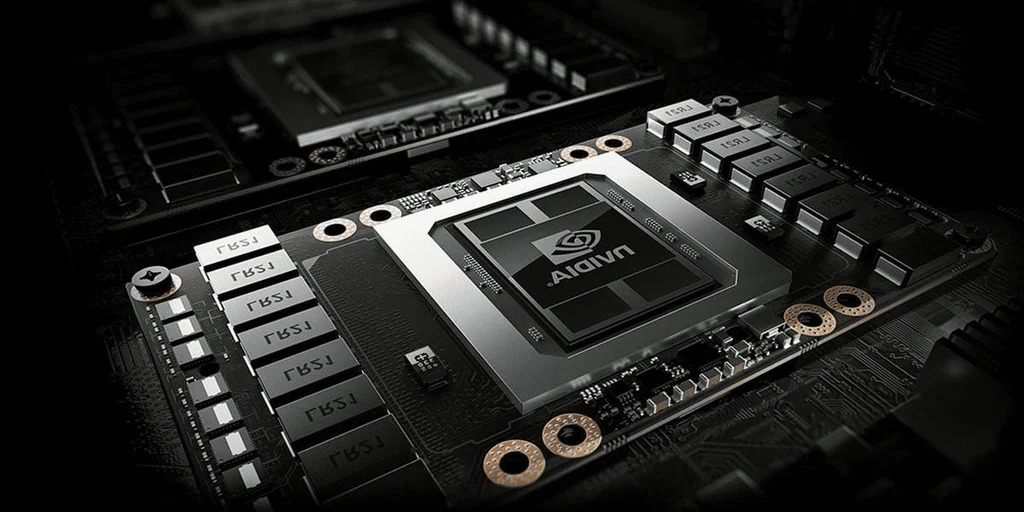
Once a crash is confirmed to happen during render rather than sim, the resources that matter flip completely. Karma XPU, Redshift, and Octane all depend on VRAM and driver stability at this stage, not system RAM or CPU thread count.
Lowering texture resolution reduces VRAM pressure directly. Using instances instead of duplicating heavy geometry keeps memory use down the same way it does in other GPU renderers. Redshift’s out-of-core option lets scenes exceed available VRAM by streaming data instead of crashing outright, which is worth enabling on anything close to the VRAM ceiling.
Driver choice matters more than people expect. SideFX recommends NVIDIA’s Studio driver line for Houdini rather than the standard Game Ready driver. An outdated or mismatched driver is one of the more common reasons a render crashes.
A Practical Stability Checklist
Pulling the sim and render sides together into one routine keeps a Houdini crash simulation cache memory fix from turning into repeated guesswork:
- Cache the simulation to disk before rendering, using the File Cache SOP rather than relying on in-memory playback alone.
- Split long sequences into shorter batches so a single crash costs a short stretch of frames, not the whole run.
- Watch system RAM during simulation and VRAM during render, since they’re never the same bottleneck.
- Confirm third-party plugin and HDA versions match your current Houdini build.
When the Machine Is the Ceiling
| Stage | Resource That Decides | Common Cause | Fix |
| Simulation | CPU and system RAM | Out of RAM, voxel grid too dense | Cache to disk, lower sim resolution, add RAM |
| Sim playback | Memory cache | Houdini drops old cached frames when space runs out | Write cache to disk with File Cache SOP |
| GPU render | VRAM and driver | Out of VRAM, driver issue | Reduce textures, use instances, update to Studio driver |
| Writing large files | Windows virtual memory | Hitting the virtual memory limit | Increase swap size, write in smaller chunks |
Large simulations genuinely need a lot of RAM, and there’s a point where no amount of caching strategy or setting adjustment substitutes for having more of it available.
At this moment, you can think about cloud render farms.
For Houdini, it mainly needs RAM. At iRender, machine with 256GB of RAM and an AMD Threadripper Pro CPU gives heavy simulations far more headroom than a typical desktop, while an RTX 4090 with 24GB VRAM handles the render side. Since you install Houdini and your plugins yourself, the environment reproduces exactly what you already run locally, and iRender GPU app can push cache files and heavy assets up ahead of time so you’re not reloading everything at the start of each session.
On cost, billing runs from the moment the machine is powered on, so set auto-shutdown once caching finishes rather than leaving the session running. New accounts also get a 100% bonus on their first deposit.
Let’s check the tutorial for using iRender GPU app here:

FAQ
1. Why does Houdini crash during simulation?
Almost always because system memory runs out, since simulation depends on CPU and RAM rather than GPU. Voxel grid memory scales roughly with the cube of resolution, so a small increase in sim resolution can push memory demand up sharply.
2. Does caching to disk stop Houdini running out of RAM?
It helps a great deal, but not automatically the way many people assume. Houdini caches to memory first and only writes to disk once a simulation exceeds the RAM allocated to it, and disk caching is disabled for background sims unless you specifically enable that option. Using the File Cache SOP is the more reliable, deliberate way to handle it.
3. Will a better GPU stop my Houdini sim from crashing?
No, if the crash happens during simulation, since simulation depends on CPU and system RAM. GPU strength only matters at the render stage with GPU renderers.
iRender – Your Renders, Your Rules
Related Posts
The latest creative news from Houdini Cloud Rendering , 3D VFX Plugins & Cloud Rendering.





