
How to install OctaneRender on iRender Cinema 4D Servers?
OctaneRender is still one of the fastest and most popular GPU render engines out there if you’re a Cinema 4D user. This guide shows you how to install OctaneRender on iRender Cinema 4D Servers step by step. If you have access to a remote server like iRender that already has Cinema 4D installed, these steps will help get Octane up and running smoothly. Let’s explore it with iRender.
1. Create a pre-installed Cinema4D compatible with OctaneRender
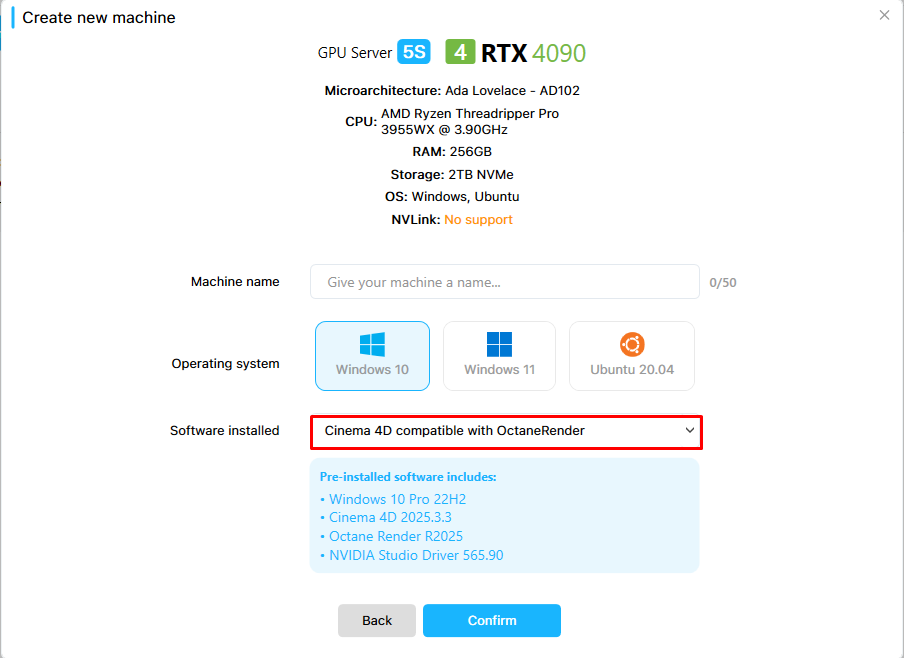
First, create a server running Windows 10 and select a version of Cinema 4D that is compatible with OctaneRender. Once you connect to the remote machine, you’ll see that Cinema 4D is already installed. If you do not want to use this version, you can also install a different version instead. Regarding licensing, we provide one free Cinema 4D license, but for Octane, you’ll need to use your own license.
2. Connect to the remote machine and install Octane
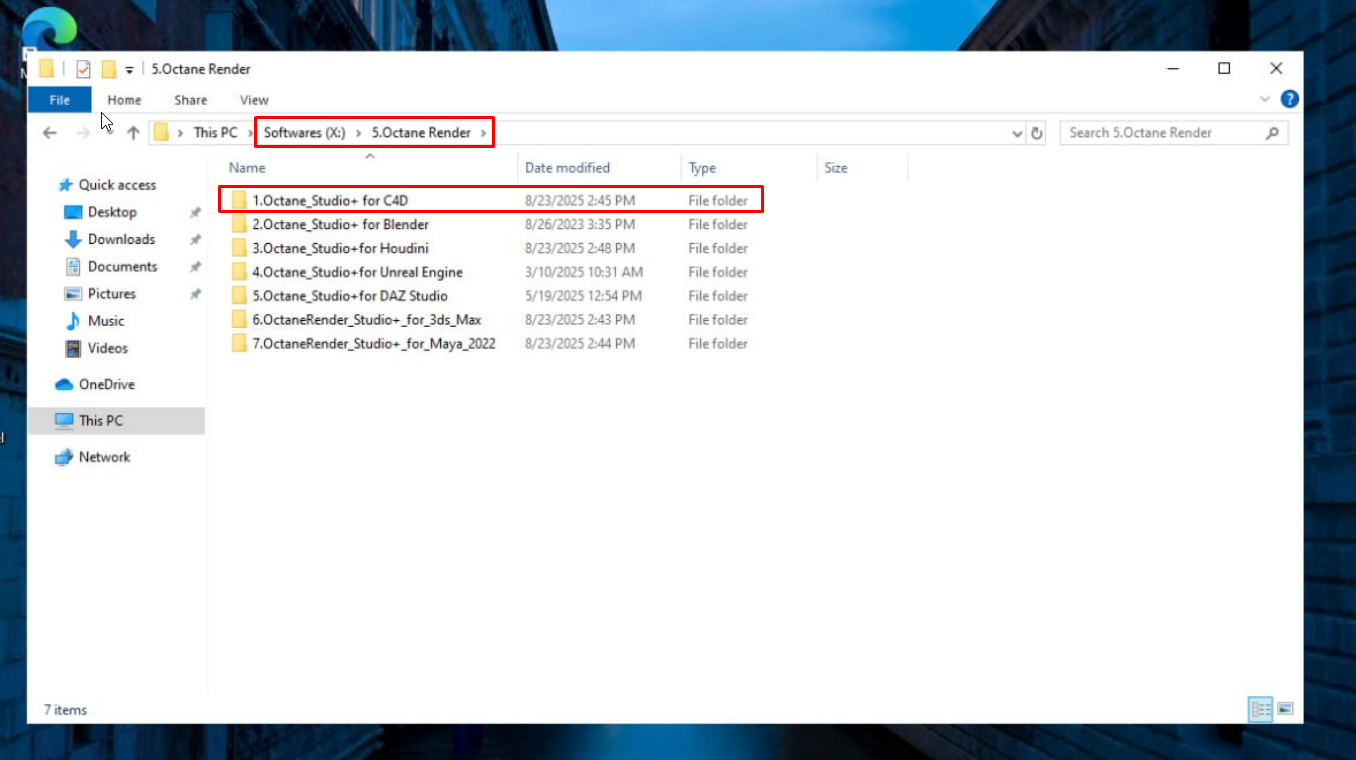
When you connect to the remote machine, you can go to our X drive and copy the Octane installer for Cinema 4D to the Desktop.
If you don’t want to use this version, you can also download the OctaneRender plugin directly from the Downloads section of your OTOY account. After downloading, extract the archive and place its contents into the plugins folder within your Cinema 4D directory.
3. Extract and save the installer directly to the Desktop
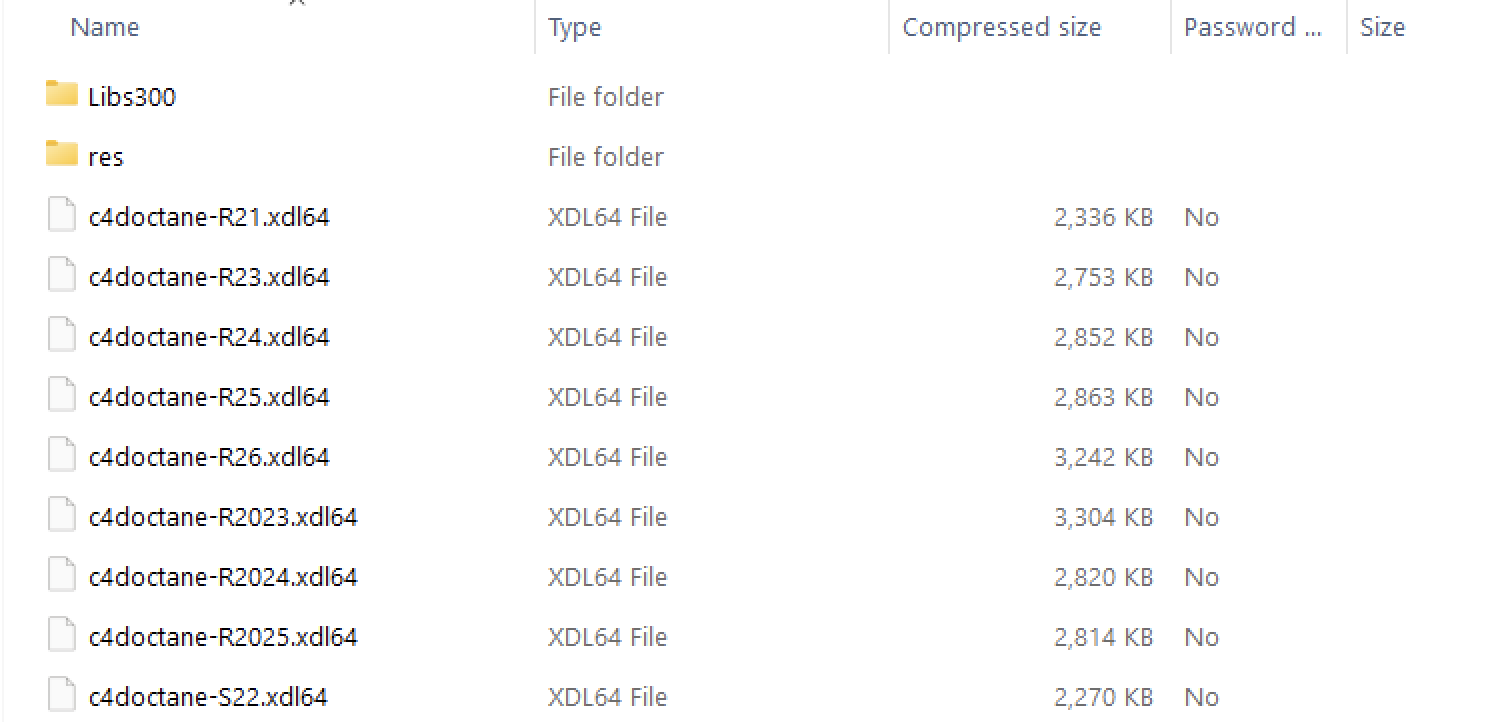
The installer is in .rar format, and we recommend using 7-Zip, as some other utilities may have issues extracting the files. Inside the OctaneRender folder, you’ll find multiple plugin versions. Please keep only the Octane installer file corresponding to the C4D version you choose and delete any unnecessary installation files to avoid confusion. Note that you should not delete the Libs300 and res folders. For example, if you are using R2025, you should keep c4dOctane-R2025.xdl64 and remove all other c4dOctane files.
4. Create a new folder named ``plugins``
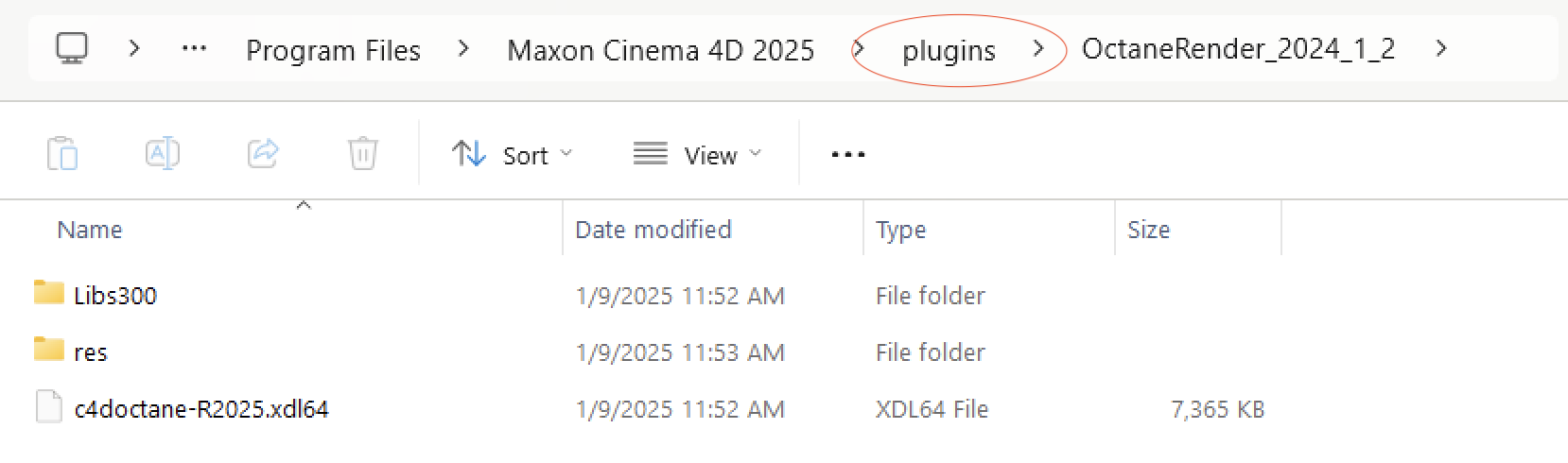
Maxon Cinema 4D does not include a plugins folder. Once you’re there, create a new folder named “plugins” and then copy the c4doctane folder from Desktop into this “plugins” folder: C:\Program Files > MAXON Cinema4D 2025 > plugins > c4doctane
5. Launch the Cinema 4D application.
When you launch Cinema 4D, you’ll be prompted to sign in with your OTOY account credentials to activate OctaneRender.
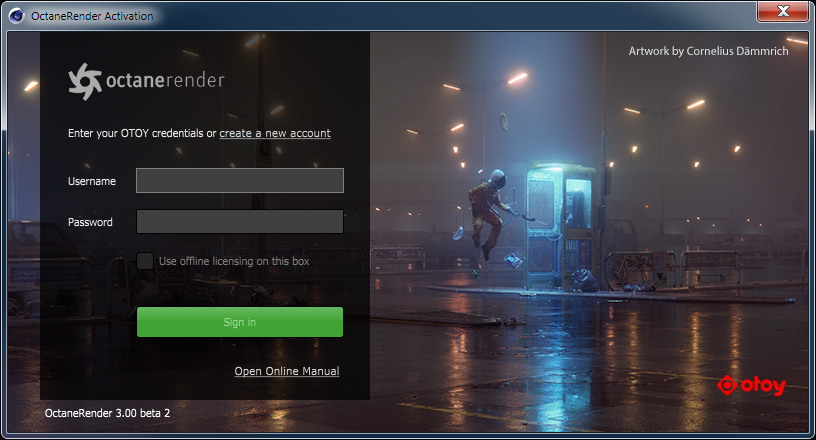
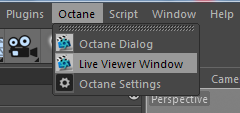
After entering your credentials, an Octane tab will appear at the top of Cinema 4D. This confirms that the OctaneRender plugin has been successfully installed and is ready to use.
Render faster on Octane Render with iRender’s Cinema 4D servers
iRender stands out as one of the most powerful and flexible rendering platforms available for Octane and Cinema4D users. iRender provides instant access to high-performance GPU servers, featuring top-tier hardware like the RTX 4090. Most importantly, we always update to the latest GPU technology, with options including 1/2/4/6/8 RTX 4090. We also have all servers with Cinema4D preinstalled and provide you with one license for free to use.
Under the IaaS (Infrastructure as a Service) model, you will have full control over the machine via a remote desktop app, similar to TeamViewer but more stable. You will be able to proactively install the software and use it on the server just like using a personal computer. In addition, you can find many server packages with high-end configurations that are extremely suitable for complex projects.
We’ve put the RTX 4090 and RTX 3090 to the test across different GPU configurations (1/2/4/6/8 GPUs) and the results are mind-blowing. In this video, we compare performance across 1, 2, 4, 6, and 8 GPUs to see how well Octane scales with more power. Let’s watch the results and find out which GPU configuration offers the best balance of speed and efficiency!

Why choose iRender?
- Rent machines with multiple GPUs (up to 8x RTX 4090)
- Flexible pricing based on your workflow
- Instant scaling—great for deadline crunches
- Perfect support for Redshift, Octane, Arnold, and more
- Access from Windows or macOS
Instead of spending thousands on hardware upgrades, you can scale your power only when you need it.
Below is information about iRender’s service packages:
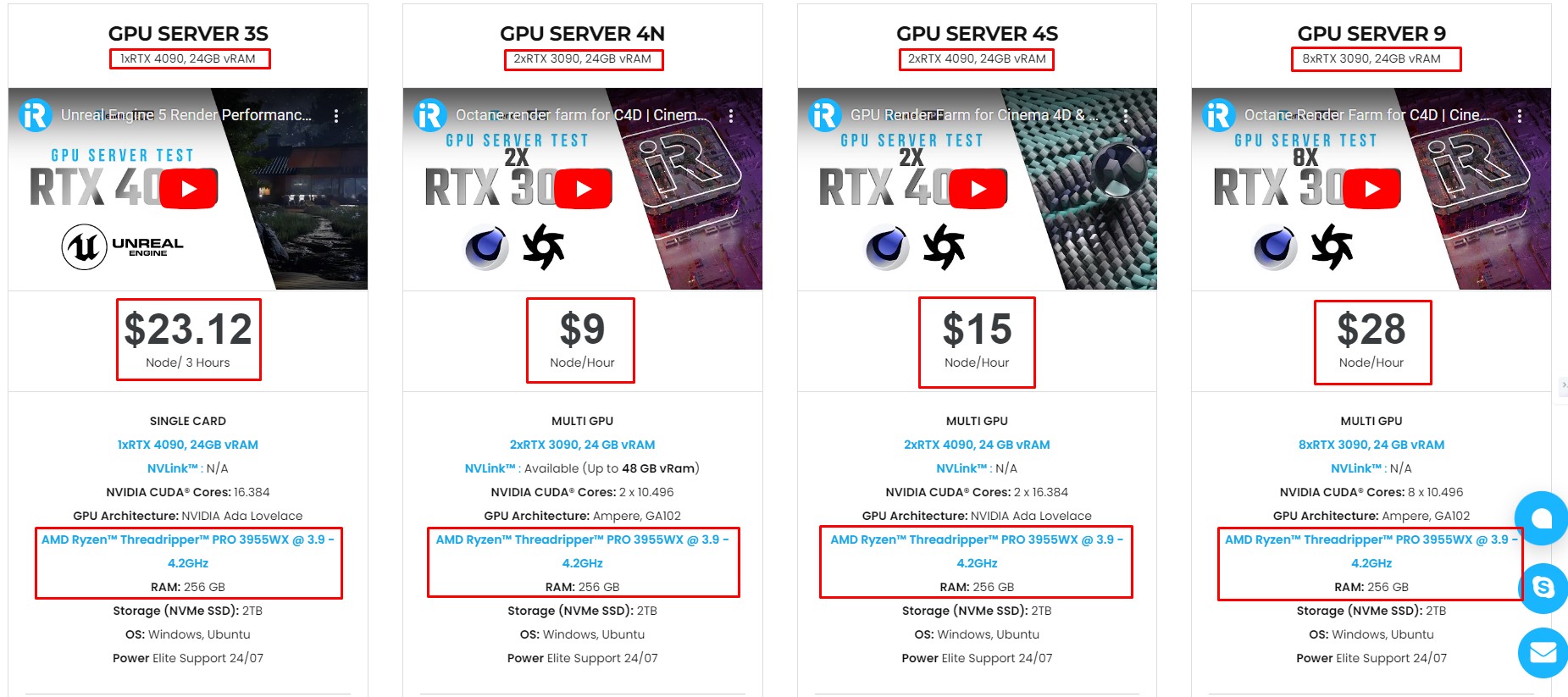
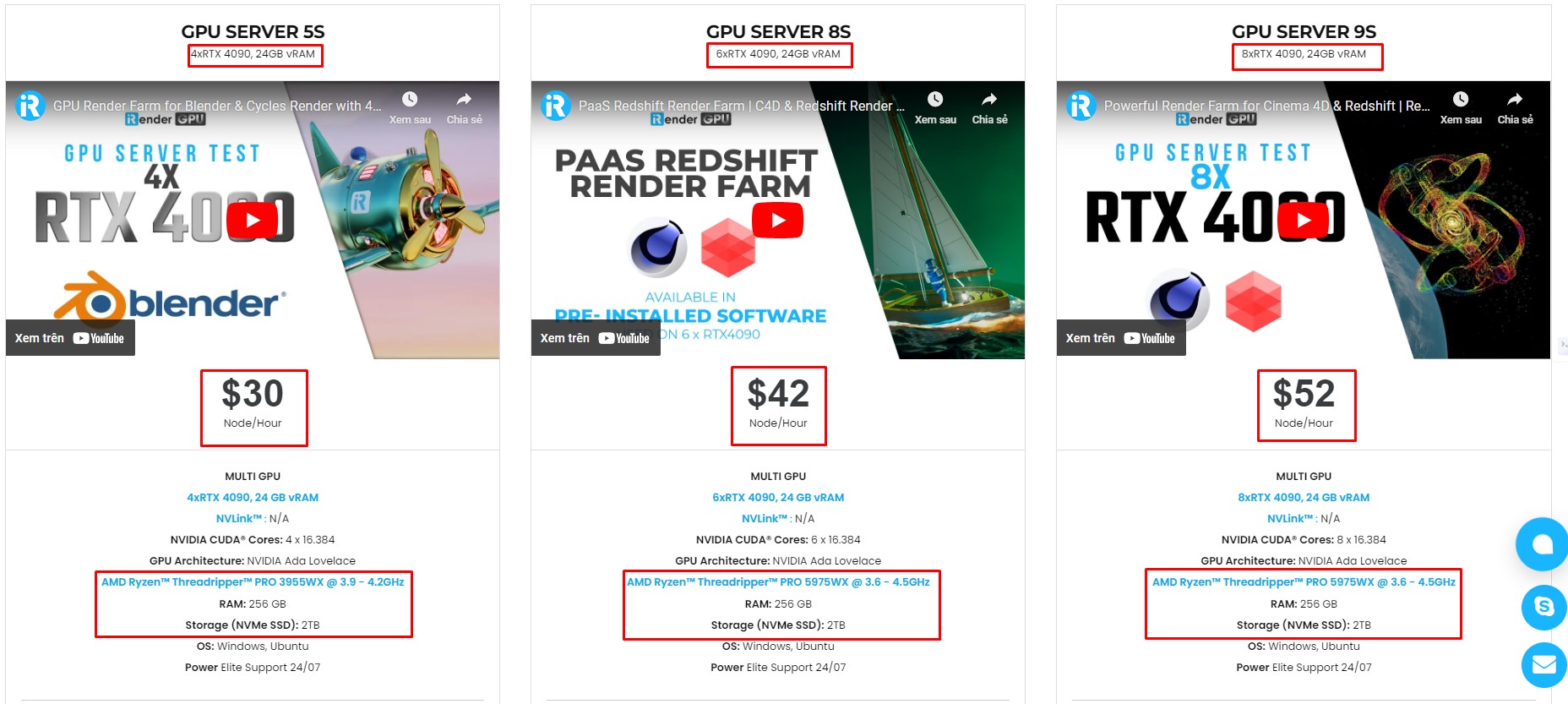
We’re always happy to help you with any questions. If you have any problems or questions, don’t hesitate to contact our 24/7 support team. Or via Whatsapp: 0912 785 500 for free advice and support.
Right now, iRender has a SPECIAL PROMOTION program with a 100% bonus for the first transaction within 24 hours of your registration. It means that you can get an extra 100% of the money you recharged the first time. And points never expire, so you can use them at any time.
Sign up for an account today to experience and enjoy our services.
Thank you & Happy Rendering!
Source and image: help.otoy.com
Related Posts
The latest creative news from Octane Cloud Rendering





