
Idle Cloud Servers Are Burning Your Budget: How To Stop The Waste
For example, you rent a machine 8x RTX 4090 (this machine costs $65 per an hour). Leave it powered on and idle for ten hours, whether you’re away from your desk, mid-upload, or waiting on a scene fix, and that’s roughly $650 spent with zero frames rendered in that window.
The reason is straightforward: on a full-machine rental model, the billing clock starts at boot and stops at shutdown. It has nothing to do with whether the renderer is actually running. Idle time and render time are billed at the exact same rate.
Let’s find the way how to stop the waste in this our blog today!
Why is my cloud render bill higher than the render itself?

For example: iRender starts counting when the Connect button appears though you don’t connect the machine.
In some render farms, the billing clock and the render clock are two different things. On a full-machine rental model, like the one iRender and most GPU cloud workstations use, you’re not paying per frame or per completed job. You’re paying for the machine’s time, starting the moment it boots up, not the moment your renderer actually starts crunching frames. And that clock keeps running until you shut the server down, whether you’re actively rendering, idle at the desktop. So a render that technically only needed 40 minutes of GPU work can easily turn into a two-hour charge, if the machine sat there afterward while you got pulled into a client call, or if it powered on 20 minutes before your scene was actually ready.
Where the waste actually comes from?
Most of the waste isn’t dramatic. The most common one is simply forgetting to shut the machine down after a render finishes. You get the output, pull the files, get pulled into the next task, and the server just sits there, billed and idle, until someone remembers it exists.
Close behind that is doing prep work on the clock. Uploading a heavy scene file, installing a plugin, or organizing assets while the billed machine is already running turns setup time into render-rate time. None of that work actually needs the GPU spinning, it will lead to consuming money.
One more thing, you turn on the machine too early. Since the clock starts at boot, not at the first frame. If you need time to fix the scene, it means you’re paying to stare at a loading screen. iRender doesn’t charge for the uploading time so you should prepare your scene carefully before uploading to avoid wasting.
And finally, there’s the config mismatch: renting a bigger machine than the job actually needs. An 8-GPU server sounds impressive, but if the software you’re running can only really use one card, you’re paying for seven GPUs that sit there doing nothing useful.
Habits that stop the bleed

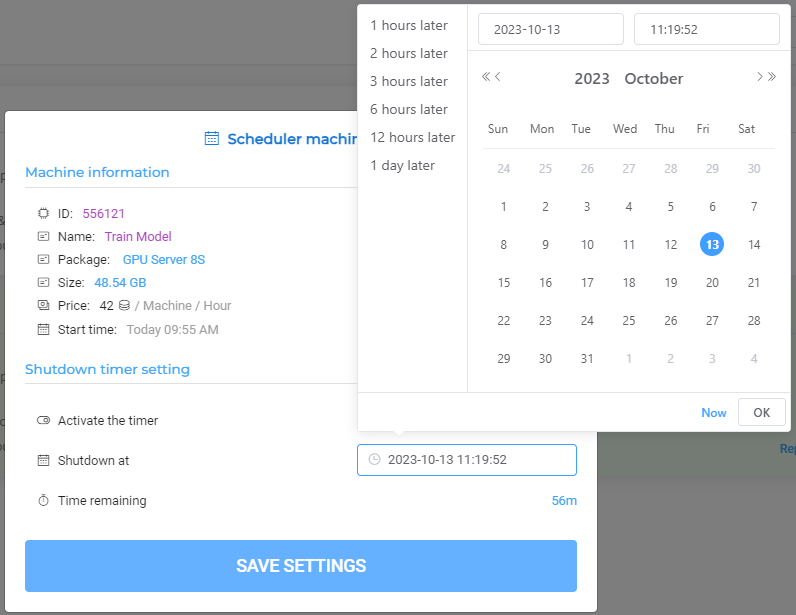
None of this requires a spreadsheet or a change in workflow, just a few habits that become automatic pretty quickly. The single biggest one is turning on auto-shutdown, so the server powers itself off after a set period of inactivity. iRender has “Schedule to Shutdown” to help you turn the machine off at a certain time. This feature is helpful when you are busy and do not have time to keep an eye on the machine screen. Doing your prep, uploads, and file organizing before you switch on the billed machine, rather than after, keeps setup time off the clock entirely. If you’re running several short renders in a day, batching them into one session instead of powering the server on and off repeatedly also cuts down on the boot-to-ready overhead you pay for every time. And above all, matching the GPU count to what the job can actually use turns out to save more money over a month than any of the smaller habits combined.
Match the machine to the job
Don’t rent 8 GPUs for a job that can only use one. Multi-GPU scaling works beautifully for offline, frame-based rendering. Blender Cycles, Redshift, Octane, these engines can split an animation across cards, with each GPU crunching a different frame in parallel, so 4x or 8x RTX 4090 genuinely cuts your total render time.
Real-time engines are a different aspect. Lumion, Twinmotion, D5, Unreal Engine, these are built around a single active GPU driving the viewport. A second, third, or eighth card sitting alongside it doesn’t make the walkthrough render faster, it just sits idle while you pay for it. For that kind of work, one strong single-GPU machine is the right call, and it’s usually the cheaper one too.
Billing does start at boot, and idle time is billed just like render time, that’s simply true of the IaaS model, on iRender or anywhere else that gives you a full remote workstation instead of a managed job queue.
iRender has a Schedule shutdown feature, and turning it on takes about ten seconds. Combine that with renting the GPU count your job genuinely needs instead of defaulting to the biggest available machine. All this will help you save credits a lot. If you don’t want to manage shutdown timers and GPU counts aren’t something you want to think about at all, a SaaS render farm will be a better option.
If iRender is your choice, don’t hesitate to start now!
Register an account and receive a 100% bonus within 24 hours of registration.
Let’s check out some our test video with RTX 4090:


FAQ
- Do cloud render servers charge when idle?
On a full-machine rental, yes. Billing runs from the moment the server is powered on, whether it’s actively rendering or just sitting there idle. Auto-shutdown and only powering on when you’re actually ready to render are the two habits that keep this from adding up.
- How do I avoid wasting money on cloud rendering?
Turn on schedule shutdown, set a reminder if you know you’ll step away mid-session, prep and upload your files before the billed machine powers on, and rent the GPU count your job genuinely needs rather than the biggest option available.
- How many GPUs should I rent?
It depends on the software. Heavy animation renders in engines like Redshift, Octane, or Cycles scale well across multiple GPUs, since each card can take a different frame. Real-time engines like Lumion or Unreal Engine are single-GPU bound, so extra cards add cost without adding speed.
iRender – Your Renders, Your Rule!






