
Maya and Arnold Keeps Crashing: How to Stabilize Heavy Renders
You can imagine a 1,750-frame sequence runs clean past frame 700, past frame 800, and then starts dropping every few frames until the whole render stalls out completely. No error dialog, no obvious trigger, just Maya crashing repeatedly in the same rough stretch of the timeline. This is one of the most common patterns behind Maya and Arnold crashing on long renders, and it has almost nothing to do with the graphics card.
Arnold is a path tracing renderer that runs primarily on the CPU, with a separate GPU mode available but not the default. That single fact changes the whole diagnostic approach compared to GPU-heavy renderers like Redshift. When Maya and Arnold keep crashing on a heavy render, the bottleneck is almost always system RAM and CPU thread count, not VRAM.
In this article today, we will walk through why that happens and how to stabilize renders that would otherwise crash halfway through.
Why Does Maya Crash Partway Through an Arnold Render?
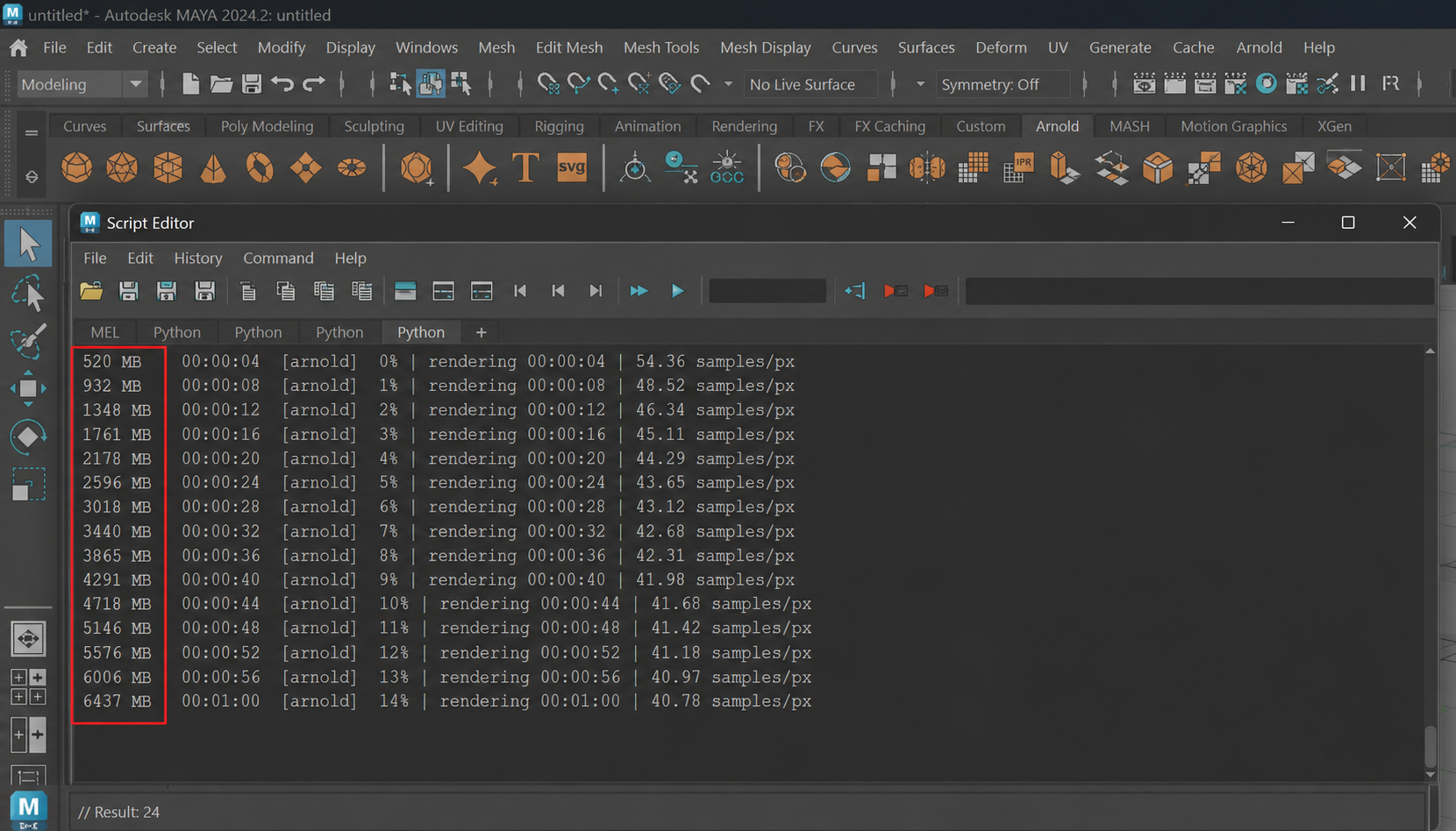
Answer is: it’s usually system memory running down gradually across a long sequence, not VRAM. Arnold runs its ray tracing work mainly on CPU cores, and each frame it processes adds a bit more to memory that doesn’t always get released cleanly before the next frame starts. If the rendering process is short, you won’t notice it clearly. However, with a sequence of several hundred or several thousand frames, Maya will crash. This is the core reason Maya and Arnold are crashing on render looks. The scene itself hasn’t changed frame to frame, but the memory footprint behind it has.
Read the Render Log Before Anything Else
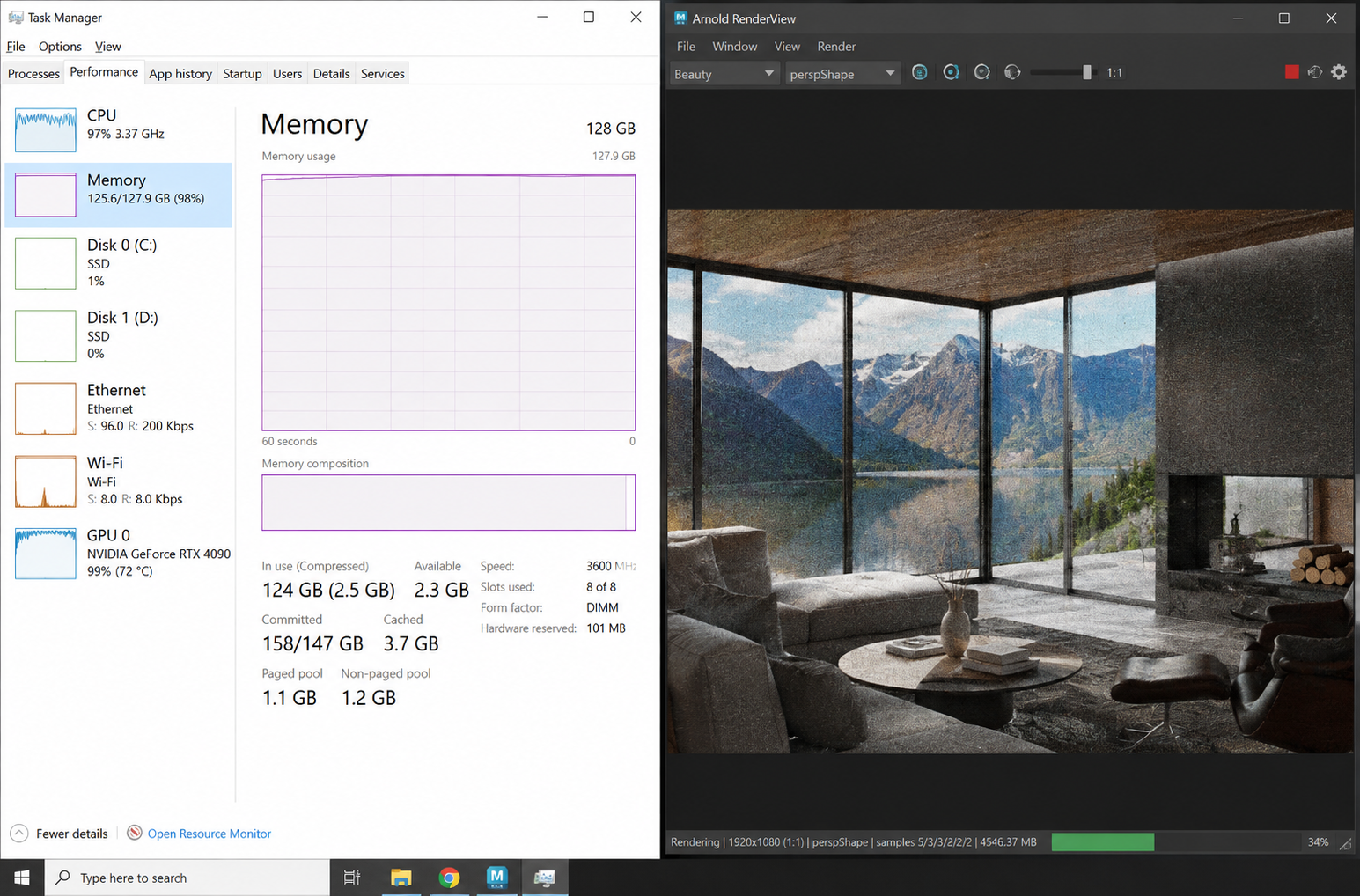
Before changing any setting, you should open Arnold’s render log. It logs memory usage at each stage of the render, not just at the end, making it one of the best tools for pinpointing exactly when a Maya and Arnold crash starts building up. Watching this log alongside Task Manager’s memory graph, in parallel while the render runs, shows two things at once: how Arnold itself reports memory use internally, and how the operating system sees total RAM climbing. When both point to the same rising curve, memory is confirmed as the cause.
The Long Sequence Problem
Once memory buildup is confirmed, you can easily find the solution to fix it.
- Split long sequences into shorter batches. Rendering a few hundred frames at a time instead of the entire sequence in one pass keeps any single session’s memory accumulation from ever reaching the point where Maya crashes.
- Render to an image sequence rather than a single video file. If a crash does happen, you restart from the exact frame that failed instead of losing the whole batch and starting over.
- Restart between batches if memory isn’t being released. Some scenes carry over cached data between frames that Windows doesn’t fully reclaim, so a clean restart between chunks resets that buildup before it becomes a problem again.
This is the single most practical way to stabilize a Maya and Arnold render that keeps crashing on long sequences.
Note: Cache accumulated between frames is exactly why so many artists end up restarting their machine partway through a long render, not because the scene changed, but because the memory behind it never fully cleared.
Scene and Plugin Causes Specific to Maya

Oni: Thunder God’s Tale (produced by Tonko House and released on Netflix) was rendered using Autodesk Arnold.
Not every Maya and Arnold crash is about memory buildup over time. Some are tied to the scene or plugin setup itself, and Autodesk has documented several of these directly.
One well-known case is Maya crashing specifically on the second frame of an animated Arnold render. Autodesk’s own support documentation for this exact issue recommends updating the MtoA plugin to the latest version and disabling “Abort on Error” in Arnold’s Render Settings, since a mismatched or outdated MtoA build is the most common trigger.
A separate documented case involves Render Sequence hanging and crashing when working in a project file that was originally created in an older version of Maya. Autodesk’s fix for this is to export all assets to FBX and import that FBX into a fresh scene file, rather than continuing to work directly in the legacy file.
Heavy outside assets matter too. Large Alembic caches add extra memory pressure. So do textures that haven’t been converted to Arnold’s optimized texture format. Both stack on top of whatever the scene already demands, compounding the same long-sequence.
Do Not Skip the Hardware Layer
Sometimes a Maya and Arnold render keeps crashing for reasons that have nothing to do with Maya at all. Users on newer CPU platforms have reported system-level instability. Maya only exposes because rendering is one of the few workloads that pushes every core at sustained full load for hours at a time. The solution was updating the motherboard BIOS or limiting active thread count, not touching the Maya scene or Arnold settings whatsoever.
If a render crashes even on a genuinely simple scene, with no plugins, no heavy assets, and no long sequence behind it, you should check temperatures, power delivery, and BIOS updates.
When You Simply Need a Bigger Machine
| Symptom | Common Cause | Fix |
| Long sequence crashes partway through | System RAM running down across frames | Split into shorter batches, render as an image sequence, restart between batches |
| Crash exactly on the second frame | MtoA plugin or settings issue | Update MtoA, follow Autodesk’s guidance on Abort on Error |
| Render Sequence hangs on an old file | Scene carried over from an older Maya version | Export to FBX and import into a new scene file |
| Crash even on a simple scene | Hardware or BIOS-level issue | Update BIOS, test thread limits, check temperatures |
| Crash during IPR while working | Version mismatch or conflict | Update Maya and MtoA, check Autodesk’s support articles |
If you did all the steps mentioned above: memory has been split across shorter batches, MtoA and Maya versions are matched, the scene has been cleaned up, and hardware has been ruled out, but the sequence is still too heavy, that’s a genuine hardware ceiling rather than something left to fix in software.
This is the time to consider switching to a more powerful machine to ensure a smooth rendering process. If you don’t want to waste much money for upgrading hardware, you can switch to a cloud render farm.
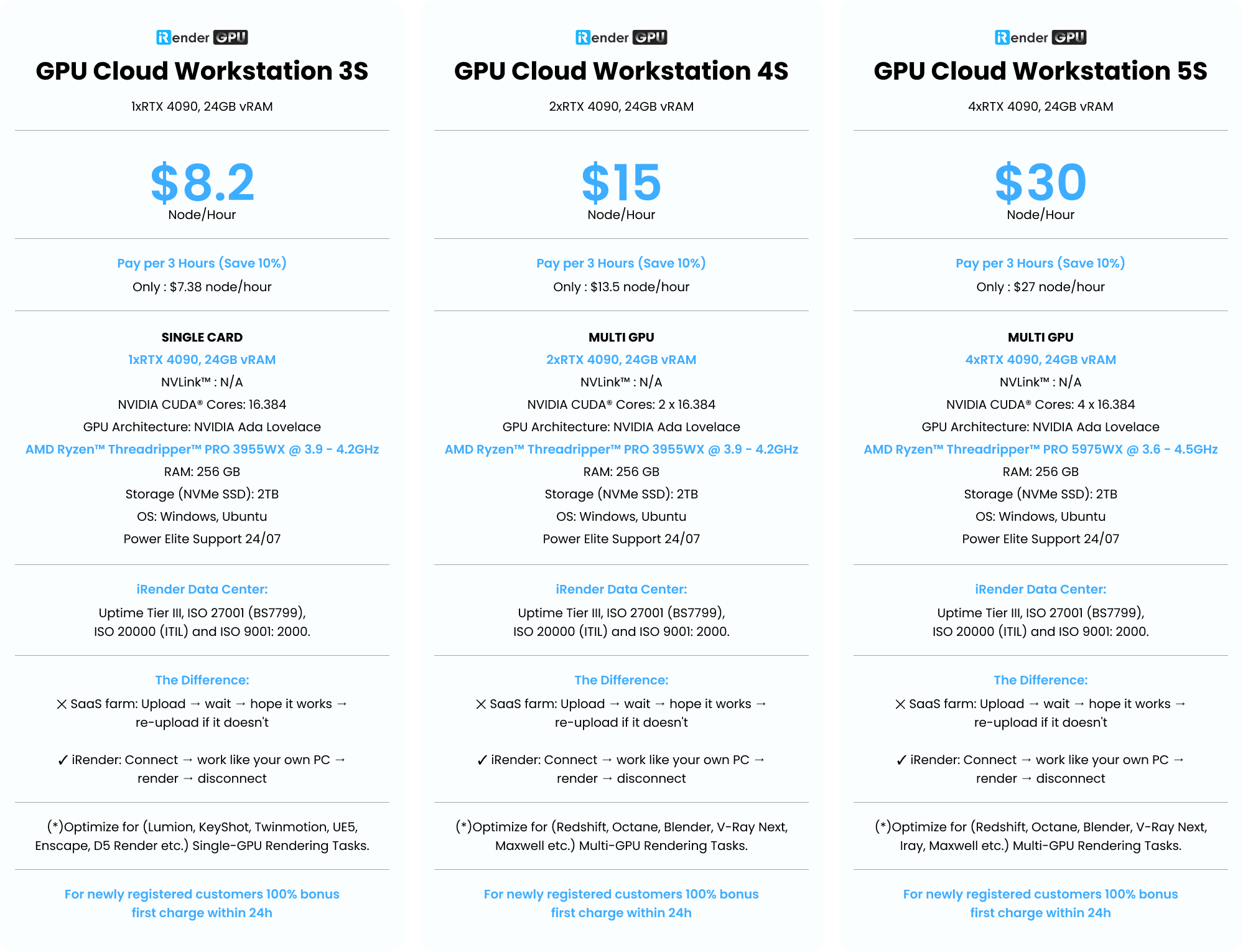
Since Arnold is decided by system RAM and CPU strength, not GPU power, iRender‘s high-RAM configurations pair up to 256GB of system memory with an AMD Threadripper Pro CPU: AMD Ryzen™ Threadripper™ PRO 3955WX @ 3.9 – 4.2GHz and AMD Ryzen™ Threadripper™ PRO 5975WX @ 3.6 – 4.5GHz. That gives Maya and Arnold sequences far more headroom than most desktop workstations. You also install your own software, so you can run the exact Maya and MtoA build you already know is stable, avoiding the version mismatch issues covered above. You can see the configurations as below:
However, stronger machine won’t fix a broken scene file or a plugin conflict, even on a rented machine, keep splitting long sequences into shorter batches. That way, one failure only costs a short stretch of frames, not the whole run. On cost, the rental is charged according to the time the machine is running, so buying your own GPU may become more economical if you use the hardware continuously throughout the year. When the project is finished, shut down the remote machine so you are not paying for idle time. New users can also take advantage of iRender’s 100% first-deposit bonus when trying the service.

FAQ
1. Why does Maya crash in the middle of a long Arnold render?
Usually because system memory runs down gradually across frames rather than VRAM, since Arnold runs mainly on the CPU. Split the sequence into shorter batches, render to an image sequence instead of one file.
2. How much RAM does Arnold need?
More than most people expect. Heavy scenes with high-resolution textures and detailed geometry can consume a large amount of system memory well beyond what the scene’s file size suggests. You can read the memory figures Arnold logs during render to see the real number for your specific scene.
3. Maya crashes on the second frame of my animation, what do I do?
Autodesk has documented this exact case and recommends updating the MtoA plugin to the latest version and adjusting the “Abort on Error” option in Arnold’s Render Settings.
iRender – Your Renders, Your Rules
Related Posts
The latest creative news from Maya Cloud Rendering, Redshift Cloud Rendering, Cinema 4D Cloud Rendering , 3D VFX Plugins & Cloud Rendering.






