Twinmotion Direct Link Lagging with Revit or ArchiCAD? Practical Fixes
EXECUTIVE SUMMARY // KEY PRODUCTION TAKEAWAYS
Provide you practical troubleshooting guidance for addressing Twinmotion Direct Link connection failures and slow synchronization performance when working with Revit or Archicad. Performance issues are primarily driven by CPU performance bottlenecks, limited RAM capacity, and overall model complexity, rather than GPU hardware limitations alone.
Key Revit connection issues and solutions include:
- Special characters in file names: Removing special characters and extra periods before file extensions fixes automatic connection failures.
- Multi-user installation: Launching Twinmotion once under the logged-in Windows account generates missing registry entries.
- Unrecognized or unsaved models: Saving and reopening models, as well as keeping only one active Revit model per session, prevents tracking errors.
- Datasmith initialization failures: Errors occur due to missing registry keys, missing installation subdirectories, or absent display adapters.
- Lost connections after restarting: Restarting the Twinmotion project restores communication lost when Revit is closed and reopened.
For Archicad synchronization failures, troubleshooting steps require updating the Datasmith plugin, keeping both applications running during transfer, designating a stable cache directory, verifying firewall permissions, or rebuilding connection links.
To resolve slow synchronization speed, users should filter 3D views with section boxes, simplify heavy geometry or detailed families, disable Auto Sync during active editing, and prioritize a high-clock-speed CPU alongside sufficient RAM.
Twinmotion Direct Link slow? You change a wall color in Revit, click Synchronize, and watch Twinmotion freeze for 40 seconds. Worse, nothing changes. If you encounter this issue, this guide will help cover practical fixes based on Autodesk’s official troubleshooting guidance and issues reported by the Graphisoft community. It separates connection failures, where Direct Link will not connect or update, from performance problems, where synchronization works but takes too long. For slow updates, the main bottleneck is often CPU performance, RAM capacity, or model complexity, rather than GPU power alone.
Why is Twinmotion Direct Link so slow?
Three common causes explain Twinmotion Direct Link slow synchronization: an oversized model with too many objects or detailed Revit families, insufficient CPU or RAM when both applications run together, and mismatched plugin or software versions.
You should fix the connection first so Direct Link works reliably. Then optimize model complexity and system resources to reduce synchronization times.
When Direct Link doesn't connect or doesn't update (Revit)
Autodesk identifies seven common Twinmotion-Revit Direct Link issues. The following sections explain their symptoms and provide practical steps to resolve each problem.
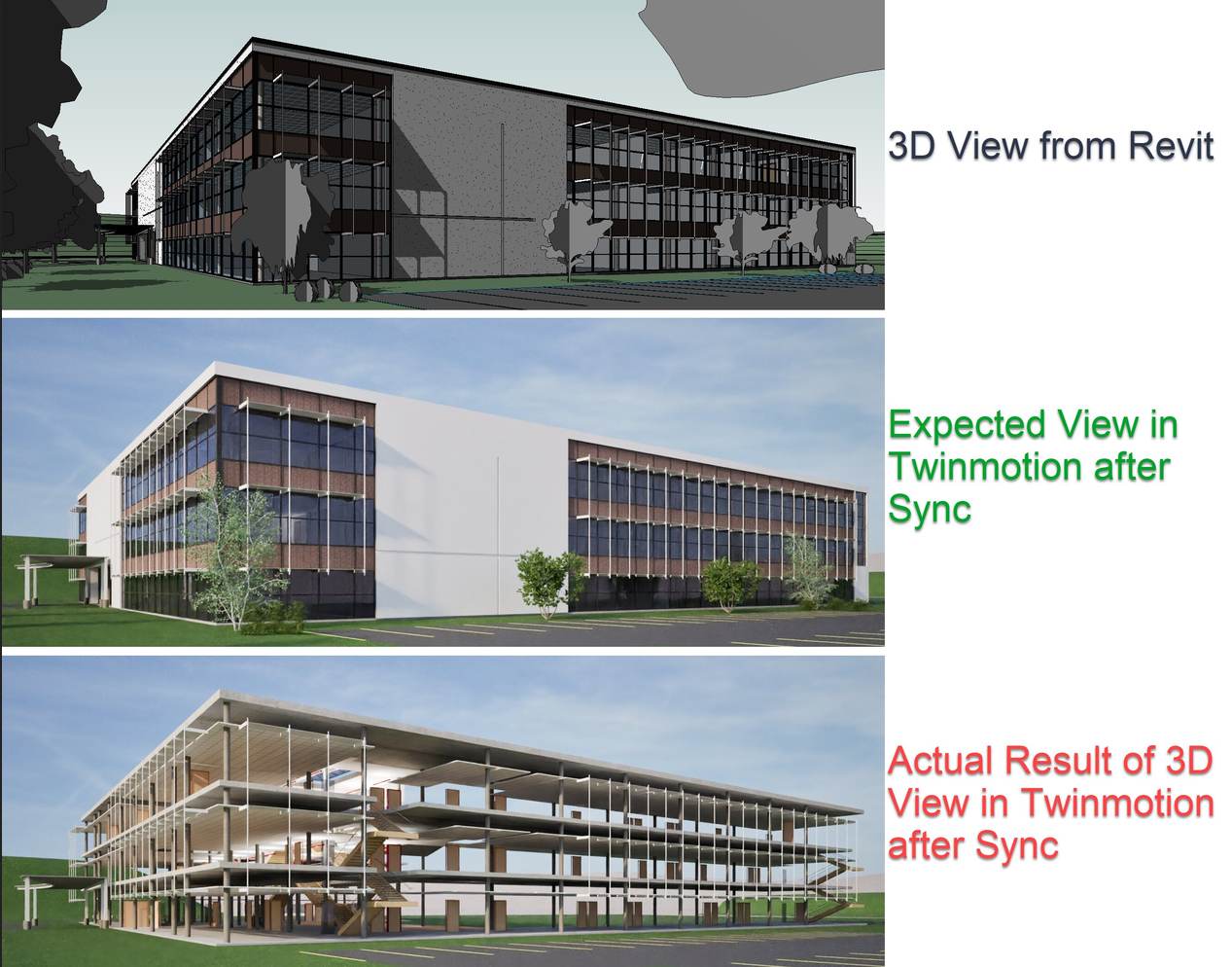
1. Special characters in the Revit file name
Symptom
You use Open in Twinmotion and choose to create a new Twinmotion project, but Direct Link does not connect automatically to the active Revit model. The project opens, yet the connection is missing.
Issue
This problem can occur when the Revit file name contains certain special characters, a period immediately before the .RVT extension, or language-specific text that Direct Link cannot interpret correctly. These naming issues can prevent Revit and Twinmotion from establishing the connection.
Workaround
Try saving a copy of your Revit model with a simpler file name. Remove special characters and avoid placing an extra period before .RVT. Then, use Open in Twinmotion again to create the project and establish the connection. This is a practical first step when Open in Twinm
2. Twinmotion was installed by another user
Symptom
You click Open in Twinmotion, but Revit reports that no compatible version of Twinmotion is installed. Twinmotion may already be present on the computer.
Issue
This can happen when another user installed Twinmotion or Twinmotion for Revit, or when the software came from a machine image prepared by someone else. If the current Windows user has never launched the application, a required registry value may be missing.
Workaround
Sign in with the Windows account experiencing the problem and open Twinmotion or Twinmotion for Revit manually once. This allows the application to create the necessary registry entries for that user. Afterward, return to Revit and try Open in Twinmotion again.
3. The Revit model has not been reopened after saving
Symptom
You use Open in Twinmotion or manually create a Direct Link connection, but Twinmotion cannot detect the active Revit model. The problem may occur even when the model appears to be saved correctly.
Issue
Direct Link may not recognize a model that has not yet been saved, such as a new project created from a template. The same issue can affect a model saved for the first time during the current Revit session. It can also occur after you save an existing model under a new file name without closing and reopening it.
Workaround
Save the Revit model and close it completely. Reopen the same file, then try Open in Twinmotion again. You can also create a new Direct Link connection manually from Twinmotion to the active Revit model. Reopening the file gives Direct Link another opportunity to recognize the model and establish the connection.
4. Auto Sync and Synchronize are enabled before connecting
Symptom
You open a Revit 3D view and notice that Auto Sync and Synchronize are already enabled, even though you have not established a Direct Link connection.
Reason
This behavior is intentional. Revit supports additional Twinmotion and Unreal Engine workflows that may involve creating the Direct Link connection from the other application first. You can then return to Revit and synchronize the model. Therefore, these commands being enabled does not necessarily indicate a connection problem.
5. Multiple Revit models share one session
Symptom
You have several Revit models open in the same session, each with an active Direct Link connection to another application. Auto Sync or manual synchronization may behave unexpectedly, and updates may not reach the intended project.
Issue
Direct Link is currently optimized for working with one open Revit model per session. Keeping multiple models with active connections in the same session is not a recommended workflow, as it can make synchronization behavior less predictable.
Workaround
Keep only the Revit model you need open when working with its Twinmotion Direct Link connection. If your Twinmotion project contains multiple Direct Link connections, open and synchronize one Revit model at a time. Alternatively, run each Revit model in a separate Revit session. This approach makes it easier to manage connections and identify which model is being synchronized.
6. Datasmith fails to initialize
Symptom
You select a command under View > Twinmotion, but Revit displays a dialog asking you to check the system requirements. The commands may appear enabled, yet they do not work.
Issue
This problem can occur when the workstation lacks a required component or does not meet the minimum requirements for Twinmotion or Unreal Engine workflows. Starting with Revit 2024, the Datasmith Exporter for Revit is built into the application, so it no longer needs to be installed separately. However, Twinmotion and Unreal Engine workflows still depend on Datasmith initializing correctly.
Reasons
Datasmith may fail to initialize for several reasons:
-
-
-
- No compatible display adapter: The workstation does not have a compatible graphics adapter, or the adapter is disabled.
- Missing registry value: The following registry entry is absent:
HKEY_LOCAL_MACHINE\SOFTWARE\WOW6432Node\EpicGames\Unreal Engine\RevitEngineDir - Missing installation directory or files: The directory
C:\ProgramData\Epic\Exporter\RevitEnginedoes not exist, or it lacks one or more of the defaultBinaries,Content, orShaderssubfolders.
-
-
How to investigate
First, open Revit Options > Hardware and check the graphics hardware status. This helps confirm whether Revit recognizes a compatible display adapter.
If the problem persists, inspect the Revit journal file generated during the session. Try running the affected command before reviewing the journal, as it may record additional details about why Datasmith failed to initialize. These details can help narrow down the cause instead of requiring you to check every possibility manually. For more information, see Autodesk’s guide to Revit journal files.
You can also consult Autodesk’s documentation on Revit.ini and environment variable customization for further configuration details.
7. Direct Link disconnects after reopening Revit
Symptom
Revit and Twinmotion are both open. You close Revit and reopen it with a model that already has a Direct Link connection, but clicking Synchronize or enabling Auto Sync no longer updates the geometry in Twinmotion.
Issue
When Revit is closed and reopened while Twinmotion remains running, the Direct Link connection can temporarily lose its connection. The Twinmotion project may stay open, but it no longer receives updates from Revit.
Workaround
Keep Revit and the connected model open, then close and reopen the same Twinmotion project. This should restore the Direct Link connection and allow subsequent synchronization operations to work again.
These are common problems, but three ones here happen most frequently: special characters in file names, models that have not been saved and reopened, and reopening Revit while Twinmotion remains open. Checking these first can save time when troubleshooting connection issues.
When Direct Link fails with Archicad
A 2022 discussion in the Graphisoft community described a synchronization problem in Archicad 24. The user had established a Direct Link between Archicad and Twinmotion, and the initial transfer worked. However, later changes in Archicad did not appear in Twinmotion, even after synchronization. No error message appeared, although Archicad sometimes displayed a spinning wheel indicating that synchronization was in progress. If you encounter a similar problem with Twinmotion Archicad Direct Link, start by checking the plugin, application state, and connection settings before rebuilding the entire project.
Several practical checks can help restore synchronization. Try these steps in order before changing your model or reinstalling either application.
-
-
-
- Update the Datasmith plugin: Install the latest version compatible with Archicad 24. Remove the existing plugin through Archicad’s Add-On Manager before reinstalling it.
- Open both applications: Launch Archicad and Twinmotion before clicking Synchronize. Keep both applications running during the transfer.
- Check the cache directory: In Archicad, open the Datasmith Palette and select Connections. Click the three-dot menu (…) and set the cache directory to a stable, accessible folder on your computer.
- Check network and firewall settings: Confirm that your network connection is stable. Check whether your firewall or antivirus software is blocking the network ports required by Direct Link.
- Rebuild the connection: Close both applications and restart your computer if necessary. If synchronization still fails, remove the existing Direct Link connection in Twinmotion and create a new one.
-
-

It syncs, but it takes forever: speeding up big models
When synchronization works but takes too long, the model may contain more geometry than the current view needs. Reducing the amount of data transferred can help resolve Twinmotion Direct Link slow performance.
-
-
-
- Filter the 3D view: Hide unnecessary layers and use a section box to limit the visible model.
- Simplify heavy geometry: Reduce overly detailed families and furniture. Replace suitable objects with Twinmotion assets.
- Control synchronization: Turn off Auto Sync while making frequent edits, then synchronize manually at key milestones.
- Use separate Revit sessions: Keep one model open per session to avoid connection conflicts.
- Test Nanite: For supported workflows in Twinmotion 2025.2, enable Nanite for heavy meshes and check the visual results.
-
-
Direct Link Symptoms and Troubleshooting
| Symptom | Common Cause | Fix | Fix |
|---|---|---|---|
| Open in Twinmotion fails to connect | Special characters in the file name | Save a copy using a simplified file name | Autodesk |
| Revit cannot detect Twinmotion | The current user has never launched Twinmotion | Open Twinmotion once using the affected user account | Autodesk |
| Synchronize does not update the model | Revit was closed and reopened while Twinmotion remained open | Close and reopen the Twinmotion project | Autodesk |
| Twinmotion commands are disabled or nonfunctional | Datasmith fails to initialize or no compatible display adapter is available | Check the GPU and the RevitEngineDir registry value |
Autodesk |
| Synchronization takes too long | Heavy model geometry or insufficient CPU/RAM | Filter the 3D view, simplify families, and synchronize manually | Practical experience and performance testing |
Is your hardware the bottleneck?
Before changing your Direct Link settings, check whether your workstation has enough resources to run both applications smoothly. Revit or Archicad and Twinmotion can put heavy demands on your system during synchronization.
-
-
-
- Check Task Manager: Open Task Manager while synchronization is running and monitor CPU, memory, and GPU usage.
- Watch RAM and VRAM: Both applications can consume substantial RAM, while Twinmotion also uses GPU memory for rendering.
- Look for resource limits: CPU usage near full capacity or memory consistently reaching its limit can indicate a hardware bottleneck.
-
-
A powerful GPU alone will not make Direct Link synchronize faster. Exporting geometry from Revit or Archicad depends heavily on CPU performance and model complexity. For a balanced workstation, prioritize ample RAM, a high-clock-speed CPU, and a GPU with enough VRAM for Twinmotion.
Run Revit or Archicad and Twinmotion on one powerful remote machine
When a laptop runs Revit or Archicad alongside Twinmotion, limited RAM and VRAM can quickly become a problem. With iRender, you can rent a Windows workstation equipped with one RTX 5090 32GB GPU, an AMD Threadripper Pro CPU, and up to 256GB RAM. Both applications can run on the same machine, allowing Direct Link to communicate locally rather than transferring data between separate computers over a network. A physical GPU also helps avoid Datasmith initialization failures caused by missing compatible display hardware, which can occur in virtual environments without GPU access. However, complex, poorly optimized models can still take time to synchronize.
You need to install your Autodesk, Graphisoft, and Epic software on the remote workstation, which typically takes 15 to 30 minutes, depending on the applications. Billing starts when the machine is powered on, so installation time is included. You must also provide your own software licenses. The service supports saving a machine image, so you can reuse your setup for future sessions and spend less time installing everything again.
Right now, iRender is launching the 100% bonus for new user’s first deposit, check it out.
Check out some of iRender workflow on real-time render engines:


FAQ
Q: Why is Twinmotion Direct Link not updating my Revit model?
This usually happens when a Revit model has not been saved and reopened, or when Revit is restarted while Twinmotion remains open. Save your model, close Revit, and reopen the same file before synchronizing again. If the problem continues, close and reopen the Twinmotion project to restore the connection and get your Twinmotion Revit sync working again.
Q: How can I make Twinmotion Direct Link faster?
Start by synchronizing only a filtered 3D view. Hide unnecessary layers and simplify detailed Revit families or heavy furniture. Turn off Auto Sync while making frequent edits, then synchronize manually at key milestones. If Twinmotion Direct Link slow performance persists, check your system resources. Ample RAM and a high-clock-speed CPU can help when handling large models.
Q: Does a better GPU make Direct Link faster?
Only partly. Exporting geometry from Revit or Archicad depends mainly on CPU performance and model complexity. A faster GPU does not automatically reduce the time needed to transfer model data. However, a powerful GPU with sufficient VRAM can improve Twinmotion’s rendering performance once the data arrives, especially when working with detailed scenes, high-resolution textures, and complex lighting.
Register an account on iRender to claim your 100% bonus for the first deposit and render without limitations.
iRender – Maximum Speed – Absolute Freedom.