
Cinema 4D Crashing During Render: Causes and Stable Workarounds
Your scene works perfectly while modeling, then Cinema 4D crashes the moment you render, halfway through an animation, or on a Team Render node. Cinema 4D crashes like these can have very different causes, from Redshift memory limits and problematic frames to driver, TDR, or network issues. This guide helps you identify where the crash starts and fix the right problem instead of troubleshooting blindly.
Why does Cinema 4D crash when rendering but not while modeling?
Rendering can push your GPU, VRAM, and system RAM much harder than modeling or viewport work. A scene may feel completely stable while you build it, then expose memory limits, driver instability, or other system issues once the renderer puts the hardware under sustained load.
That is why Cinema 4D crashes that appear only during rendering should be diagnosed from the render workload first, rather than assuming the scene file itself is broken.
Crashes with Redshift on the GPU
Running out of VRAM is a common cause of Redshift render failures. Redshift supports out-of-core rendering for some data, including textures and geometry, but it still needs enough free VRAM to operate. Out-of-core data also uses system memory, so sufficient RAM matters too.
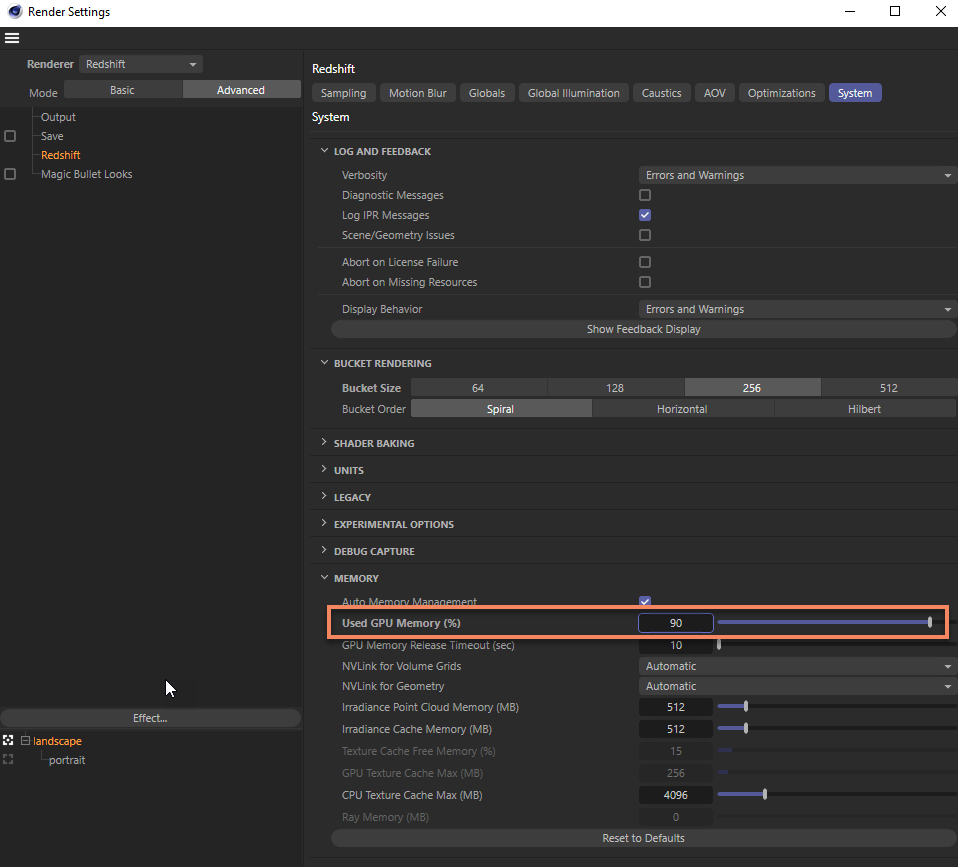
To reduce memory pressure, lower unnecessary texture resolution, use proxies or instances where appropriate, and avoid excessive subdivision or displacement. Redshift’s Feedback Display can help you monitor GPU memory and out-of-core activity while rendering.
Crashes on long animations
If Cinema 4D crashes during a long animation, check whether memory usage grows over time or the crash always occurs at the same frame. Splitting a long job into smaller frame ranges can make failures easier to isolate.
Render to an image sequence instead of one continuous video file. If the render crashes, you can restart from the unfinished frame rather than rendering the entire animation again.
Team Render specific failures
With Team Render, a crash may come from differences between machines rather than the scene itself. Check these three areas first:
- Asset paths: Make sure every render node can access the required textures, caches, and other assets.
- Cinema 4D and plugins: Keep the Cinema 4D version and required plugins consistent across all machines.
- Network connection: An unstable connection between render machines can interrupt Team Render jobs.
If one node fails repeatedly while others render normally, check that machine’s setup first.
The system level causes
Some Cinema 4D crashes come from the system rather than the scene itself. Common areas to check include:
- Windows TDR: Windows may reset the GPU if it stops responding within the timeout period.
- GPU driver: If crashes start after a driver update, test a previously stable version.
- Temperature and power: GPU overheating or unstable power delivery can also cause crashes under sustained render loads.
Be careful with TDR Registry changes. Microsoft states that TDR Registry keys are intended for driver testing and debugging, and end users should not manipulate them. If you are troubleshooting at this level, back up the Registry first and follow Microsoft’s documentation.
When the scene outgrows the machine
If you have ruled out scene, driver, TDR, and Team Render issues but the project still exceeds your local VRAM, RAM, or GPU capacity, the hardware may simply be the limit.
At that point, moving the job to a more powerful workstation or remote GPU server can be more practical than reducing scene quality just to keep the render running.
Use iRender when your local hardware is the limit
If your scene is stable but your local machine keeps hitting its hardware limits, iRender gives you access to a remote RTX 4090 with 24GB VRAM and 256GB RAM for Cinema 4D and Redshift rendering. You have full control over the machine, so you can install the same Cinema 4D, Redshift or any software, plugins, and driver versions as your local workstation.
Available configurations include:
- CPU: AMD Ryzen™ Threadripper™ PRO 3955WX (3.9-4.2GHz) and AMD Ryzen™ Threadripper™ PRO 5975WX (3.6-4.5GHz)
- GPU: 1/2/4/8 RTX 4090
For new users, iRender currently offers a 100% bonus on the first deposit within 24 hrs of registration, giving you additional rendering credits to get started with larger projects.
Your Renders, Your Rules
Source: help.maxon.net, learn.microsoft.com, nvidia.com

Let’s see rendering performance on our servers:


FAQ
1. Why does Cinema 4D crash when rendering with Redshift?
Running out of VRAM is a common cause. Redshift can move some texture and geometry data to system RAM through out-of-core rendering, but it still requires enough free VRAM to operate. Reducing texture resolution, using proxies, and lowering unnecessary subdivision or displacement can help.
2. How do I stop Cinema 4D crashing on long animations?
Split the animation into smaller frame ranges and render to an image sequence instead of one continuous video. If a crash occurs, you can restart from the unfinished frame rather than rendering the whole animation again.
3. Why does Team Render fail midway?
Common causes include inconsistent asset paths, different Cinema 4D or plugin versions across render nodes, and network interruptions. Check that every node has access to the same assets and uses compatible software and plugins before starting a long job.
Related Posts
The latest creative news from Redshift Cloud Rendering, Cinema 4D Cloud Rendering , 3D VFX Plugins & Cloud Rendering.





