
D5 Render Needs a Powerful GPU You Don't Have: Here's the Workaround
“My computer runs D5, but every time I turn on ray tracing, it drops to 8 fps. Is there any workaround?” I see this exact ticket hit our dashboard like clockwork every time D5 Render drops a new update. It usually happens right when an artist takes on a massive master plan or a classic interior project loaded with dense polygons. If you are experiencing this, let me reassure you: you aren’t doing anything wrong. Your graphics card is simply screaming for help, and you need a reliable d5 render gpu requirements workaround to get your workflow moving again. D5 Render delivers beautiful, blazing-fast results, but underneath that sleek interface, it is an absolute hardware hog. If you are stuck with a mid-range local setup and are constantly dealing with viewport lag, stuttering frames, or sudden crashes, you don’t have to suffer through it.
Let’s look at the technical facts and break down the ultimate workaround to get your D5 workflow moving again.
Why does D5 Render need such a strong GPU?
Unlike traditional CPU-based render engines, D5 Render is a real-time renderer built entirely on Microsoft Windows DirectX Raytracing (DXR). This means every single calculation for lighting, reflections, and real-time shadows is thrown directly onto the GPU’s shoulders.
To run D5 Render, your system strictly requires a graphics card with hardware-based ray tracing capabilities and a Windows 10 v1809 operating system or higher. Mac users are usually left out in the cold, forced to rely on Boot Camp, virtual machines, or remote solutions because D5 is completely dependent on the DirectX 12 ecosystem and lacks a native macOS version.
Beyond raw processing power, VRAM (Video RAM) dictates how smooth your experience will be. VRAM is where all your textures, models, foliage, and characters live. While D5 Render uses a smart asset streaming mechanism only fully loading assets within the camera’s field of view to save memory.
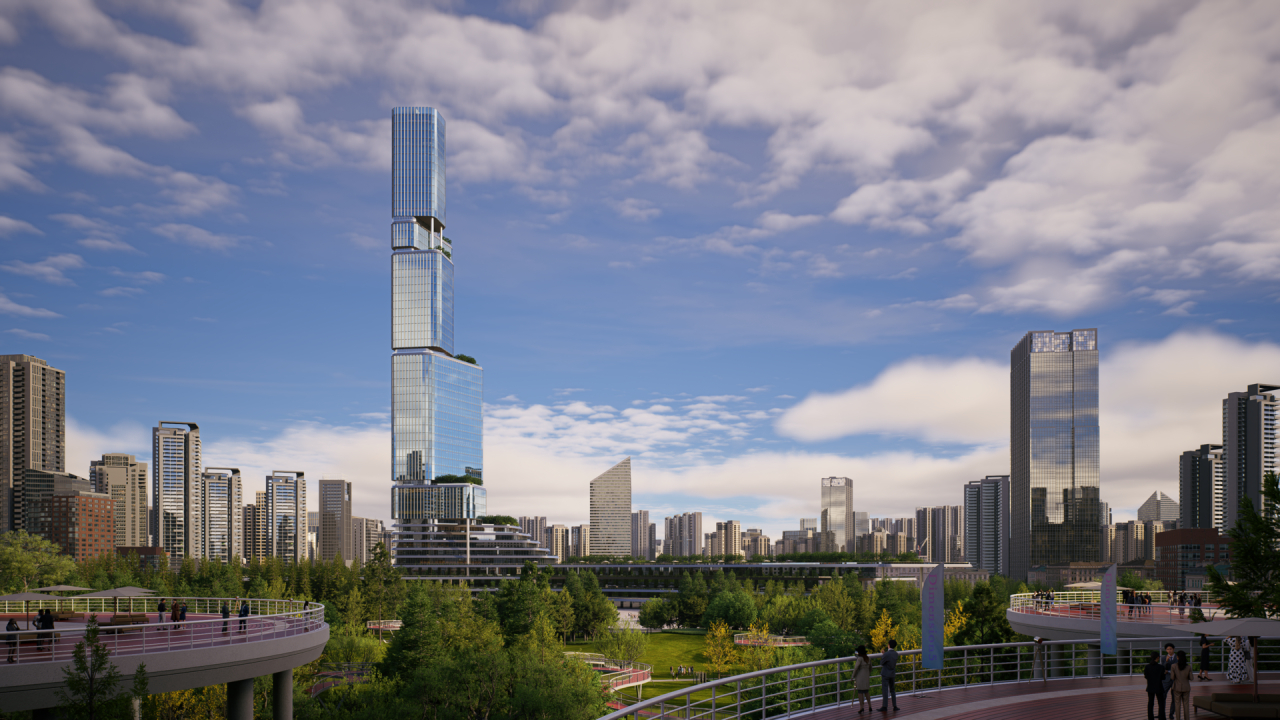
Measure before you spend
Before you pull out your wallet to buy new components or swap your PC, you need to measure your system’s actual capacity. Don’t guess based on gut feeling.
D5 Render includes a built-in performance tool that many artists overlook:
- Open D5 Render and go to the Help > Benchmark menu.
- The software will load a built-in scene called Benchmark Villa and run an automated test.
- Once finished, check the average fps displayed in explore mode.
This fps score is a true reflection of how your hardware holds up under real project pressure. If that number drops into the single digits, your current system is officially overwhelmed.
What you can fix inside D5 first
If buying new hardware right now is out of the question, you can change a few settings inside the software to help your computer survive. Keep in mind that while these tips make your workspace run smoother, they will not magically turn an old graphics card into a supercomputer.
- Turn on DLSS: This is the easiest way to boost speed. It tells your graphics card to process the scene at a lower resolution and uses AI to sharpen it up.
- Lower your preview quality: Switch your viewport settings from High or Ultra down to Medium or Low while you build your scene.
- Clean up your models and textures: Do not use heavy 4K or 8K textures for objects that are far away in the background. Shrink them down to 1K or 2K instead.
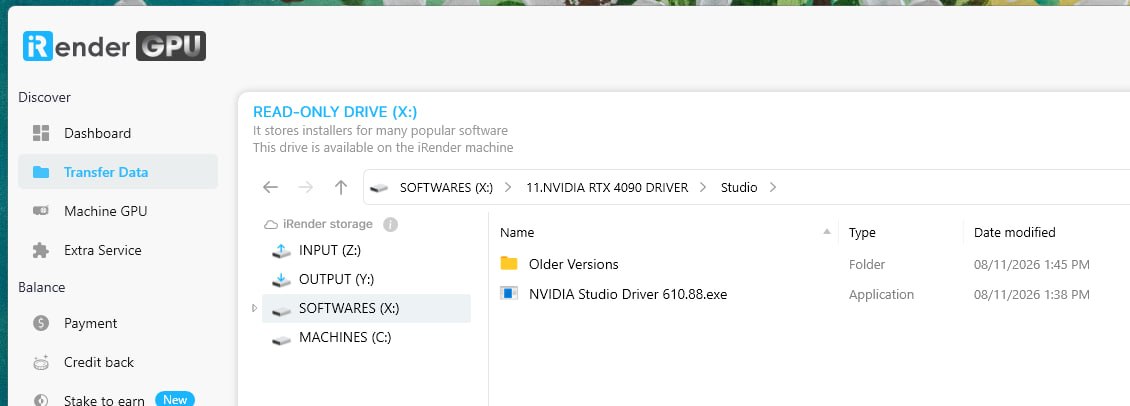
- Update your graphics driver: Make sure you install the latest Nvidia Studio Driver instead of the Game Ready Driver. The Studio version is specifically made to stop creative software like D5 from crashing. If you are working in iRender server, you can update NVIDIA studio like this:
Why buying a second card is the wrong fix
A lot of 3D artists come from a background of CPU rendering or use software like Redshift and Octane. In those programs, there is a very simple rule: if your render times are too slow, you just buy a second graphics card, plug it into your motherboard, and your computer instantly becomes twice as fast. Because of this, when D5 Render starts lagging or crashing, many people immediately think, “I will just buy another mid-range card and run a dual-GPU setup to fix the problem.”
With D5 Render, doing this is a huge mistake that will waste a lot of your hard earned money. D5 Render is designed to use only one graphics card at a time. It completely lacks the code to split the rendering workload across multiple GPUs. If you have an RTX 4060 in your computer right now and you go out to buy a second RTX 4060 to place right next to it, D5 Render will completely ignore the new card. One card will do 100% of the heavy lifting, while the second card sits inside your case doing absolutely nothing. You will have spent hundreds of dollars for zero extra frames per second.
If you have the budget, the golden rule here is to pool all your cash into a single graphics card with the highest performance and largest VRAM possible, rather than splitting it across multiple smaller cards.
The workaround: run D5 on a remote machine
When you have tried every single setting tweak inside your file, your viewport is still lagging, and your project deadline is tomorrow morning, you need a completely different solution.
Because D5 Render needs a full Windows system and requires you to move around the screen in real time, you cannot use traditional render farms. The old-school farms work by having you upload your file to a website, waiting in line, and downloading the finished pictures later. D5 cannot do that. It absolutely requires a live, working computer desktop with a powerful graphics card that you can see and control while you work.
This is exactly where our service at iRender comes in handy. Instead of dropping thousands of dollars on expensive new PC parts at the store, you can simply rent a super-powerful Windows computer. You connect to it via Remote Desktop, then you install D5 render and render as you do on your own computer.
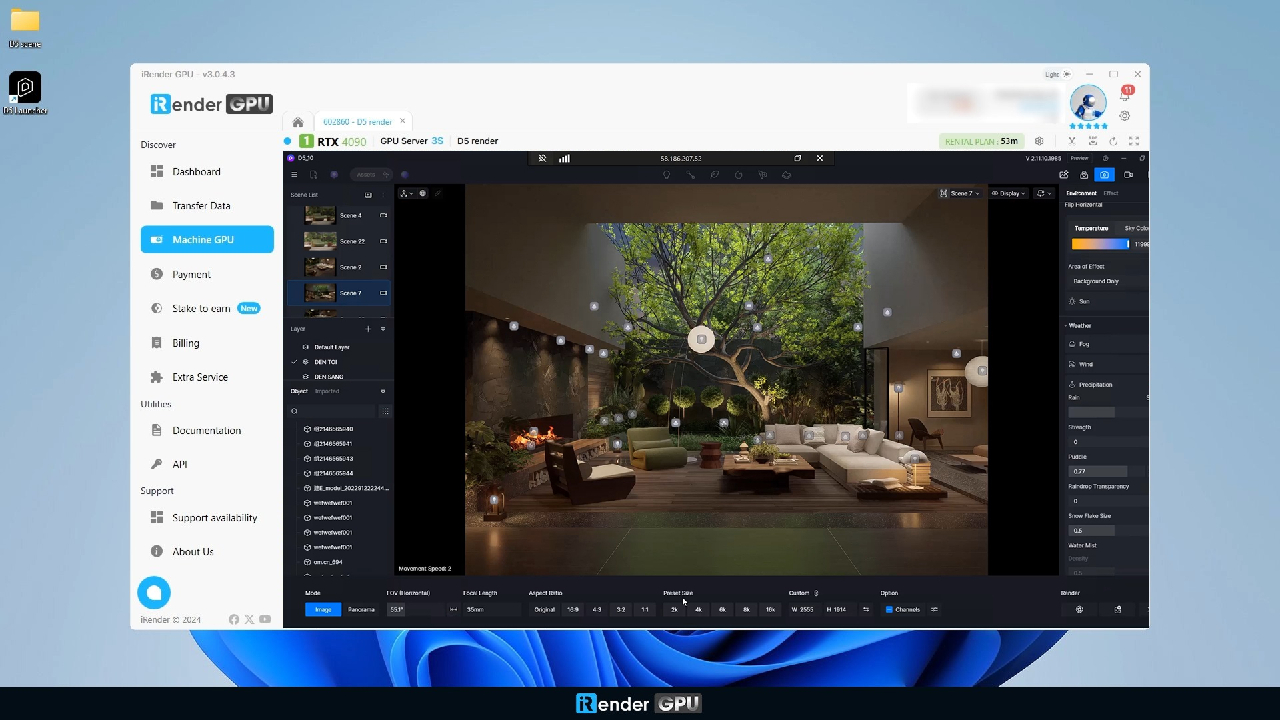
Speed up your D5 rendering Performance with iRender
With iRender, you have instant access to a powerful Cloud PC packed with the NVIDIA RTX 4090 graphics cards. You will take full command of a remote environment that behaves exactly like a local supercomputer and install your specific version of D5 Render then add your license and render yourself.
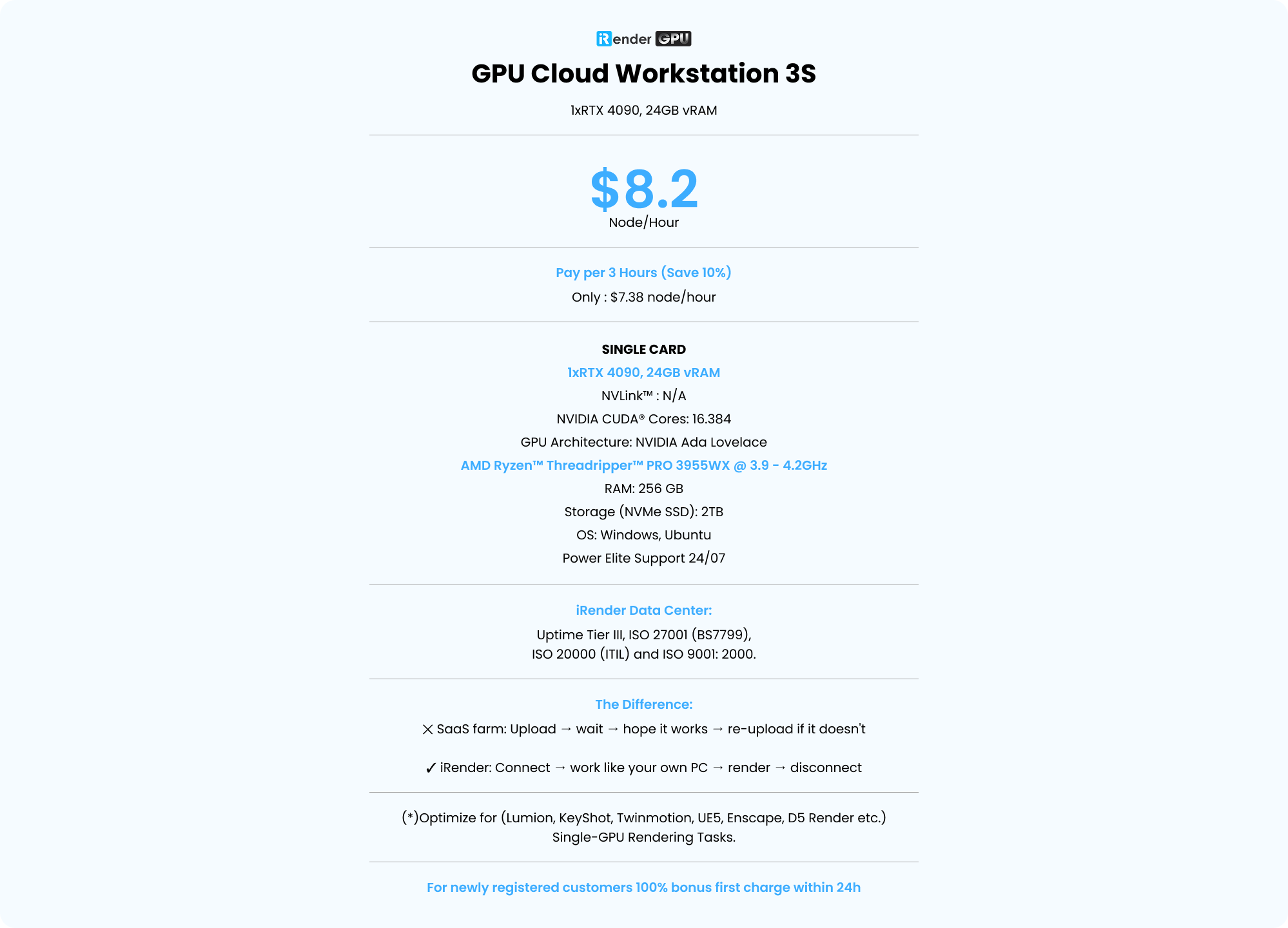
Lumion just uses single gpu to render. Using multi-gpu only wastes your money without booting up your render time. Therefore, the most suitable package for Lumion is GPU SERVER 3S 1x RTX 4090, with the detailed configuration below:
👉 Claim Your 100% First Top-Up Bonus and Run D5 on iRender Now
Let’s check out this quick walkthrough to see how our service works:

FAQ
- What GPU do I need for D5 Render?
You need a graphics card that supports hardware-based ray tracing (such as the Nvidia RTX series or AMD Radeon RX 6000 and above) with a minimum of 6GB VRAM for light scenes. Check the official system requirements on the D5 website and run the built-in Benchmark Villa tool to see exactly where your current hardware stands.
2. Does D5 Render support multiple GPUs?
No. D5 Render only recognizes and processes tasks on a single graphics card. Adding a second card to your system will not improve your viewport fps or reduce rendering times. Focus your budget on a single card with the best power and VRAM capacity available.
3. Can I run D5 Render on a Mac or on a render farm?
D5 Render does not have a native macOS version and cannot be used on traditional SaaS render farms due to its need for real-time user interaction on a Windows desktop. The most effective workaround for Mac users or those with weak computers is to rent a remote Windows workstation (like iRender) to install and run the software directly.






