
How to Mirror Objects in Twinmotion
Twinmotion is one of the most popular real-time visualization tools for architects, designers, and visualization artists. It handles scene building fast and intuitively, but one question that comes up regularly is: how do you mirror or flip an object?
Unlike move, rotate, and scale, mirroring is not something Twinmotion has always handled with a dedicated button.
In this article today, we will explore both the new Mirror Tool introduced in Twinmotion 2025.1, and the Transform Panel workaround that still works in all older versions.
Why Mirroring Matters in Architectural Visualization
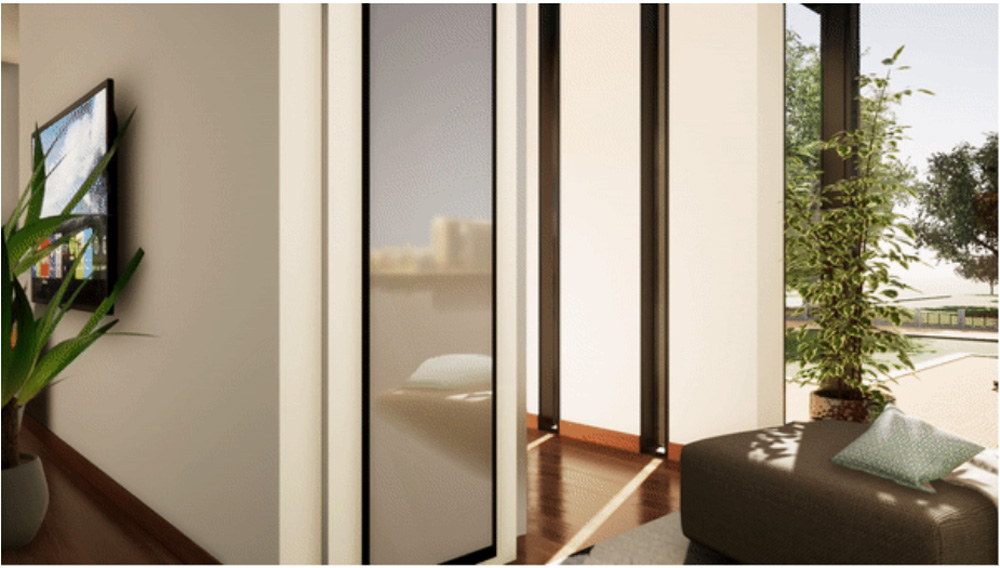
Image Source: Epic Games
Symmetry is everywhere in architecture. A building facade with mirrored wings, a street scene with trees planted on both sides, a corridor with identical furniture arrangements on left and right, all of these benefit from mirroring rather than manual repositioning. Doing it correctly saves time and ensures geometric precision that manual placement cannot guarantee.
Method 1: Using the Mirror Tool (Twinmotion 2025.1 and Later)
Starting from Twinmotion 2025.1, a dedicated Mirror Tool is available that lets you mirror imported geometry and selected categories of Twinmotion objects.
How to Access It
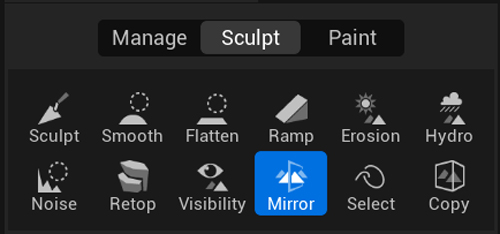
The Mirror Tool appears in the toolbar alongside the existing move, rotate, and scale controls. Select your object, activate the Mirror Tool, choose your axis, and Twinmotion generates a mirrored version.
Merge Modes
The tool offers three merge modes. Merge Objects combines the original and mirrored copy into a single object. New Objects creates an independent copy separate from the original. Auto merges the copy with the original if they are in contact, and creates a new independent object if they are not.
For most architectural use cases, New Objects gives you the most flexibility since the mirrored copy stays independently editable.
Limitations of the Mirror Tool
The Mirror Tool always creates a copy of the original object. It does not flip the original geometry in place. If you need to flip an object in place without generating a duplicate, the Transform Panel workaround below is still the correct approach.
Objects that have translators or rotators linked to them will maintain those links after using the Mirror Tool.
Method 2: Using the Transform Panel (Twinmotion 2024.1 and Older)
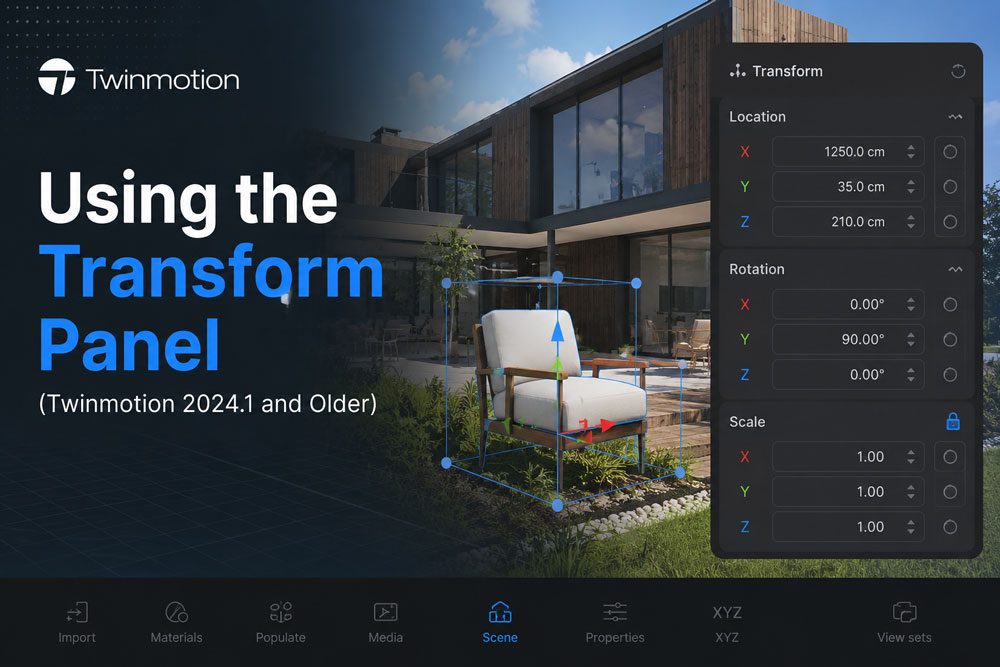
For users on older versions, Twinmotion does not include a dedicated mirror or flip tool, but you can still mirror any imported geometry using the Transform Panel by applying a negative scale value.
Step-by-Step
Select the object, geometry, or container (folder) you want to mirror.
- Open the Transform Panel.
- Locate the Scale field. It shows three values corresponding to the X (red), Y (green), and Z (blue) axes.
- Add a minus sign (–) to the scale value on whichever axis you want to flip the object along. For example, entering –1 on the X axis flips the object horizontally.
To reverse the mirror, remove the minus sign from that scale value.
The interface looks slightly different depending on your version:
- Twinmotion 2019 to 2022: scale fields are accessible in the older properties panel layout.
- Twinmotion 2023 to 2025: the Transform Panel has a cleaner layout, but the same negative-scale logic applies.
Limitations of This Method
This approach has several practical constraints. First, you cannot mirror a copy directly; you need to duplicate the object first, then apply the negative scale to the duplicate. Second, there is often a temporary graphics glitch immediately after flipping, where the object appears translucent or loses its materials. Clicking anywhere else in the scene resolves it. Third, you can only flip one object or container at a time; multiple selections are not supported. If you need to mirror a group of objects, place them all inside a single container folder first.
Render Your Twinmotion Scenes Faster with iRender
Once your scene is set up with correctly mirrored geometry, well-placed assets, and refined materials, the next step is producing the final output. Twinmotion’s real-time viewport gets you there visually, but exporting high-resolution stills, panoramas, or animations at production quality is a GPU-intensive process.
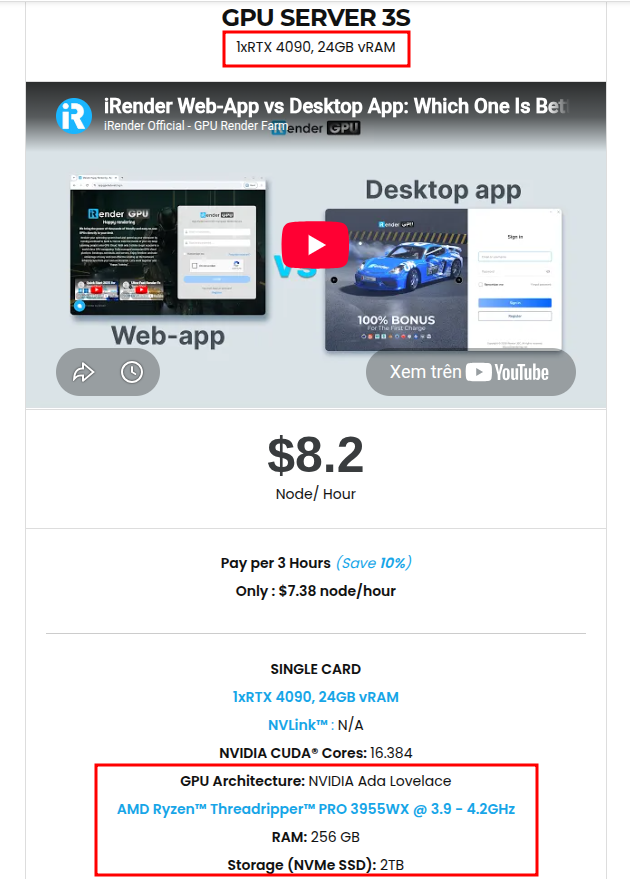
iRender provides a remote machine rental service by offering flexible configurations of 1, 2, 4 GPU machines using the top-tier RTX 4090. Built with powerful CPUs (AMD Ryzen™ Threadripper™ PRO 3955WX @ 3.9 – 4.2GHz and AMD Ryzen™ Threadripper™ PRO 5975WX @ 3.6 – 4.5GHz), 256GB RAM, and 2TB NVMe SSD storage, our machines can handle even the most demanding scenes in your 3D projects.
We treat your rented machines like your personal workstations – no restrictions apply. This freedom enables you, 3D artists, to realize creative visions without limitations. Moreover, iRender offers an iRender GPU app. In this all-in-one application, you can free your workflow from accessing iRender website, and just have to work on the iRender GPU app. This app is only for Windows users.
As far as we know, Twinmotion only uses 1 GPU for rendering. So you can refer to our configuration of the server single card 4090:
Enjoy our FREE TRIAL to try our RTX 4090 machines and boost your rendering now!
For more detailed information, please contact us via Live chat or WhatsApp: +(84) 912-785-500 or Email: [email protected].
iRender – Happy Rendering!
[/vc_section]






