
GPU Driver Crashes Mid-Render: Drivers, Timeouts and TDR Explained
Your screen flickers black, the render stops, and Windows may report that the graphics driver has recovered. A GPU driver crash like this does not always mean your GPU is failing. It could be a TDR timeout, a driver issue, or a VRAM limit, and each needs a different fix. This guide explains how to tell them apart, why heavy renders can trigger TDR, and what to check before changing Windows settings or upgrading your hardware.
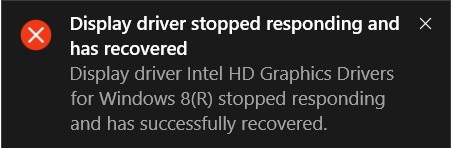
What is actually happening when the screen flickers and the render dies?
When Windows detects that the GPU is not responding within the allowed time, Timeout Detection and Recovery (TDR) may reset the graphics driver to restore system responsiveness. This can cause a brief black-screen flicker and interrupt the GPU workload, making the current render fail.
Three different failures people confuse
A GPU driver crash can look similar to other GPU problems, but the symptoms can help narrow down the cause:
- Out of VRAM: The application reports an out-of-memory error, stops rendering, or closes when available GPU memory is exhausted.
- TDR timeout: The render freezes, the screen may briefly flicker or go black, and Windows may recover the graphics driver.
- Driver instability: Crashes repeat across different GPU-accelerated applications, not just one renderer or scene.
Why heavy renders trip the timeout
A heavy render can keep the GPU busy with demanding work for long periods. Complex scenes, high resolutions, and computationally expensive render tasks can increase the chance that Windows detects the GPU as unresponsive and triggers TDR.
Slower GPUs may take longer to complete the same workload, so they can reach the timeout threshold more easily during demanding renders.
Adjusting the timeout, carefully
Windows exposes TDR settings such as TdrDelay in the Registry, but Microsoft states that these keys are intended for driver development, testing, and debugging, and that end users should not manipulate them.
If you are troubleshooting TDR, back up the Registry first and follow Microsoft’s documentation rather than copying arbitrary values from forums. Changing the timeout affects Windows behavior and may only hide the symptom while an overloaded GPU, unstable driver, or other underlying problem remains.
The driver checklist
Driver problems are another common source of a GPU driver crash. Start with these checks:
- Update the driver: Install a current stable driver from NVIDIA.
- Roll back if needed: If crashes started immediately after an update, test an older stable version.
- Prefer Studio Drivers: NVIDIA Studio Drivers are aimed at creative applications and workflows.
- Try a clean installation: Reinstalling the driver cleanly can remove configuration or driver remnants that may be causing conflicts.
When the card is simply being asked too much
If crashes happen only on your heaviest scenes, the GPU itself may be reaching its practical limits. Large textures, complex geometry, high resolutions, and demanding GPU render workloads can put more pressure on VRAM and processing resources.
Once scene optimization is no longer enough, moving the render to a more powerful GPU workstation or remote GPU server can be more practical than repeatedly lowering quality.
Use iRender to isolate a hardware problem
If you suspect your local GPU is the problem, iRender can also serve as a controlled test environment. Run the same scene on a remote RTX 4090 with 24GB VRAM, using the same software version and driver where possible. You have full control over the machine just as if you were working on your own workstation. If the render completes remotely but repeatedly crashes locally, that comparison can help narrow the problem toward your local GPU, driver, or system configuration.
Available configurations include:
- CPU: AMD Ryzen™ Threadripper™ PRO 3955WX (3.9-4.2GHz) and AMD Ryzen™ Threadripper™ PRO 5975WX (3.6-4.5GHz)
- GPU: 1/2/4/8 RTX 4090
For new users, iRender currently offers a 100% bonus on the first deposit within 24 hrs of registration, giving you additional rendering credits to get started with larger projects.
Your Renders, Your Rules
Source: learn.microsoft.com, projects.blender.org

Let’s see rendering performance on our servers:


FAQ
1. What is TDR and why does it kill my render?
TDR stands for Timeout Detection and Recovery, a Windows mechanism that detects an unresponsive GPU and attempts to reset the graphics stack. That recovery can interrupt an active render and cause the current job to fail.
2. How do I tell a TDR crash from an out-of-memory crash?
A TDR event often involves a brief screen flicker or black screen as Windows resets the graphics driver. An out-of-memory failure is more likely to report a VRAM or memory allocation error. Always check the actual error message rather than relying on symptoms alone.
3. Should I always install the newest GPU driver?
No. A newer driver can include fixes and improvements, but new releases can also introduce regressions. If crashes begin immediately after an update, testing a previously stable driver is a reasonable troubleshooting step.
Related Posts
The latest creative news from Blender Cloud rendering.





