
Heavy Textures and Displacement Are Crashing Your Render: What to Do?
You press the render, and see frozen screen, an out-of-memory error, or worse, a complete desktop crash. If this sounds painfully familiar, you’re not alone. High-resolution 8K textures and deep displacement maps bring incredible realism to your 3D scenes, but they are also affected heavily on hardware. Before you start deleting assets or eyeing an expensive GPU upgrade, you can read our article below.
In this guide, we’ll break down why heavy textures and displacement are choking your render engine and some steps you can take to fix it without sacrificing visual quality.
Why do heavy textures and displacement crash a render?
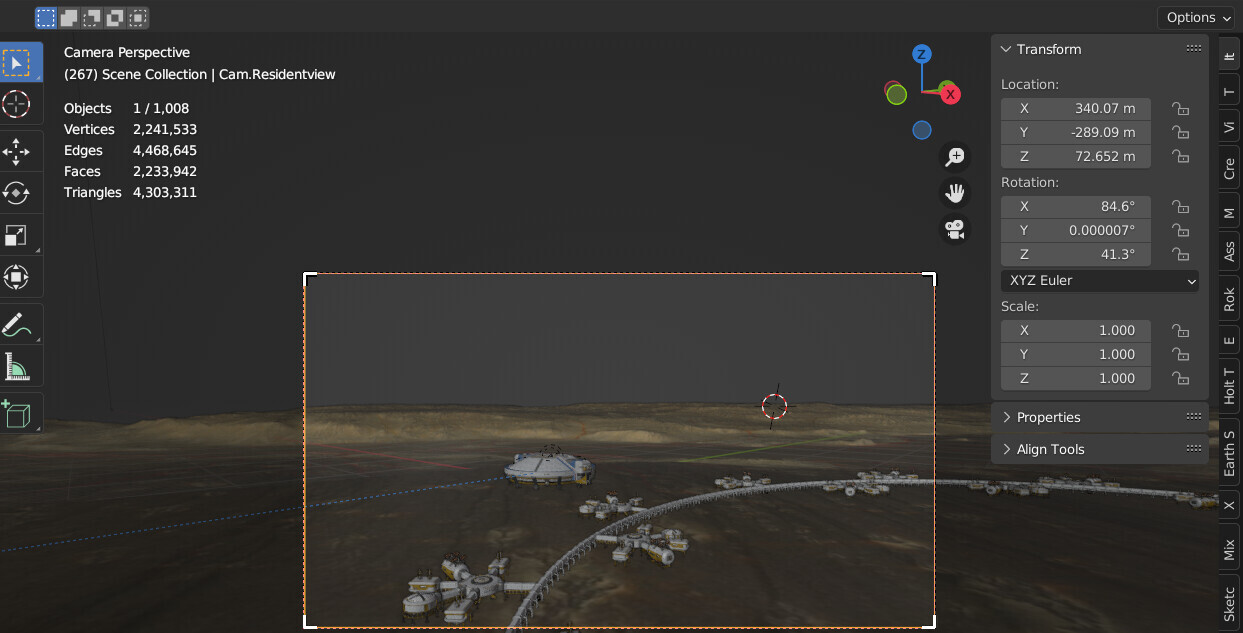
Blender 3.3. - GPU out of memory
To put it simply: heavy textures devour your VRAM, while true displacement triggers a polygon explosion. When you hit “Render,” your render engine must load all scene assets directly into your GPU’s memory (VRAM). Heavy, uncompressed 8K PBR map packs (Base Color, Normal, Roughness, Specular) take up gigabytes of space in their raw bitmap format. Simultaneously, true displacement doesn’t just fake depth—it physically subdivides flat meshes into tens of millions of micro-polygons (tessellation) at render time to create real geometry. When you combine multiple 8K texture sets with millions of dynamic micro-polygons, your scene memory footprint drastically exceeds what your graphics card can physically hold. And this is the reason why the render crashes.
In addition, we need to clearly distinguish between crashes caused by VRAM full and crashes caused by system RAM being depleted.
- GPU VRAM is hyper-fast but extremely strict. The moment your render engine requests even 1MB more VRAM than your GPU possesses, it will either trigger an Out-of-Core fallback (which slows rendering down to a crawl) or immediately crash the GPU driver.
- System RAM acts as the scene’s staging area. Before anything reaches the GPU, the CPU builds the scene structure and calculates the BVH (Bounding Volume Hierarchy) tree here. If your heavy displacement generates so many polygons that your System RAM fills up completely, the operating system will forcefully close software to prevent blue screen.
Displacement is not the same as bump or normal
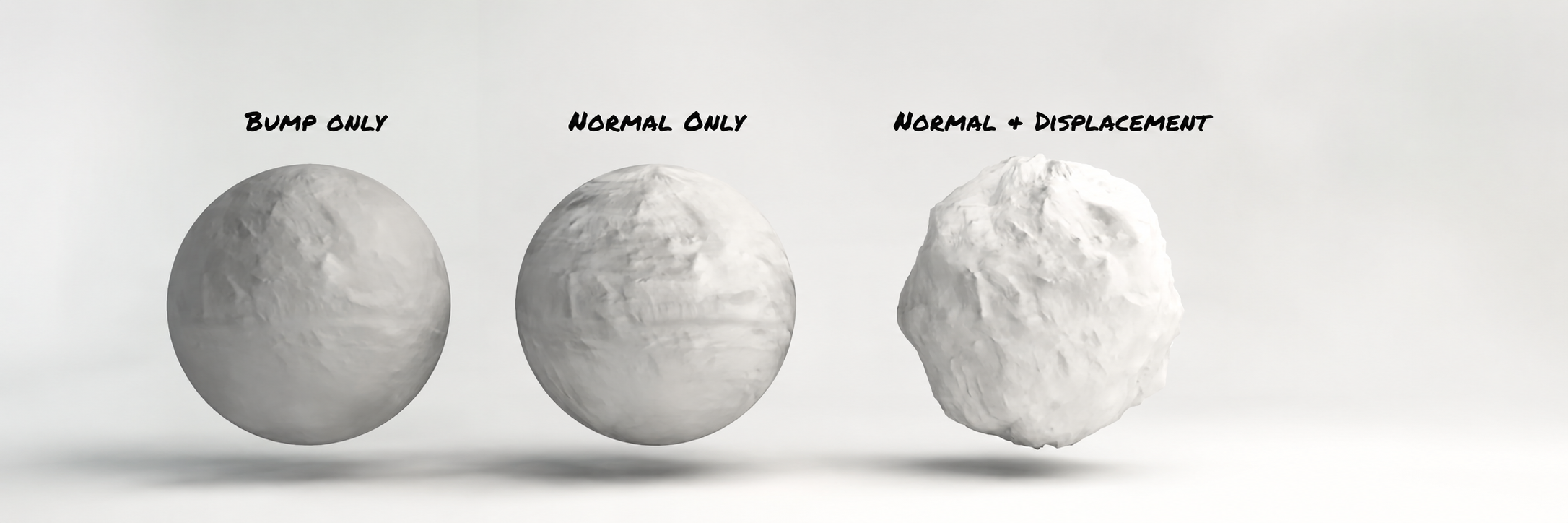
It’s the single biggest lever for fixing a displacement-related crash.
Bump and normal maps are a visual trick. They tell the shader how light should bounce off a surface to look rough or detailed, but the underlying mesh never changes. Because no new geometry is created, the memory cost is close to negligible, just the texture map itself sitting in VRAM.
True displacement, sometimes called microdisplacement depending on the renderer, subdivides the actual mesh according to the displacement map at render time. The wireframe genuinely gets denser, the silhouette genuinely changes, and the polygon count can explode from a few thousand to several million on a single object. That’s geometry that needs real memory, and it scales directly with how aggressive your subdivision settings are.
The practical fix is lowering the subdivision level or increasing the edge length reduces the polygon count while keeping most of the visual detail intact. Save true displacement for surfaces where the silhouette genuinely needs to break, like rock, terrain, or chunky mechanical detail, and let bump or normal handle the rest.
Taming heavy textures
Taming heavy textures isn’t about lowering visual quality, it’s about eliminating pure VRAM waste. Start by matching texture resolution directly to camera distance, reserving crisp 4K or 8K maps strictly for close-up hero assets while aggressively downscaling background props to 1K or 2K. To optimize high-detail models, leverage UDIMs to distribute resolution only where it counts rather than relying on massive single sheets. And you can convert raw, uncompressed files (.PNG/.TGA) into streaming-friendly formats like .tx or tiled .exr for dynamic mipmapping, and strip out unnecessary PBR maps (like redundant AO or Specular layers) that add no real visual impact.
When the scene just needs more memory
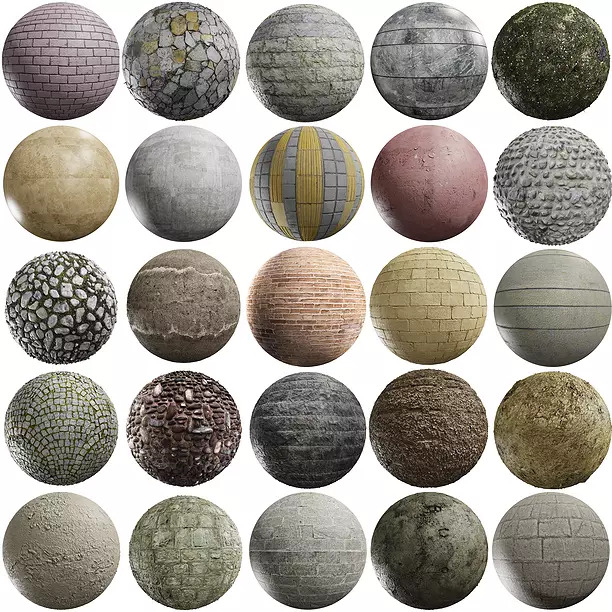
Texture 3D Modesl - Source: CGTrader
Sometimes the textures are already reasonable, the subdivision is already sensible, and the scene still needs more memory than the local machine has.
Out-of-core rendering, available in Redshift and a few other renderers, pages textures and geometry out to system RAM when VRAM runs low. The core ray tracing structures, BVH data, and frame buffers still need dedicated VRAM regardless of how much paging is happening, and pushing out-of-core too hard can simply shift the bottleneck from VRAM to system RAM instead of solving it.
One thing worth being explicit about: VRAM does not stack across multiple GPUs for a single frame. Two 24GB cards are two separate 24GB pools, not a combined 48GB space for one scene. If a frame genuinely needs more than 24GB, adding a second card to the same machine doesn’t fix that particular problem; the options are a GPU with more VRAM per card, out-of-core with enough system RAM behind it, or a lighter scene. This is usually the point where studios start looking at cloud rendering instead of buying new hardware outright, since the machine specs can be matched to what the scene actually needs.
iRender’s server has RTX 4090 24GB cards with 256GB of system RAM, which gives a genuinely large buffer for out-of-core paging when textures and displacement both get heavy. The renderer and plugin versions installed can be matched to whatever setup the scene was built in, so there’s no surprise version mismatch mid-render. However, 24GB per card is still 24GB per card. A single oversized texture or a subdivided displacement can still hit that ceiling no matter how much system RAM sits behind it; when that happens, the fix is still reducing what the frame demands, not just adding more hardware.
For projects built around large texture or model libraries, at iRender, you upload those assets once and have them already sitting on the machine for every future session, rather than re-uploading the same 40GB texture set every time a scene needs another pass.
iRender Farm Help To Boost Your Render Projects
iRender Farm gives 3D artists and studios full control over dedicated RTX 4090 servers, so every project runs on its own software, plugins, and pipeline instead of being squeezed into a fixed template. Currently, iRender has a new promotion: new accounts get a 100% bonus on their first deposit within 24 hours. Paying for 3 hours or more of usage brings an automatic 10% discount.
Don’t hesitate, start render now!
Check out some of iRender’s test on RTX 4090:


FAQ
1. Why does turning on displacement crash my render?
True displacement subdivides the mesh into a much larger number of polygons at render time. If that added geometry, combined with whatever textures are already loaded, exceeds available VRAM or system RAM, the render crashes or fails outright.
2. How do I reduce VRAM from heavy textures?
Match texture resolution to how close the camera actually gets, keep UDIM tile counts reasonable, use compressed tiled formats where supported, and remove any texture maps that affect final results.
3. Does adding a second GPU fix a displacement out-of-memory error?
No. VRAM does not pool together across GPUs, two 12GB cards still only give you 12GB of usable space. Every card must hold the entire scene. To fix the crash, you need to lower your displacement subdivision, turn on out-of-core rendering to use system RAM, or upgrade to a single GPU with higher VRAM.






