
How to fix the “trees jump up and down” issue in Unreal Engine
When you are rendering in Unreal Engine, seeing trees jump up and down can be confusing and frustrating—especially when everything else in your world looks stable. Fortunately, this problem is common and usually easy to fix once you understand what’s causing it.
In this blog, iRender will look at the top reasons why trees jump in Unreal Engine and suggest some solutions to fix the issue.
Describe the issue
The “trees jumping up and down” issue happens when trees placed in your Unreal Engine scene suddenly bounce, jitter, or move vertically instead of staying fixed in the ground. It looks like the trees are trying to reposition themselves every frame. You can look at the picture below:
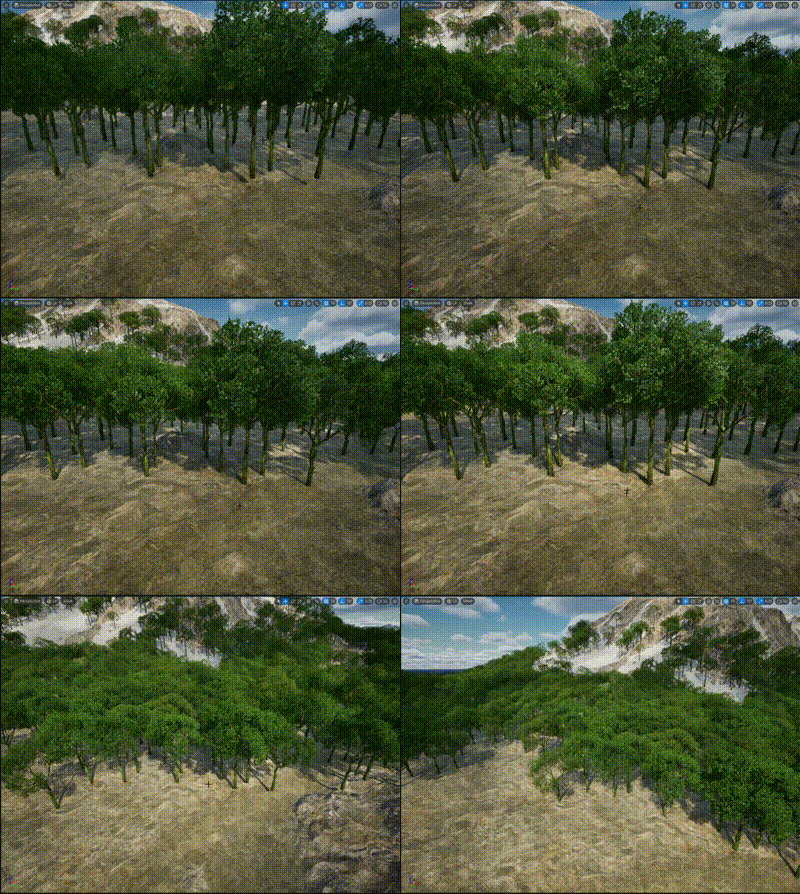
Why does it happen?
This problem usually comes from one of a few common setup errors:
- Physics is enabled on the tree mesh: If a tree has Simulate Physics turned on, the engine treats it like a movable object. The physics system tries to settle it on the ground, causing repeated bouncing.
- Incorrect collision on the tree: If the tree’s collision shape is too small or the wrong shape, Unreal keeps trying to correct the tree’s position, causing vertical jitter.
- LOD or Nanite transitions (UE5): LOD changes or Nanite updates can cause a tree to shift position slightly, appearing as a jump.
- Procedural foliage overlap: If trees are spawned too close to each other, they may “fight” for space and move slightly when the engine resolves collisions.
How to Fix the “Trees Jumping Up and Down” issue in Unreal Engine
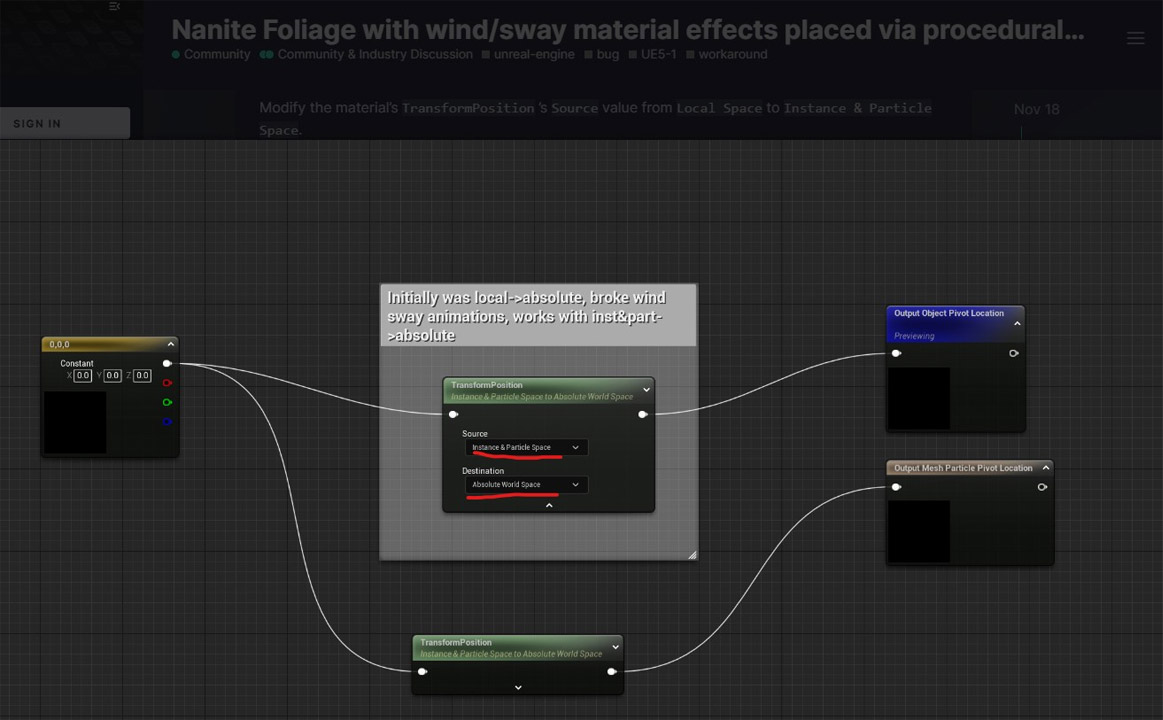
Edit MF_SimpleWind (Unreal Engine)
If your project uses the material function MF_SimpleWind, you can fix the issue by updating how the tree’s pivot point is calculated.
To fix this, open MF_SimpleWind, go to the Main Rotator section, and inside ObjectPivotPoint, change the Transform Position node:
- Source = Instance & Particle Space
- Destination = Absolute World Space
This ensures the wind uses the correct world position and stops the unwanted movement.
Disable Physics on Tree Meshes
If physics is turned on for a tree mesh, Unreal Engine will treat the tree like a movable object. When it tries to settle onto the terrain, it may “bounce” repeatedly.
- Open your tree Static Mesh.
- In the Details panel: turn Simulate Physics OFF and turn Enable Gravity OFF.
- Save the mesh.
If you’re using the Foliage Tool, select the foliage instance and make sure Physics Simulation is disabled there too.
Wrap Up
The “trees jumping up and down” problem in Unreal Engine is usually easy to fix once you know the causes. Most of the time, it comes from physics, collision issues, or wind settings like the ones in MF_SimpleWind. By adjusting these settings, you can stop the trees from moving and make your scene look stable and natural again.
Speed up your Unreal Engine projects with iRender farm
iRender is considered one of the best render farms for Unreal Engine because it provides powerful, dedicated GPU servers that work just like a high-end personal workstation. You can install any Unreal Engine version, use all your plugins, and render with features like Lumen and the Path Tracer smoothly.
Why choose iRender for Unreal Engine?
- GPU Power on Demand
- Full Control, Real-Time Access
- Flexible price
- Free Transferring tools: iRender GPU app
- Fast Support
As we all know that Unreal Engine only uses single card to render, we suggest you use our server 3s single card RTX 4090. You can check its configuration below:

Our server 3s is fixed rental for one hour, which costs 8.2$ per hour. It is equiped with strong CPU AMD Ryzen™ Threadripper™ PRO 3955WX @ 3.9 – 4.2GHz, RAM 256GB, 24 GB V-RAM, storage upto 2TB.
Let’s see how Unreal Engine performs on our powerful servers. You will see the speed and performance.


We’re excited to welcome new users with an exclusive 100% Bonus Program. You should deposit after your registration, and we’ll double your credits instantly — giving you twice the value to explore and enjoy! Don’t miss out — recharge today and make the most of your first deposit!

Register an account today to experience our service or contact us via the email [email protected] or WhatsApp: (+84) 912075500 for advice and support.
iRender – Happy Rendering!
References: unrealengine
Related Posts
The latest creative news from Unreal Engine Cloud rendering.






