
Lumion on RTX 5090: Is It Worth Upgrading for Faster Renders?
EXECUTIVE SUMMARY // KEY PRODUCTION TAKEAWAYS
- The VRAM Memory Wall: Running out of Video RAM during complex 4K animation exports is the primary trigger for Lumion viewport freezes and out-of-memory crashes. The RTX 5090’s 32GB GDDR7 frame buffer provides an essential 8GB memory cushion over the RTX 4090, allowing large-scale urban master plans, uncompressed 8K materials, and heavy foliage scattering to render without memory bottlenecks.
- The Single-Thread CPU Bottleneck: A powerful GPU alone cannot bypass rendering delays if paired with an underpowered processor. Lumion relies heavily on single-core CPU execution for draw calls, scene loading, and asset placement; maintaining a single-thread CPUMark score above 3000 is required to keep the RTX 5090 fully saturated.
- Production Driver Stability: Early GPU architecture rollouts require careful driver management. Content creators must utilize NVIDIA Studio Drivers rather than Game Ready drivers to prevent ray-tracing export crashes, while keeping previous driver installation packages locally for immediate rollbacks.
- The Dedicated IaaS Workstation Solution: Because Lumion is an interactive real-time engine requiring direct viewport control, automated SaaS upload-and-render farms cannot execute its pipeline. Deploying native Lumion files on dedicated IaaS Cloud Workstations (1x RTX 5090 32GB GDDR7 / AMD Threadripper Pro) eliminates local hardware costs while allowing artists to offload heavy 4K animation queues on demand.
Your 2-minute 4K flythrough video for a client pitch is only 40% rendered, and Lumion throws an out-of-memory error, freezing your viewport. You stare at your screen wondering if dropping a few thousand dollars on an NVIDIA GeForce RTX 5090 with 32GB VRAM will instantly solve your deadlines forever.
In practical, RTX 5090 looks like a monster with its Blackwell architecture and massive GDDR7 memory. However, Lumion’s performance relies on a delicate balance between graphics processing, single-thread CPU speed, and scene optimization. Let’s break down whether upgrading to an RTX 5090 actually delivers the rendering speed you expect, or if a different setup makes more sense for your workflow.
Is RTX 5090 worth it for Lumion?

Image Source: Lumion
The answer is RTX 5090 is worth it if you regularly handle massive architectural scenes that exceed 16GB–24GB of VRAM, render long 4K flythrough videos under tight deadlines, and already pair it with a top-tier single-core CPU.
On the flip side, upgrading to an RTX 5090 will not solve your rendering delays if your CPU single-thread performance is bottlenecking your system, if your projects are moderate in size, or if you only need maximum rendering power a few weeks out of the entire year.
What Lumion actually uses your GPU for
Unlike CPU-based offline renderers, Lumion is a real-time 3D engine that relies almost entirely on a single graphics card to drive everything you see and create.
Here is how Lumion leverages your GPU hardware across your daily production tasks:
- Real-Time Viewport Navigation: As you fly through a scene, your GPU handles rasterization, lighting, reflection maps, and heavy foliage scattering at responsive frame rates.
- Ray Tracing Rendering: Lumion’s hybrid ray tracing engine computes realistic light bounces, soft shadows, and glass refractions directly on your GPU’s RT cores.
- VRAM Data Allocation: Your graphics card’s Video RAM (VRAM) holds 3D meshes, high-resolution texture maps, animated characters, plant models, and sound assets. Running out of VRAM is the primary reason Lumion stutters, drops to single-digit viewport FPS, or crashes outright during final output.
- Final Image and Video Exports: When generating 4K stills or 60fps animations, Lumion pushes your GPU cores to near 100% capacity to calculate lighting, atmospheric effects, and depth-of-field frame by frame.
Check Your Bottleneck First: GPU, VRAM, or CPU
You should take 10 minutes to diagnose where your current machine is struggling. Lumion requires strong performance from both your graphics processor and your central processor.
- Open your heaviest, most complex Lumion project.
- Launch Windows Task Manager (Ctrl + Shift + Esc) and switch to the Performance tab.
- Set your video export settings to 4K resolution and hit render.
- Observe the activity graphs across GPU, Dedicated GPU Memory, and CPU.
How to Interpret Your Diagnostic Results
| Task Manager Reading | Primary Bottleneck | What It Means for Your Setup |
| GPU at 98%–100%, VRAM has headroom | GPU Compute Limit | Your graphics card is working at full capacity. Moving to a faster card like the RTX 5090 will directly decrease render times. |
| Dedicated VRAM at 95%–100%, system freezing | VRAM Exhaustion | Lumion is overflowing geometry and textures into system RAM, slowing output to a crawl or crashing. You need more VRAM (e.g., 32GB on the 5090). |
| GPU at 30%–60%, one CPU core at 100% | CPU Single-Thread Limit | Your processor cannot feed scene data fast enough to your graphics card. A faster GPU will sit idle waiting for the CPU. |
Lumion places heavy demands on single-thread CPU speeds for tasks like scene loading, physics calculations, object placement, and scene tree management. Lumion officially recommends a single-thread CPUMark score of around 3000 or higher for high-end production machines. If your CPU falls short of this baseline, upgrading your GPU alone won’t deliver the speed boost you are expecting.
RTX 5090 vs RTX 4090 vs RTX 3090 in Lumion
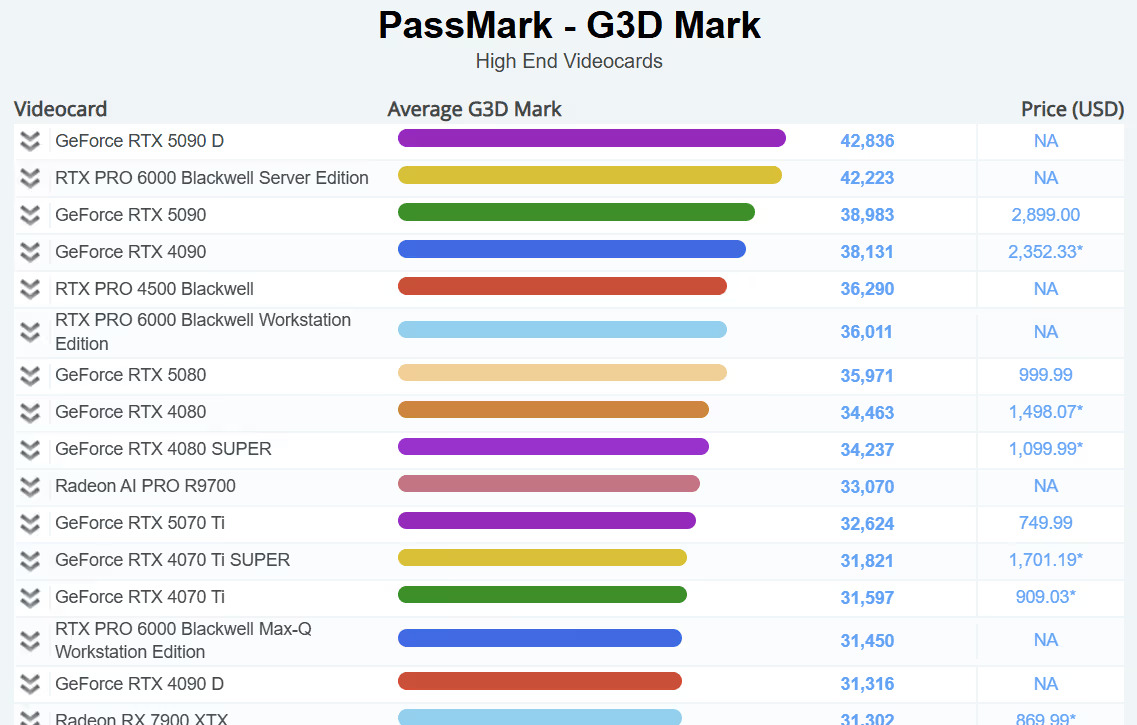
Image Source: MyArchitectAI
Lumion categorizes top-tier GPUs including the RTX 5090, RTX 5080, RTX 5070 Ti, RTX 4090, RTX 4080 SUPER, and RTX 3090 into its highest hardware tier, recommending at least 16GB of VRAM for heavy production work.
The primary operational advantage of RTX 5090 over its predecessors is not just raw core clock speed—it is the extra headroom provided by 32GB of GDDR7 memory. That extra 8GB of VRAM allows architectural visualizers to load high-poly 3D assets, uncompressed 8K texture packs, and expansive landscape models without hitting stability walls.
Driver Issues Lumion Users Encounter on RTX 50 Cards
Upgrading to brand-new hardware architecture often comes with early software driver challenges. Shortly after the launch of NVIDIA’s RTX 50 series cards, testing groups like Puget Systems documented issues where specific display drivers (such as version 576.02) caused Lumion 2024 and Lumion 2025 to crash or fail during ray-traced video exports.
Stick to NVIDIA Studio Drivers: Avoid installing Game Ready Drivers on production workstations. Studio Drivers undergo stricter stability testing for content creation applications like Lumion, Autodesk Revit, and 3ds Max.
Keep Previous Installation Packages: Always keep the installer file (.exe) of your previous stable driver version stored locally so you can perform a rollback if a new driver introduces viewport glitches or rendering crashes.
Avoid Updating Mid-Project: Never update graphics drivers right before an essential project delivery or client presentation. Test driver stability on secondary machines first.
Lumion Settings Worth Turning Up on a 32GB Card
Once you have a 32GB frame buffer like the RTX 5090 at your disposal, you can dial up specific graphics settings that were previously off-limits on older 10GB or 12GB cards.
- Ray Tracing Quality Sample Counts: Increase ray tracing sample counts to reduce noise in complex interior bounces and glass refractions without worrying about VRAM memory overflows.
- Nature and Foliage Density: Populate vast urban designs with high-detail 3D trees, volumetric grass, and animated 3D crowds simultaneously.
- High-Resolution Surface Textures: Swap standard 2K surface materials for uncompressed 4K or 8K displacement maps across large ground planes, concrete structures, and custom timber cladding.
- Output Resolution & Framerates: Move seamlessly from standard 1080p previews to native 4K output at 60fps for liquid-smooth client flythrough animations.
Buy, Keep, or Rent: Three Paths for Lumion Users
Deciding how to allocate your hardware budget depends on your daily workload, seasonal deadlines, and current system configuration.
Path 1: Buy RTX 5090
Purchasing an RTX 5090 makes sense if visualization is your core daily deliverable. If your studio produces multiple 4K video animations every week, handles large-scale urban master plans, and already runs a high-end workstation with a top-tier single-thread CPU (such as a high-frequency AMD Ryzen or Intel Core processor with a CPUMark above 3000), buying the card yields immediate time savings and pays for itself over time.
Path 2: Keep your current GPU and optimize
If you currently own an RTX 4090, RTX 4080 SUPER, or RTX 3090, keeping your card and refining scene setup techniques is often the most practical route. You can free up significant VRAM and speed up render times without spending money on new hardware by:
- Instancing repetitive assets rather than copying unique geometries.
- Downscaling background materials that sit far from the main camera line.
- Disabling heavy atmospheric effects during draft viewport previews.
Path 3: Rent high-performance cloud hardware on-demand
For many architectural practices, peak rendering demands occur sporadically—such as competition submission weeks or quarterly client presentations. For the rest of the year, a expensive, top-spec GPU sits mostly idle handling basic drafting work.In these situations, renting cloud hardware for specific production windows provides a practical alternative to spending thousands upfront on local workstation upgrades.
For 3D artists and architects seeking a competitive edge in Lumion rendering, iRender offers a ideal remote server solution. You get full control over dedicated GPU instances powered by top-tier hardware, giving you the raw speed needed to hit tough project deadlines without committing to expensive desktop upgrades.
iRender - The smartest choice for Lumion artists
iRender provides a dedicated server 3i with a powerful 1x RTX 5090 (32GB GDDR7) paired with a high-clock-speed AMD Threadripper Pro CPU, high-capacity RAM, and high-speed NVMe storage. This setup resolves both potential Lumion bottlenecks, GPU compute power and single-thread CPU processing at the same time. If you face a tight deadline, you can launch a second 1x RTX 5090 remote server concurrently to export separate animation clips at the same time (provided you have valid Lumion licenses for each instance). Here is the configuration of server 3i, you can refer:
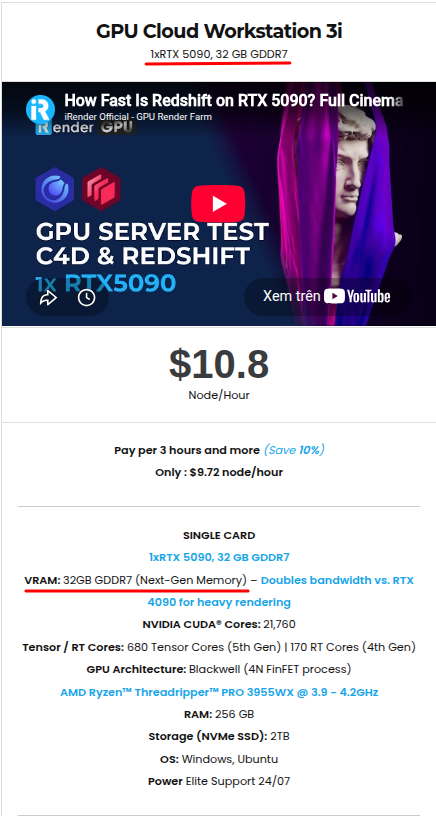
Not only those powerful configuration, iRender also provides you more services. Free transferring tool named iRender drive for macOS or Linux users. For Windows users, we recommend using our all-in-one application iRender GPU to work, and you don’t need to come to our website. Our price is flexible with hourly rental which has pay-as-you-go basis, from 3 hours subscription with discount 10%. Plus, you have support service with real human who will support you when encountering any issue.
With the price of $10.2 for 3i server (1 hour rental minimum), now you can experience the newest card and enjoy working smoothly in a customized pipeline like you have always done with your own PC.
Don’t hesitate to register right now to render on our new server 1x RTX5090. You just need to update the latest NVIDIA studio driver to get the best out of it.
We are offering the promotion for new users. For your first transaction within 24 hours since your registration, you will receive a 100% bonus. Contact us via Whatsapp +(84) 916017116 for more support.
Maximum Speed – Absolute Freedom
FAQ
Q1: What is the best graphics card for Lumion in 2026?
Lumion ranks the NVIDIA GeForce RTX 5090, RTX 5080, and RTX 4090 in its highest hardware performance tier. For large-scale architectural scenes and 4K ray-traced video exports, choose a GPU with at least 16GB of VRAM (preferably 24GB to 32GB) and pair it with a processor offering high single-thread performance (CPUMark of 3000 or higher).
Q2: Does Lumion use multiple GPUs?
No, Lumion renders using a single primary graphics card. Installing a second GPU via multi-card setups does not accelerate viewport performance or final frame render times inside a single machine instance. To speed up large video projects across multiple GPUs, you must divide your animation clips and render them across separate machines or cloud instances concurrently.
Q3: Why is Lumion slow even with a powerful GPU?
If Lumion runs slowly despite having a high-end GPU, your system is likely experiencing a single-thread CPU bottleneck, running out of system RAM, or operating on unstable graphics drivers. Open Task Manager during rendering: if GPU utilization remains low while a single CPU core sits locked at 100%, your processor is limiting your overall rendering speed.
Real-Time Rendring & Archviz
Master real-time rendering on RTX 5090 (32 GB) & AMD Ryzen™ Threadripper™ PRO. Technical benchmarks & guides for Unreal Engine 5, D5 Render, Lumion, Keyshot, Twinmotion, and Archviz.






