
Render Farm Setup Eats Into Your Deadline Too: Cutting Onboarding Time
Setting up a remote server for the first time can take 15 to 30 minutes. You need to install your software, activate licenses, set up file paths, and transfer project assets. That may not sound like much, but repeating the same setup for every render session can waste hours over a long project. With an Infrastructure-as-a-Service (IaaS) platform, this also affects your budget. Billing usually starts when the machine is running, so the time spent installing software and preparing the workspace can become part of your total cost. The good news is that you do not need to start from zero every time. By preparing some tasks in advance and keeping a ready-to-use environment, you can turn repeated setup into a one-time job.
In this article, iRender will discuss how to reduce remote server setup time, avoid repeated work, and keep more of your paid machine time focused on actual rendering.
How much time does render farm setup actually cost you?
If you manually set up a new server every time you render, you lose 15 to 30 minutes per session just getting ready. Over a project with 20 separate render runs, that adds up to 5 to 10 hours of GPU time spent purely on installing software and fixing file paths.
This matters because of how billing works on IaaS platforms in general. The clock starts charging the moment your remote machine powers on, not when your render engine starts computing pixels. Every minute spent logging into software accounts or downloading plugins is time you pay for, directly driving up your project bill.
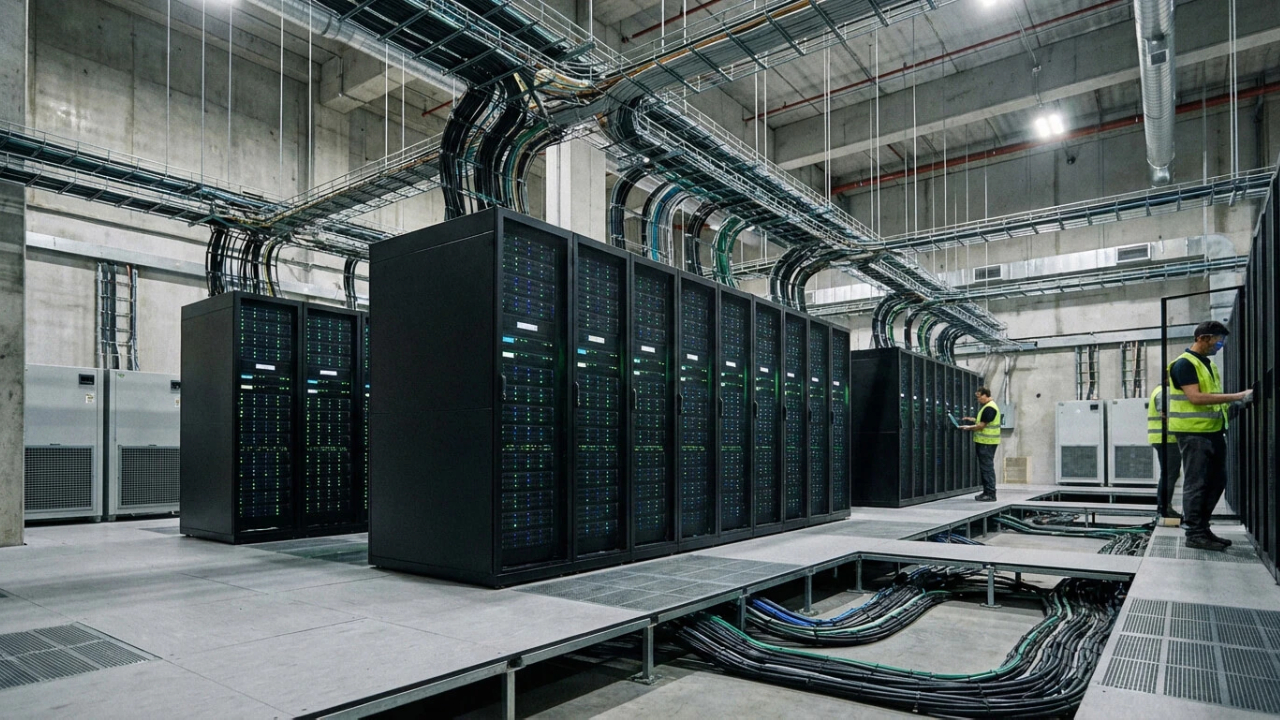
Where the setup time actually goes
Understanding where time disappears during machine setup helps you eliminate unnecessary delays:
- Installing Software & Plugins: Downloading installers and running setup wizards for your primary host app (such as Houdini, Unreal Engine, or Cinema 4D) and third-party render engines.
- Activating Third-Party Licenses: Remote servers require you to bring your own software licenses. Logging into account portals, managing floating license servers, or entering manual activation codes takes time.
- Mapping Asset and HDAs Paths: Setting up directory structures so your host app correctly locates custom HDAs, megascans, texture libraries, and external caches without breaking file references.
- Verifying GPU Drivers & Hardware: Confirming that system drivers correctly detect all installed graphics cards such as checking that multi-GPU setups or high-VRAM cards like the RTX 4090 or RTX 5090 show up properly in your render preferences.
Do the slow parts before the clock starts
Uploading Files (Data Upload):
- The Problem: Textures, 3D models, and cache files are very large and take a long time to upload.
- The Fix: Upload your files before turning on the machine using free storage tools like iRender GPU app.
Installing Software (Software Setup):
- The Problem: Downloading big installation files and clicking through setups wastes paid time.
- The Fix: Install your apps once, then save an Image (snapshot) of your machine to use next time.
Logging in & Licenses (License Activation):
- The Problem: Searching for passwords and license keys takes up extra minutes.
- The Fix: Keep all your login info, passwords, and license keys in one simple text file on your computer.
Linking File Paths (Asset Mapping)
- The Problem: Fixing broken file links on a remote computer is slow.
- The Fix: Put all project files into one main folder before uploading so all links stay intact.
Checking Graphics Cards (Driver Verification):
- The Problem: Checking if your 3D software sees all GPUs takes time.
- The Fix: Check it once during your first setup, then save that setup as your custom image.
Make it a one-time cost, not a per-session cost
The smartest way to avoid setup delays is to turn your environment installation into a one-time task.
On iRender, you only need to set up your working environment once during your very first session:
- First Session (One-Time Setup): Boot up a fresh server, install your software, set up plugins, activate licenses, map file paths, and finish your work session as usual.
- Automatic Environment Preservation: After you shut dơn the machine, your working environment will be saved .
- Future Sessions: Next time you need to render, simply boot up your saved Image. The machine turns on with your complete working environment already loaded, all software installed, licenses logged in, and settings intact.
When setup time changes which render farm you need
Different types of render farms handle setup time in different ways. Choosing the right one depends on your project size:
- Short, Single-Scene Projects (A Few Render Hours):
- If you only need to render one simple scene, spending 20 minutes setting up a remote desktop can feel like a waste of time.
- For quick, one-off jobs, a managed render farm (where you just upload your project file and get rendered frames back) can be faster—even though you lose full control over custom plugins and scripts.
- Complex, Long-Term Projects (Multi-Week Productions):
- If your project uses custom plugins, complex simulations, or heavy pipelines, renting a full remote server (like iRender) is necessary.
- Spending 20 minutes on setup during the first session becomes very small when spread over weeks of work especially when saving a custom image lets you skip setup completely in future sessions.
Optimizing Your Setup on iRender
iRender gives you full administrative control over high-performance remote desktops, ranging from single-card workstations up to multi-GPU nodes with 8x RTX 4090s or modern RTX 5090 setups. Because you have complete freedom over your environment, knowing how to manage your session workflow is the best way to get the most out of your render budget.
The most effective way to cut costs is to upload all your project assets before turning on the remote machine. Using the free iRender GPU app (iRender Drive), you can transfer your files, textures, and scene caches in the background while your server remains powered off. This keeps your upload process completely free and prevents you from paying GPU rates just to wait for file transfers.
Managing your machine’s power state carefully is equally important because of how billing works on the platform. The billing starts the moment the “Connect” button appears on your iRender dashboard until you click the “Shutdown” button. When you finish working, please shut down the machine to stop charging.
Right now, iRender is launching the 100% bonus for new user’s first deposit within 24 hours after registration, check it out.
Please check out some of iRender tests on our servers RTX 5090 and 4090 below:


FAQ
1. How long does it take to set up a cloud render machine?
Initial setup usually takes 15 to 30 minutes. This includes installing your software version, activating licenses, and placing assets and plugins into the correct paths. If you save your machine image after the initial setup, future sessions boot up instantly with everything pre-configured, making setup a one-time process.
2. Do I pay while I am installing software on a rented machine?
Yes. On IaaS platforms, billing starts when the virtual machine powers on, not when your render engine begins computing. To minimize installation costs, transfer asset files before turning on the machine and keep all license information ready before starting your session.
3. Is setup time a reason to use a managed render farm instead?
It comes down to your project requirements. For quick, simple scenes rendered only once a month, a managed SaaS render farm (drag-and-drop file submission) can save setup time. However, for longer projects, complex simulation pipelines, or custom software builds, full server control is necessary. Once you save a custom system image, setup overhead disappears for the rest of your production run.
Maximum Speed – Absolute Freedom






