
Why are MP4 video clips not being saved by Lumion?
Known for its user-friendly interface and real-time rendering capabilities, Lumion allows users to create stunning visual presentations, including video clips in MP4 format. However, some users encounter frustrating issues where their MP4 video clips are not being saved. In this blog, iRender will explore why this issue occurs and recommend some ways to solve this issue.
Describe the problem ‘MP4 video clips not being saved’
After rendering a video, the expected MP4 file is not saved or cannot be found in the output folder.
This issue typically occurs after a successful rendering process, where Lumion finishes the animation render, but no MP4 file appears in the selected directory, and no clear error message is shown.
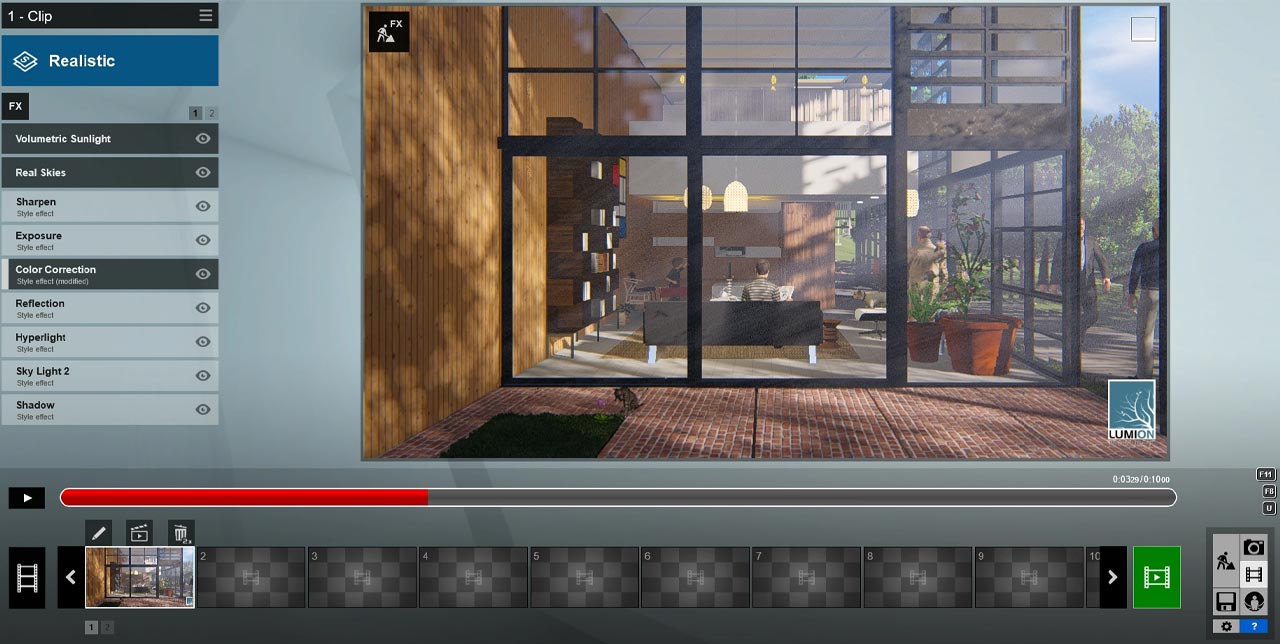
Why does the error happen?
MP4 video clip issues in Lumion can arise from a variety of factors. Here are some common causes:
- Render Not Fully Completed
- Overzealous anti-virus software that prevents Lumion from saving Mp4 clips correctly.
- Saving MP4 clips directly to cloud back-up folders, e.g. OneDrive.
- Saving MP4 clips to a network drive
- Lack of Windows permissions. For example if the Windows User Account is a ‘Standard’ account instead of an ‘Administrator’ account.
- Lack of disk space
- Lumion 9.0 and older
- Corrupt Projects or Asset
How to solve the problem ‘MP4 video clips not being saved’
Confirm That the Render Actually Finished
Sometimes the render bar reaches the end, but you may have closed Lumion too quickly, before the final save step is completed.
You should let Lumion sit for 30–60 seconds after 100% completion and wait for the “Video has been saved” confirmation message before closing the window.
Overzealous anti-virus software
Please add exclusions to all of the PCs’ antivirus and security software.
- Ensure to add exclusions in Windows Defender Antivirus.
- The exclusions should include: The installation folder – usually [install drive:\]Program Files\Lumion [version].
- The Lumion.exe file in the install folder is in 1.3.1 above.
- The folder and subfolders for user data are in Documents.
- Reboot your PC after adding the exclusions.
Check the Output Folder and File Path
The MP4 might have been saved—just not where you expected. In the render settings, you should confirm the export location and file name and avoid paths like:
- C:\Program Files\ (can have restricted permissions)
- Network drives or syncing folders (like OneDrive or Dropbox)
- Try saving to a simple local folder like:
C:\Users\YourName\Documents\LumionRenders\
Run as Administrator
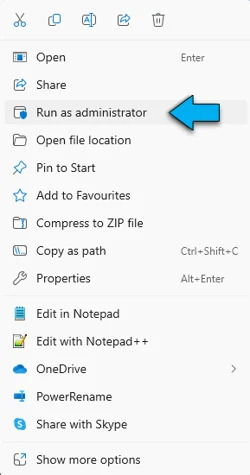
If your system administrator does not allow you to use an ‘Administrator‘ account, you will have to right-click on ‘Lumion.exe‘ in the Lumion installation folder and select Run as administrator.
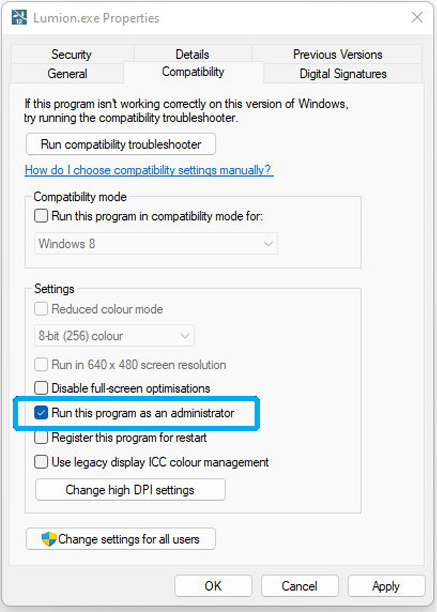
Or, you can right-click on the Lumion shortcut or the Lumion.exe file in the installation folder and select Run as Administrator:
Check Disk Space
You should verify that the Windows User Account has full read and write permissions for the following folders:
- (DRIVE):\…Documents\Lumion (VERSION)
- (DRIVE):\…ProgramData\Lumion (VERSION)
- The destination folder you have selected for the Photo or Movie file.
Examples:
- C:\Users\Username\Documents\Lumion 12.0
- C:\ProgramData\Lumion 12.0
Conclusion
In summary, Lumion might not save MP4 video clips because of a few common issues, such as not enough storage space, wrong export settings, or problems with your computer’s performance. Making sure your settings are correct, your system is strong enough, and there’s enough space on your drive can help fix the problem. Keeping Lumion and your computer’s drivers up to date also helps make sure everything works smoothly.
Speed up your rendering in Lumion with iRender
iRender is a render farm that provides high-powered servers and GPUs for users. If you want to accelerate Lumion rendering, especially for complex scenes or tight deadlines, iRender is the best option. You will only need to install your software Lumion for the first time, and add your license to render your project as you want. Next time you connect to the computer, everything is ready for use.
We provide you with high-configuration models with advanced specifications such as AMD Ryzen™ Threadripper™ PRO 3955WX @ 3.9 – 4.2GHz or AMD Ryzen™ Threadripper™ PRO 5975WX @ 3.6 – 4.5GHz, 256GB RAM, 2TB NVMe SSD storage. Most importantly, we always update to the latest GPU technology, with 1/2/4 RTX4090.
As Lumion only uses a single card, we suggest you use our server 3s single card RTX 4090 for speeding up your Lumion rendering. You can check its configuration by following:
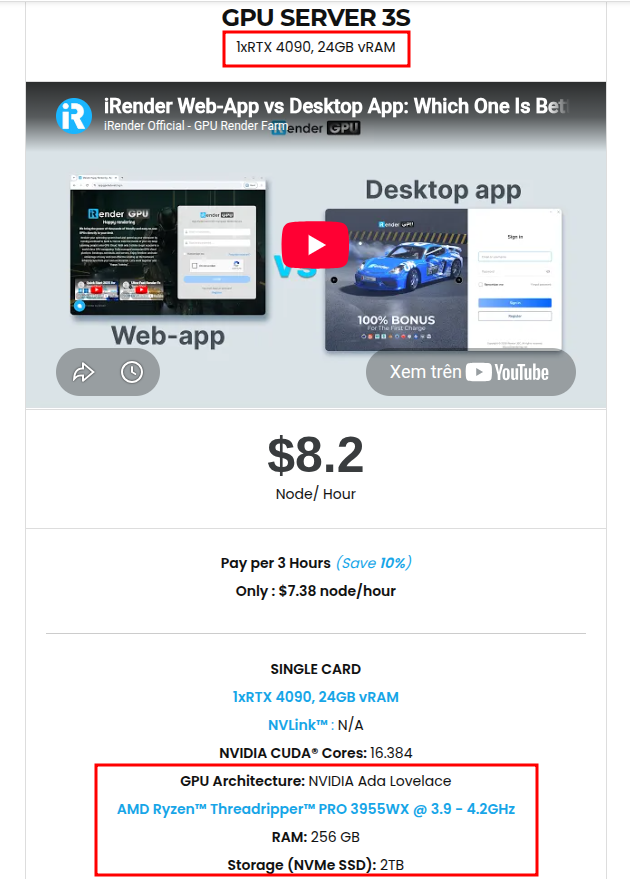
Our server 3s is equipped with a strong CPU AMD Ryzen Threadripper processor, 24 GB V-RAM, 256 GB RAM, and 2 TB of storage (NVMe SSD). This server costs $8.2 for one hour of rental, allows you to test out the newest card and enjoy using it in a customized pipeline just like you always had with your own PC.
We suggest Windows users work with our all-in-one application, iRender GPU, instead of coming to our website. For Linux or macOS users, we provide a helpful and free transferring program called iRender Drive.
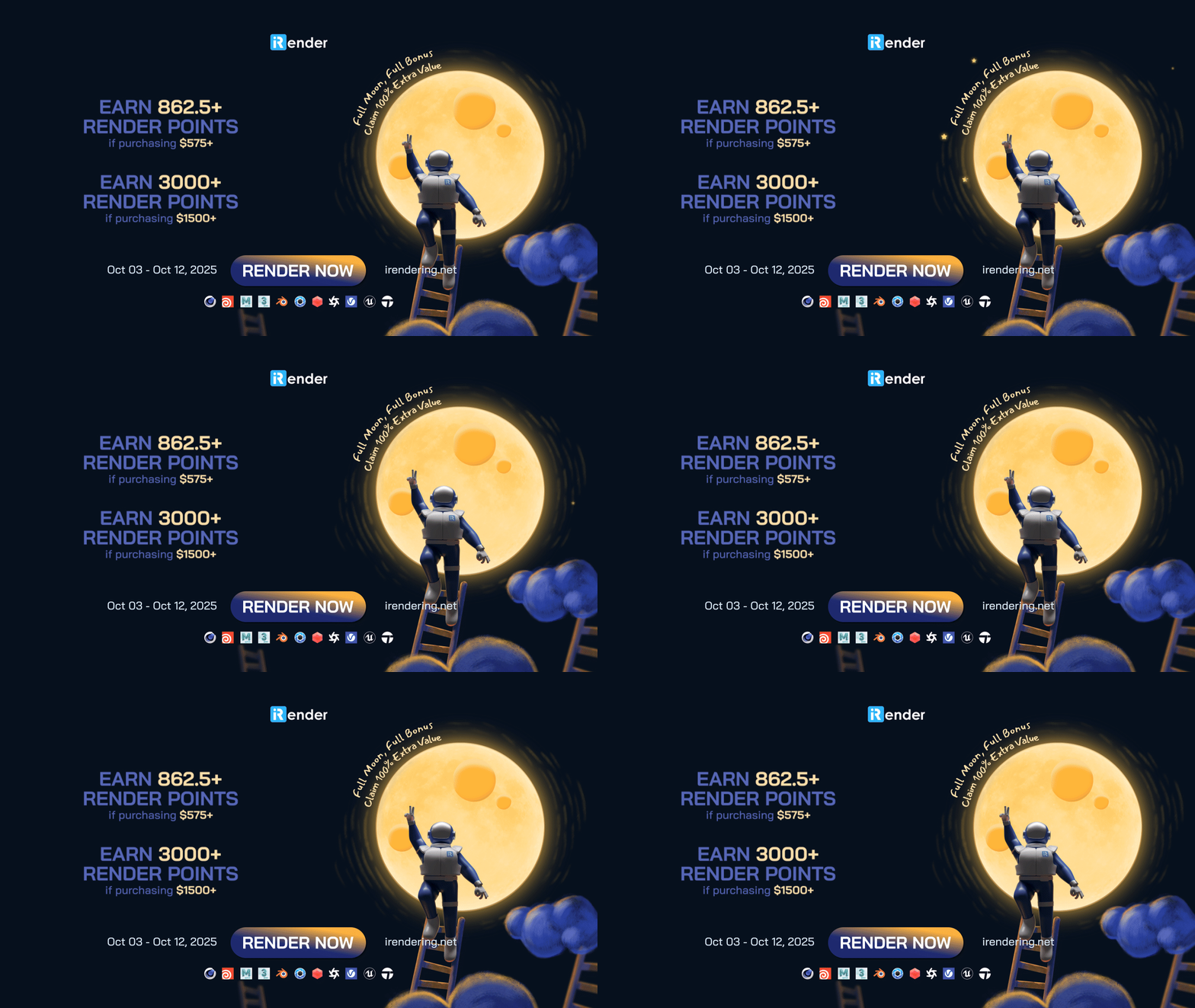
On the occasion of Mid-Autumn Festival, we are pleased to present an exclusive rewards promotion:
- Earn 862.5+ render points with purchases of $575 or more
- Earn 3000+ render points with purchases of $1500 or more
This limited-time offer is designed to provide additional value for your creative projects. Take advantage of these rewards and maximize your rendering potentially.
In case you have any problems or questions, don’t hesitate to contact the support team. We will be happy to help you with your questions and problems.
Thank you & Happy Rendering!
Source and image:lumion.com
Related Posts
The latest creative news from Lumion Cloud Rendering





