
Why Render Farms Can't Run Lumion (and Which Cloud Solution Can)
Many 3D artists learn the hard way that traditional SaaS render farms where you simply upload a scene file and wait for rendered frames are completely incapable of running Lumion. It is a real-time visualization software requiring a live Windows desktop environment and a powerful dedicated GPU, something automated render farms cannot provide. The only viable solution is an IaaS (Infrastructure as a Service) model renting a full Remote Desktop likee iRender, where you get powerful hardware to run Lumion directly just like on a local machine. If you have ever wondered why your local workstation struggles with heavy Lumion scenes while traditional render farms cannot handle your project, you are not alone.
Let’s break down exactly why traditional render farms can’t run Lumion and how iRender provide the ultimate cloud solution for your workflow.
Why can't a render farm run Lumion?

To understand why traditional render farms hit a wall with Lumion, you first need to look at how SaaS (Software as a Service) render farms operate versus how Lumion works under the hood.
Traditional SaaS render farms are built for offline, CPU- or GPU-bound batch renderers like V-Ray, Corona, or Arnold. Their workflow is simple: you package your project, upload the scene file to their server, and an automated background script opens the file headlessly, splits the rendering process across nodes, and sends back the final image or video frames.
Lumion operates on a completely different core paradigm. Lumion is an interactive real-time renderer, not a batch Processor. It is heavily GPU-bound and relies entirely on a live Windows desktop GUI to function. When you open a project, Lumion loads the scene’s geometry, textures, lighting, and asset library directly into your graphics card’s video memory (VRAM).
What Lumion actually needs from a machine
To run Lumion smoothly without lag or crashes, a machine must strictly meet specific hardware standards rather than traditional render farm specs. First and foremost, Lumion relies entirely on a high-performance GPU with enough dedicated VRAM to hold the entire scene’s 3D geometry, 4K textures, and lighting assets in memor. Otherwise, data swaps to system RAM and causes severe viewport lag.
Lumion officially benchmarks graphics cards using G3DMark (PassMark) scores: requiring at least 8,000 points (6 GB VRAM) for basic scenes, 14,000 points (10 GB+ VRAM) for complex projects, and 22,000+ points (16 GB+ VRAM) like an RTX 3090 or RTX 4090 for heavy ray-tracing workflows. On top of a powerful GPU, Lumion demands a native 64-bit Windows OS (as it is not supported on macOS) to handle its interactive DirectX viewport, alongside a high single-core clock speed CPU to process scene loading efficiently.
The cloud that can: a full remote desktop
Instead of handing over scene files to an automated background script, IaaS allows you to rent a complete, high-performance remote desktop computer. You log in, access a live Windows desktop environment, install your software, and run Lumion natively.
To see the difference at a glance, here is a quick breakdown of how traditional SaaS render farms stack up against a high-performance Remote Desktop (IaaS) like iRender:
| Criteria | SaaS Render Farm | Remote Desktop / IaaS (iRender Top Pick) |
| Can it run Lumion? | No (Only receives scene files & returns frames) | Yes (Opens the live, real-time app directly) |
| Interaction Mode | No live desktop environment | Full Windows Desktop; freely install & run Lumion |
| GPU Capability | Not suitable for real-time rendering | Powered by strong single GPUs (e.g., RTX 4090 24GB) |
| Direct VR Support | No | Limited (Tethered VR requires local GPU power) |
Since SaaS file-upload render farms cannot meet Lumion’s real-time and interactive demands, how can you render heavy Lumion scenes when your local machine isn’t enough?
The answer lies in IaaS (Infrastructure as a Service). Instead of handing over scene files to an automated background script, IaaS allows you to rent a complete, high-performance remote desktop computer. You log in, access a live Windows desktop environment, install your software, and run Lumion natively just as if you were sitting right in front of a local supercomputer.
Why iRender Leads the Pack for Lumion Cloud Rendering
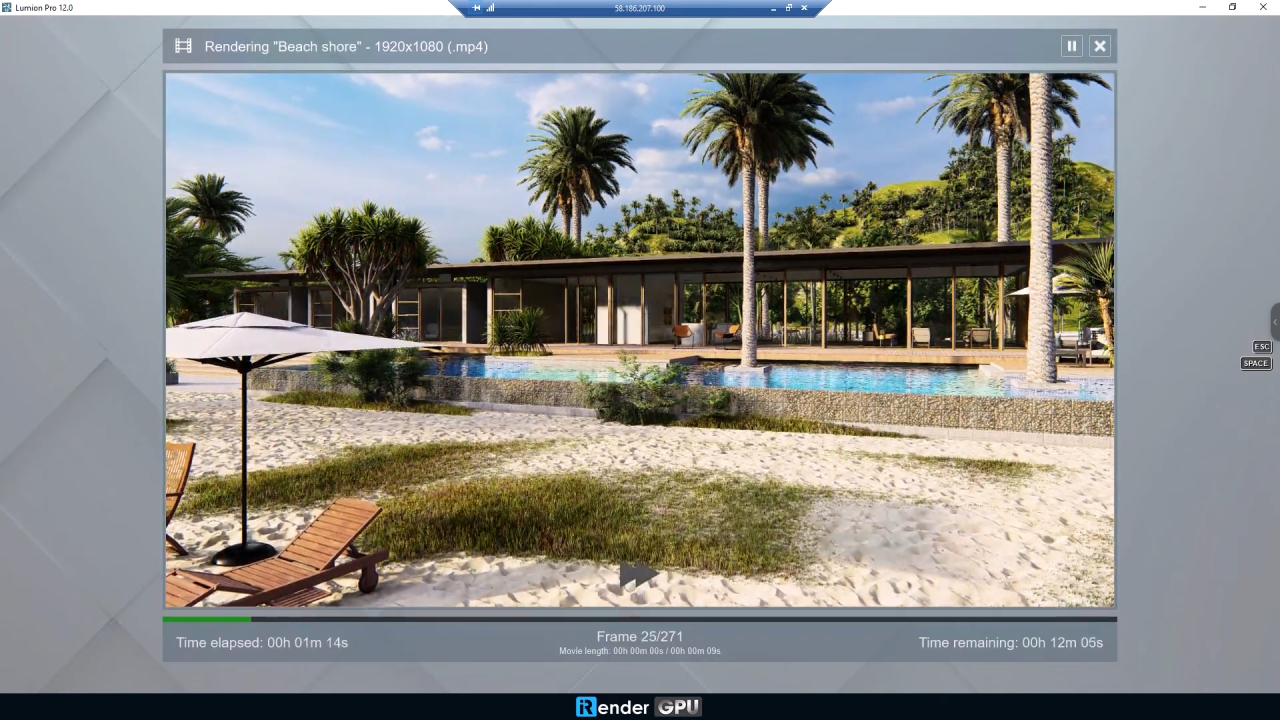
When it comes to IaaS cloud platforms tailored for architectural visualization, iRender stands at the top of the list.
Unlike general-purpose cloud platforms, iRender specifically optimizes its GPU node packages (powered by heavyweights like the NVIDIA RTX 4090 with 24GB VRAM and 256GB RAM) to align with Lumion’s strict single-card architecture. You get full administrative rights to set up your custom workflow, store assets on fast NVMe drives, and leverage raw desktop performance—making it the definitive cloud solution to rescue tight Lumion deadlines.
Furthermore, if you work on a Mac, IaaS servers like iRender provide an instant workaround. Since Lumion lacks native macOS support, streaming a high-spec Windows Remote Desktop directly from your Mac browser or RDP client lets you run Lumion seamlessly without buying a second physical PC.
The Catch Lumion Warns About
Before jumping into the cloud, there is an important detail you need to know. Lumion’s official documentation explicitly warns users that not all virtual PC or remote desktop services meet Lumion’s hardware requirements.
To make sure your remote desktop instance works, you must verify that the provider matches Lumion’s official System Requirements:
- Dedicated GPU allocation: Avoid shared virtual GPUs, ensure you have direct access to a physical card like an RTX 4090.
- Full administrative control: You need freedom to install display drivers and control application settings.
- Network Latency: Since you are interacting with a live viewport, a stable internet connection is required for smooth mouse control.
When rendering heavy Lumion scenes under tight deadlines, trying to force your files into a traditional SaaS render farm will only lead to rejected uploads and wasted time. Switching to an IaaS render farm like iRender gives you the full power of a dedicated RTX 4090 Windows workstation on demand.
Ready to Boost Your Lumion Render Speed with iRender?
Don’t let local hardware limits slow down your client presentations. With iRender, you can rent a powerful Cloud PC equipped with top-tier NVIDIA RTX 4090 graphics cards. You get full control over a remote computer, just like sitting in front of a real supercomputer. You can install your own Lumion version, run heavy 4K renders, and work smoothly without buying expensive hardware.
👉 Try iRender GPU Cloud Server Now (Get 100% First Top-Up Bonus)
Watch the quick step-by-step video below to see how easy it is to set up and start rendering on iRender:

Frequently Asked Questions (FAQ)
- Why can’t a render farm run Lumion?
Traditional SaaS render farms only accept offline scene files to process background frames automatically. Lumion is an interactive, real-time application that requires an active Windows desktop GUI and direct control of a live GPU. To run Lumion in the cloud, you must rent a full remote desktop (IaaS) rather than a file-upload render farm.
2. How do I run Lumion in the cloud?
You can run Lumion in the cloud by renting a GPU-powered remote desktop machine from an IaaS provider like iRender. Once connected to the remote Windows desktop, you install Lumion, load your project assets, and operate the viewport directly just like on a local workstation. Always ensure the remote server hardware matches Lumion’s official system requirements.
3. Does Lumion run on Mac or on multiple GPUs?
Lumion is not natively supported on macOS, though Mac users can run it by streaming a Windows Remote Desktop instance from an IaaS provider. Regarding multi-GPU setups, Lumion’s real-time viewport does not scale across multiple graphics cards. Performance relies heavily on a single strong GPU with high clock speed and ample VRAM (such as an NVIDIA RTX 4090).






