
How to fix Blender render 2–10× slower after you switch other apps?
Sometimes you notice that Blender renders fast after a fresh boot, but dramatically slower after you watch YouTube, play a game, or even just switch between a few apps. This is a surprisingly common issue across Windows, NVIDIA, and AMD systems. It’s incredibly frustrating because nothing changed in your Blender file, yet the same render suddenly takes 2×, 5×, or even 10× longer.
So what’s wrong with this? Let’s break it down in the blog with iRender!
Describe Blender issue
When you start your PC, open Blender to render, and your first render runs at full speed. Then you tab out to watch YouTube, play a game, open Chrome with several tabs, or run apps like Discord or Steam. When you return to Blender and render the same scene, the performance suddenly drops—sometimes running 2–10× slower. Nothing in your file or settings changed, but something under the hood causes Blender to lose access to the GPU’s full performance. That’s why your render suddenly becomes slow.
Why does it happen:
- GPU P-States (Power States) Don’t Always Rise Back Up
- GPU Driver Scheduling Conflicts
- Games Can Leave the GPU in a Non-Compute Mode
How to fix Blender render 2–10× slower after you switch other apps?
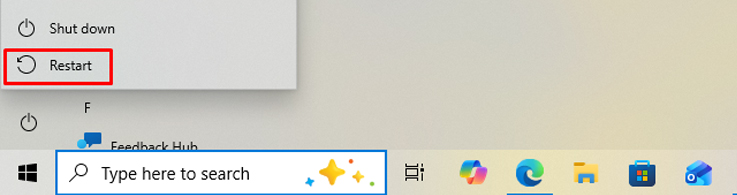
Restart and Go straight to Blender
One of the fast way to fix Blender’s sudden slow rendering on Windows is to restart your machine and open Blender first before launching any other apps. This gives Blender full GPU power, clears memory, and prevents Windows or browsers from slowing it down in the background.
After that, you can try rendering again to see if it can eliminate the 2×–10× slowdowns that often appear after watching YouTube, playing games, or switching windows.
In case, you got the issue on iRender machine, you can restart the server immediately.
Set “High Performance” in Windows Graphics Preferences
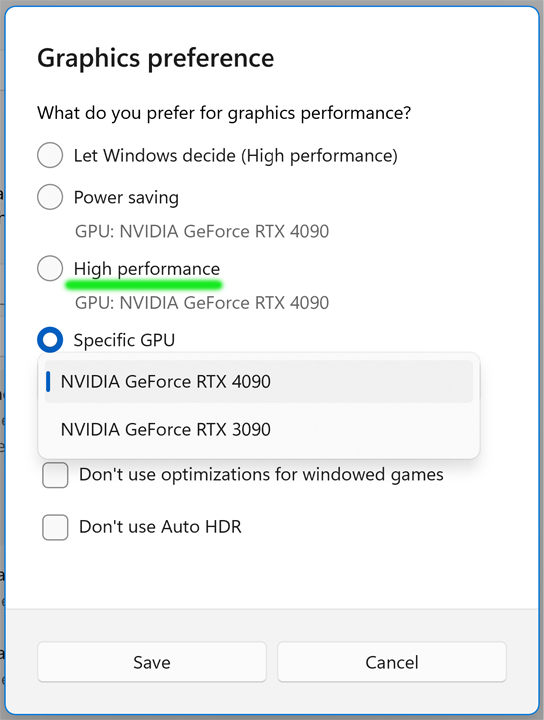
- Go to Settings > System > Display > Graphics.
- Click “Browse” to add the Blender application.
- Locate and select the Blender executable file.
- Click “Add”.
- Select Blender from the list, click “Options”, and choose “High performance” from the pop-up menu.
- Click “Save”.
Update NVIDIA Studio Driver
If you get a Blender issue when working on iRender server, you can update NVIDIA Studio Driver.
Please follow the following steps:
Step 1: Go to the X: Drive on the remote machine and open the folder: 11. NVIDIA RTX 4090 DRIVER > Studio
Step 2: Find the latest Studio Driver installer
Step 3: Copy it to the remote desktop and run it.
Step 4: After installation, restart the machine.

Turn Off “Hardware-Accelerated GPU Scheduling”
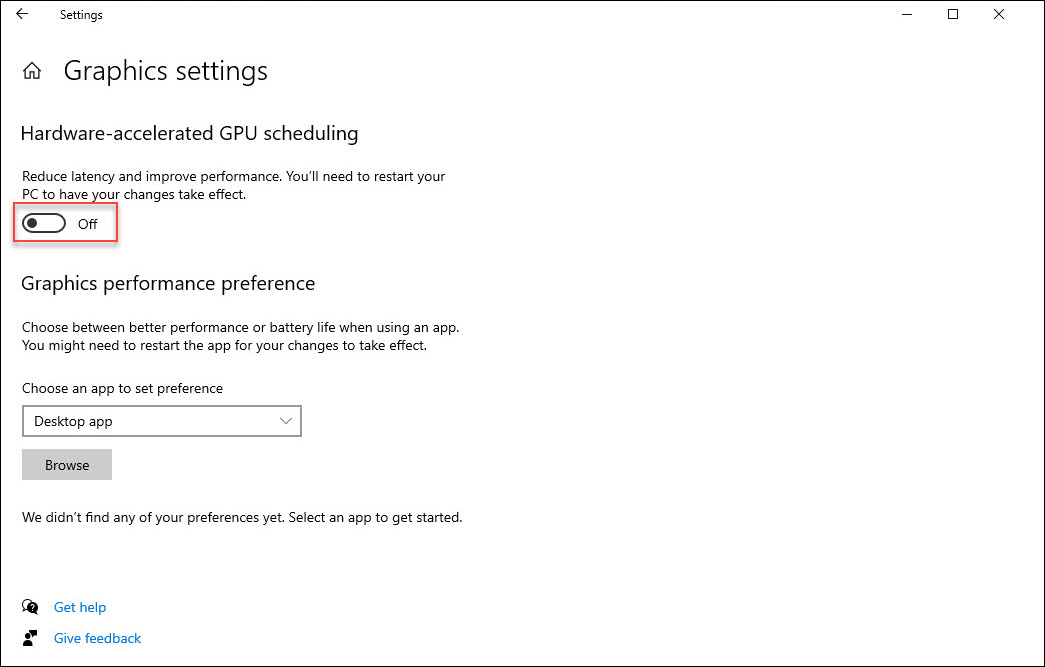
Disabling Hardware-Accelerated GPU Scheduling (HAGS) can fix Blender’s slow rendering, and it’s one of the most reliable solutions.
Step 1: Open Windows Settings> Go to: System → Display
Step 2: Access Graphics Settings. Click on Graphics Settings under Multiple Displays
Step 3: Locate: Hardware-accelerated GPU scheduling then switch the toggle to OFF
Step 4: Restart the server
Conclusion
All in all, rendering in Blender is slower after switching apps caused by Windows and GPU drivers lowering background performance, fragmenting memory, or reducing GPU clocks. The quick fix is to restart your computer and open Blender first to give it full GPU priority. For more consistent performance, you can disable Hardware-Accelerated GPU Scheduling and set Blender to High Performance in Windows graphics settings.
iRender - The best Render Farm providing RTX 4090 for Blender
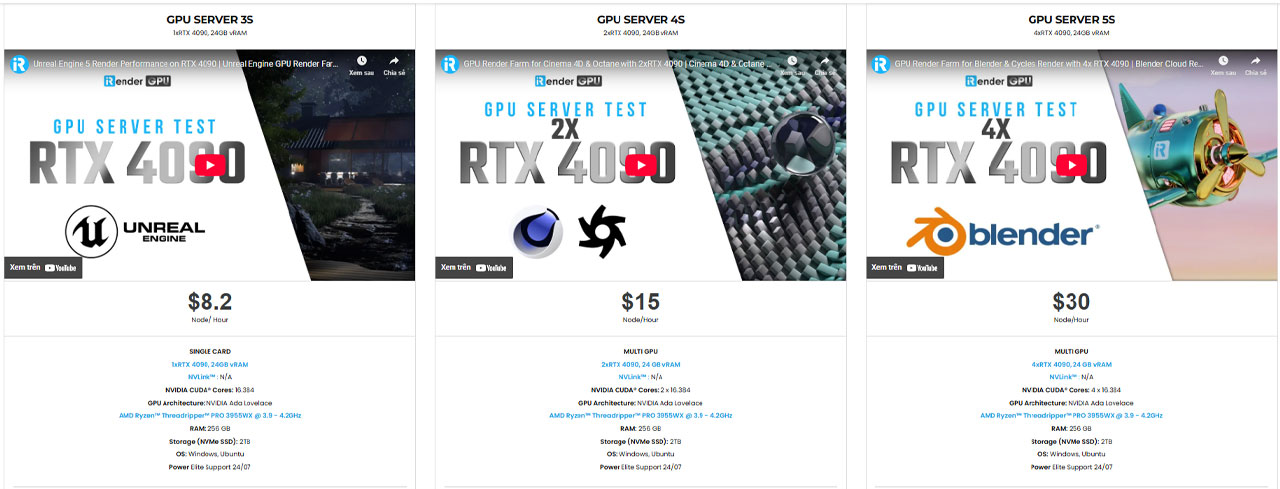
iRender is proud to be one of the best GPU service providers on the market. We are releasing new servers for iRender’s users, which have powerful processing capabilities of AMD Ryzen Threadripper Pro 3955WX @ 3.90GHz- 4.2GHz and AMD Ryzen™ Threadripper™ PRO 5975WX @ 3.6 – 4.5GHz. Besides, they have multi-GPUs:1/ 2/ 4/ 6/ 8 RTX 4090 24GB VRAM to boost performance in the rendering process.
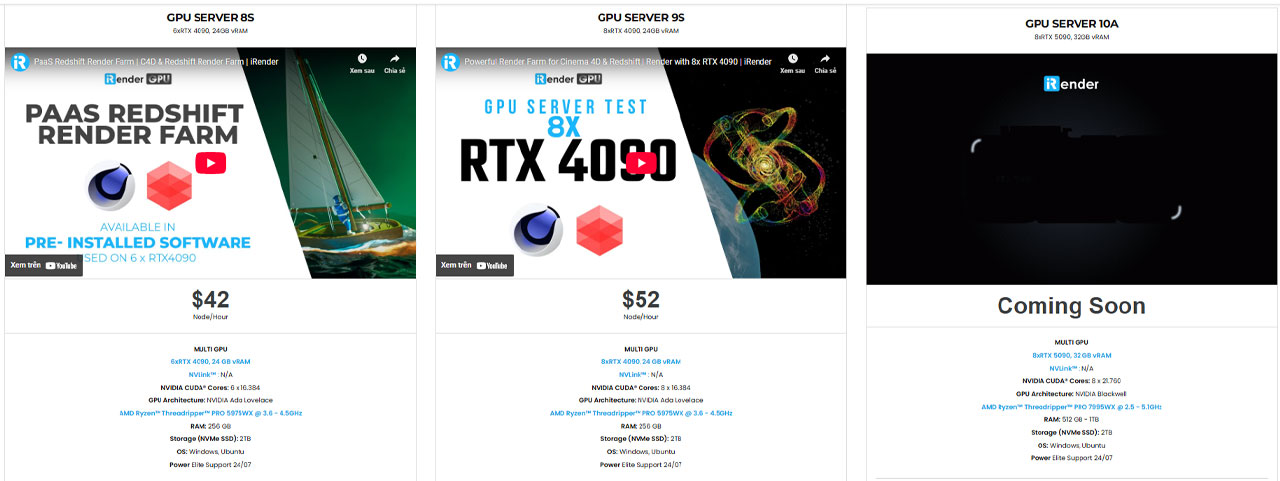
We have pre-installed Blender 4.5.3 option when you create a machine, so you won’t take time to install software. Blender can use multi cards to render, you can refer any servers to speed up your rendering. Please have a look at all servers following:
iRender offers a powerful and free file transfer tool: iRender drive for macOS and Linux user. You can transfer all the necessary data into our iRender drive tool at any time without connecting to the server. The data will be automatically synchronized in the Z drive inside the server, ready for you to use.
The tool is also integrated into iRender GPU app, an all in one application where you can free your workflow from accessing iRender website, and just have to work on the iRender GPU app.
In case you have any problems or questions, don’t hesitate to contact the support team. We will be happy to help you with your questions and problems at all times.
We are running a SPECIAL OFFER: 100% Additional Bonus for new clients who register an account and make a top-up after their registration.

Currently, we are having Biggest Render Event of the Year. Double your credits with zero waiting and unlock massive bonus Render Points during our once-a-year sale!
✨ Earn 862.5+ Points when you purchase $575+
🔥 Earn 3000+ Points when you purchase $1500+

Take advantage of this limited-time offer to maximize your rendering power and boost your productivity. Don’t miss out—upgrade your projects with more value today!
Register an account today to experience our service or contact us via the email [email protected] or WhatsApp: (+84) 912075500 for advice and support.
Happy Rendering!
Related Posts
The latest creative news from Blender Cloud rendering.





