
How to Fix CUDA Errors and Crashes in OctaneRender?
If you’ve ever hit “CUDA error 719: launch failed” or watched OctaneRender suddenly crash mid-render, you know how frustrating OctaneRender crashes can be. CUDA errors are among the most common and frustrating problems that 3D artists encounter when working with Octane, especially on complex GPU scenes.
In this post, iRender will walk through why these CUDA errors happen, how to diagnose them, and the most effective fixes that can get you back to rendering fast.
What is a CUDA Error in OctaneRender?
CUDA (Compute Unified Device Architecture) is NVIDIA’s technology that lets OctaneRender use your GPU to accelerate ray tracing and shading.
When Octane throws a CUDA error, it means something went wrong in that communication between Octane and your GPU hardware, most commonly:
- Your GPU ran out of memory (VRAM).
- Your driver or Octane version is outdated or mismatched.
- The GPU hit a thermal or power limit, causing instability.
- Octane is trying to access old or corrupted data between frames.
How to Fix the Issue
1. Update NVIDIA Drivers and OctaneRender
Keeping both OctaneRender and your NVIDIA drivers up to date ensures your system uses the latest performance optimizations, bug fixes, and GPU memory management improvements from both OTOY and NVIDIA.
Update NVIDIA Drivers
- On the iRender servers, you can right-click on the desktop and click the NVIDIA Control Panel to check if it is the latest version.
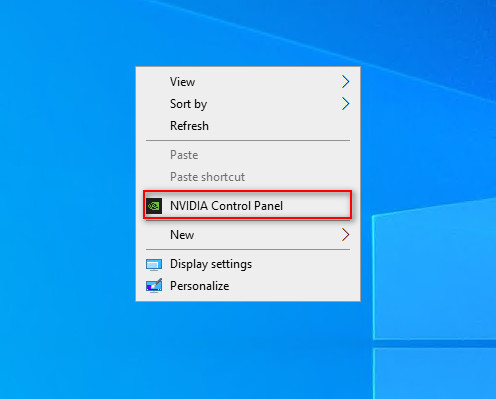
- If it is not the latest version, you can update the NVIDIA Studio Driver. You can always go to X drive of the remote machine, then take the latest driver to the remote desktop and run it. After updating the latest version of the NVIDIA Studio Driver, you need to restart your computer. Wait for 2-5 minutes, then reconnect to the remote server.

Update Octane Render
- Visit the OTOY downloads page and check for the latest stable version of OctaneRender.
- Make sure it supports your GPU generation. For example, RTX 40-series cards require OctaneRender 2023.1 or newer.
- After updating, reboot and recompile kernels to refresh the CUDA environment and clear leftover cache data.
2. Crank the GPU Headroom (Increase GPU Stability Margin)
Sometimes CUDA crashes happen even on powerful GPUs, simply because the hardware is running too close to its performance or thermal limit. By cranking the GPU headroom, you give Octane extra breathing room to maintain stable clocks and avoid CUDA resets.
Here’s how:
- Reset Overclocking.
- In MSI Afterburner or the NVIDIA Control Panel, set your GPU to its default clocks before making changes.
- In MSI Afterburner or the NVIDIA Control Panel, set your GPU to its default clocks before making changes.
- Raise Power Limit to 105–110%.
- This allows your GPU to draw a little more power under heavy load, preventing throttling mid-render.
- Don’t exceed 110% unless you have excellent cooling.
- This allows your GPU to draw a little more power under heavy load, preventing throttling mid-render.
- Increase the Thermal Limit Slightly.
- A +3–5°C margin (e.g., from 83°C → 87°C) keeps performance stable during long renders.
- A +3–5°C margin (e.g., from 83°C → 87°C) keeps performance stable during long renders.
- Test with Octane Bench or a short render.
- If CUDA errors stop appearing, you’ve successfully stabilized your GPU.
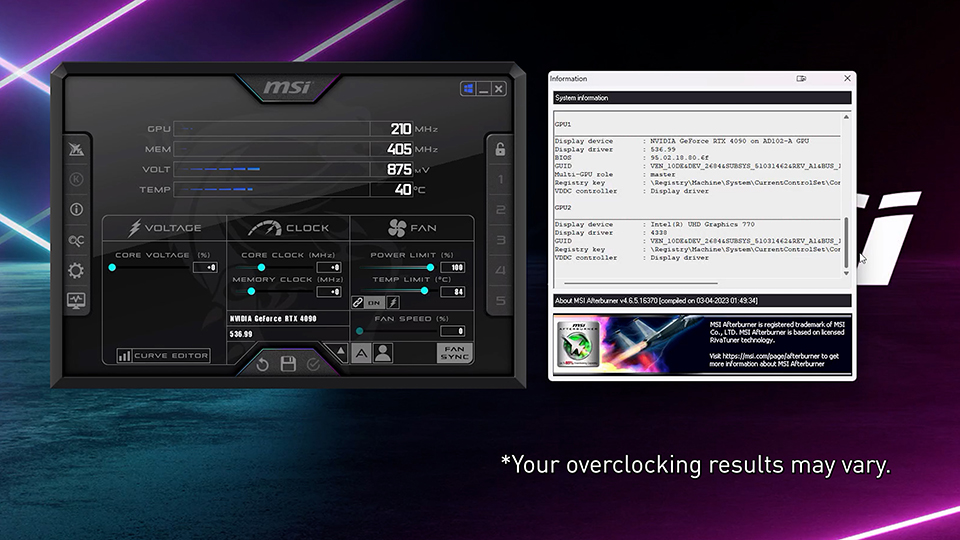
Why it works:
When your GPU hits a power or thermal cap, it briefly drops voltage or clock speeds. Octane interprets that as a CUDA failure. Increasing headroom prevents those fluctuations, ensuring consistent GPU behavior across frames.
3. Clear Scene Data Between Frames
If OctaneRender crashes or slows down during animation renders, it’s often because old geometry or texture data remains in GPU memory. Over time, this leads to memory overflow or corruption, triggering CUDA errors such as “launch failed” or “illegal memory access.”
To reload the entire scene for every frame:
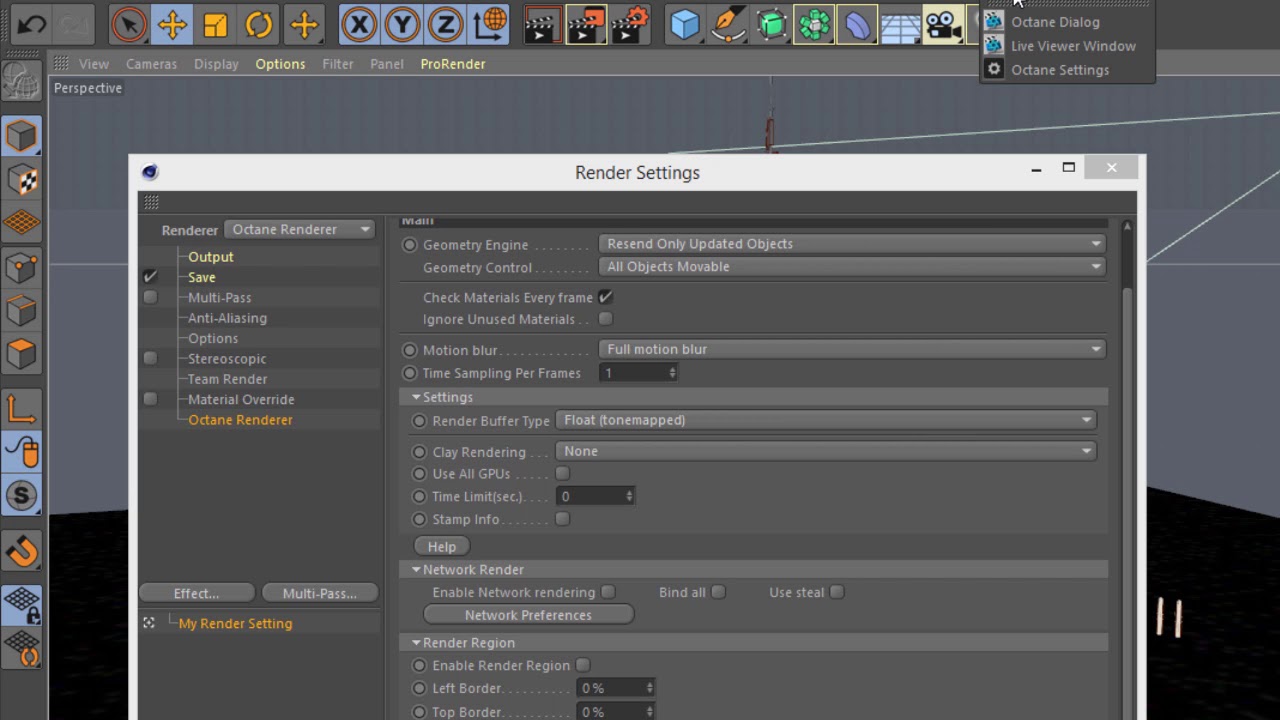
- Open Render Settings in Cinema 4D.
- Go to Octane Renderer → Main Tab → Geometry Engine.
- Change the setting from “Resend Only Updated Objects” to “Resend All Scene Data (Deprecated)”.
- Save your render settings, then restart the render.
This forces Octane to clear old geometry and material data from GPU memory before rendering each frame. As a result, every frame starts clean, preventing the gradual slowdown that happens when data accumulates in memory over time.
Render faster and smarter on Octane Render with iRender’s servers
iRender stands out as one of the most powerful and flexible rendering platforms available for Octane users. iRender provides instant access to high-performance GPU servers, featuring top-tier hardware like the RTX 4090. Most importantly, we always update to the latest GPU technology, with options including 1/2/4/6/8 RTX 4090.
Under the IaaS (Infrastructure as a Service) model, you will have full control over the machine via a remote desktop app, similar to TeamViewer but more stable. You will be able to proactively install the software and use it on the server just like using a personal computer. In addition, you can find many server packages with high-end configurations that are extremely suitable for complex projects.
We’ve put the RTX 4090 and RTX 3090 to the test across different GPU configurations (1/2/4/6/8 GPUs) and the results are mind-blowing. In this video, we compare performance across 1, 2, 4, 6, and 8 GPUs to see how well Octane scales with more power.
Additionally, we run a real scene test to measure render speed, GPU scaling, and overall performance on server 8xRTX4090, so you can see exactly what to expect when rendering Octane projects on iRender render farm.
Let’s watch the results and find out which GPU configuration offers the best balance of speed and efficiency!


Why choose iRender?
- Rent machines with multiple GPUs (up to 8x RTX 4090)
- Flexible pricing based on your workflow
- Instant scaling—great for deadline crunches
- Perfect support for Redshift, Octane, Arnold, and more
- Access from Windows or macOS
Instead of spending thousands on hardware upgrades, you can scale your power only when you need it.
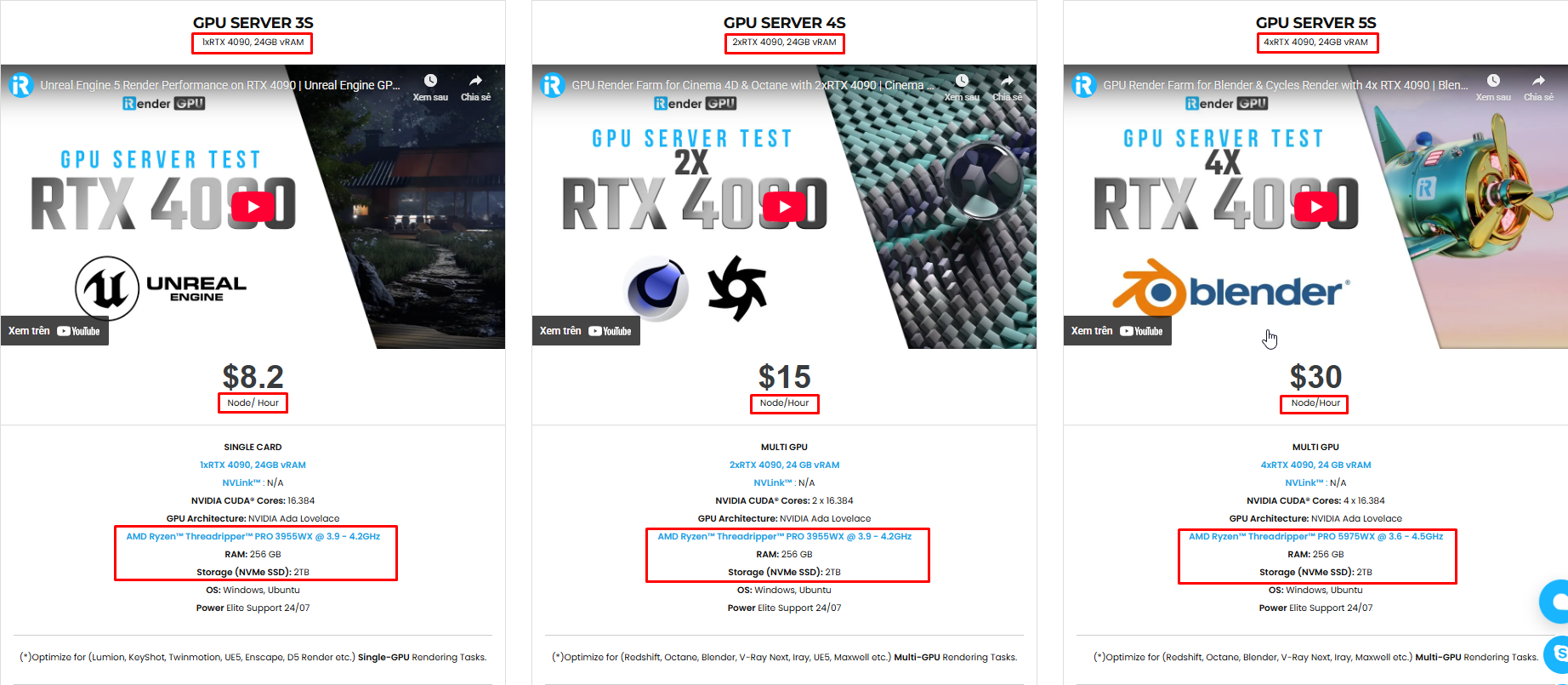
Below is information about iRender’s service packages:

We’re always happy to help you with any questions. If you have any problems or questions, don’t hesitate to contact our 24/7 support team. Or via Whatsapp: 0912 785 500 for free advice and support.
Right now, iRender has a SPECIAL PROMOTION program with a 100% bonus for the first transaction. It means that you can get an extra 100% of the money you recharged the first time. And points never expire, so you can use them at any time.
Sign up for an account today to experience and enjoy our services.
Thank you & Happy Rendering!
Source and image: help.otoy.com

Related Posts
The latest creative news from Octane Cloud Rendering





