
How to Fix Octane CUDA Error 1 (Invalid Argument) in Cinema 4D?
If you’re using Cinema 4D + Octane Render and you just opened Live Viewer and immediately see the message: “CUDA error 1: Invalid argument” or “CUDA error on device X: Invalid argument” and Octane crashes or fails to render anything, this error is mostly due to one of two very common causes, both of which can be easily fixed. This guide iRender will walk through why CUDA Error 1 happens in Octane and how you can fix it instantly, without touching your Cinema 4D project files.
Cause and fix 1: NVIDIA Driver Mismatch (Most Common)
Octane requires very specific CUDA versions, and when your driver doesn’t match Octane’s supported CUDA build. Using a driver that is too new or old the renderer can’t compile its kernel, resulting in CUDA Error 1.
Real Case From Our RTX 4090 Servers
We recently had multiple users running Cinema 4D 2023.2 + Octane 2023.1.3 on our RTX 4090 servers who encountered the same issue. They had already tried installing newer drivers – 566.xx, 560.xx, and even 552.xx, but the error persisted. These versions all failed because they ship with CUDA toolkits that are newer than what Octane 2023.1.3 requires (CUDA 11.8).
Our technical team performed a clean driver rollback to NVIDIA Studio Driver 531.41 (the most stable driver for Octane 2023.x). And it worked immediately, Live Viewer launched smoothly with no errors or crashes.
This confirms once again that Octane 2023.1.3 + RTX 4090 requires an older driver (531.41), not the latest one. If you experience similar symptoms, rolling back to 531.41 is the fastest and most reliable fix.
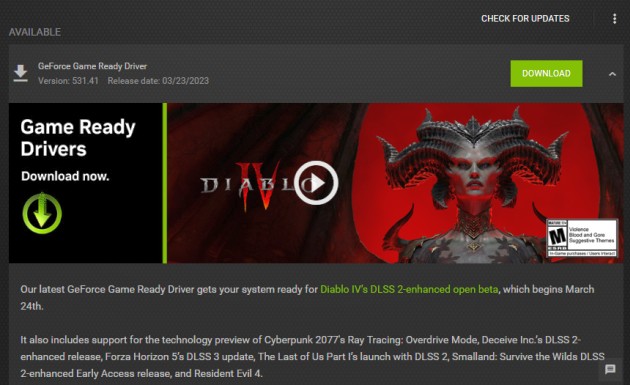
Below is a compatibility table of production-stable NVIDIA driver versions known to fix Octane CUDA Error 1 (Invalid Argument) instantly, based on thousands of artist reports, professional studio setups, and OctaneRender compatibility notes.

How to Clean Install Graphics Drivers
- Download Display Driver Uninstaller (DDU)
- Boot into Windows Safe Mode
- Completely remove the current driver with DDU
- Reboot normally and install the recommended driver above
- Launch C4D
Cause and fix 2: Corrupted Cinema 4D Preferences
Sometimes, the Octane plugin settings inside C4D’s own preference files get corrupted and keep forcing wrong CUDA parameters even after a clean driver and a clean Octane database.
How to Reset Cinema 4D Preferences
1. Make sure Cinema 4D is completely closed so none of its configuration files are in use.
2. Locate the preferences folder on your computer:
- Windows: C:UsersYourUsernameAppDataRoamingMaxonCinema 4D
- macOS: ~/Library/Preferences/Maxon/Cinema 4D
3. Rename the folder (for example, to Cinema 4D_Backup) or remove it entirely.
4. Relaunch Cinema 4D. The application will notice the absence of the preferences folder and generate a new set of default settings from scratch.
The main purpose of this is to fix issues such as freezing, crashing, or slow performance caused by corrupted options. By performing this procedure, users can restore Cinema 4D to its default state, thereby improving stability and overall performance.
Conclusion
In most cases, CUDA Error 1 is caused by mismatched GPU drivers or corrupted Octane data, and applying the fixes above will quickly restore a stable rendering environment. If you need a reliable, fully optimized workstation for Octane and Cinema 4D, the iRender render farm is pre-configured with the correct drivers and settings, ensuring you can focus on creating.
Render faster on Octane Render with iRender’s Cinema 4D servers
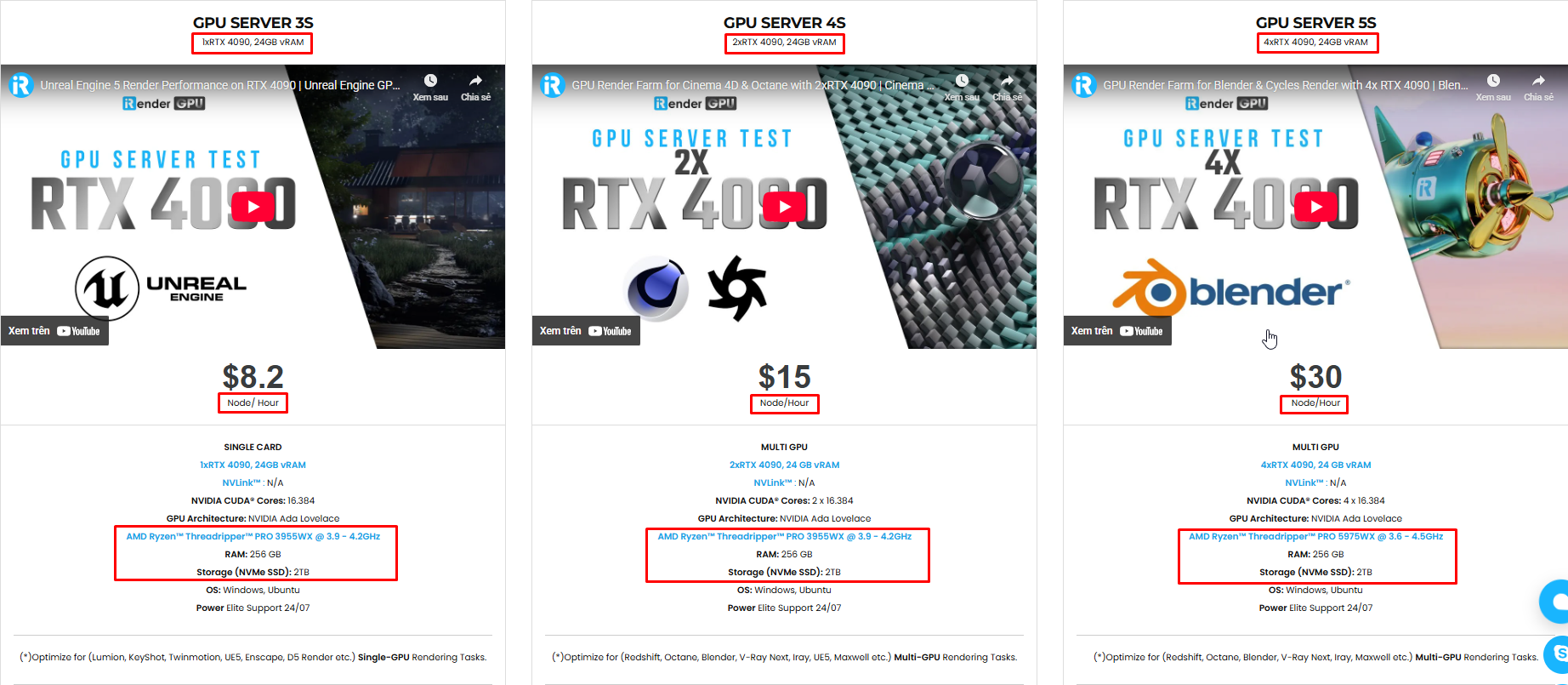
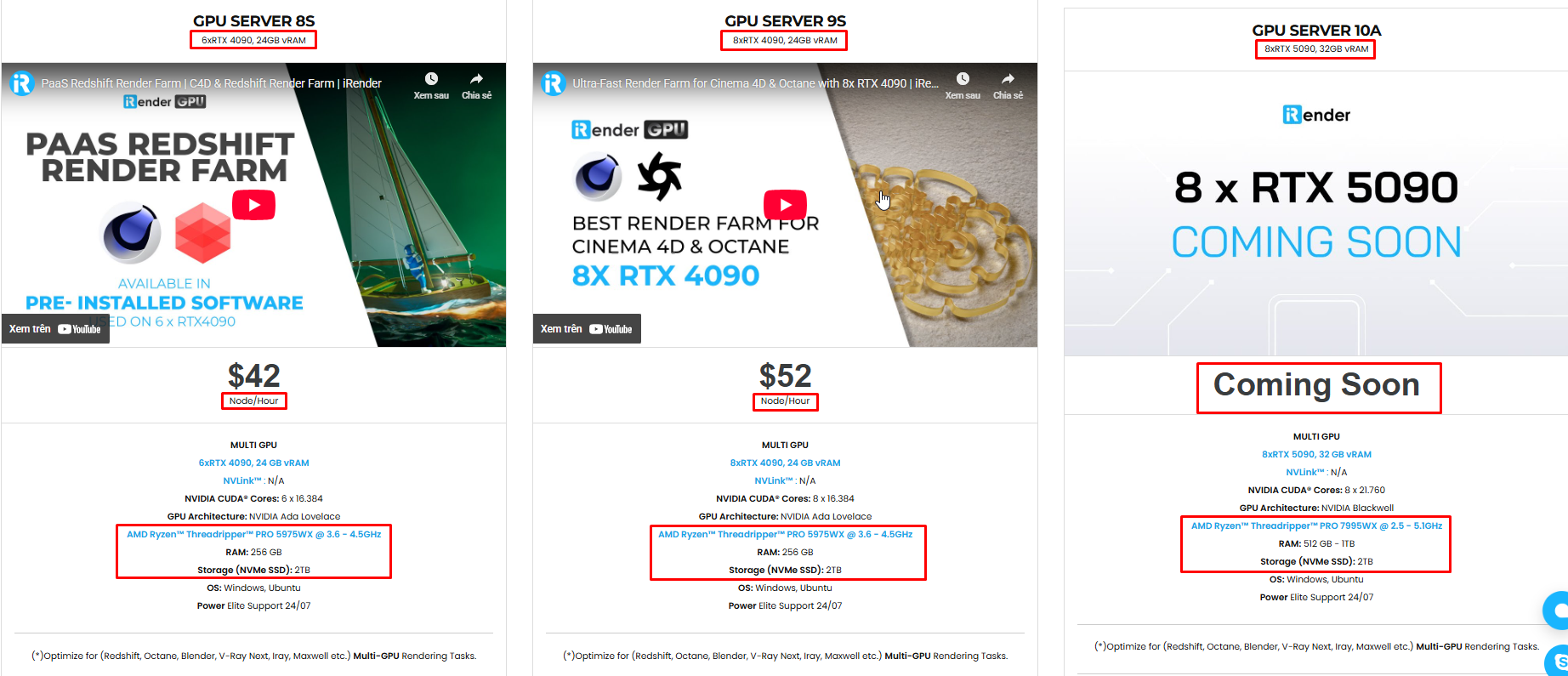
iRender stands out as one of the most powerful and flexible rendering platforms available for Octane and Cinema4D users. iRender provides instant access to high-performance GPU servers, featuring top-tier hardware like the RTX 4090. Most importantly, we always update to the latest GPU technology, with options including 1/2/4/6/8 RTX 4090. We also have all servers with Cinema4D preinstalled and provide you with one license C4D for free to use.
Under the IaaS (Infrastructure as a Service) model, you will have full control over the machine via a remote desktop app, similar to TeamViewer but more stable. You will be able to proactively install the software and use it on the server just like using a personal computer. In addition, you can find many server packages with high-end configurations that are extremely suitable for complex projects.
Below is the quick start video. We’ll walk you through how to render your C4D Octane project on our powerful server in just a few easy steps.
Additionally, we run a real scene test to measure render speed, GPU scaling, and overall performance on server 8xRTX4090, so you can see exactly what to expect when rendering Octane projects on the iRender render farm.
Let’s watch the results and find out which GPU configuration offers the best balance of speed and efficiency!


Why choose iRender?
- Rent machines with multiple GPUs (up to 8x RTX 4090)
- Flexible pricing based on your workflow
- Instant scaling—great for deadline crunches
- Perfect support for Redshift, Octane, Arnold, and more
- Access from Windows or macOS
Instead of spending thousands on hardware upgrades, you can scale your power only when you need it.
Below is information about iRender’s service packages:
We’re always happy to help you with any questions. If you have any problems or questions, don’t hesitate to contact our 24/7 support team. Or via Whatsapp: 0912 785 500 for free advice and support.
Right now iRender is offering a SPECIAL PROMOTION: enjoy a 100% bonus on your first top-up. This means your first deposit will be doubled, and your points never expire, allowing you to use them whenever you need.
Sign up for an account today to experience and enjoy our services.
Thank you & Happy Rendering!

Related Posts
The latest creative news from Octane Cloud Rendering





