
How to fix the ‘Twinmotion cannot import the file’ error?
Twinmotion is a powerful visualization tool, but users sometimes encounter the “Cannot import the file” error when importing 3D models. Don’t worry — this issue is usually easy to fix. Here’s how you can solve it quickly.
Let’s get started with iRender!
What is the “Twinmotion cannot import the file” error?
The “Twinmotion Cannot Import the File” error appears when Twinmotion fails to read or process a 3D model file during import. This issue typically occurs when importing external assets from modeling software such as Revit, SketchUp, Blender, 3ds Max, or Archicad.
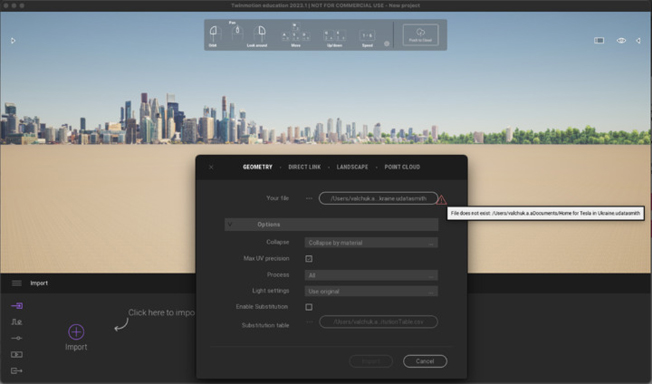
The error message usually pops up right after you attempt to import a file or use a Direct Link. This means that Twinmotion cannot interpret the data within the file correctly.
Common causes
This error usually occurs due to problems with the file’s format, structure, export settings, or compatibility.
Here are the most common reasons this error appears:
- Unsupported File Format: Twinmotion supports specific file types (like FBX, OBJ, SKP, C4D, GLTF/GLB, and DAE). Trying to import an unsupported or outdated format often triggers the error.
- Incompatible Export Settings: Files exported using newer or unsupported FBX versions (e.g., FBX 2020) can fail to load.
- Corrupted or Complex Geometry: Heavy, corrupted, or overly detailed 3D geometry may prevent successful import.
- Texture and Material Issues: Missing, broken, or long texture paths can block Twinmotion from reading material data properly.
- File Path or Naming Problems: Files saved in folders with long paths, special characters, or non-Latin letters may cause Twinmotion to fail during import.
How to fix the ‘Twinmotion cannot import the file’ error?
Check File Format Compatibility
Twinmotion supports importing these formats:
- .FBX, .OBJ, .SKP (SketchUp)
- .C4D, .DAE, .3DS
- .GLTF /.GLB
- .DWG, .DXF (limited)
- .TM (Twinmotion native)
If you’re using a Revit or Archicad file, use the Direct Link plugin instead of exporting a static file. You should export the model to a supported format (preferably FBX), then re-import it into Twinmotion.
Use Datasmith Exporter for SketchUp to import
The Datasmith Exporter plugin for SketchUp Pro features Direct Link functionality that enables you to synchronize your files into Twinmotion with a single click. You can also synchronize multiple files from SketchUp Pro into the same Twinmotion project and match them with files from other design applications that offer Datasmith support.
How to install the Datasmith Exporter plugin for any supported version of SketchUp
- Close any instances of SketchUp that are running on your machine.
- If you have already installed an older version of the Datasmith Exporter plugin, we recommend uninstalling it first. For details, see Removing the Datasmith Exporter for Sketchup below.
- Download the Exporter plugin installer from the Datasmith Export Plugins download page.
- When the download has completed, run the installer.
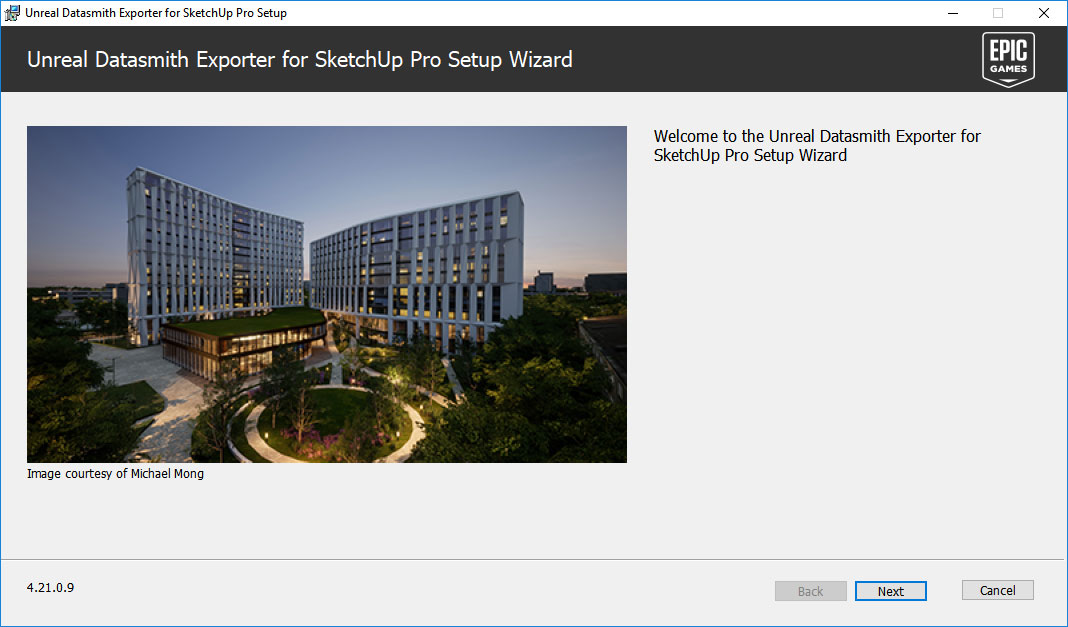
You can have a look at the tutorial video to use Datasmith Exporter plugin for SketchUp:

Clear Twinmotion Cache
Sometimes, the “Twinmotion Cannot Import the File” error is caused by corrupted or outdated cache files stored on your computer. Clearing the cache forces Twinmotion to rebuild fresh data, which often resolves unexpected import issues.
-
Close Twinmotion completely.
-
Press Win + R, type:
LocalAppData%\Twinmotion -
Open the folder for your Twinmotion version (e.g.,
Twinmotion2025.1). -
Delete the folder named Cache (you can also delete Temp if it exists).
-
Restart Twinmotion and try importing your file again.
Update GPU driver
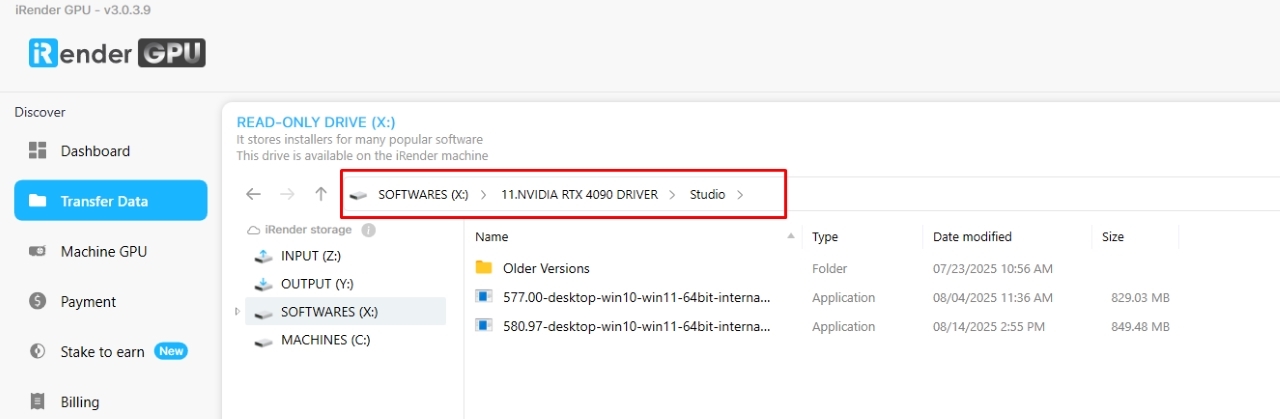
Newer versions of Twinmotion are usually more compatible with the latest GPU drivers. If you got the issues on iRender machine, you can try to update NVIDIA Studio driver.
Step 1: Go to the X: Drive on the remote machine and open the folder: 11. NVIDIA RTX 4090 DRIVER > Studio
Step 2: Find the latest Studio Driver installer
Step 3: Copy it to the remote desktop and run it.
Step 4: After installation, restart the machine.
What iRender can offer to Twinmotion users?
iRender is the best Render farm for Twinmotion Rendering with Powerful Render Nodes: RTX 4090. iRender provide to you high performance and configurable server system for 3D rendering, AI Training, VR & AR, simulation, etc. We believe that design and creative activities are private and personal that only you artists will know what you want with your animation. That’s the reason why we provide remote server so that you can install any software you need, and do whatever you like with your project. You will only need to install Twinmotion jus Once and next time you connect to the computer everything is ready for use.
Let’s see if our server 3S single card RTX 4090 which can meet your Twinmotion’s project demands.
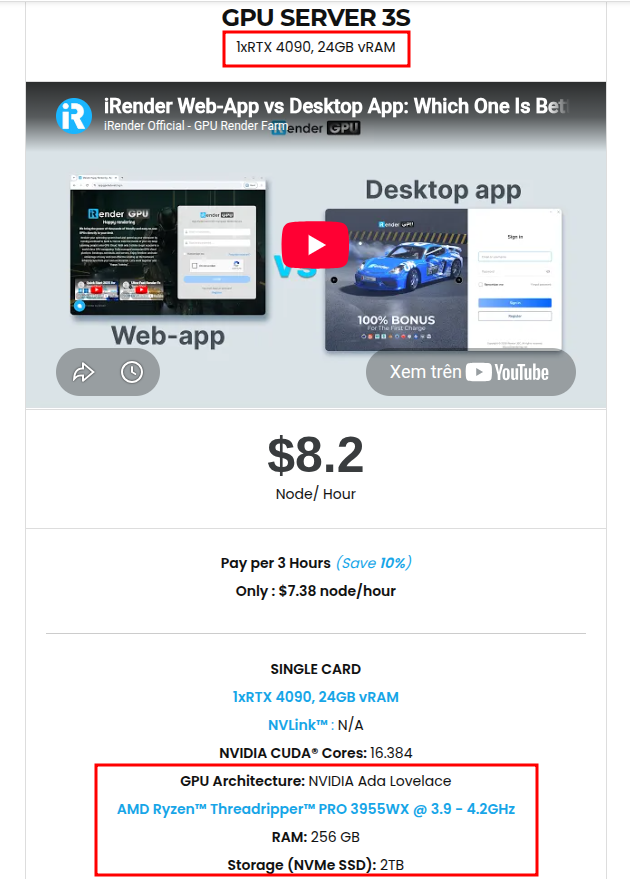
This server 3s is the fixed rental server which costs 8.2 $ per hour. It is equiped with a strong CPU AMD Ryzen™ Threadripper™ PRO 3955WX @ 3.9 – 4.2GHz, RAM 256GB, 256GB RAM, and 2TB NVMe SSD storage. Our machines can handle even the heaviest and complex scenes in your Twinmotion projects.
Why choose iRender?
If you’re working with comple Twinmotion GPU-heavy plugins, or need render power without investing in expensive hardware, iRender offers a flexible and powerful solution.
- Powerful GPU Rendering
- Full Control & Customization
- Flexible Pricing
- Fast Data Upload
- Fast Livechat support
iRender provides the iRender GPU App, a powerful and free file transfer and management tool designed to streamline your rendering workflow. This all-in-one application allows users to upload, sync, and launch projects directly, without accessing the iRender website.
We are running a SPECIAL OFFER: 100% Additional Bonus for new clients who register an account and make a top-up within 24 hrs of registration.
In case you have any problems or questions, don’t hesitate to contact the livechat support team. We will be happy to help you with your questions and problems at all times.
Register an account today to experience our service or contact us via the email [email protected] or WhatsApp: (+84) 912075500 for advice and support.
iRender – Happy Rendering!
Related Posts
The latest creative news from Enscape Cloud rendering, Lumion Cloud rendering, V-Ray Cloud Rendering , Twinmotion Cloud Rendering , 3D VFX Plugins & Cloud Rendering.





